Order Management automatically transforms Sales Orders to Transformed orders according to rules you setup. For example, you might setup a transformation rule that defaults a country-appropriate AC adapter for a laptop based on the ship-to country on the Sales order.

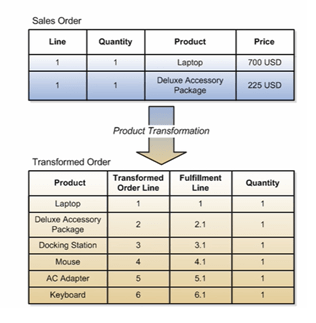
Below Image represent difference between Sales Order and Transformed Order. A Sale order has Sales order lines but each Sales order gets transformed to Fulfillment lines based on the transformation rules.

- Below is a classic example of Sales Order line getting transformed to multiple lines.
- Product Deluxe Accessory Package comprises of Docking Station, Mouse, AC Adapter and Keyboard. So this line gets transformed to 5 lines starting from Line number 2 till 6.
Types of Transformation
- Product Transformation is executed using a combination of:
- Product Relationships
- Product Structures
- Transactional item attributes
- Business rules
- You can write rules to enable the following types of product transformation:
- Product-to-product
- Product-to-Attribute
- Attribute-to-Product
- Attribute-to-Attribute
- Context-to-Attribute
- Context-to-Product
1. Product to Product Transformation:
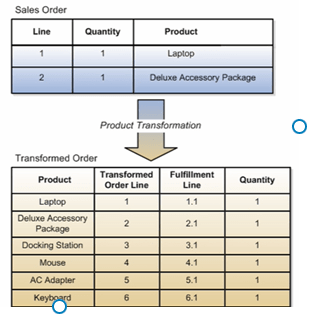
- In Product to Product Transformation one product item can contains many items attached to it. So as soon as transformation rule see the line in Sales order it brings attached lines and add it to fulfillment lines.
- In below case Product Deluxe Accessory Package comprises of Docking Station, Mouse, AC Adapter and Keyboard. So this line gets transformed to 5 lines starting from Line number 2 till 6.
2. Attribute to Product Transformation
- Based on attribute like Color, size, capacity, relevant product is chosen.
- Sales order has requirement of Product Mini Plus with attributes
- Color = Silver
- Size = 8 MB
- Product Transformation rules has different product code based on the features. Seeing the requirement it will pick Product VIS481A from the below table.

3. Context to Product Transformation
- Based on certain criteria or value in Order, Product mapping is done. E.g. If shipping address is Domestic address in US, deliver 2 pin chargers of laptop. If Delivery Address is outside US, like U.K then deliver 3 pin charger.
- Since Sales order has requirement of Product = Vision Pro Plus HD Wide-screen Laptop to be Delivered to USA address. Based on transformation rule Product AC12345 with 2-pin Power Cord gets picked.

4. Product to Attribute Transformation
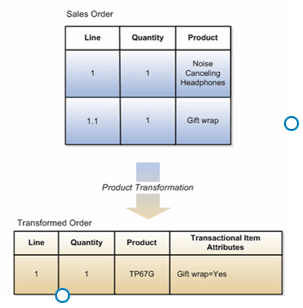
- If Order has 2 lines, then they can be clubbed together to one line with Item which has second line as it’s Transactional Attribute.
- We have requirement of Gift Wrap as part of Sales Order, based on transformation rule, Product “TP67G” will be picked which has default attribute of “Gift Wrap“.
5. Attribute to Attribute
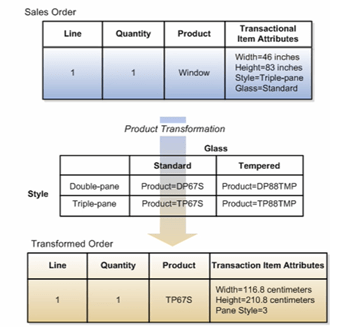
- Based on Transactional attributes of Product in Sales order, Transformation rules determine the attributes of Product.
- In below case we have product “Window” with attribute of Glass = Standard and Style = “Triple-Pane”. Seeing the Glass and Style type transformation Rules pick up Product =TP67S with attributes of Width, Height and Pane Style which gets stored in Transaction Item Attributes.
6. Context to Attribute Transformation:
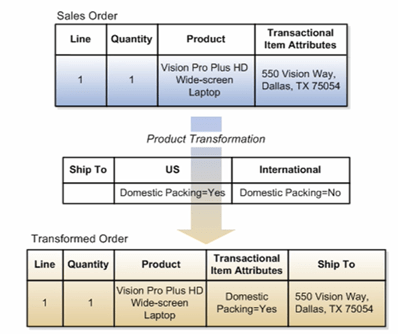
- Packaging is an important component for any delivered. Packaging of product is usually determined based on the shipping address.
- If Shipping address is Domestic, then we have different kind of packaging and if its International we have different style of Packaging. This packaging type gets stored as Transactional Item Attributes.
- In below sales order since Shipping address is Domestic, then packaging details gets stored as transactional attribute in the Product.
Setting up Transformation
- Step 1: Define Items in Product Information Management Work Area
- Step 2: Define and Generate rule bucket sets
- Step 3: Set the bucket sets to the facts when creating Conditions
- Step 4: Create Rules
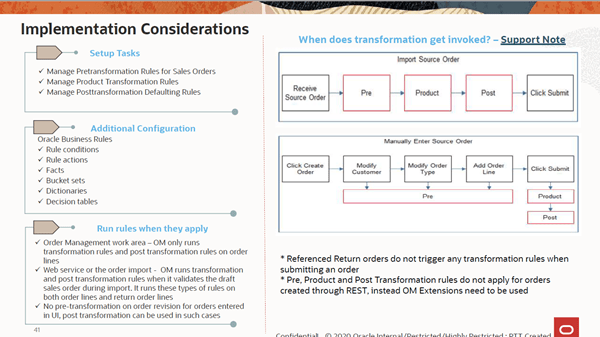
Transformation Rule Use Case

Transformation Using Oracle Business Rules.
Following components are used in Oracle Business Rules
- Rule conditions
- Rule actions
- Facts
- Bucket Sets
- Dictionaries
- Decision tables

Product Transformation Rule
- Navigation : Go to Others -> Setup and Maintenance -> Order Management -> Search for task “Manage Product Transformation Rules“.
Case 1: To Substitute One Item with Another Item during Orchestration Process
- Go to Others -> Setup and Maintenance -> Order Management -> Enter Task “Manage Product Transformation Rules”
- Create new Rules, click on Active and Advanced Mode
- Enter condition as shown
OrderTransformationRules.FulfillLineVO.InventoryItemId.longValue() is 300000003357446L
Then
assert new -> OrderTransformationRules.ModifyEntity ->
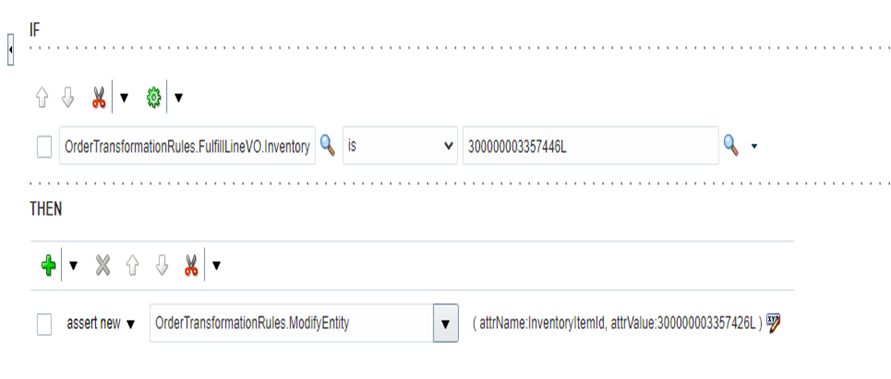
- Click on Properties icon, right section of Assert New line and and enter below values.
- Do click on Constant check box for attrValue line.
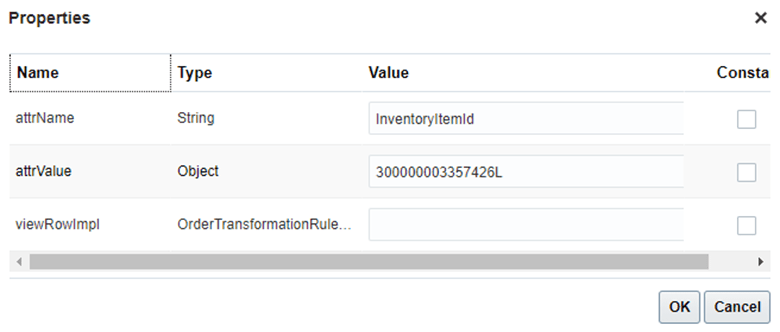
- Click on Save and close.
- Click on Release

Case 2 : To add additional line if order qty is more than 4.
- Go to Others -> Setup and Maintenance -> Order Management -> Enter task “Manage Product Transformation Rules”
- Create new Rules, click on Active and Advanced Mode
- Enter condition as shown in next column
IF FLINERV is a OrderTransformationRules.FullFillLineVO and FLINERV.InventoryItemId is “1234”
and FLINERV.ORDERQTY is 4
then assert new -> OrderTransformationRules.AddNewOrderLine newItemId:1234, viewRowImpl:FLINERV.ViewRowimpl

- Properties section should look like below

- Click on Save
- Click on Release
Pre-Transformation Rule
Case 1 : To automatically adds text instruction into the Shipping Instructions field of the fulfillment line based on the item.
- Go to Others -> Setup and Maintenance -> Order Management -> Enter task “Manage Pretransformation Rules for Sales Orders”
- Click on Create new Rules
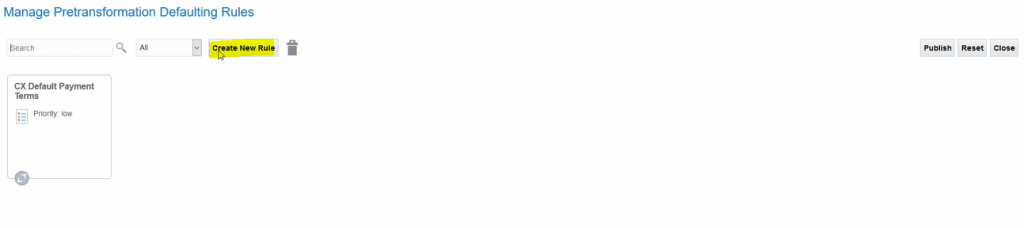
- Enter Rule Description text = “Shipping Instruction Defaulting Rule 01” and click OK
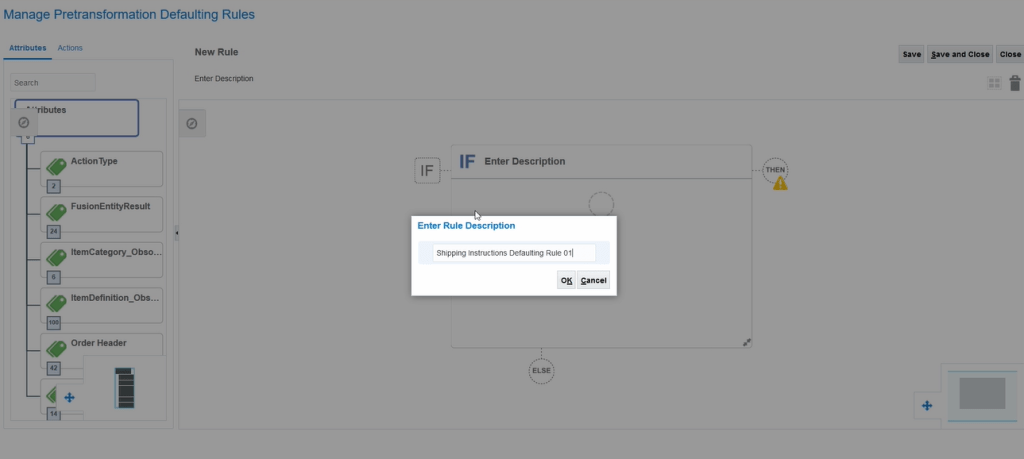
- Enter Description Value for IF section “Item is CM50008”
- Click on Circle to add condition.
- Enter Item and Search for Item.preTransformationRules.OrderFulfillLine
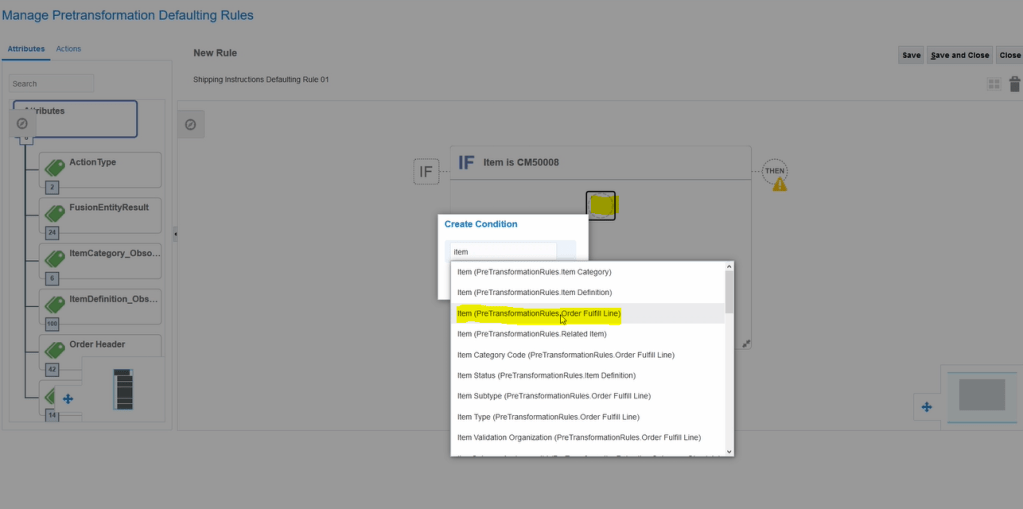
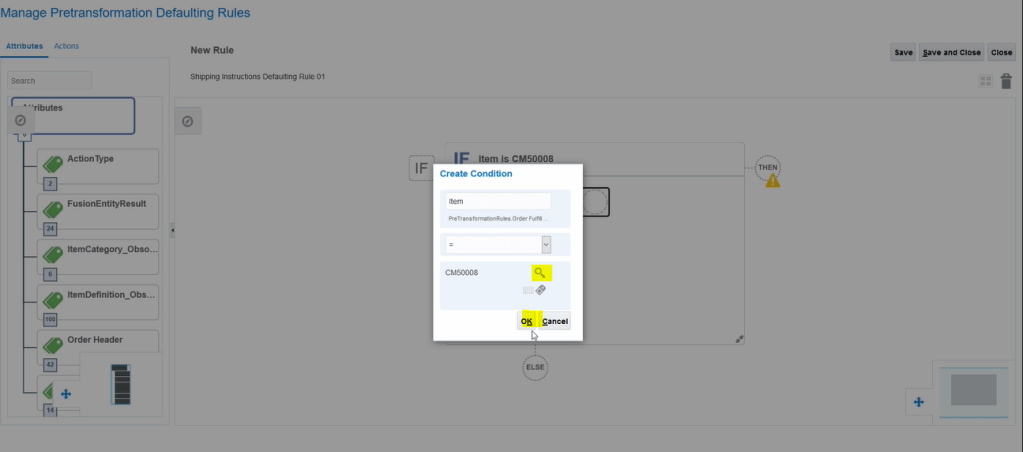
- Select Operator “=”
- Click on Search Icon and search for Item = “CM500008” and click on Ok
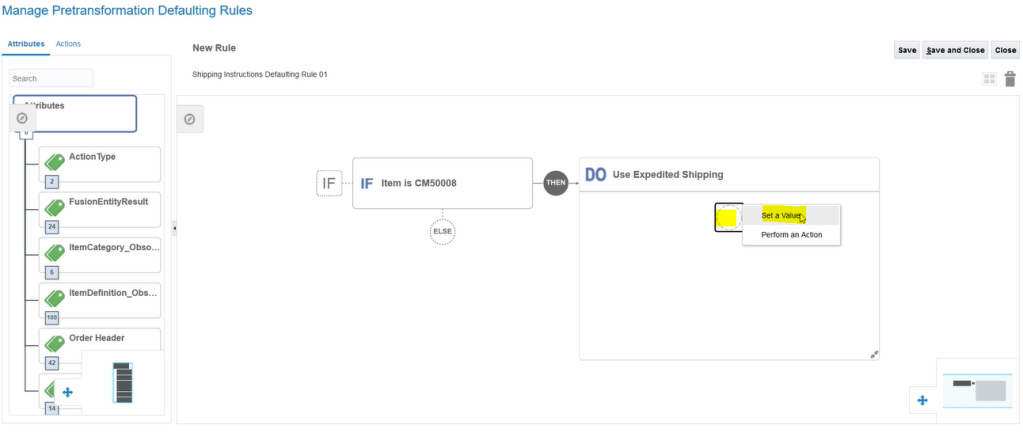
- Click on Then -> DO
- Enter Description = “Use Expedited Shipping”
- Click on circle for Condition and select Set a Value
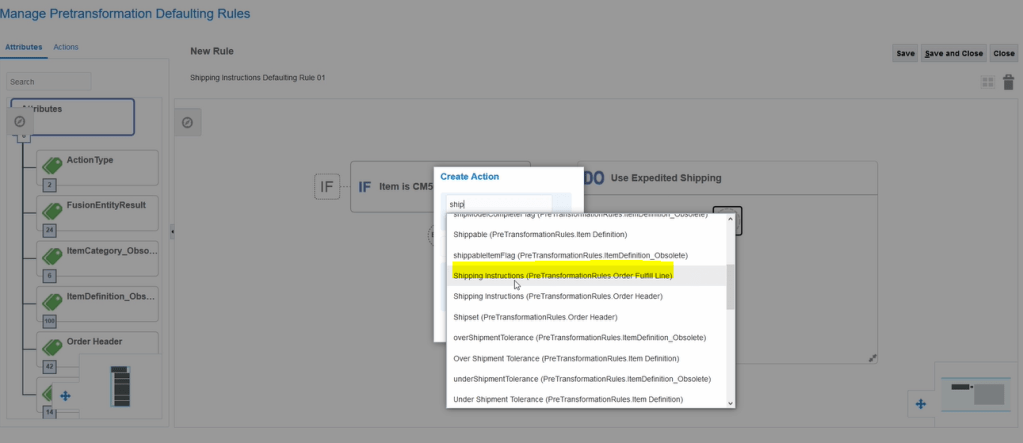
- In Create Action > select Shipping Method = Shipping Instructions(PreTrasnformationRules.Order Fulfill Line)
- is set to “Expedited Shipping”
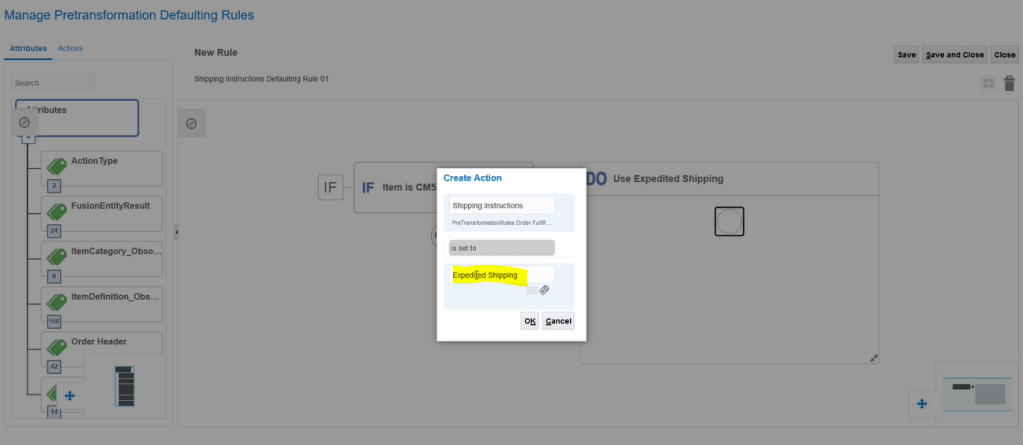
- Click on Save and close
- Click on Publish
Case 2 : To Automatically set default values or perform any action
- Go to Others -> Setup and Maintenance -> Order Management -> Enter Task “Manage Pretransformation Rules for sales orders”.
- Click on Create New Rule and enter Description
- In IF condition (Can enter multiple condition with AND clause)
a. Enter Attribute as Order Type(Order Header)
b. is equal to
c. click on lens icon to search values or click on attribute to select any attribute value - In THEN section
a.Select Set a Value-> Enter attribute-> Warehouse( Order Fullfill Line) -> is set to ->click on lens icon to search values or click on attribute to select any attribute value
b. Select Perform an Action -> set value to Header Extensible FlexFields or set Value to Fullfillment Line Extensible Flexfields -> Select Header Context Segment Attribute type from drop down
enter Value based on data type - Click on save and close
- Click on rule -> Activation Rule -> Check to box
- Click on Publish
Post-Transformation Rule
Case 1 : Automatically set default values or perform any action.
- Go to Others -> Setup and Maintenance -> Order Management -> Enter task “Manage Posttransformation Defaulting Rules”.
- Ensure Active and Advanced Mode is checked
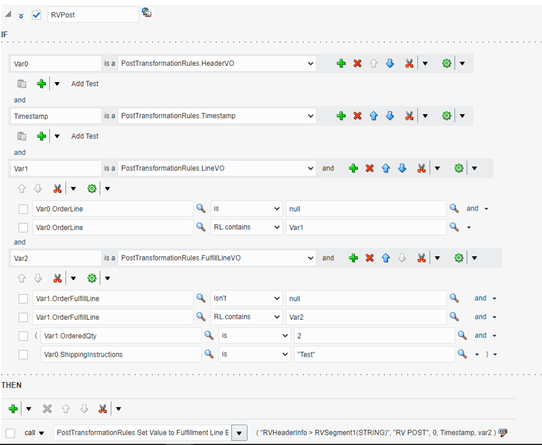
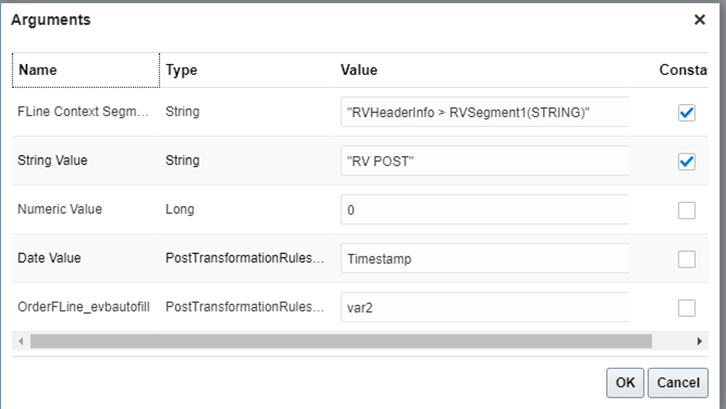
- In Then section, if you want to default value in Fullfillment line EFF select PostTransformationRules.Set Value to Fulfillment Line Extensible Flexfields
- Click on Pencil Button and then enter value
- First value is code of Context and second value is code of Context Sensitive Segments
- Click on Save
- Click on Publish

 My Cloud Journey