Extensible Flex Fields are set of Placeholder fields associated with Business Objects.
It appear on Application Pages to contain additional data.
It is used to
Modify Business Objects and Meet enterprise Data management requirements without changing the data model or performing database programming
Capture different data on the same database table
Modify features of the application
Integrate Order management with another application by capturing one or more attributes from other application.
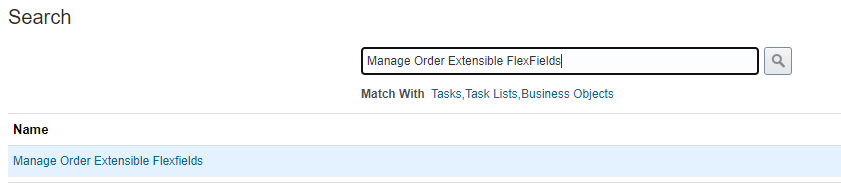
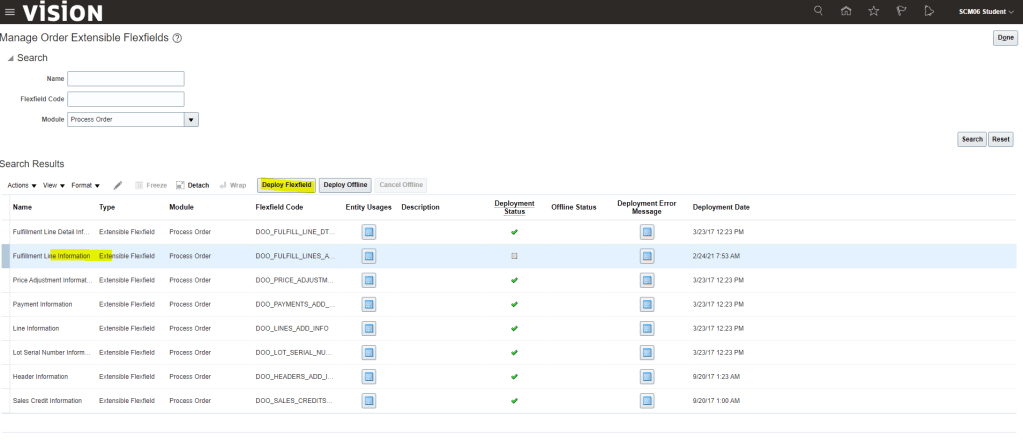
Navigation -> Go to Others -> Setup and Maintenance -> Order Management -> Enter task(Manage Order Extensible FlexField).
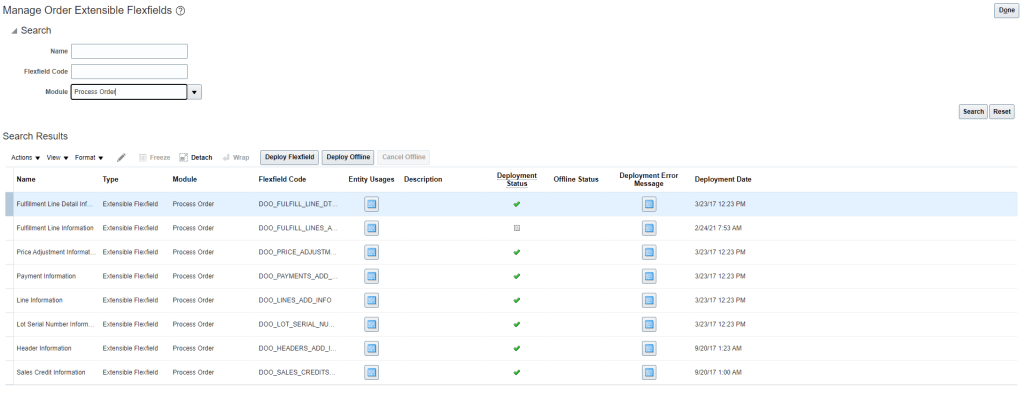
In Module enter “Process order” and click on Search.
Select flexfield, “Fulfillment Line Detail Information” and click on Actions -> Edit.
Once edit screen appears, on right side, click on Manage Contexts.
On Manage Contexts screen, click on Actions -> Create
Context Page Navigation.
Enter Display Name, Select Behavior as Single Row or Multiple Rows. Multiple Rows should have one unique Key check box enabled.
Under Context Usages Click on create-> Select Additional Line Information from drop down.
Click on Save.
Under Context Sensitive Segments click on Create -> It will take us to Create Segment Page.
Create Segment page Navigation.
Enter Name. Do not enter Code and API name, it should get populated by default
Enter Data Type -> Table Column will get populated by Default Validation -> Value Set -> you can create Value set or select from existing list
Under Context Sensitive Segments, Click on Actions -> Create.
Segments represents attributes of Entities(Business Objects).
Context are groups of attributes.
Value sets are set of valid values which are assigned to a flexfield segment.
On Segment Page, Enter Following details for Segment
Name = “Item Type”
Code and API Name will get populated by default
Choose Data Type = Character
Table Column = ATTRIBUTE_CHAR1
Click on Save and then click on Create Value Set
Click on Create Value Set -> Enter following
Value Set code
Enter Module = Process Order
Validation types = Choose between following
Format Only = “Free Text instead of selecting values from the dropdown list”.
Independent = These are free form of valid values.
Dependent = A valid values in a list of values derived from the independent value of another segment.
Subset = The list of values is a subset of the values in an existing independent value set.
Table = The values derive from a column in an application table, which can optionally be limited by a WHERE clause.
Value data type = Either Number or Character.
Click on Save
To enter default values click on Manage Values at Top Right corner and add values
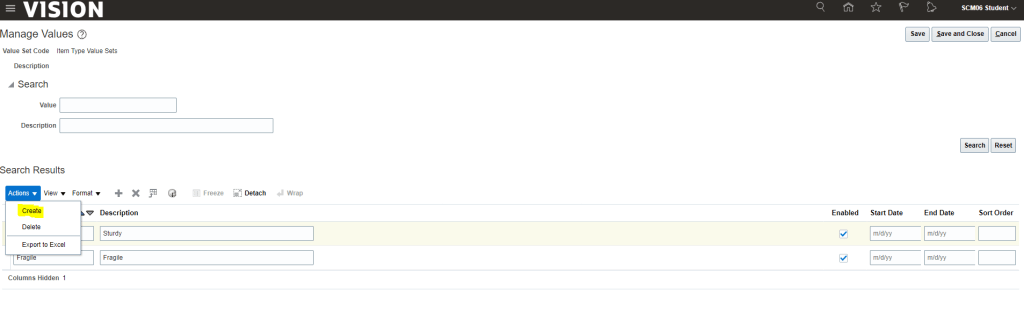
On Manage Values Page -> Click on Actions -> select “Create”.
Enter Value sets values and Description.
On Manage Values page, click on Save and Close. It will take us to Create Segment page. On Create Segment Page Click on Save and Close.
New Context Line “Item Type” gets added. Click on Save and Close.
After reaching to “Edit Extensible Flexfield” page
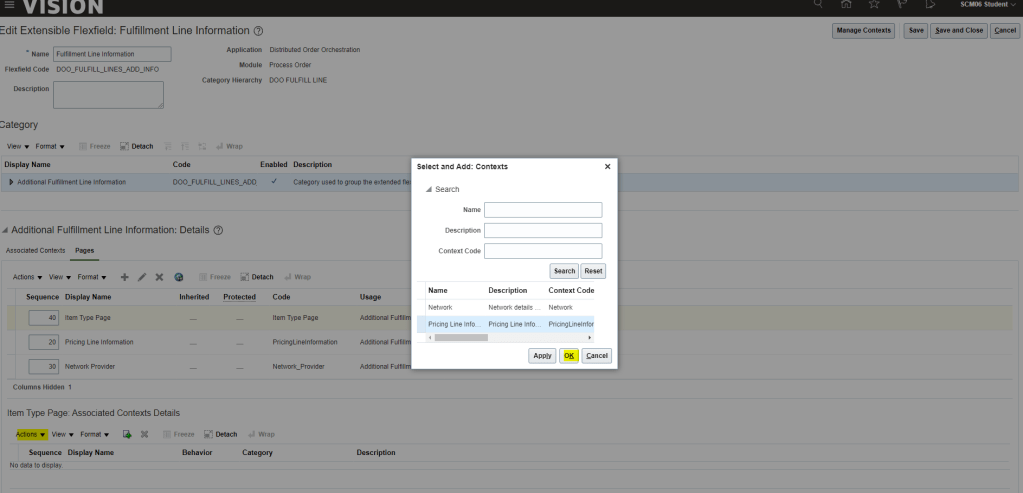
Click on Actions of Associated Contexts under Additional Line information and click on Select and Add
Search for your line context and click on Apply and OK
Click on Save
Click on Pages tab under Additional Line information and click on Create under Actions
Create Page will get displayed
Enter Display Name , Usage enter Additional Line Information -> click on Save and close
Under : Associated Contexts Details section, click on Select and Add -> Search for Name of Context and click on Apply and Add.
On Manage Order Extensible Field main Page, select Line Information and click on Deploy FlexField. In case we have made many changes, its advisable to choose Deploy Offline.
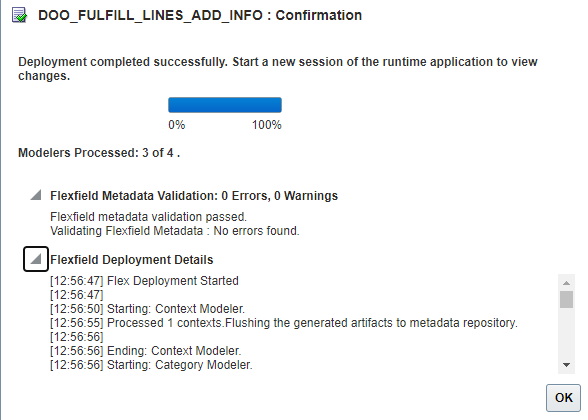
Deployment process
We should see Deployment is successful Message.
Run Job “Publish Extensible FlexField Attributes” to make this change available on Order management screen
Go To Order Management. At Line level, Click on Additional Information. We should be able to see our new EFF created.







 My Cloud Journey