Pre-requisite : Refer link to create/understand BI Fusion Report from Scratch
https://wordpress.com/post/ravidubey.work/372
Below steps explain how to create parameterized BI report
Step 1: Create New DATA MODEL
- Go to Menu Option New
- Select Data Model
- Click on + Icon
- Select SQL Query
- Create a Data model with SQL query
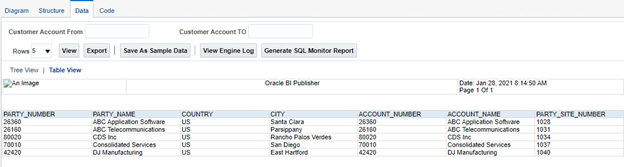
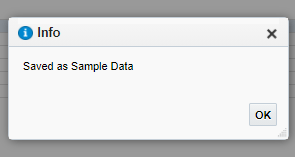
- Save as Sample Data which needs to be used by Report when creating report from Instance
- Export the data and perform steps 2 and 3 of Report Generation from below link
https://wordpress.com/post/ravidubey.work/372
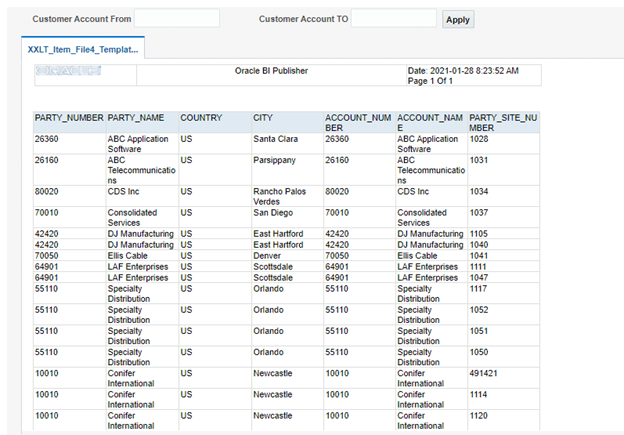
- Below Report appears.
Step2 : Save the Path of your BI report. It will be used to Setup job
From Hyperlink of your BI report, copy path starting after Path=. So for my case, path to be copied is what is shown belo
%2FCustom%2FRavi%20Test%20Folder%2FXXLT_Item_File4_ReportActual.xdo&path=%2Fshared%2FCustom%2FRavi%20Test%20Folder%2FXXLT_Item_File4_ReportActual.xdo
Step3 : Setup the Job Definition
- Navigation : Go To Setup and Maintenance -> In Order Management Search for task “manage%Enterprise%Financial”
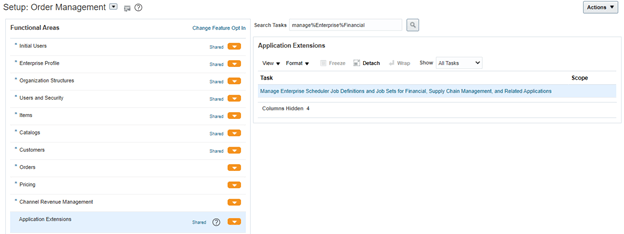
- Click on “+” button to create new Job Definition.

- Fill Details as shown below for setting up Job Definition
- BI Path copied in Step2 will be used in Report ID section.

- In case it is Parameterized Report, click on Tab “Manage List of Value Sources” and Enter Values


- Click on + symbol to create parameters for Job

- Enter Values as shown below and Click on Save and Close or Save and Create Another Parameters in case we have multiple parameters.

- Once Parameter created, Click on Save and Close of Job Definition
Step4 : Run the Job
- Navigation : Go to Tools-> Schedule New Processes and Enter your Job Definition Name

- Click on Okay, below screen appears
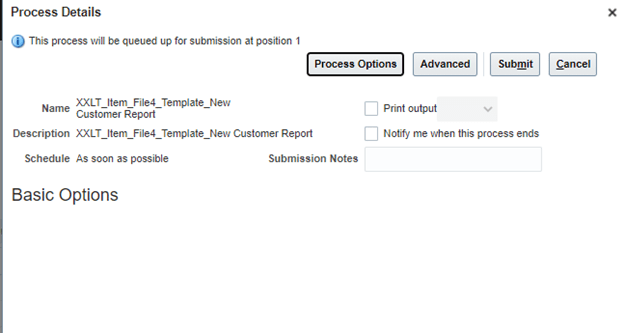
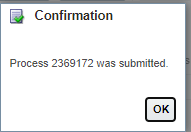
- On clicking Submit Button, Job Gets submitted and Output can be seen in Log of Job in PDF form.

 My Cloud Journey