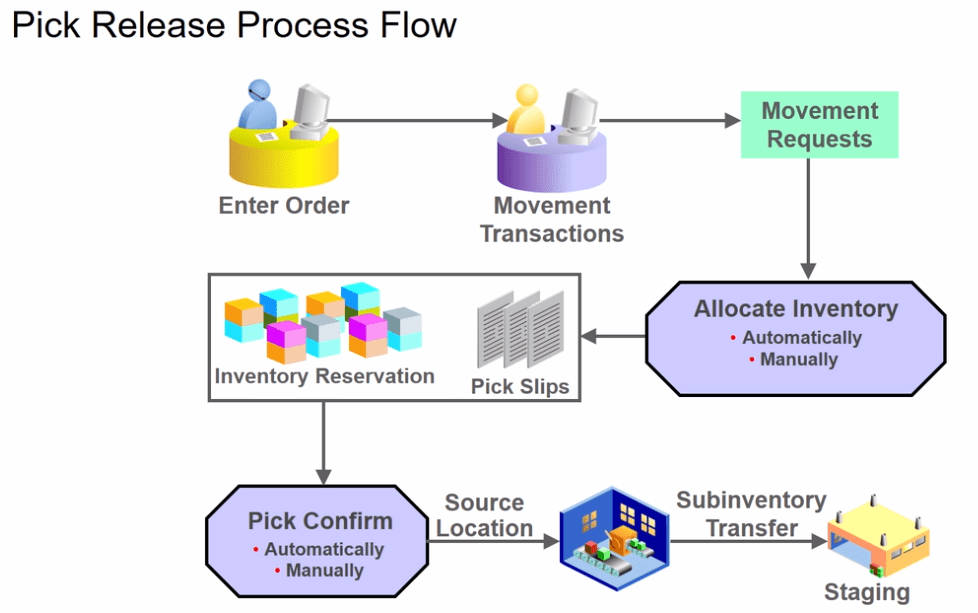
Pick Release Steps
We can have Pick Release in max three steps and Minimum 2 steps as depicted in below diagram.
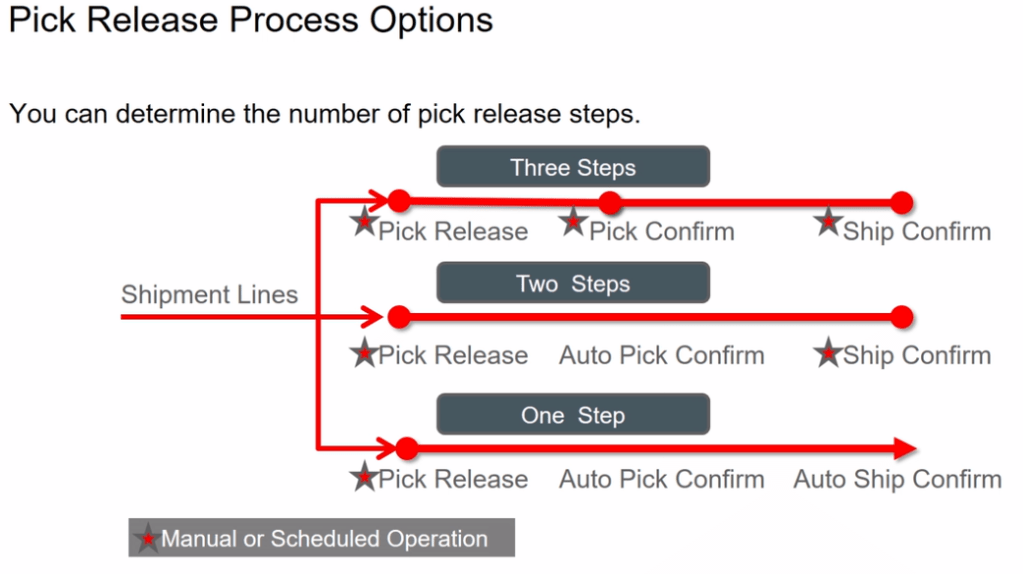
Pick Release Process

What happens
Picking Rules
Picking Rule enables you to define the criteria that determines how material is consumed. For example, LIFO, FIFO, Lot Ascending, Locator Ascending. After you create a picking rule, it can be enabled for usage in various organizations. Below is the Industry standard few of the movement rules. Of which Picking rule is movement between FGS and Staging Area.

Step 1: Create Pick Rule and Pick Assign the rule
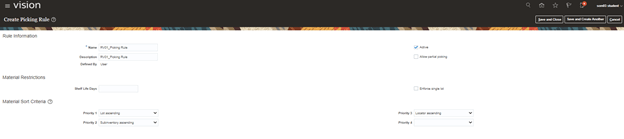
Create Picking Rules
- Navigation -> To go Setup and Maintenance -> Click on Task Pane Carousel -> Click on Search.
- Enter Task “Manage Picking Rules”
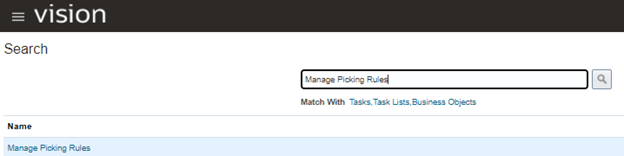
- Click on + button to create Picking Rule
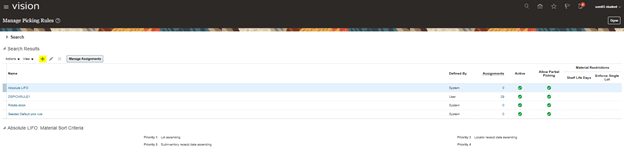
Sorting is done based on 4 Criteria.
In below scenario I am giving 3 criteria. So, precedence will be Priority 1 then Priority2 and finally Priority 3.
- Priority 1: Lot Ascending
- Priority 2: Subinventory Ascending
- Priority 3: Locator Ascending
Step 2: Create Picking Rule Assignments
- Navigation -> To go Setup and Maintenance -> Click on Task Pane Carousel -> Click on Search.
- Enter Task “Manage Picking Rule Assignments”
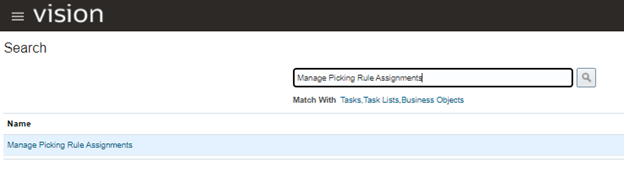
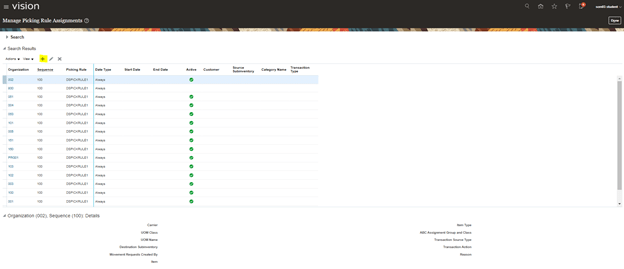
- Click on Picking Rule Assignment. Then Click on + to assign Picking Rule.
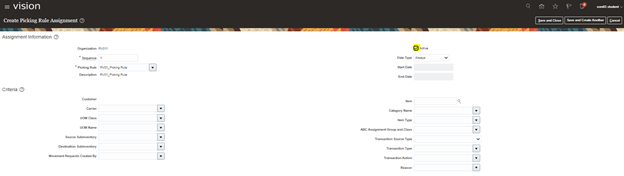
- Enter Values as shown below. Criteria can be given accordingly for Picking Rule.
Picking rule has Sorting Rules
- Navigation -> To go Setup and Maintenance -> Click on Task Pane Carousel -> Click on Search.
- Enter Task “Manage Subinventories and Locators”
- Select Organization :”RV01″(organization created for my example)
- Select Subinventory and click on Edit
Sorting at Subinventory level
- It is Determined by Picking Order. RV01_Dyna has Picking Order 1

- While RV01_Dyna2 has Picking Order 2.

Sorting at Locator Level
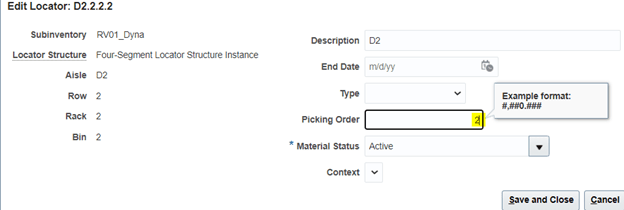
- Picking order determines Sorting at Locator Level. D1.1.1.1 has Highest Precedence over D2.2.2.2 due to Picking Order.

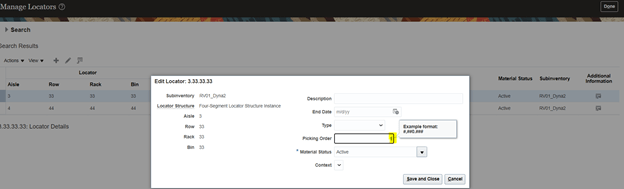
- 3.33.33.33 has Highest Precedence over 4.44.44.44 within Subinventory RV01_Dyna2 due to Picking Order.

Step 3: Create Item at with Full Lot control.

Step 4: Create Miscellaneous Receipt at Subinventory and Locator Level providing Lot Number.
Transaction 1: Subinventory RV01_Dyna. Locator: D1.1.1.1, Lot: RV01_Lot103

Transaction 2: Subinventory RV01_Dyna. Locator: D2.2.2.2, Lot: RV01_Lot103

Transaction 3: Subinventory RV01_Dyna2. Locator: 3.33.33.33, Lot: RV01_Lot104
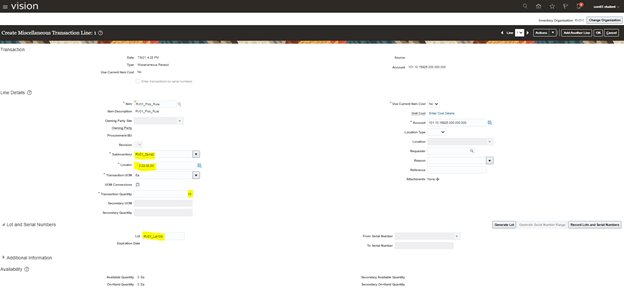
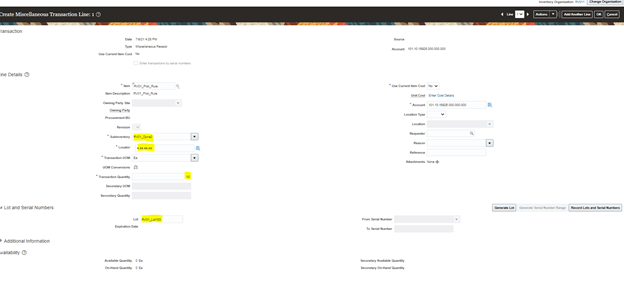
Transaction 4: Subinventory RV01_Dyna2. Locator: 4.44.44.44, Lot: RV01_Lot103
Step 5: Miscellaneous Transactions got created
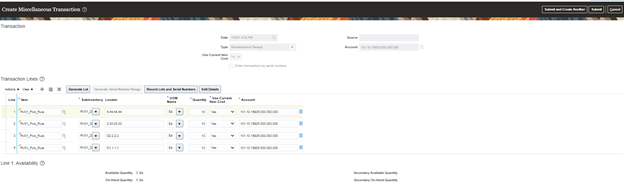

Step 6: View Item Quantities received using Manage Item Quantities option.

Step 7: Create Movement Request

- Navigation: Go to Supply Chain Execution -> Inventory management -> From Task Carousel select “Manage Movement Request”.

- Click on + button to create Movement Request

Things to consider
- By default, Movement Request will get populated. Erase it and provide user defined name.
- Source Subinventory should always be kept blank
- Select Item for which movement needs to be created.
- Give quantity to be moved.

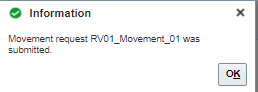
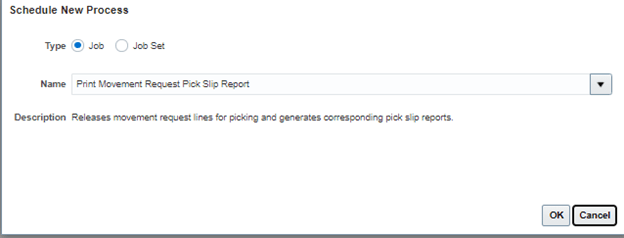
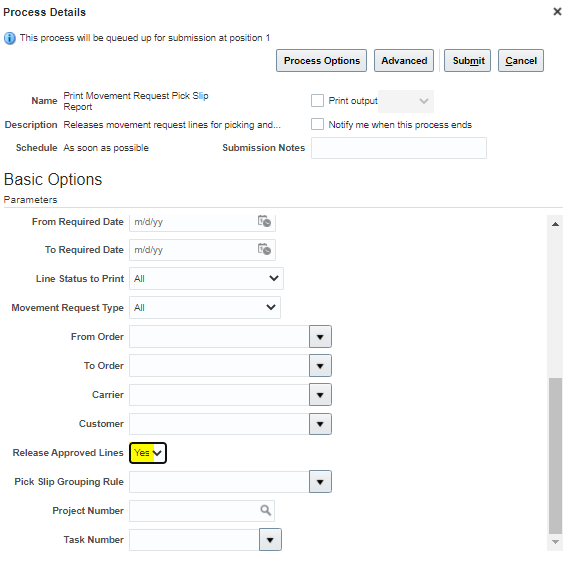
- Submit Job for Print Movement Request Pick Slip Report to allocate movement.
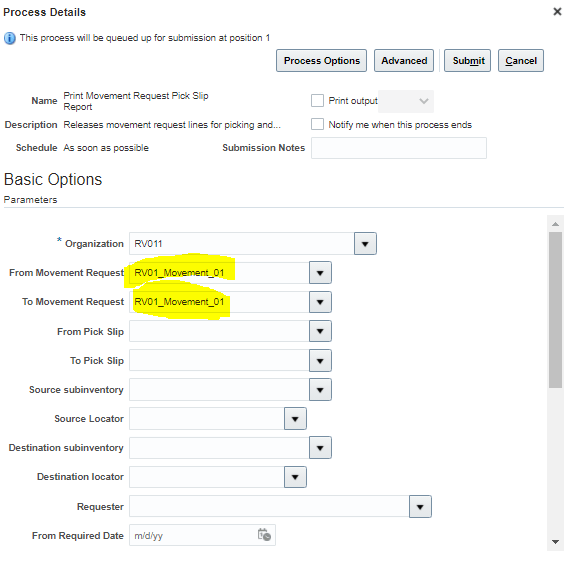
- Ensure Release Approved Lines to “Y”.

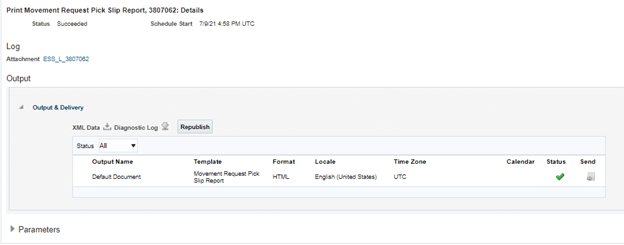
- Click on Republish button
- Click on Wheel Button -> Export and PDF
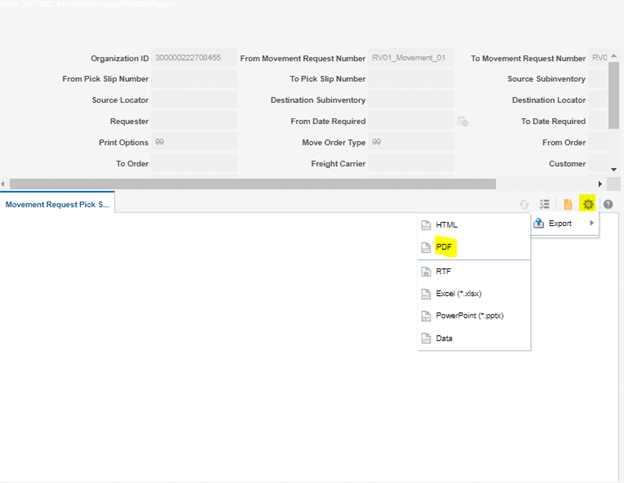
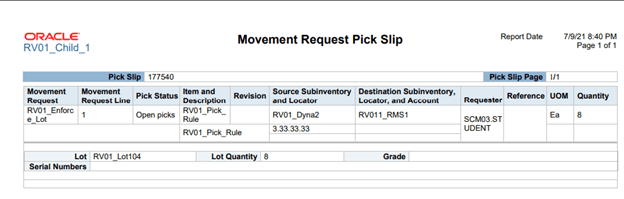
- Below Pick Slip will be printed which will decide Picking based on Sorting criteria defined above.

Step 8 :Provide User access to see Pick Confirm. Warehouse and Shipping Manager Role is required.


Step 9 :Pick Confirm Screen appears
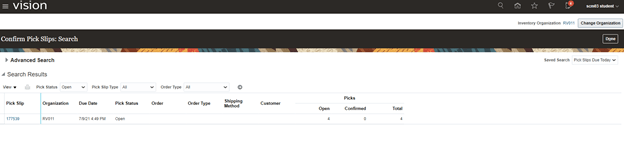
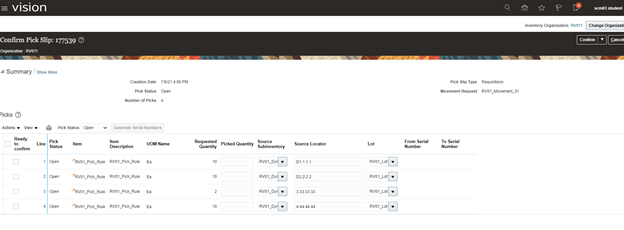
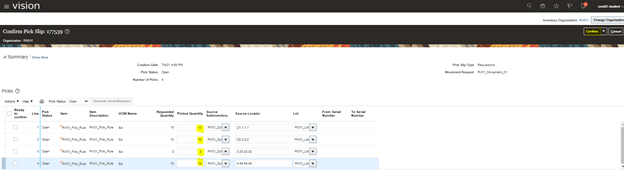
- Enter Picked qty against Requested qty and click on confirm.
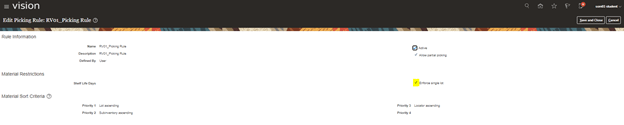
- Using Enforce Single Lot in Picking Rule setup
- The enforcement of a single lot for the specific picking rule. If not, multiple lots may be picked.
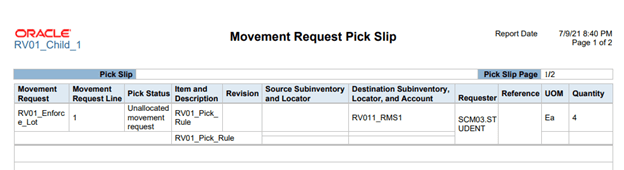
- Note: Enter qty as 12 while performing Movement request. Since we only have 8 qty left in Subinventory we will check report generated from scheduled process.
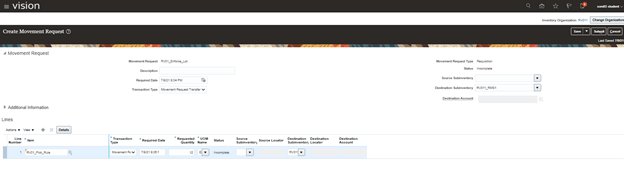

- So, we have open pick for 8 QTY which is good.
- We do not have account of remaining 4 QTY due to which, Unallocated Movement request can be seen.
- In Pick confirm screen, one movement request of 8 qty can be seen.


 My Cloud Journey