Due to any business needs or change in demand, there is always a need to create revision of Order. Revision could be due to change in quantity(Increase or Decrease of item), change in item(Instead of Apple Phone look for Samsung phone) or change in attribute of item (Color of Mobile phone could be change i.e. from Blank to Rose Gold).
Oracle gives the flexibility of revision of order with a rider.
Business Flow of Revision of Order
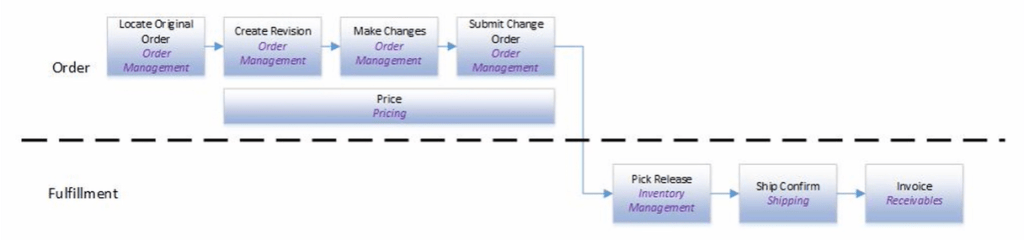
Once order is submitted after making changes to it, Delta change is identified and same is now assessed with respect to its impact on order related to Change in qty, pricing and change of Item. Once change is accepted it is assessed again to see if there is going to be any impact downstream with respect to Pick Release, Ship Confirm and Invoice.
Change Processing Concepts
Whenever a change comes, Order Management should be able to assess if change can be done and if answer is yes then it should accommodate the change seamlessly. OM determine whether its possible to make the change and what all steps needs to be done or redone.
- Processing Constraints : It determines who can make changes , what kind of changes can be made and when in the process the change can be made.

- Navigation : Go to Setup and Maintenance -> Order Management -> Enter Task “Manage Processing Constraints”.
- Select any Constraints “Fulfillment Line Item Update” and it will show the list of rules attached to Fulfillment Line Update.
- Read more about Processing Constraints at link.

- Compare Change Order to Fulfillment Values : Parameter that allows a web service or file-based data import to change fulfillment line values even after Order entry Specialist revise the sales order in Order Management(OM) work area.
- If it is used then OM
- Compares attribute values in the revision to attribute values in the import data to determine whether user has revised the order
- It replaces a user’s revisions with values from the imported data.
- Navigation : go to Setup and Maintenance -> Order Management -> search for task “Manage Order management Parameters“.
- If it is used then OM

- If this parameter is set to “Yes”
- we need to make sure Import data should also include values for attributes the user didn’t revise. We must get these values from the orchestration process that’s currently processing the order.
- Use the getOrderDetail operations of web service Order Information Service or use OTBI to get attribute values from the sales order that OM is currently processing. Create a new payload for the order revision, change attribute values in the payload to reflect the revision, then send the payload to Order management.
- Compensation Pattern : It is rule which governs how a single step of the orchestration process is compensated.
- Navigation : Go to Setup and Maintenance -> Order Management -> Enter Task “Manage Orchestration Process Definition”.
- Enter Process Name of Orchestration. Go to Action -> Click on Revise Process(Version number should Change)
- Then Select any Particular Orchestration Step Definition in this case “Create Shipment Request” and click on Change Management Tab. It will take to Compensation Pattern where we need to select “Click for Rule”.
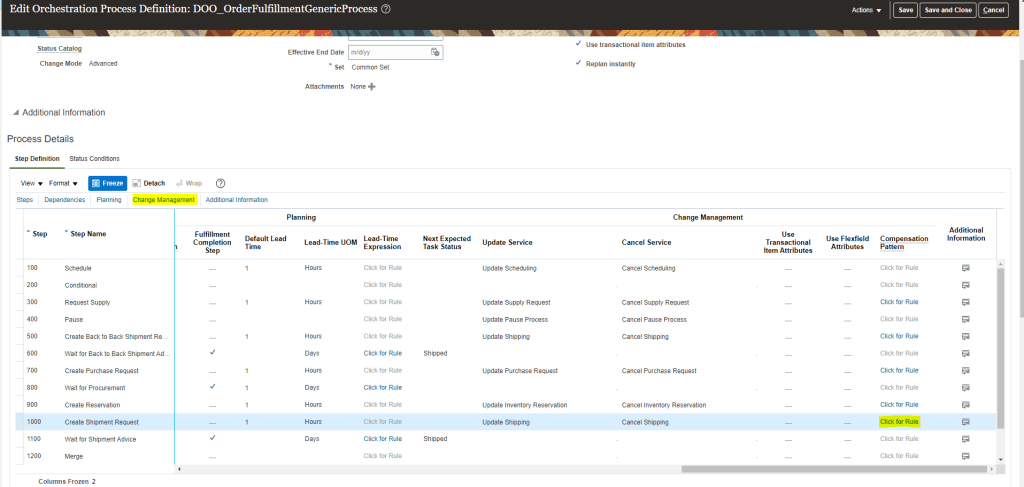
- It will display the Compensation Pattern attached to the Process Step Definition.
- Add a rule (Inventory Item is Changed_01) -> click on Active, Advanced and Tree Mode
- Select Root as DooSeededOrchestrationRules.DooHeader
- In IF clause Left Side -> enter text Header, Right Side select from drop down rule(DooSeededOrchestrationRules.DooHeader)
- Delete Test associated with above line, instead click on green + sign for Add Pattern
- In add section Left Side -> enter text “fline”, Right Side select from drop down rule(Header/childFLines)
- Add a simple test -> click on lens and then click on calculator sign(on right)
- Click on function to select on Fline -> getAttribute(String) and click on Insert into Expression
- Click on constants and select InventoryItem Id and click on Insert into Expression.
it should look line below
fline.attributeChanged(DooSeededOrchestrationRules.IFLine.INVENTORYITEMID) - Click on constants and select InventoryItem Id and click on Insert into Expression.
- on right side enter value true
- In Then, click on Assign
- On left side select from Drop Down Header.mRuleDecision.compensationPattern on right side enter = “CANCEL/CREATE”
- Click on Validate

- Order Attributes that Identify the Change : If mailing address is changed which is in vicinity then for sure order do not need rescheduling but if its far off then rescheduling would be required based on distance. Also if qty is changed then rescheduling would be required. Those attributes are called Change Attributes.
- Navigation : Go to Setup and Maintenance -> Order Management -> Enter Task “Manage Order Attributes That Identify Change”.

- Select any Task Type, in this case Schedule and click on Edit. It will list all attributes which qualify as “Change Attribute” for corresponding Fulfillment Lines, Order Line and Order Header.

- Compensation : These are actions that must be done or redone because of change. Each steps are assessed and if it needs to be compensated, then steps are compensated by updating with new information from the change order. This change is done by Compensation Pattern.

How Compensation Works
Step1 : Check for Delta
- Order Management runs the Orchestration process to determine the difference in Original order and Change order.
- Processing Constraints are evaluated at
- Header, to determine of order is closed. If order is closed than for sure Lines cannot be modified.
- Line level, Qty or item is changed which are Change attribute hence compensation is triggered. Also if color of item is changed it also falls under Change attribute so compensation gets triggered.
Step 2 : Compensate
- After Delta is checked in Step1, it verifies if the Task is done.
- If “No” then it uses Business Rule to determine how to compensate particular step.
- If task is completed then it checks if all task is completed or not. If “No” it goes to Next tab to check of Delta and repeats the process. If “Yes” then it determines whether update needs to be send to Fulfillment System based on Delta value
- Below steps of Orchestration process has different compensation pattern.
- Create Scheduling Step is compensated with default behavior of Update takes place. That is Create Scheduling step is cancelled and created again. Global Order Promising checks for availability post which Planning process is run and Scheduling steps are assigned new dates.
- Create Reservation Step is compensated with specific rule. Lets take example of Color of mobile is changed to Gold, then compensation pattern will have Rule “If DemandClassCode” isn’t Gold, then excluding all High Priority Customer, Supply is released and Reservation is created again with new dates. Also reserved quantity is updated.
- Create Shipping Step is compensated with by updating with new dates and new item.
- After performing compensation patter, Orchestration process reaches where it was when change order was submitted.
Step 3 : Order Management Decides on sending updates
- If changed attribute does not affect task then Orchestration process applies the attribute change to the Sales order without sending any update to Fulfillment System. Like if address from home to Work location is done, in that case it has no impact on fulfillment system so change is applied at Order level without impacting Fulfillment system.
- But if there is change of item, quantity which falls under Change Attribute then Fulfillment system is notified.

 My Cloud Journey