Prerequisite: Please go through Drop Ship order flow before going over this topic.
Where Changes on Drop Ship order can be done
- Channel System
- Order Management
- Using Revision of Order
- Through Workbench (Order Orchestration work Area)
- Check Availability Page
- Planning
- Procurement
- Process Requisitions Page
- Manage Orders Page
When can changes be done to Drop Ship Orders
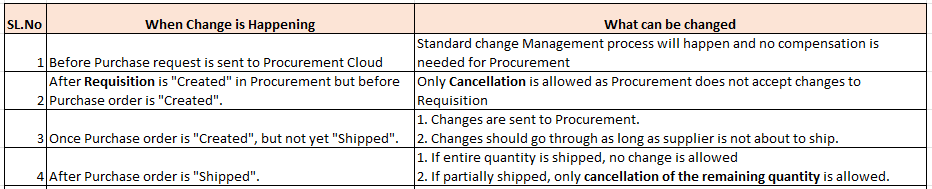
Different stage of changes during Drop Ship Order
- Change Management keep Supplier up to date on changes to Sales order.
- It also verifies Processing Constraint to decide if change is acceptable.

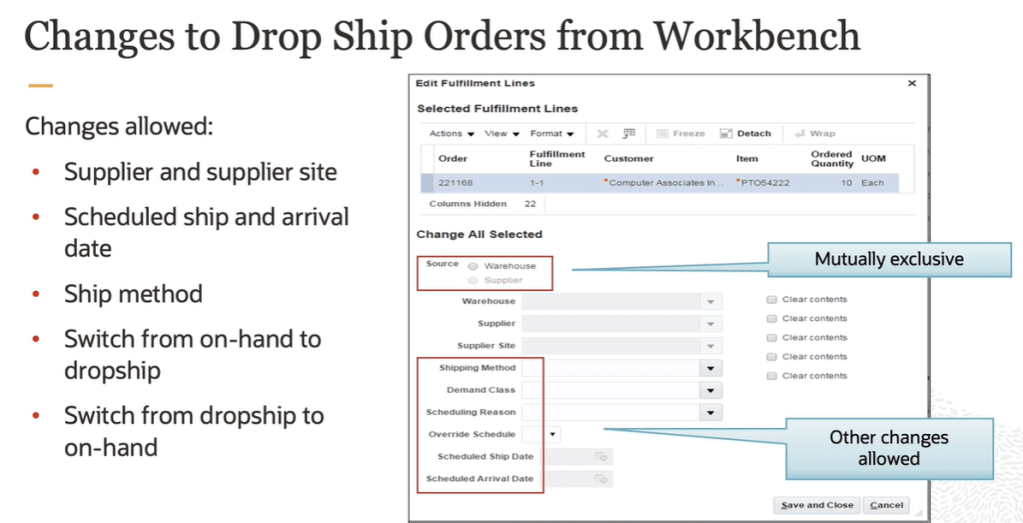
Below are the changes allowed on Drop Ship Orders from Workbench.
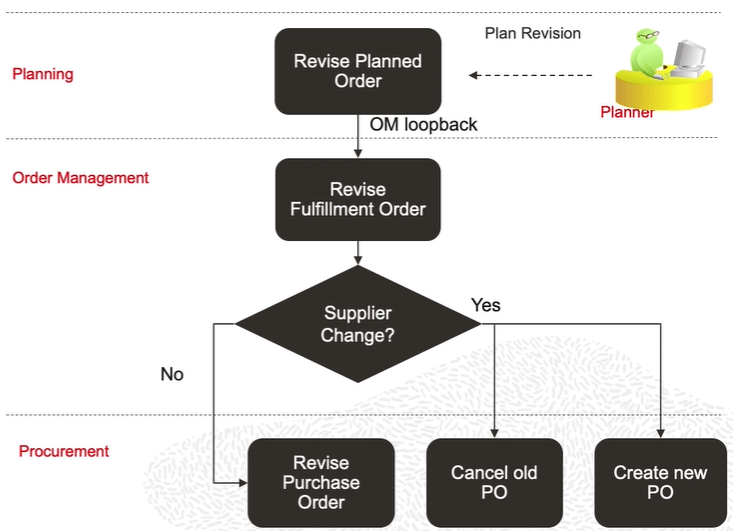
Changes to Drop Ship Orders during Planning Process.
- Planner may revise
- Ship and Arrival Date
- Supplier and Supplier Site
- Release the change using Order Management Loopback.
- OM perform change management to
- Cancel old purchase order
- Create new purchase order if supplier is changed
- Update Purchase order for date change
Changes to Drop Ship Purchase Orders in Procurement
- Buyer or Supplier may revise the purchase order to
- Promise Date Change
- Split Purchase order schedule
- Purchase order revision goes through approval.
- Changes are synced up in Order Management
- Keeps Order Manager up to date on changes to Purchase order
- Global Order Promising gets compensated with ATP override


Limitations of Changes on Drop Ship Orders.

Steps for Change in Drop Ship
Step 1: Change Processing Constraint.
- Navigation : Go to Setup and Maintenance -> on right side click on search -> enter task “Manage Processing Constraints”.
- Search for Constraint Name “DOO_DS_FULFILLMENT_LINE_UPDATE”
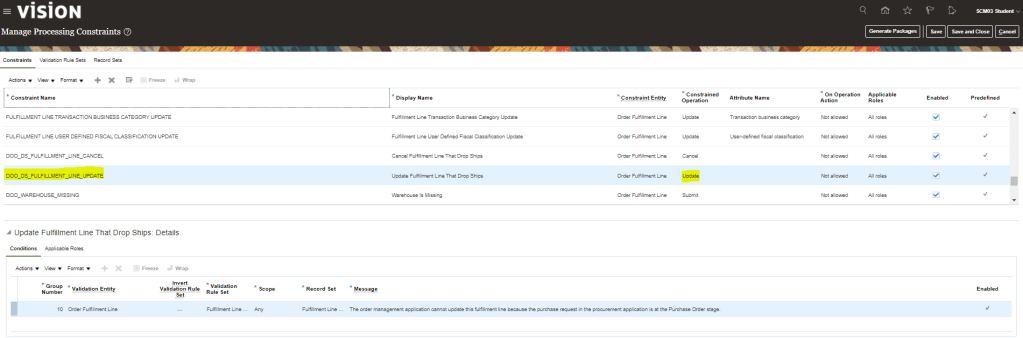
- Deselect the Enable check box and click on Save and Close.

Step 2: Create Order
- Create Order with
- Drop Ship Item “CM53035”
- Quantity : “1”

Step 3: Create Revision of Order
- Click on Revision of Order

- Change quantity of order from “1” to “2″.
- Switch to Fulfilment view to see status of Order to “Awaiting Shipping“.
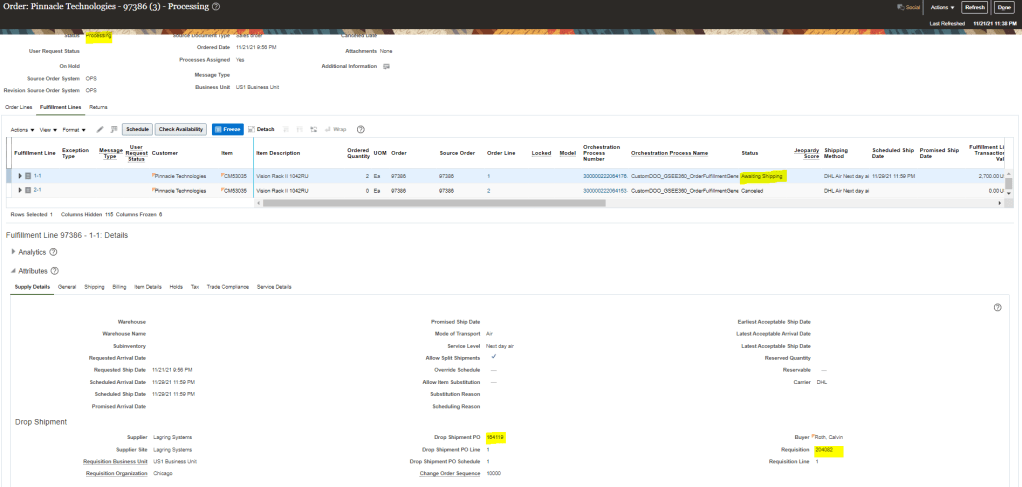
Step 4: Verify Purchase Order Revision
- Login as user “Calvin.Roth”.
- Go to Procurement -> Purchase order and search for Purchase order “164119”.

- Quantity changes to 2
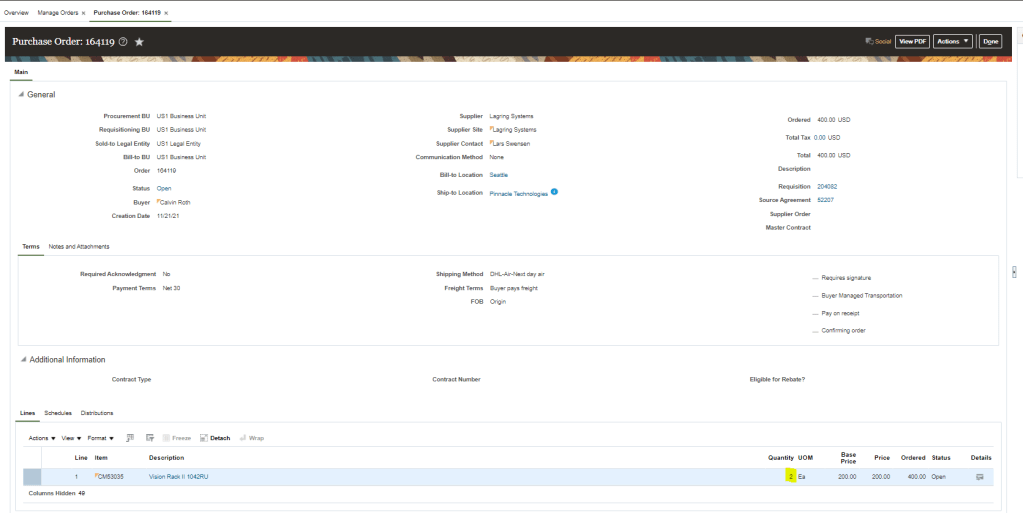
- To see details of Change of purchase order , click on Actions -> View Change History

- Click on Details section of line to see the change value of quantity.


 My Cloud Journey