Configure to Order comprises of below Models
- Assemble to order (ATO) Models ->
- It is a business production strategy where products that are ordered by customers are produced quickly and are customizable to a certain extent.
- It typically requires that the basic parts of the product are already manufactured but not yet assembled.
- Once an order is received, the parts are assembled quickly and the final product is sent to the customer.
- E.g: Company has all components of Laptop, based on customer selection of configuration, it assemble the components and then ship to customer.
- Pick to Order (PTO) Models ->
- It is a configure-to-order environment where the options and included items in a PTO model (finished good) appear on pick slips after we receive the sales order from customer.
- Pickers gather the options (based on selection rules), the predefined shippable products parts/components or service from their predefined locations using pick slip and then ship the order.
- It is assumed that options and components quantity are readily available. It is an alternative to manufacturing the parent item on a work order and then shipping it. There is no additional value added after getting the customer order.
- E.g: Computer System (CPU, Monitor and Printer) A pick to order model can have PTO option class, PTO items, ATO model, ATO Option class and ATO option items. There can not be any PTO model, PTO option class or PTO item under an ATO model. You want to manufacture a promotional laptop computer, you need laptop computer, diskettes, accessories and battery pack. Here, you define PL computer as PTO model, laptop computer as ATO model, battery pack, diskette and accessories as purchase items.
- Standard, model and option class Bills of material, can include bills for pick-to-order bills, Pick-to-order is also an item attribute that you can apply to standard, model, and option class items. Oracle Master Scheduling/MRP and Supply Chain Planning does not support planning for pick-to-order models and option classes. Pick to Order (PTO) items have the Pick Component attribute set to Yes. Pick-to-order bills cannot have fractional component quantities if Oracle Order Management is installed. You cannot create routings for planning or pick-to-order items.
- Hybrid -> Combination of ATO and PTO models

CTO (Configured to Order) Fulfillment Flow
Below item depicts fulfillment types of Configured Item, It either chooses
- Make -> Work Order gets created.
- Buy -> Purchase order gets created.
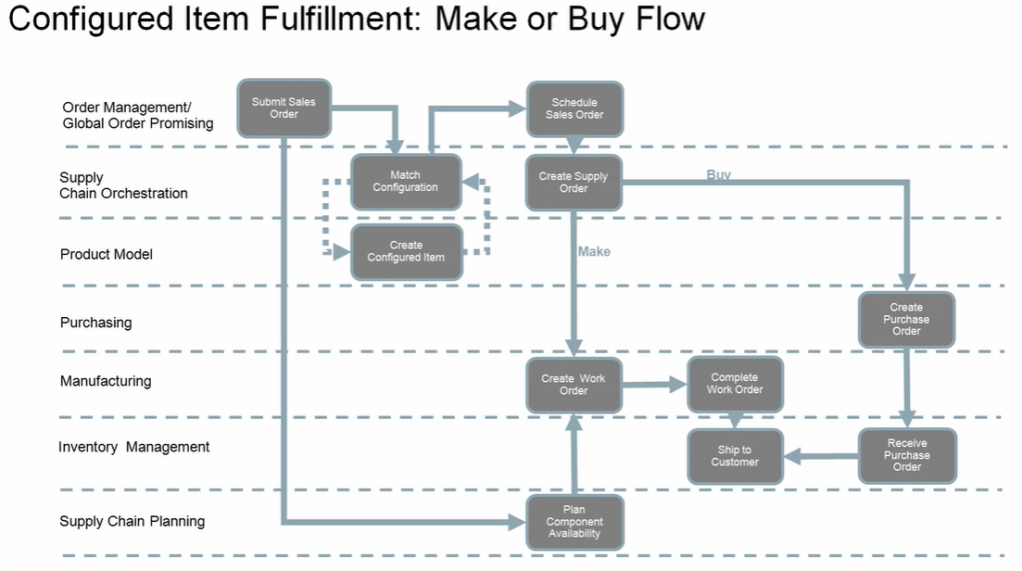
Sourcing Supply of CTO
- View Supply order in Supply Chain Orchestration
- Drill down to the supply order from the Order management Order Fulfillment Interface.
- View the supply line details
- View the execution documents and the Make or Buy details, noting the work order number.
- Make Branch view work order in Manufacturing
- Examine dynamic work order creation for configured items based on item definition, option items and transactional item attributes selected based on applicability rules
- Complete work order product , receive into inventory.
- Buy Branch -> View purchase order in Purchasing
- Examine Purchase order creation
- Complete Purchase order product receipt and put away
Fulfillment of CTO
- View processing of supply order in Supply Chain Orchestration
- view the status of the order tracking line
- view the reservation against the customer order and note the reservation on-hand inventory
- Ship the order in shipping
- Create the shipment against the customer order and release the line
- View the status of the supply order in Supply chain Orchestration
- View the status of the fulfillment order in Order management customer
Exceptions Management for Configured Item during Order Creation
There are two categories of exceptions which happens
- Error : If the configured item cannot be created then error is returned and Order processing fails.
- Exception : If the configured item was created, but there was an issue with additional information for downstream processing, then order processing continue but supply chain Orchestration logs the failure as an exception
GOP use of Lead Time Determination for Promising
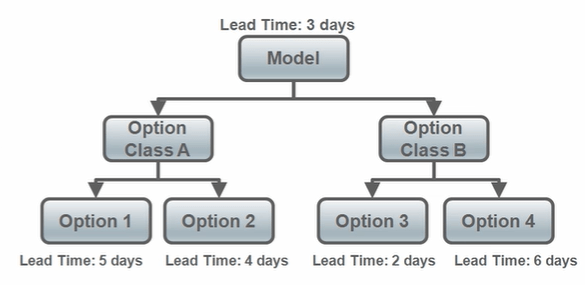
- Global Order Promising calculates the longest path to determine the Lead time associated with a configured item.
- Using below example, if Option1 and Option 3 are selected in a configuration then
- Lead Time = Max[(Option 1+ Option Class A + Model), (Option 3 + Option Class B + Model)]
- Lead Time = Max[(5+3),(2+3)] Days
- Lead Time = Max[8, 5] Days
- Lead Time = 8 Days
- Using below example, if Option 2 and Option 4 are selected in a configuration then
- Lead Time = Max[(Option 2+ Option Class A + Model), (Option 4 + Option Class B + Model)]
- Lead Time = Max[(4+3),(6+3)] Days
- Lead Time = Max[7, 9] Days
- Lead Time = 9 Days
GOP uses Option Specific Sourcing
- Global Order Promising applies Exclusion rules while making Sourcing Decisions for Configured Item.
- In below case we have following sourcing rule exclusions
- If Option 1 is selected then D1 cannot be a source.
- If Option 2 is selected then D2 cannot be a source.
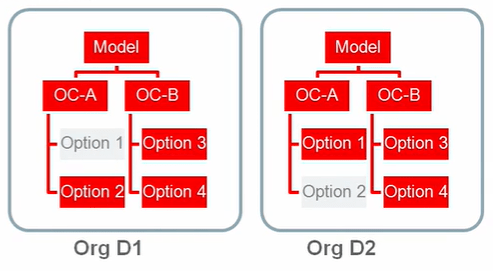
- So for GOP fulfills a Configured-To-Order item with following
- Option 1 is selected only from D2.
- Option 2 is selected only from D1.
Forecasting ATO Models
- Create and process Organization specific forecasts for ATO models in Oracle Planning Central Cloud.
- Below are the different types of forecast models we have in planning central.
- General statistical forecast for ATO models : uses shipment and booking history to forecast
- Consume model forecasts : Sales orders for configured products uses consume model forecasts.
- Explode remaining model forecast : Generate production forecasts for option classes and options.
- Create supply for organization-specific forecasts: Source components and subassemblies using standard planning sourcing rules.
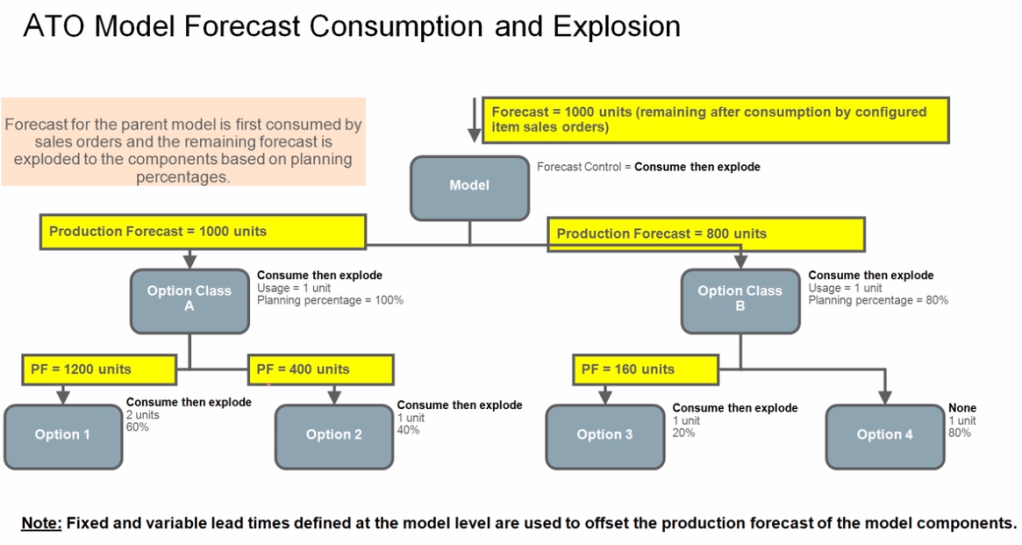
CTO Planning
- Sourcing rules defined for the configured item are considered before sourcing rules for the base model when creating supply for the configured item
- Forecast demand for a model includes only end demand for the model
- It does not include dependent demand if it forms a component of another model
- Planning percentages defined at the operation level within the work definition of the model are respected
- Pick-to-order(PTO) models are planned
- PTO represents customer-ordered configurations picked and shipped separately, to be assembled by the recipient.
- Planning Central plans for the PTO model and the individual components.
Setups to be done for CTO Order
Set up 1: CTO Item Creation
- Navigation : Setup and Maintenance -> Click on Search Button -> Enter Task “Manage Item Class“.
- For Configured Item, we can use existing Item class or create our own new Item Class.
- Ensure Item Creation Allowed is checked
- Under Item Management, Number Generation, we will select
- Item Number Generation Method = “User Defined”
- Configured Item Number Generation Method = “Sequence”
- Starting Number = “100” , all CTO Items will get created starting with sequence of “100”
- Prefix type = If we select any value like “CTO”, all CTO items will have prefix value “CTO”. We can choose either of
- User Defined
- None
- Model Item Number
- Incremented By = “1”, what would be the next sequence of CTO items
- Suffix type = We can choose either of
- User Defined
- None
- Model Item number
- Delimiter = We can choose either of
- Underscore
- Asterixis
- Hyphen
- Hash
- None

ATO Child Items

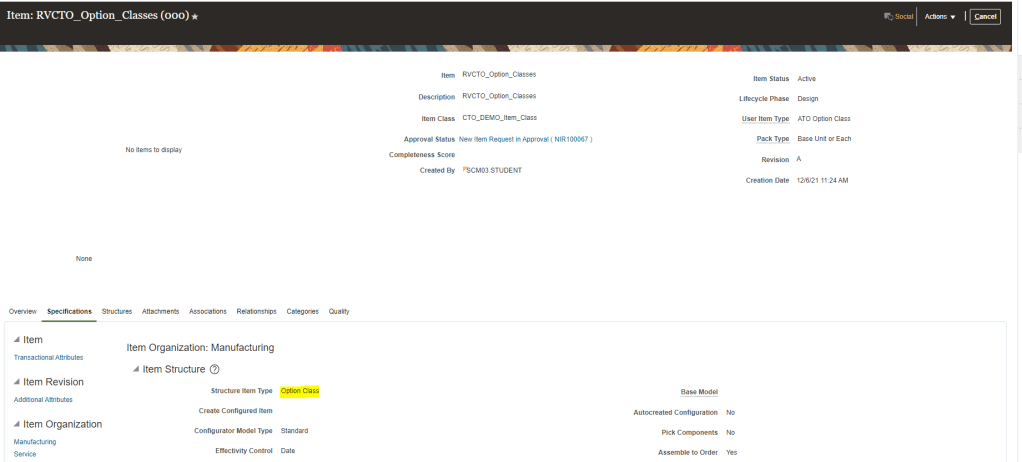
ATO Option Classes.

- Structure Item Type is “Option Class”.
ATO Model
- Structure Item Type = “Model”.
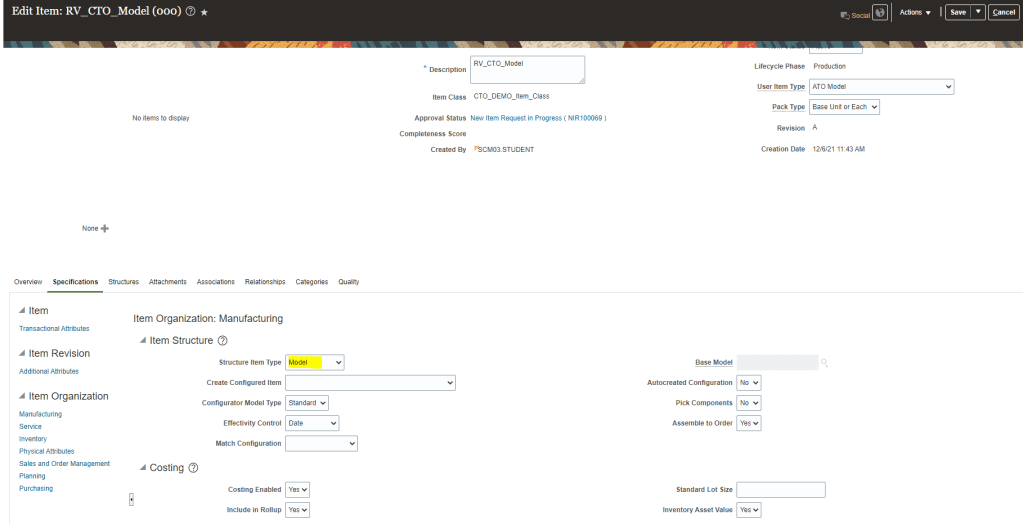
- Model has below Structures

Item Model

- After Model is created, create an Order with the Model Item. It should have option for Configure and Add while adding Model Item.

- Item AT6751000 is a Base Model Item while AT675100*110*(Ending with Suffix) is Configured item
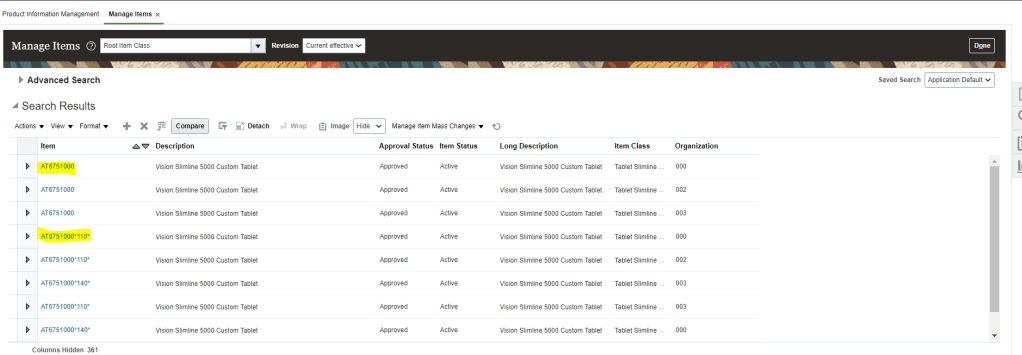
- Under Item Structure Base Model field will be Blank for “ATO”, while for Configure Item , it will store Base Model value.
- AT6751000 is a Assemble to Order Model Item so Base Model field is Blank.
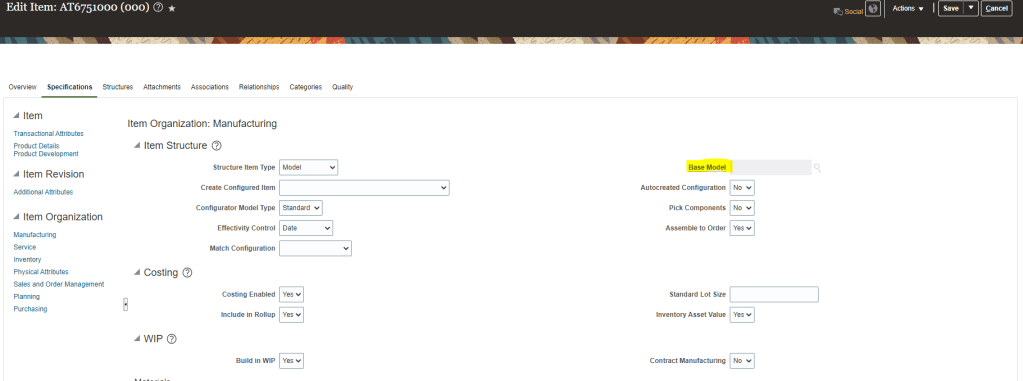
- AT6751000*110 is a Assemble to Order Configured Item so Base Model field stores value of Base Model Number.

- Base Model Item has Structure , which is Primary. Expand the structure to see all Item Options Classes and Item Components which are part of Option Classes.
- Screen is Option Classes

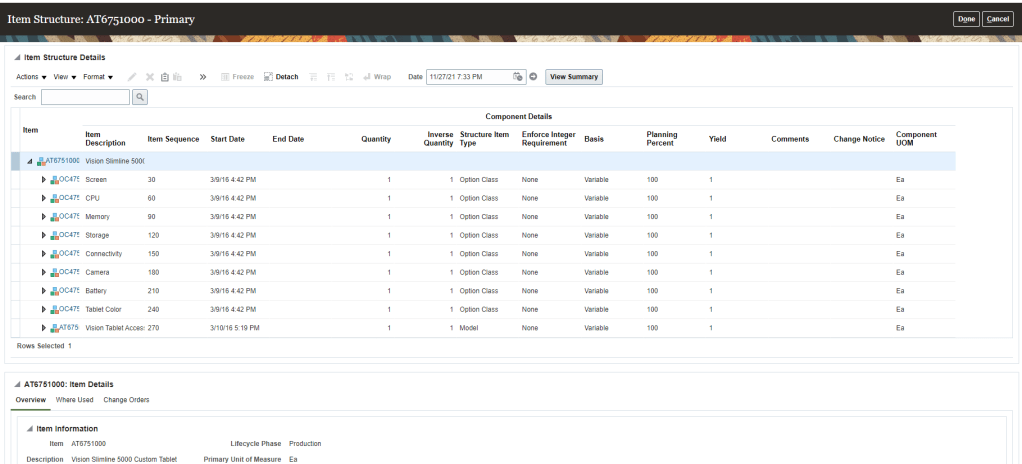
- Configured Item will not have Structure

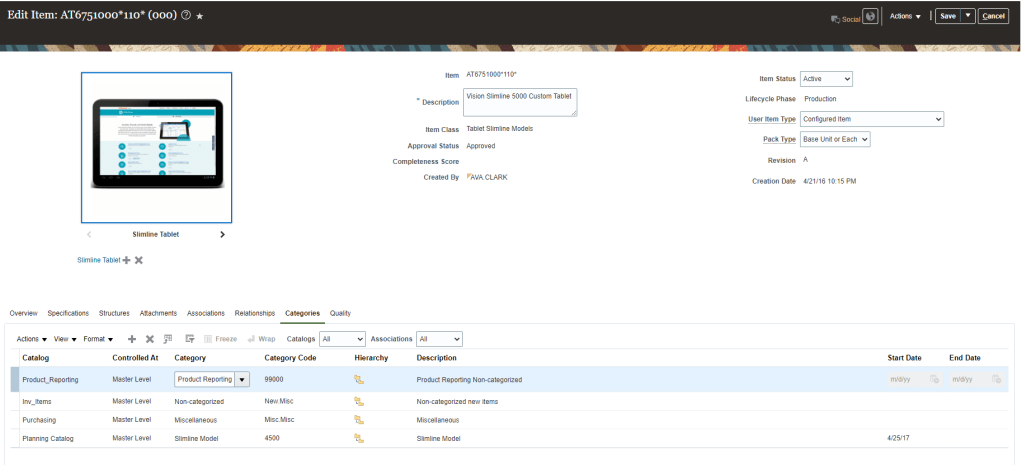
- Categories could be Same or Different between Base Model and Configured Item Class.
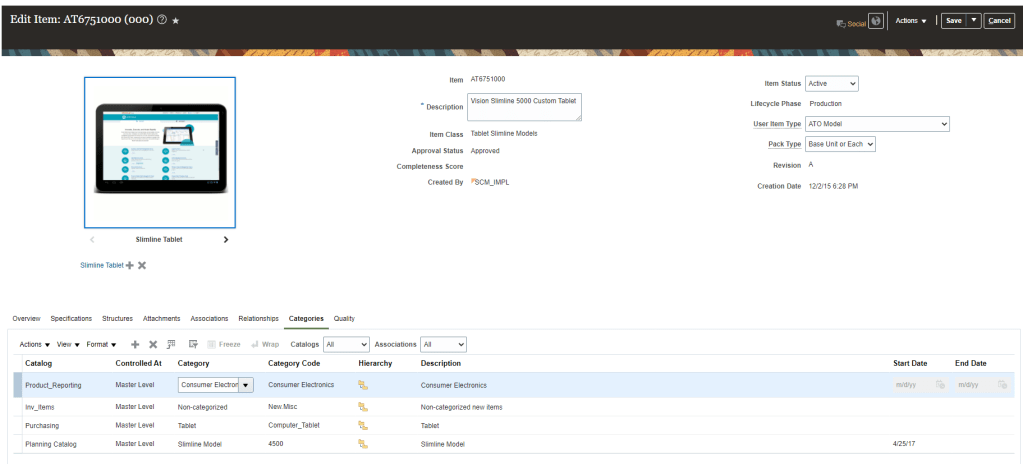
- Categories for Configured Item.
Creation of Configured Item at Run Time
- Created in Item Master for Model and options selected on Sales Order
- Copies item attributes from model item.
- applies values set in configured item template.
- Autocreated Configuration = YES.
- Structure Item type = Standard.
- Base Model = <model item>
- Stores configuration information in Configure-to-Order Matches
- All items are from base data structure except the red ones which gets populated from Model Structure data

Configured Item Sales View
- Navigation : Supply Chain Execution -> Supply Orchestration -> View Configured Item Sales Structure.
- Enter Configured Item “AT1501010*100” and click on search.
- Click on button to expand till lowest level and see the structure.

Setup 2: Setup for CTO Promising
- Below image very well demonstrate the setups which needs to be done for Configured to Order Item.
- Setups Outside Supply Chain Planning
- Define ATO Model, Options Classes and Options
- Define ATO Model Item Structure
- Define ATO Model Work Definition
- Generate Resources Capacity
- Setups within Supply Chain Planning as
- Define Sourcing Rules for ATO Models and Options
- Define ATP Rules for ATO Models, Option Classes, and Options
- Setups Outside Supply Chain Planning

Setup 3 : ATP, Sourcing Rules
- Create ATP rules as required and ensure that Models, Option Classes, and Options as well as mandatory components are assigned to an ATP rule.
- Ensure that models are assigned to an ATP rule at the category level
- For Manufactured ATO models, enable “Search components and resources”.
Create ATP Rule for Model Items
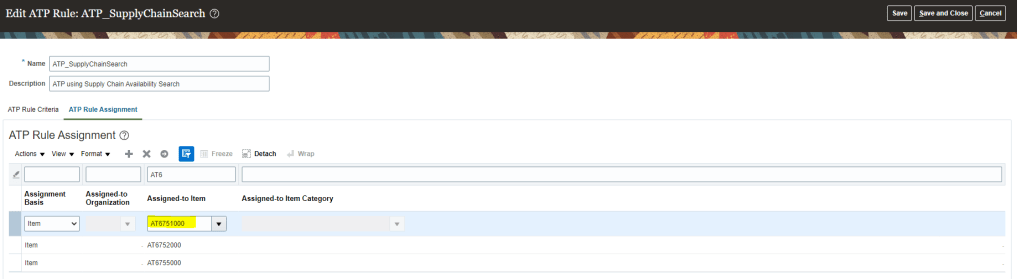
- Navigation : Order Management -> Global Order Promising -> on right side bar, select task “Manage ATP Rule“.
- Enter ATP Rule “ATP_SupplyChainSearch” . It will give all the basic parameters set for the ATP Supply Chain Search type.
- click on Tab ATP Rule Assignment to see on what level is the Item setup done
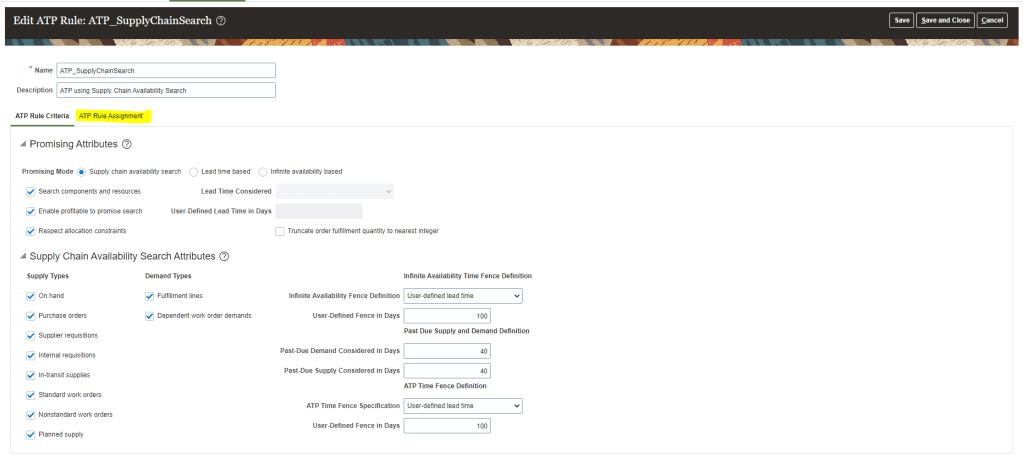
- ATP rule “ATP_SupplyChainSearch” is configured for Item “AT6751000” is done at Item Level.
Create Sourcing Rules
- Navigation : Order Management -> Global Order Promising -> on right side bar, select task “Manage Sourcing Rule“.
- Enter Sourcing Rule “M-002” and verify details
- Its Assignment type is “Local”.
- Type = “Make All”
- Organization = =”002″
- Click on Exclude for Options and Option Classes, to set values for which you do not want this sourcing rule to be applied.

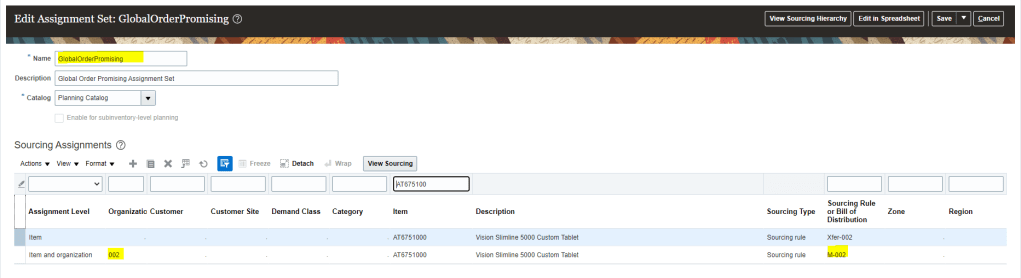
- Click on View Assignment Sets to verify where this Sourcing Rule is applied. It is applied at
- Planning
- Global Order Promising.

- Click on Global Order Promising assignment set, and filter by item “AT6751000”. It will show the assignment level and corresponding sourcing rule attached to this item.
Setup 4 : Refreshing GOP Data
- GOP should refresh Data Periodically.
- Collect item and other data into GOP at an established Interval as new configured Items created are not automatically refreshed.
- GOP is only refreshed when job “Refresh and Start the Order Promising Server” is running. It can be triggered manually too.

- Or we can manually run planning data to feed data into the system.
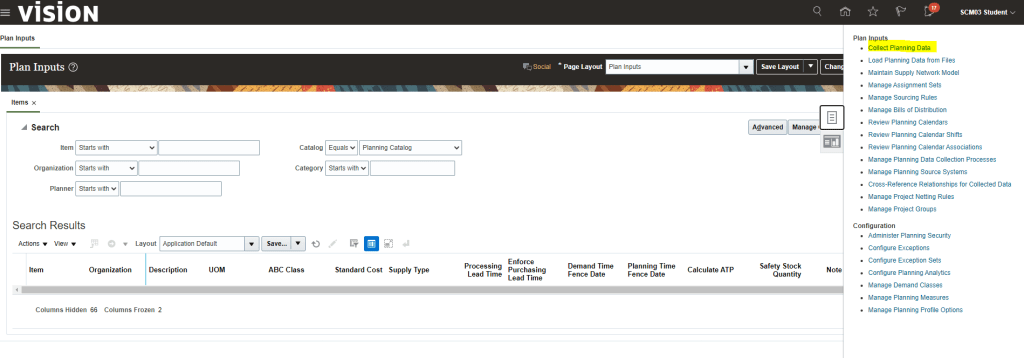
- Navigation : Supply Chain Planning -> Plan Inputs -> Collect Planning Data.
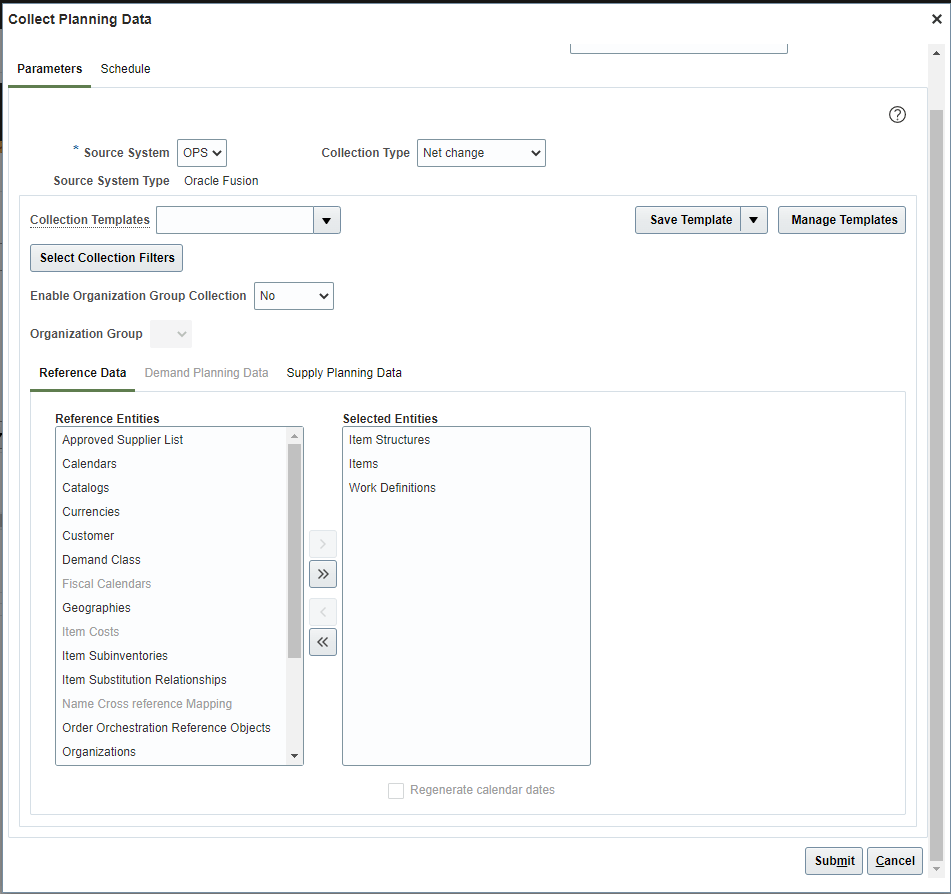
- Select below Entities and submit to trigger collection of Planning Data.
Create Order for CTO Item
- Create order using CTO Item “AT6751000”.

- Click on Configure and Add Button to go through series of steps.
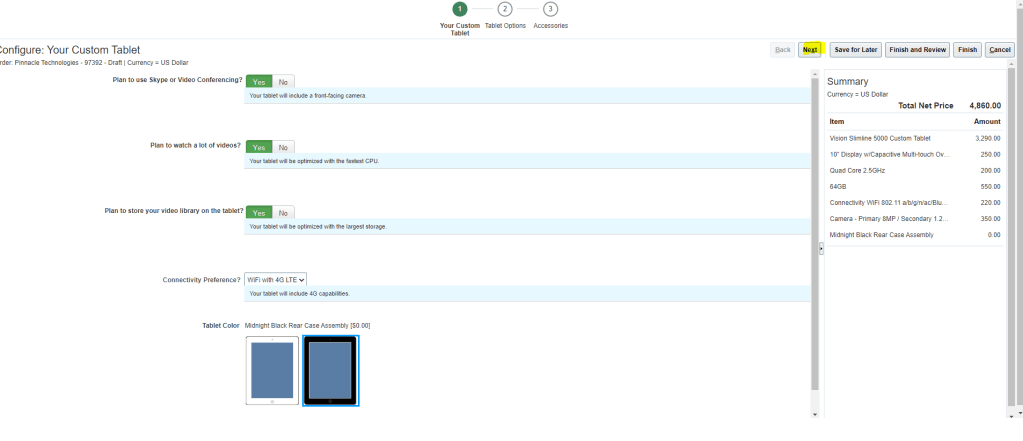
- One all selection is done , click on Finish and Review

- Below review screen appears which shows Item structure and its corresponding Unit Quantity.

- Order gets created with Configured Item.

- Once Order gets created, click on Switch Fulfillment view to see the fulfillment details.
- Click on Item Details tab and next to Item, click on Hierarchy icon to see components of CTO item and at what stage each components is.

- Below screen appears which shows all components of CTO Item and its corresponding status.
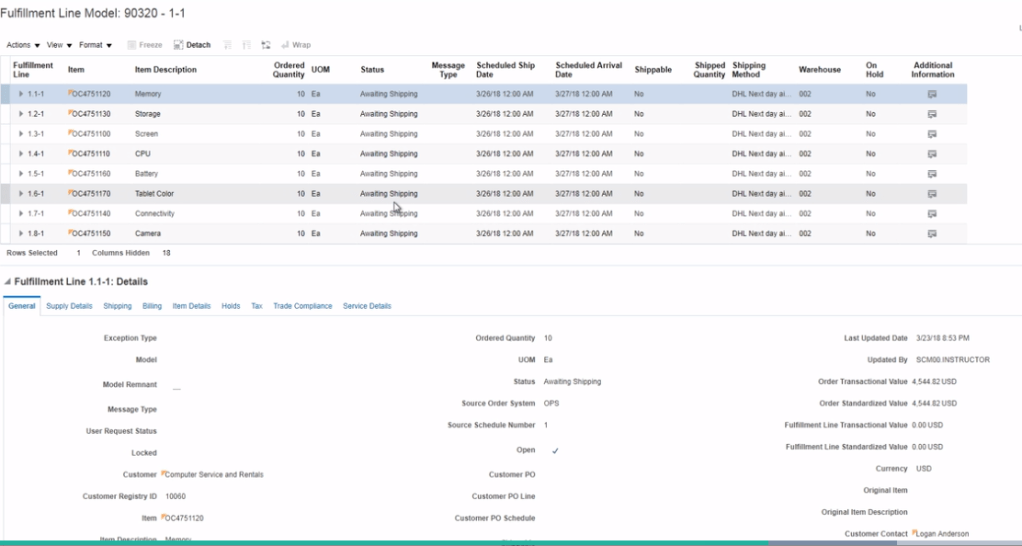
- Once order is created Run Job ” Release Planning Recommendations” using Scheduled Process.

- Once job completes, go to Switch Fulfillment view
- Under supply tab, click on Supply Order Number. It should lead us to Supply Order page where we would see Work Order created for this Sales Order.
- View the status of each task under Supply order orchestration.

- we can check Availability of ATO models under Fulfillment lines.


 My Cloud Journey