In this topic we are going to Cover Work Definition of ATO item and how to View and Complete a Work Order.
Pre-requisite : Do go through the Configure To Order details to get basic understanding.
Configured Item uses either Make or Buy Flow. ATO always uses Make flow for the Fulfillment process hence Work Order comes into picture. In case of Buy Flow, Purchase order comes into picture
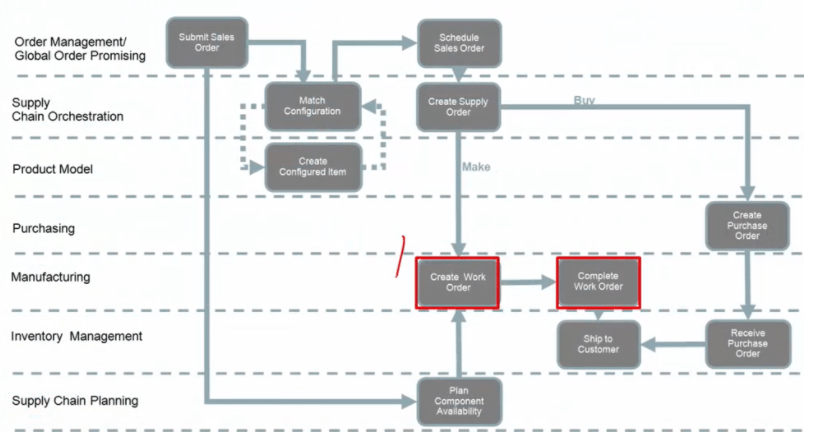
Assemble to Order Work Definition
ATO Model Work Definition Operations Items
Define Materials requirements for Operations
- Must use primary item structure
- Assign a component from any level
- Must assign entire quantity.
Option Dependent Details region contains operation attributes specific to the
- Mandatory or Option Dependent
- Applicability rule -> It comes into picture when Option is selected.
- Planning % -> It determines % of sales order having Optional Dependent items
Work Definition
- All attributes mentioned below comes from Product Model hence it cannot be edited in Work definition page.
- Any changes made in Product model will flow to work definition by “Work Order Definition” Schedule Process.

Configured Item Work Order
- Configured Item Work Definition is :
- Created Dynamically based on
- Primary ATO Model Work Definition
- Selected options and transactional item attributes
- Not Stored
- Created Dynamically based on
- Configured Item Work Order is:
- Created based on the configured item work definition
- Reserved against the sales order
Configured Item Work Definition
- Below is the flow of CTO Work Definition

Creation of Work Definition for ATO Items
Step 1: Create Work Definition Names.
- Navigation : Manufacturing -> Work Definition -> on right side click on “Manage Work Definition Names”.

- Below screen appears where we can create new work Definition.
- Enter Display names, Type = Standard and check “Used in Planning” and click Save and Close.

Step 2: Create Work Definition.
- Navigation : Manufacturing -> Work Definition -> on right side click on “Manage Work Definitions”.

- Click on “+” button to create new Work Definition.

- We can create work Definition from Existing or create new one.
- Enter Work Definition Name created in Step1.
- On clicking Next, below screen appears. Enter all the details/components item and click on Save and edit.

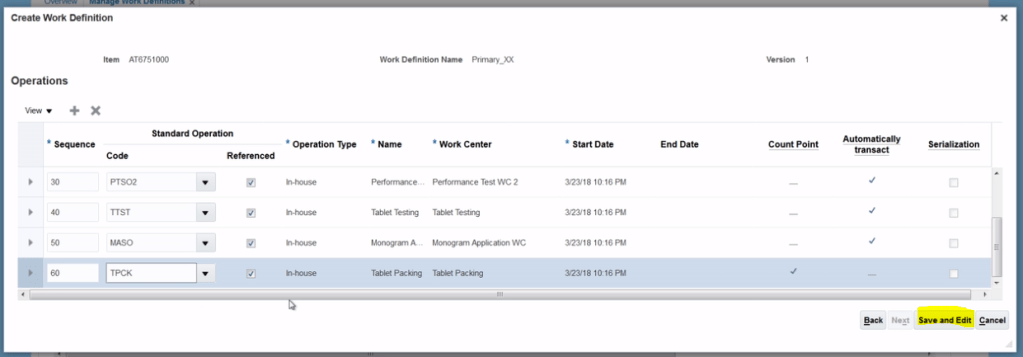
- After adding Items, work definition appears as shown below

Step 3: Assign Items to the Operations of the work definition Items.
- Task is to drag and drop Items from Item structure on the right side to the Operations.
- Drag item OC4751100 to Operations 10 Tablet Assembly.

- After drag and drop, below is how it assignment of Items to Operations looks.

- Select Collections of Item on Item structure side and click on assign. Once assigned select corresponding operations and click on ok.
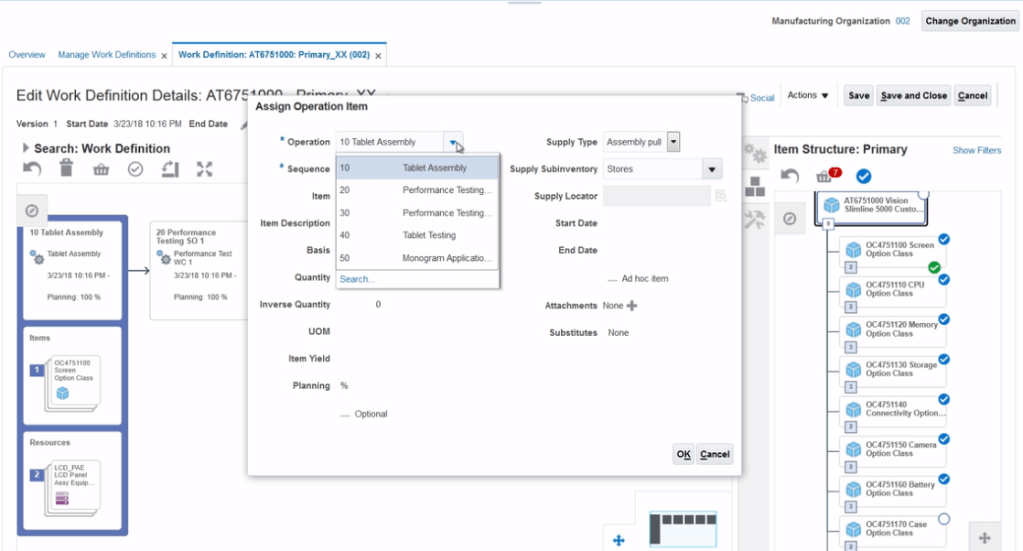
- Click on Actions -> Assign

- Click on Expand Icon to see expand to other Items to remaining Operations.

- Below screen appears
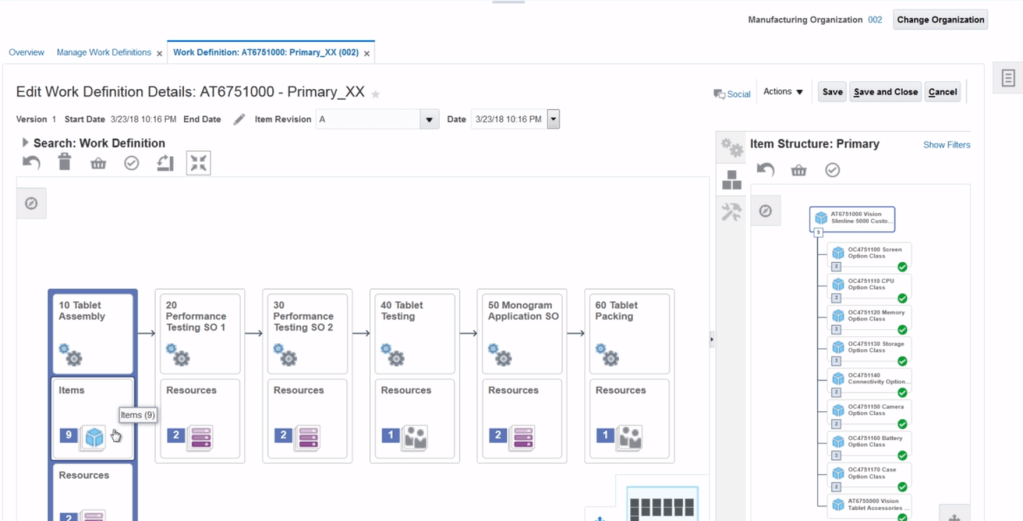
- Right click on Item -> Actions -> Edit

- Verify the Operations Item details

- Click on edit on each item to compare with below table.
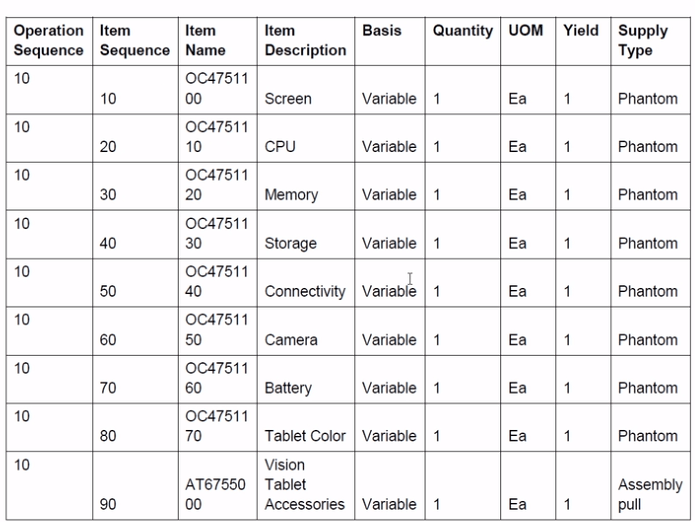
Step 4: Add Applicability Rules
- Select steps 20 -> Right click -> Click on Actions -> Edit
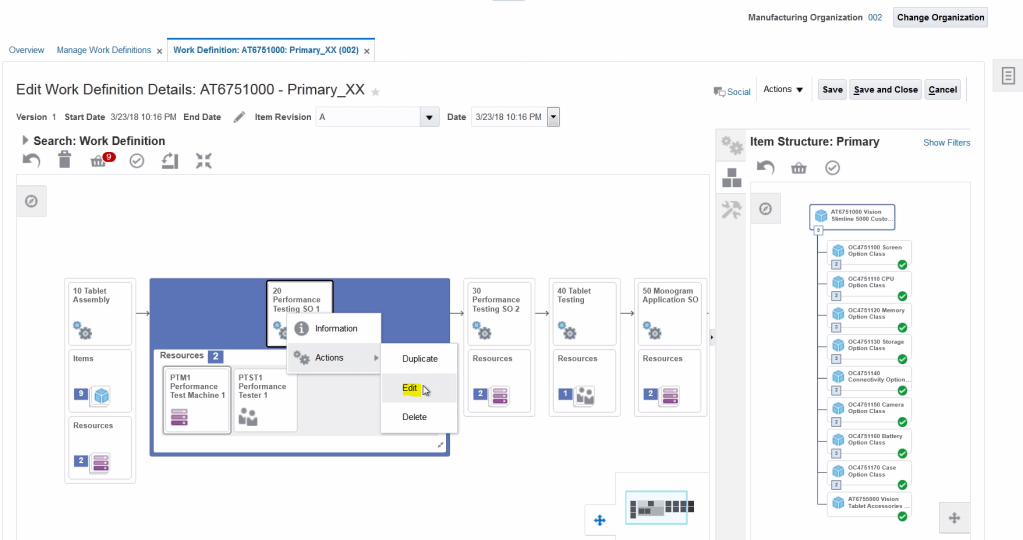
- Select Options Dependent and then click on “+” button to add Applicability rule.

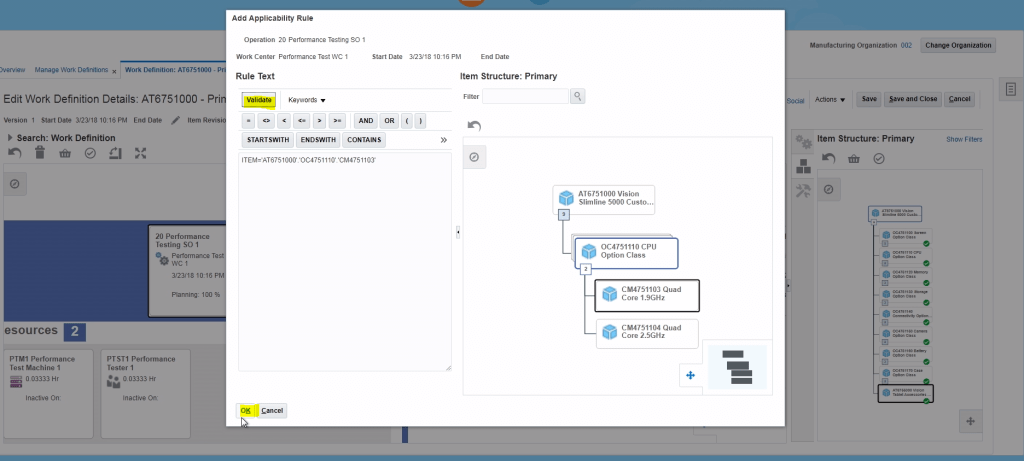
- Below window opens, drag and drop from item structure to rule text. Rule gets added automatically.
- Click on Validate and then Ok.
- Applicability rule gets added to Operations 20.
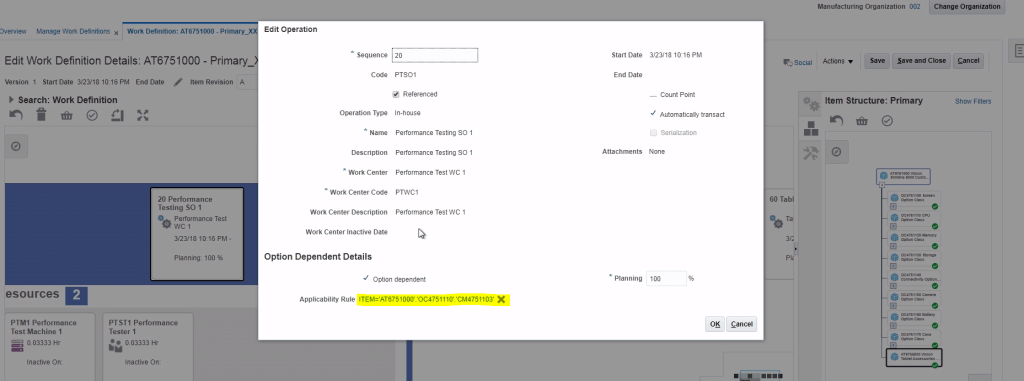
- If we have added all applicability rules, click on Save and Close.

Completing a Work Order for ATO Items
- Navigation: Manufacturing -> Work Execution -> Select “Manage Work Orders”.

- Select with Status = “Ready” or enter Work order “WO-002-1025-166751000*200*

- Enter Work Order “WO-002-1025” created at time of Sales order
- Status of work order is “Released”
- If Production Priority = “1” it means work order uses the primary work definition of the ATO model.

- Click on Operations Tab which shows different processes which are necessary to complete the configuration.

- Below screen gives complete view of Work Order.

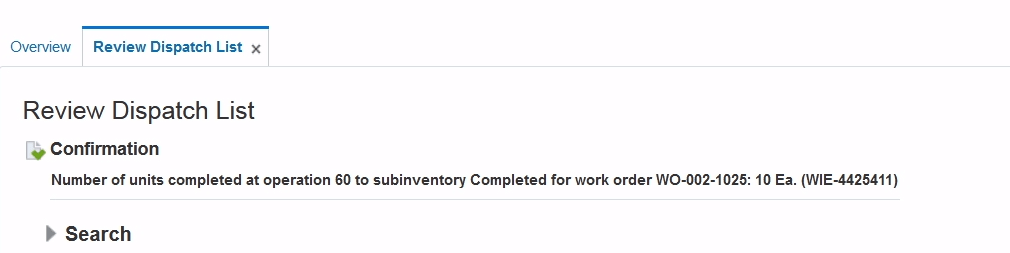
- Enter quantity = “10” and click on Quick Complete to complete the Work Order.
- We should be getting below confirmation message.

 My Cloud Journey