
- Fulfillment process is selected when Order line is scheduled. Scheduling results are based on results setup in GOP. Back-to-Back setup is done in Product Management.
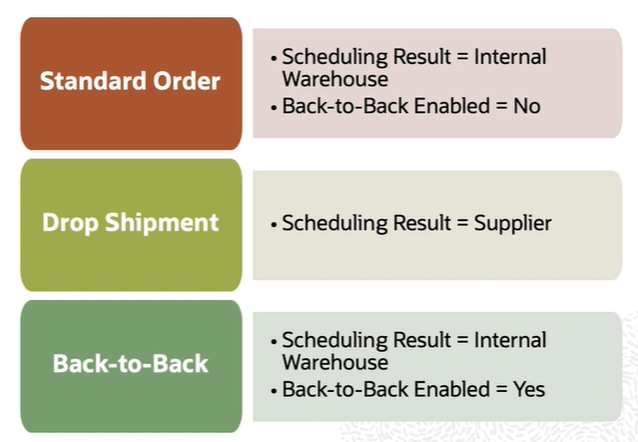
- Back-to-Back Fulfillment is where supply is procured and then received at a warehouse only after an order is placed.
- Supply is reserved against a sales order until shipping. This process provides support to create and link supply after a sales order is entered and scheduled, allowing you to reduce your inventory while maintaining the ability to respond to customer demands.
- Supply for back-to-back order is created using following flows.
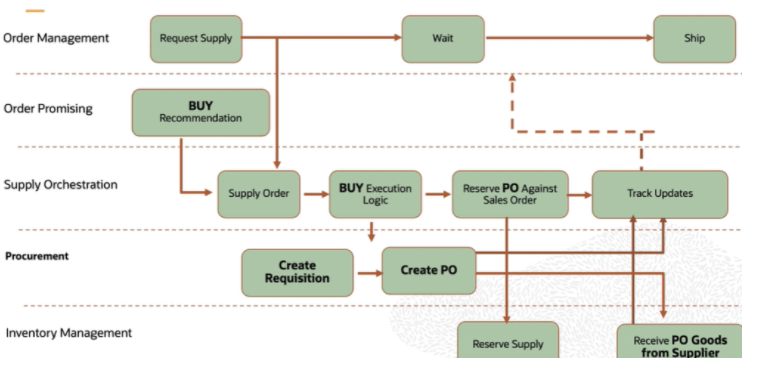
- Buy : Procurement from an external supplier.
- Make: Production in an internal manufacturing facility(includes in-house manufacturing and contract manufacturing).
- Transfer : Transfer from another warehouse
- On hand: Reservation of on-hand supply in the fulfillment organization.
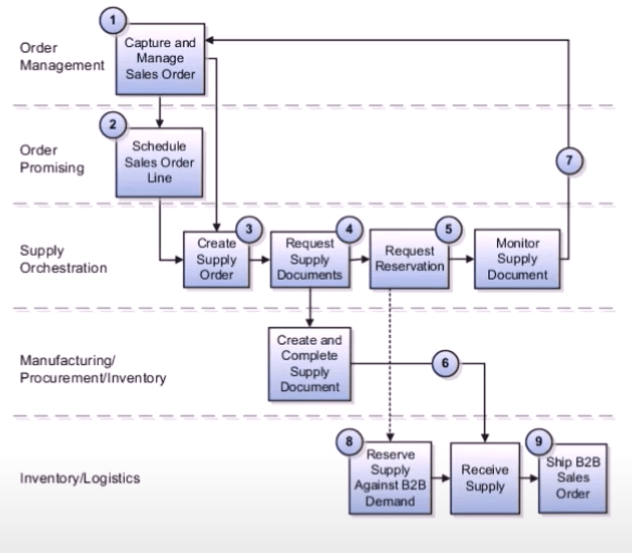

Back to Back Fulfillment BUY Flow
Back to Back Fulfillment MAKE Flow

Back to Back Fulfillment Transfer Flow

Back to Back Fulfillment Oh Hand Supply Flow

Setups required for Back to Back Flow
Step 1: Product Management
- Order Management and Supply chain orchestration uses this setup to assign Back to Back Orchestration.
- Navigation : Product Management -> Product Information Management -> Browse Item ->Sales and Order Management .
- Ensure Item is assigned to warehouse from which it will be shipped. In this case “003” Chicago
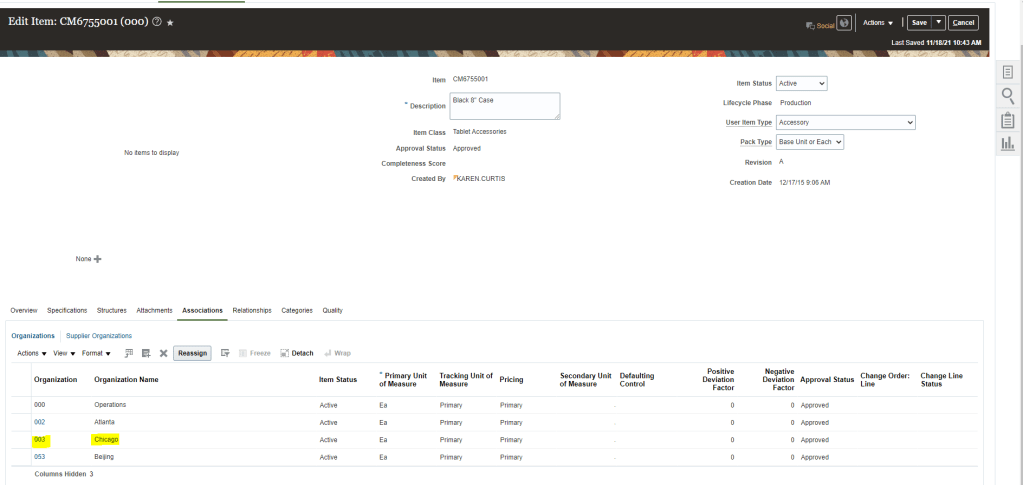
- Go to Specification -> Sales and Order Management and ensure Back-to-Back Enabled is “Yes” for Item under Organization “003”.
- Default Sales Order Type should be “Yes”.

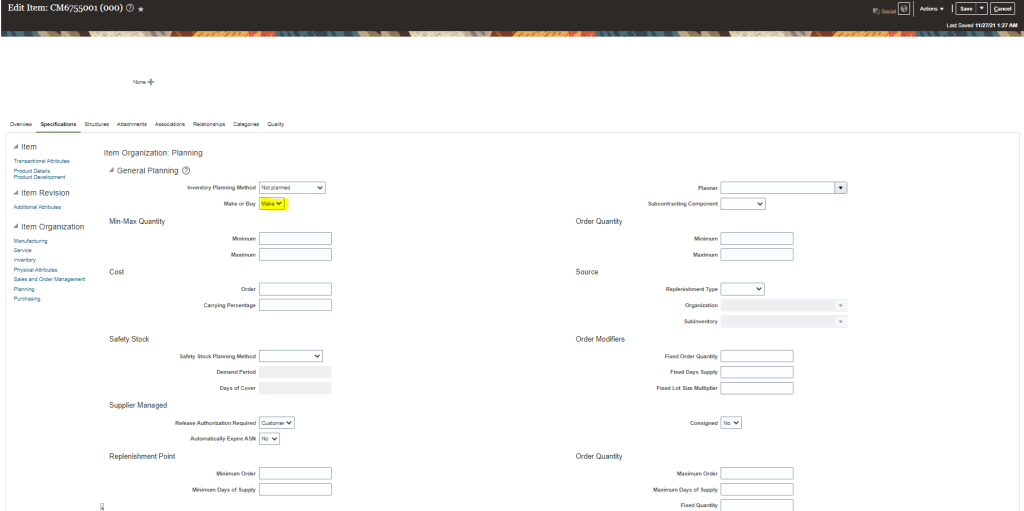
- In Planning section, Make or Buy , it should be “Make” Or “Buy“.
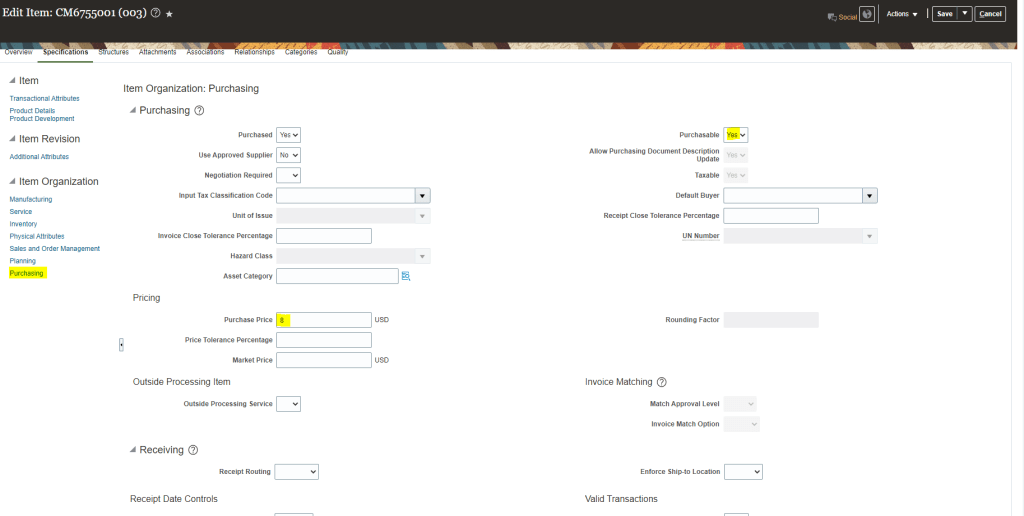
- Under Purchasing section -> Select Purchasable as “Yes” and Purchase Price should have a value.
- Create Structures under Item.

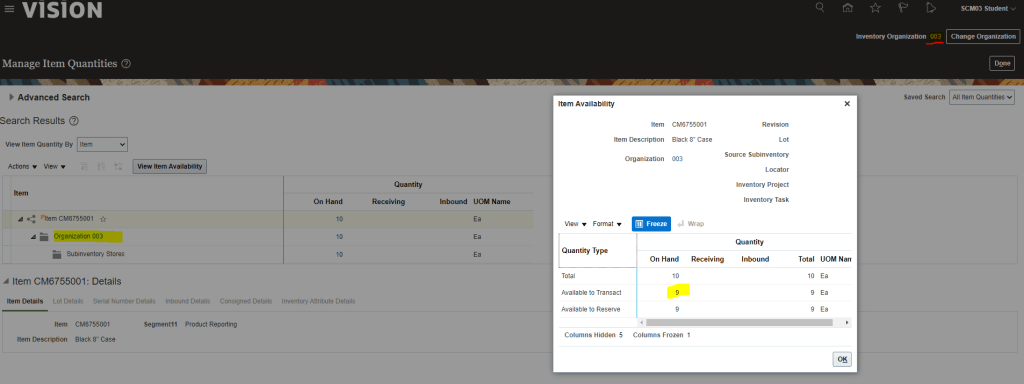
- We have sufficient stocks in Organization “003”.
Setup 2: Preparer should be setup in Order Management Parameters
- Ensure Preparer is setup for the Business unit where transaction is taking place.

Setup 3: Sales Order Fulfillment is enabled in Procurement offerings
- Navigation : Go to Setup and Maintenance -> select offering as Procurement -> Actions -> Change Feature Selection
- Ensure Customer Sales Order Fulfillment is enabled.

Setup 4: Create Blanket Purchase Agreement
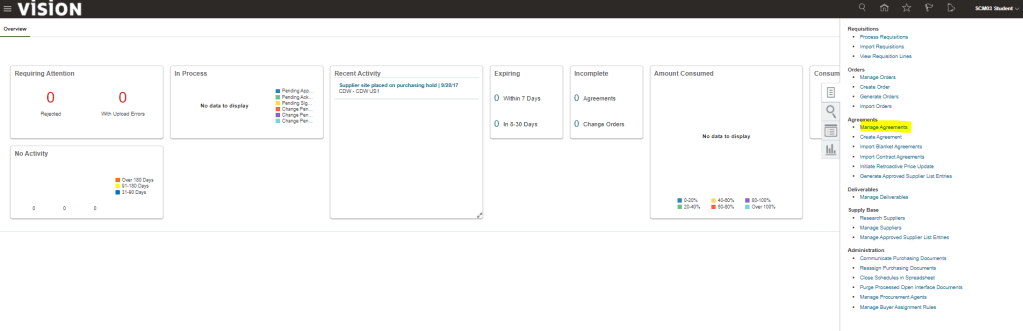
- Navigation : Procurement -> Purchase Agreements -> Manage Agreements
- Create Agreement “52270” with Supplier “Lee Supplies”.
- Add Item “CM6755001” with price and click on Submit.

Setup 5: Global Order Promising setup
1: ATP Rules
- Navigation : Order Management -> Global Order Promising -> Manage ATP Rules -> Search for your Item “CM6755001”.

- Ensure setup has following
- Promising Mode is “Supply Chain Availability Search”.
- If Make recommendations are required, Ensure “Search Components and Resources” is checked.
- All Supply Types are selected
- User-Defined lead time should be selected and Fence in Days should have value which should be longer in case longer lead time support is required.

Under ATP Rule Assignment , Assignment Basis should be “Item” and Assigned to Item should be “CM6755001“.

2: Create Sourcing Rules
- Navigation : Order Management -> Global Order Promising -> Manage Sourcing Rules.
- Create Local Sourcing Rule with Assignment Type Local and Organization is “003”

- Create a Global Sourcing Rule with Assignment Type Global.
- Ensure it has rows for “Buy from” the supplier.
- Supplier should be the one with which BPA was created “Lee Suppliers”.

- Another Sourcing Rules for Transfer from “003” Organization.
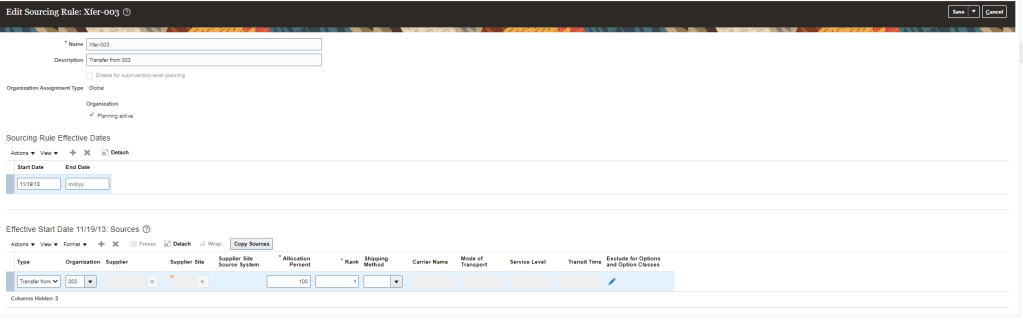
3: Create Assignment Sets
- Below sourcing rule will setup which will tell GOP that item is transferred from Organization “003”.
- Sourcing Rule should be setup in Sourcing Assignments Set with
- Assignment Level = “Item and Customer”.
- Customer = “Pinnacle Technologies”.
- Item = “CM6755001”.
- Sourcing rule = “Xfer-003”. It is transfer from Organization “003”.

- Sourcing Rule should be setup in Sourcing Assignments Set with
- Assignment Level = “Item and Organization”
- Organization = “003”.
- Item = “CM6755001”.
- Sourcing rule = One defined in previous steps.

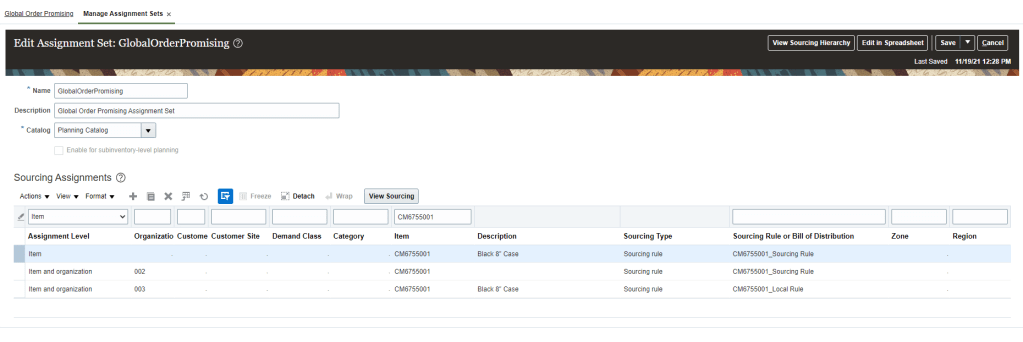
Based on Supply availability, Sourcing rules has following recommendation

Following default settings we have in Order Management and Supply Chain Orchestration
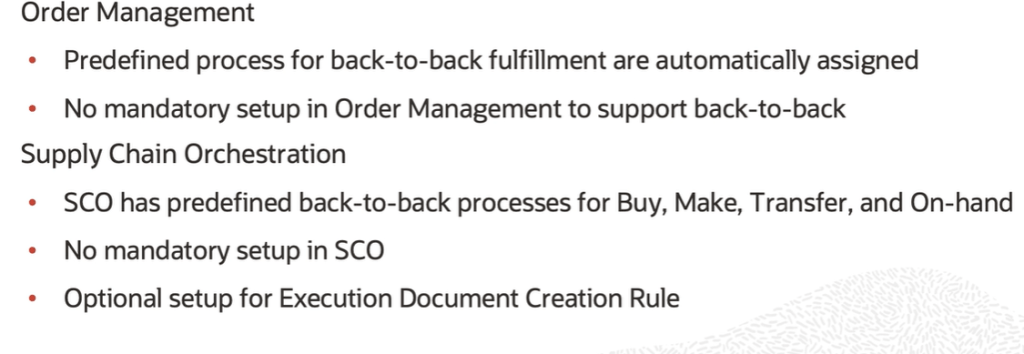
Steps for Back to Back Fulfillment Flow
Step 1: Run Job “Extract Global Order Promising Data Store and Store Request Journal”.
- Select all parameters except keeping Plan Names field as Blank.

Step 2: Verify Job “Refresh and Start the Order Promising Server” .
- If it is not running then Schedule the job,
- Select all parameters except keeping Plan Names field as Blank.
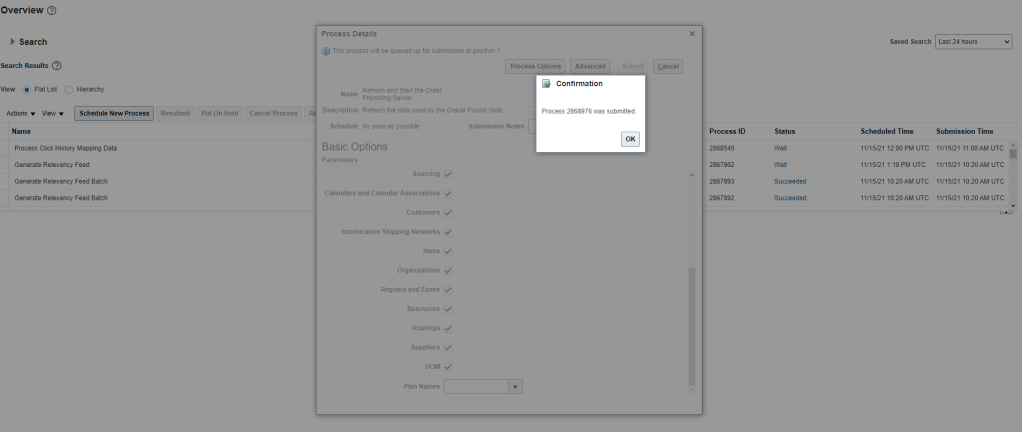
Step 3: Create Sales order
- Create Sales Order using Item “CM6755001” in Organization “002” and assign Shipping from “003”.
- Requested Supply Details , Ensure it has Requested Supply date , 4 calendar days from current date.
- Note down the Sales order. Ensure line status is “Awaiting Shipping”.

- Go to Fulfillment lines to see the Orchestration Details. See the status should be “.Awaiting Shipping”.
- Under Supply Details Back-to-Back tab, Supply Order Number is Blank.
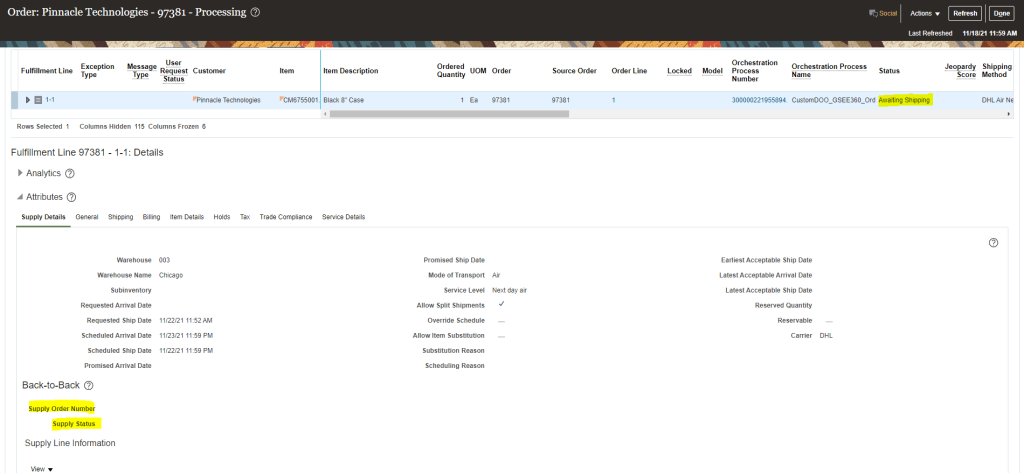
Step 4 : Schedule the job “Release Planning Recommendations” and click submit.
- Note : It is optional step as this job keeps on running in live environment. So do verify if this job is not running then we can scheduled it for faster processing.
- This will enable faster movement of Sales order and lines gets dropped to Supply Chain orchestration.

Step 5: Verify Sales Order
- In Sales Order go to fulfillment lines.
- Under Supply details Back to Back tab, see the Supply order number created and its current status.
- Note : I have used a different order number as i was having issue with previous order number.
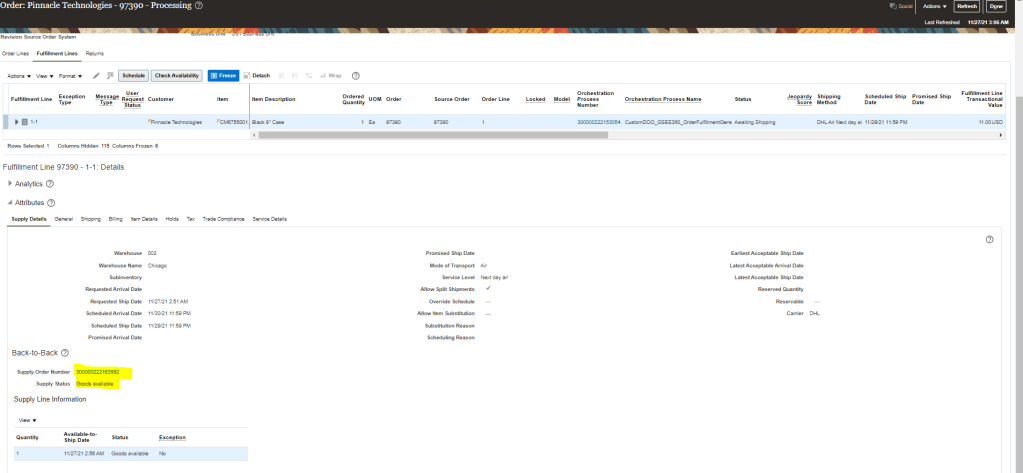
- Click Supply Order Number to see supply Orchestration Details. It will take us to Supply Order Details Screen
- Click on Detail Supply lines -> Orchestration Plan tab. Purchase Order and Purchase requisition steps have already been completed along with Reservation. Put Away and Fulfillment completion steps are pending.
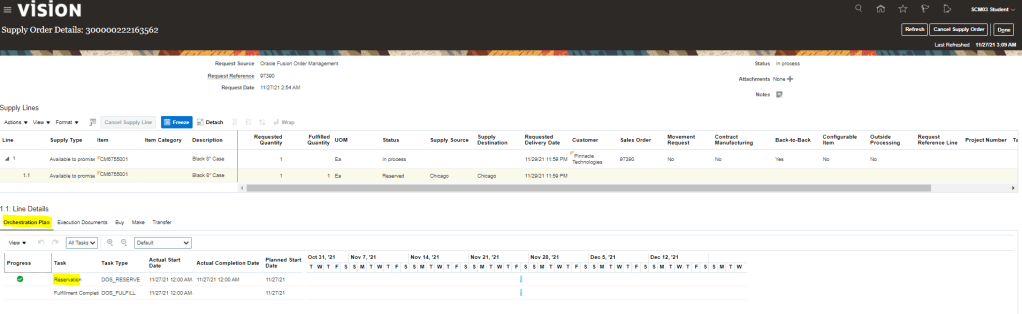
Step 6: Manager Reservation and Picks
- Navigation -> Go to Supply Chain Execution-> Click on Inventory Management -> Task “Manage Reservations and Pick”.
- Change Organization to “003” in Inventory Organization.
- Select task Manage Reservation and Picks -> Search with Sales order number “97390“.

- When Purchase order gets created , we will see Purchase order number instead of On-Hand.

Step 7: Receive Purchase order
- Navigation -> Go to Supply Chain Execution-> Click on Inventory Management -> Task “Manage Receipts” .
- Enter Purchase order number created for Supply order.
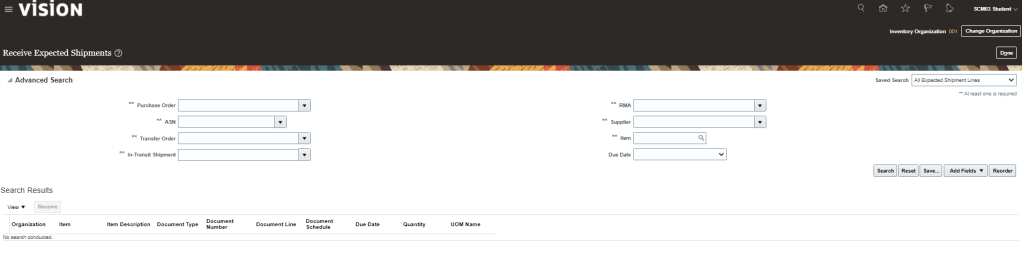
- Click on Receive once line appears.
- Enter Quantity = 1.
- Subinventory = Stores
- Click on Submit Button
Step : Verify Sales Order
- Sales order should have progressed
- Status should be Goods available Status.
Step : Verify Supplier Order
- Supply Order status should be “Put Away”.
- Put away should have got complete and fulfillment completion is pending.
Step 7: Receive Expected Shipments
- Navigation -> Go to Supply Chain Execution-> Click on Inventory Management -> Task “Manage Shipment Lines”
- Enter Sales Order number

- Pick Release the Shipments
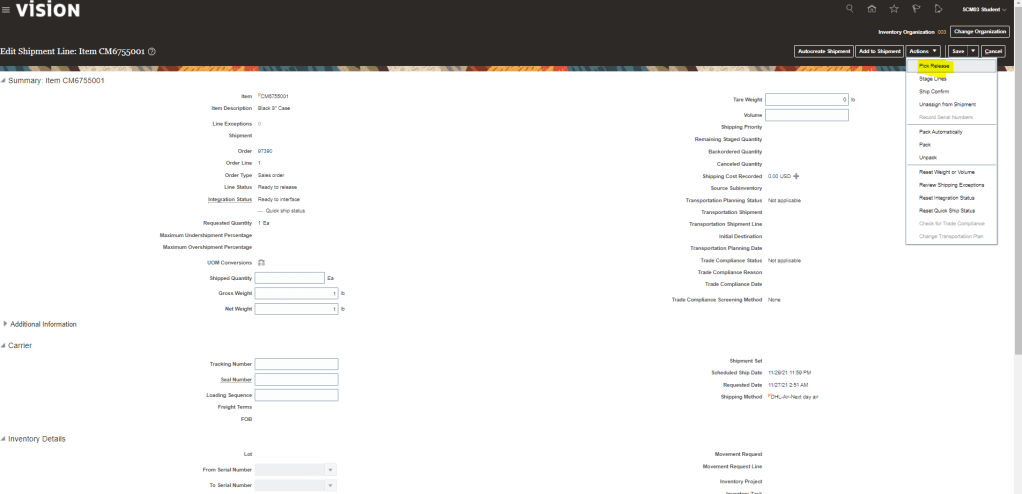
- Once Pick release is clicked, Shipment ID will get generated.
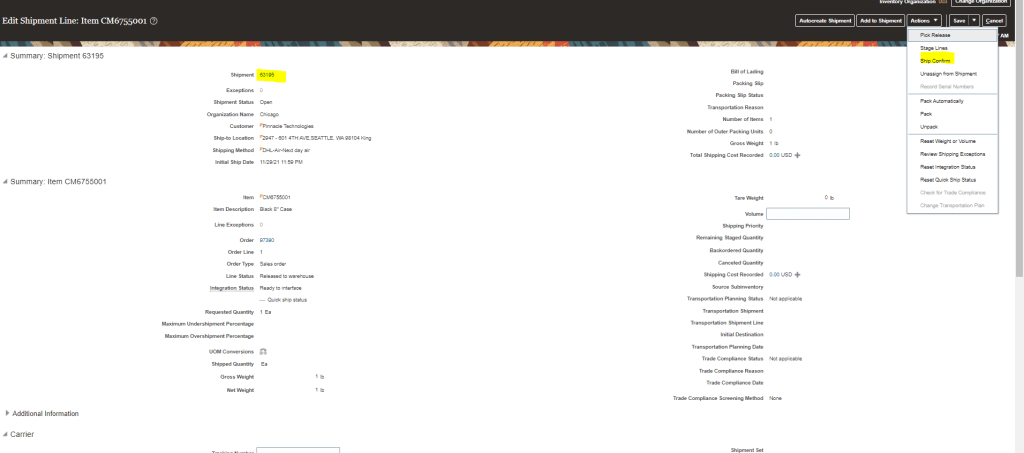
- On Clicking Ship Confirm, Shipment ID will get generated.
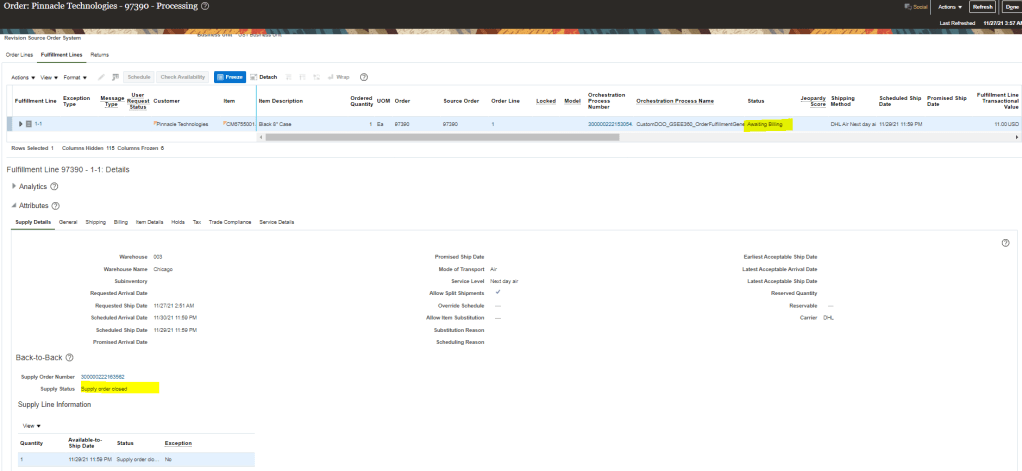
Step 8 : Verify Sales Order
- Sales order should have progressed with status of “Awaiting Billing”.
- Fulfillment Line Status should be “Supply Order Closed“.
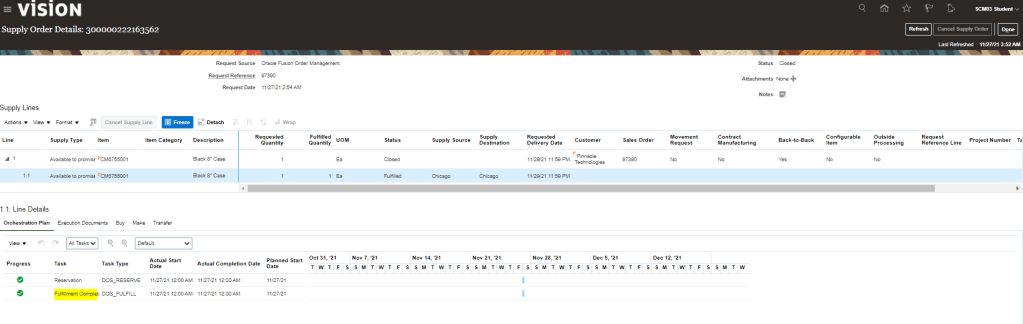
Step 9 : Verify Supplier Order
- Put away should have got complete and fulfillment completion is pending.

 My Cloud Journey