Scope Statement : In this case we will build an Integration flow between Oracle Engagement Cloud(Sales Cloud) and Oracle Service Cloud(RightNow). Purpose of the integration is to retrieve a list of RightNow business objects(RN Incidents) that are related to an account in Oracle Sales Cloud, which will correspond to a RightNow organization. These will be transformed and returned to the Sales Cloud Client as OSC Incidents.
Step 1 : Create below Adapters.
These adapters are already created and their details are mentioned in the link.
- Oracle Engagement Cloud Adapter( Sales Demo Connection created in Step 5 in above Link)
- Oracle Service Cloud Adapter( RightNow Demo Connection created in Step 4 in above Link).
Step 2 : Create Integration
- Create a App Driven Integration.

Step 2.1: Configure Oracle Engagement Cloud(Sales Demo)
- Select Sales Demo Connection
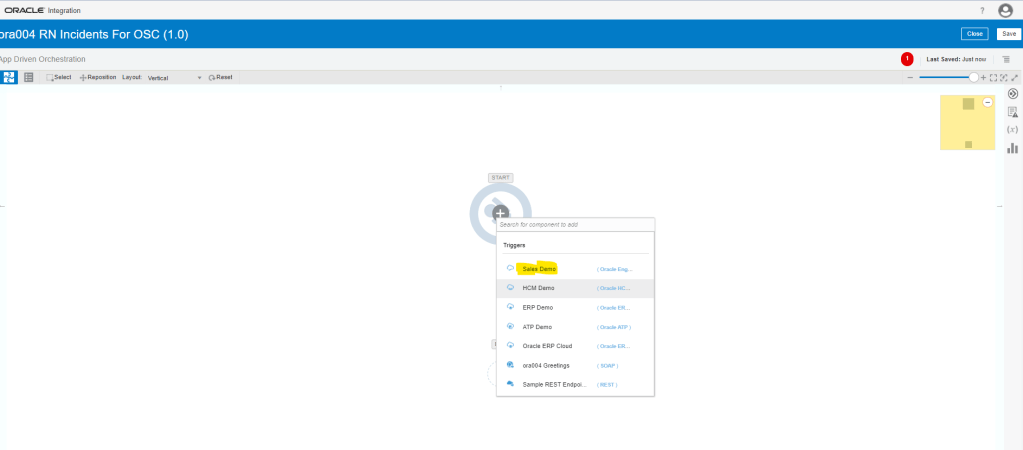
- Configure Oracle Engagement Cloud(Sales Demo) Endpoint

- Configure Request by Selecting
- Request type = “With Business Objects”.
- Business Object = “Account”
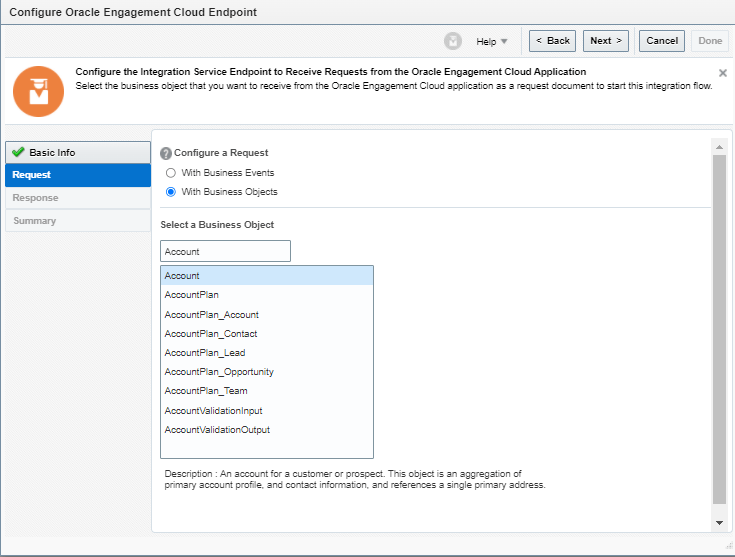
- Configure Response page by selecting
- Response type = “Immediate”
- Business Object = “Incident” and click on Next.
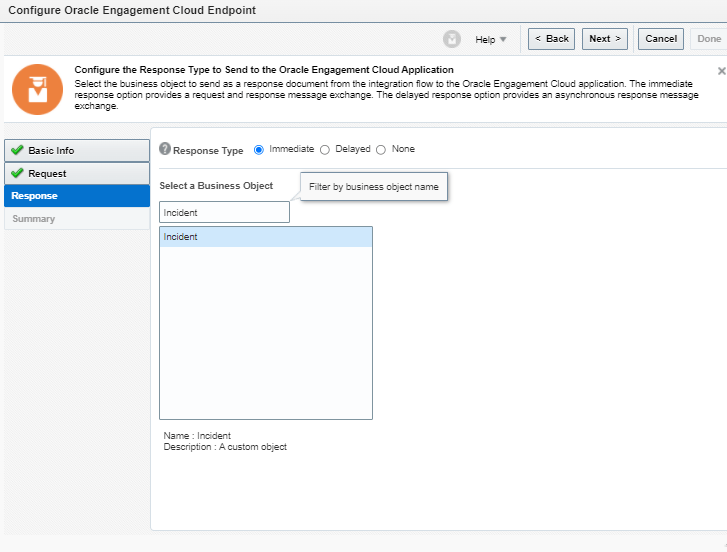
- Click Done

- Integration with Sales Demo Adapter created.

- Go to tracking and make PartyId field as primary tracking field.

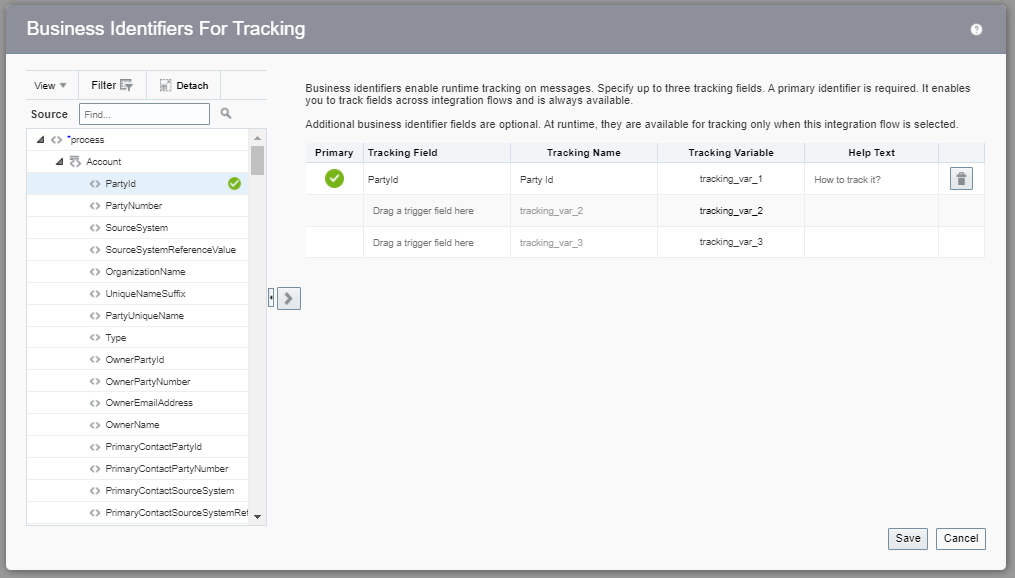
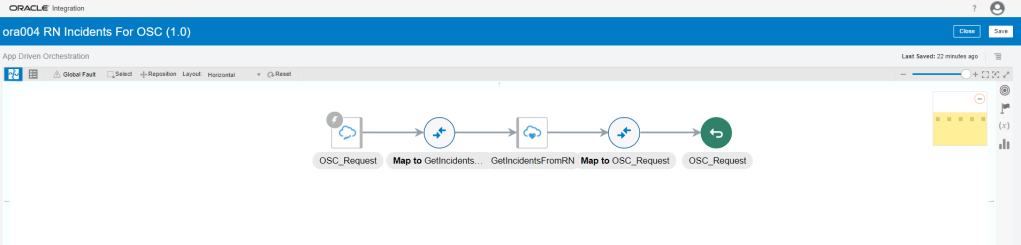
Step 2.2 : Configure Oracle Engagement Cloud(RightNow) Connection
- Click on arrow between OSC_Request and Map To OSC_Request and select RightNow connection.
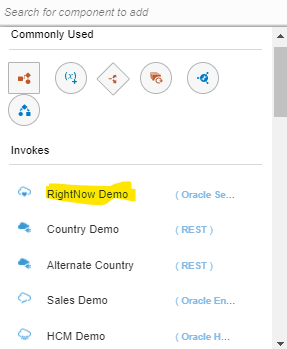
- Enter Basic Info
- Name = GetIncidentsFromRN
- Description = Purpose of endpoint
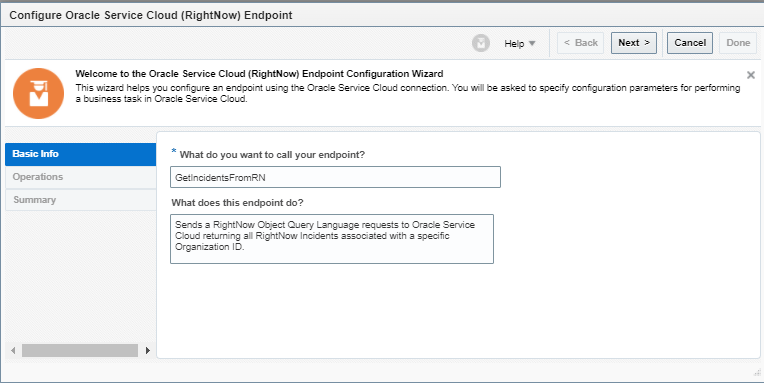
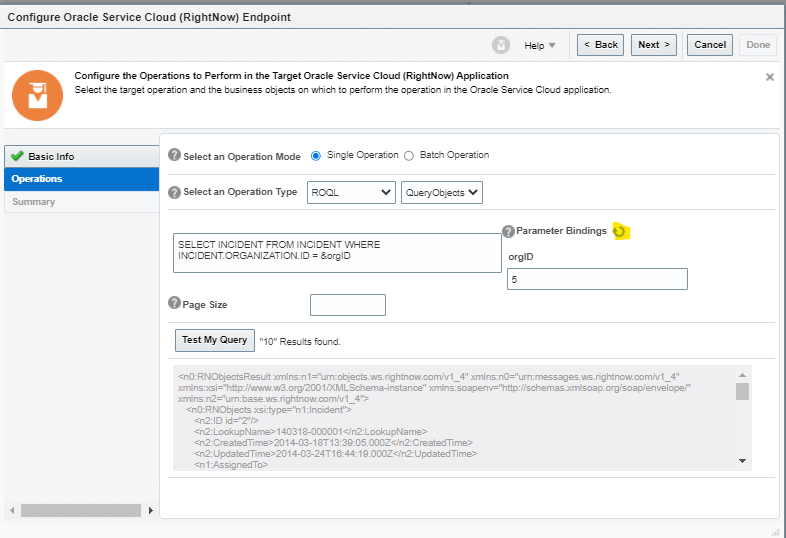
- Select following
- Operation Mode = Single Operation
- Operations type = ROQL
- Cloud Operations = QueryObjects
- Enter query = SELECT INCIDENT FROM INCIDENT WHERE INCIDENT.ORGANIZATION.ID = &orgID
- Click on Refresh next to Parameter Bindings option.
- For Testing Purpose, Enter orgID = “5” and click on Test My Query.
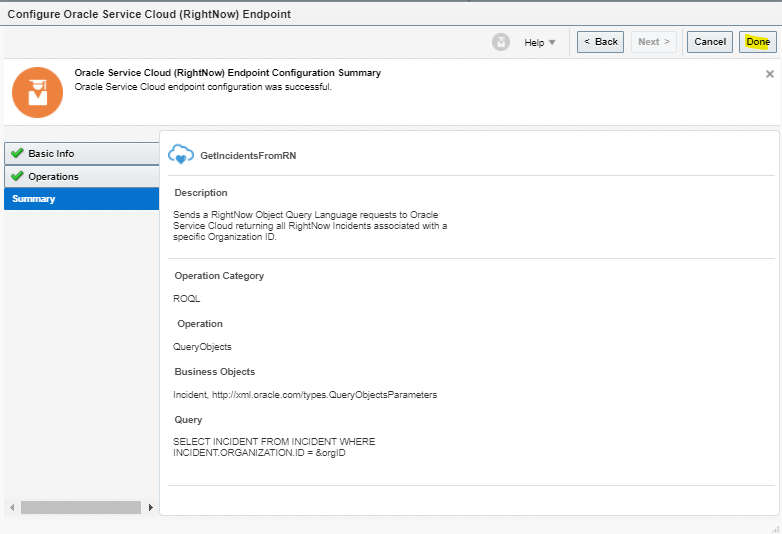
- On Summary Page, click on Done.
- After configuration it should look like.
Step 2.3 : Data Mapping
Step 2.3.1 Mapping between Greetings and Say Hello.
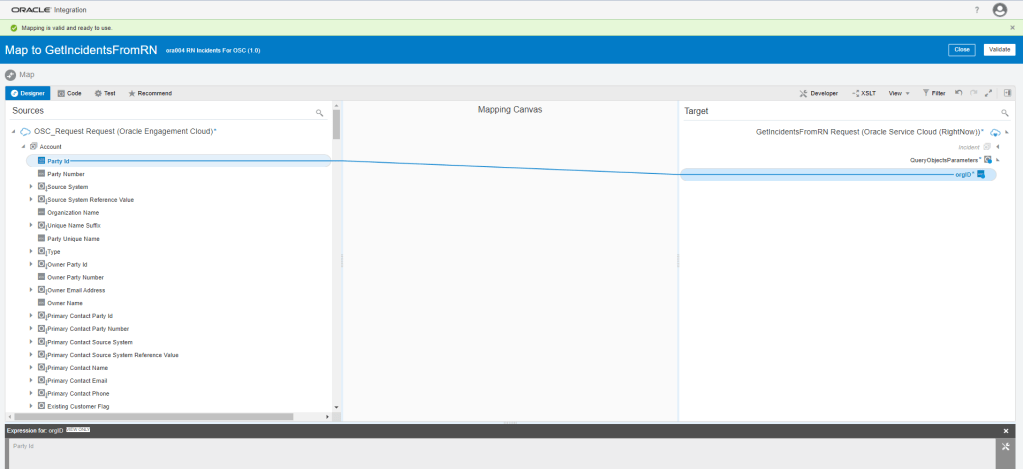
- Click on Pencil button to edit the Mapping.

- Drag and drop to create Mapping between PartyID of Account to orgID of GetIncidentFromRN Request.
- Click on Validate.
Step 2.3.2 Mapping between GetIncidentsFromRN and OSC Request.
- Click on Pencil button to edit the Mapping.
- Map following fields from Source to Target


Step 3: Activate Integration
- Once Integration is in Configured mode. Click on Configure icon, it turns into power button which is used to activate the Integration.
- Click on Enable Tracing box.
- check on Include Payload box
- Click on Activate.

- After activation, it should look like below

Step 4: Test the Integration
- We can test Integration Using SOAP UI
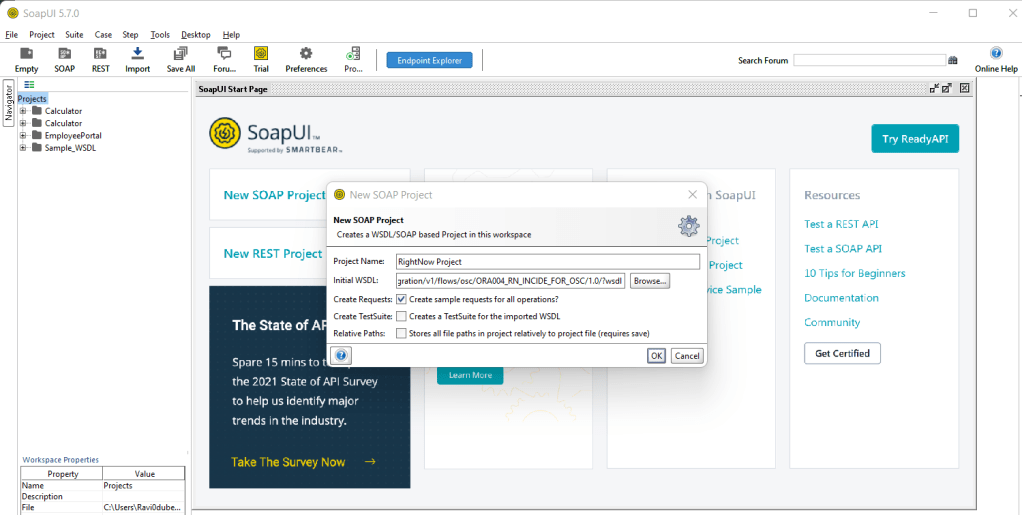
- Get URL from the OIC cloud by clicking on Play button and select WSDL URL.

- In SOAP UI, enter Project Name and Paste the URL in Initial WSDL section.
- Once Project is added, Enter Firstname in Left pane which will be our input for testing..
- On left Bottom, click on Auth and select Basic.
- Enter Username and Password of OIC cloud.
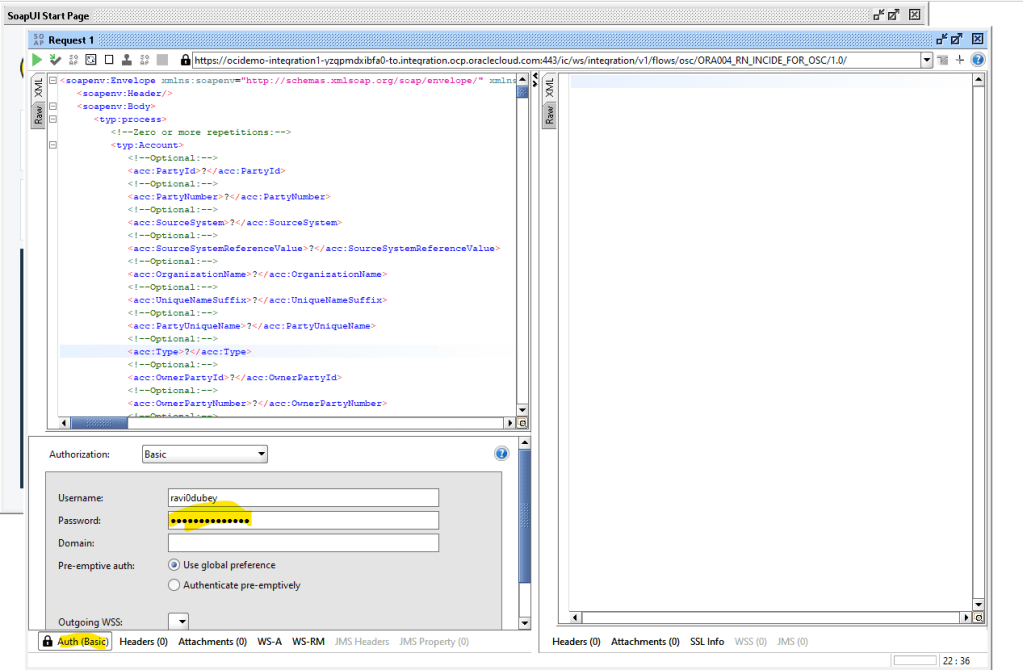
- Once Username and Password is added, right click on Left pane.
- From List select “Add WSS Username token”, then select PasswordText from the dropdown list.
- Click on OK.

- From List select “Add WS-Timestamp”,then change Timestamp value from “60” to “600”.
- Click on OK.

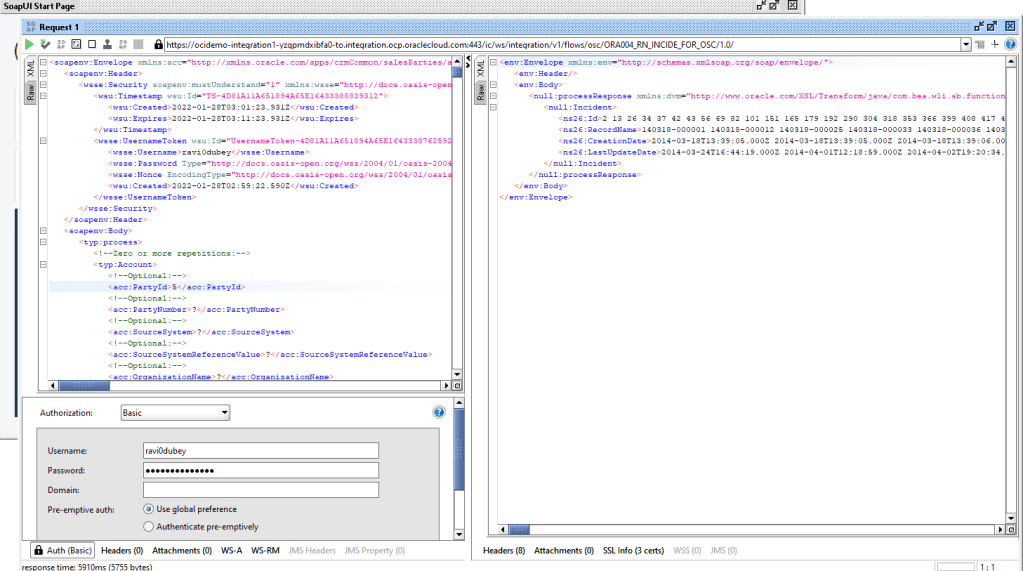
- Change the Value of PartyId from “?” to “5”
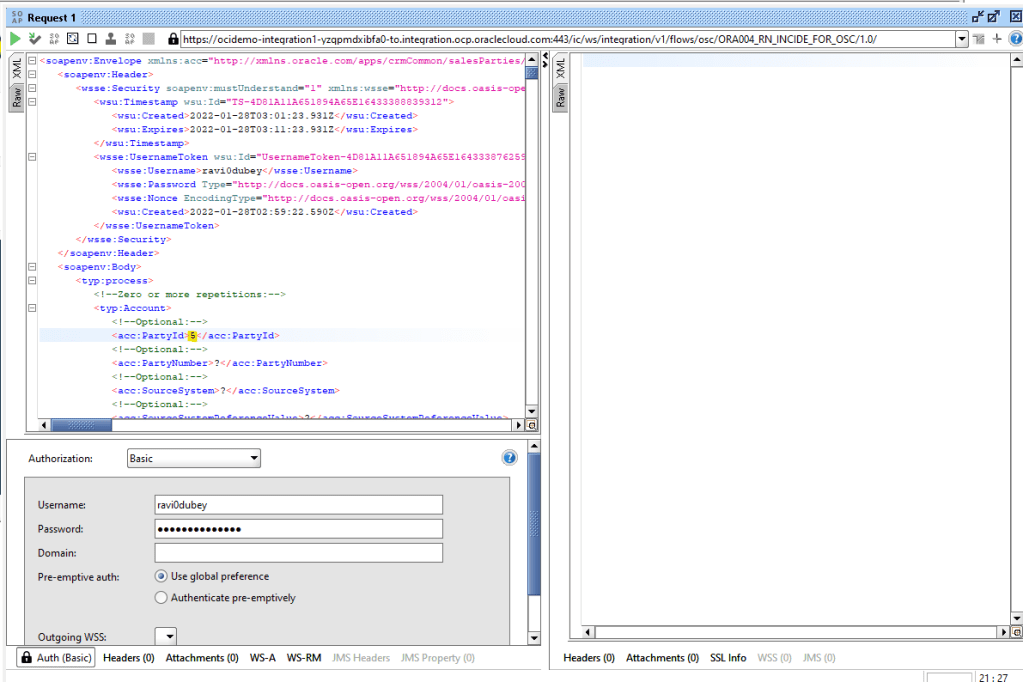
- Click on Green button to test.
- We will see response from OIC cloud with collection of Incidents in the Body.
Step 5: Monitor the Integration
- We can either go through Monitoring -> Integration -> Tracking
- OR
- Go to Integrations -> Integration and select the Integration. Click on Play Button and click on Track Instances.
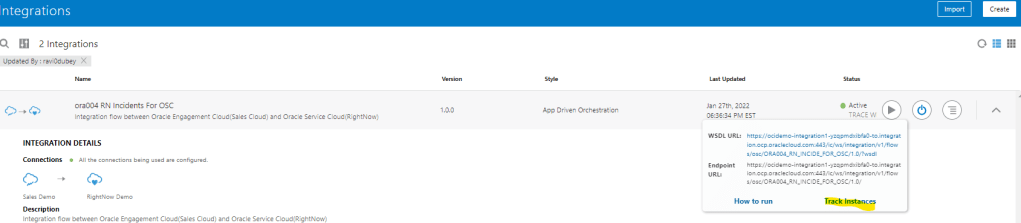
- Either way we will reach Integrations -> Tracking screen where it will show all instances of OIC Integration run.
- Under status column it will show status of each run instance.
- An eye will appear on each, on clicking it we will see the activity stream for the run.

- In each activity stream we can click on Message to see the message passed at each level. It will help to track and diagnose any error.


 My Cloud Journey