Scope Statement : In this case we will build an Integration flow designed with a REST interface trigger. REST client provides a template parameter with the unique numeric id of a country and expecting the return of a JSON string containing basic information about that corresponding country.
The country information is available in an existing REST web service, but that service requires the correct ISO 2-digit country code. We will make a call to a database table in ORACLE ATP retrieving the country code based on the client-provided numeric country id. We will use REST connection to call the country info web service.
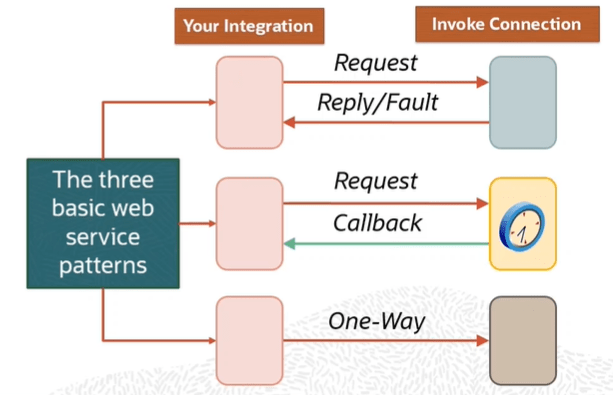
Step 1 : Create below Adapters.
These adapters are already created and their details are mentioned in the link.
- Oracle ATP Database Adapter( ATP Demo Connection created in Step 3 in above Link)
- REST Adapter( Country Demo Connection created in Step 8 in above Link).
Step 2 : Create Integration
- Create a App Driven Integration.

Step 2.1: Configure REST Adapter( Sample REST Endpoint Connection)
- Select Sample REST Endpoint

- Configure REST Endpoint
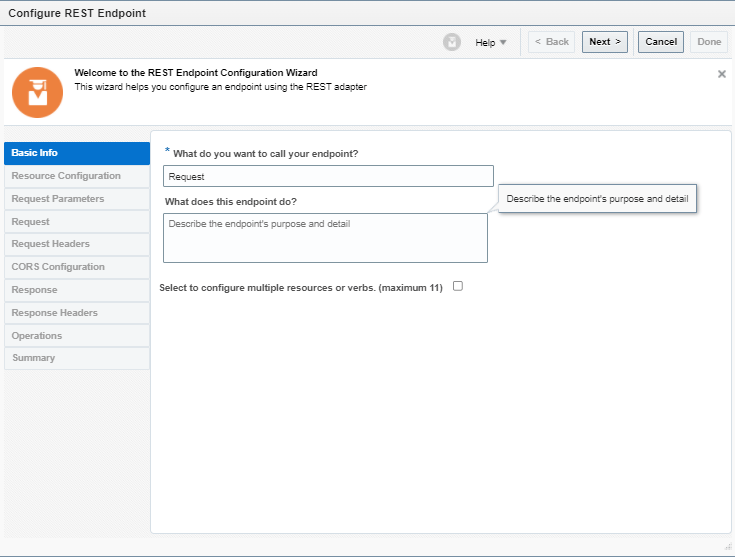
- Enter Below details for Resource Configuration
- Operation Name = default
- Endpoint’s relative resource URI = /ora004/CountryInfo/{id}
- What action do you want to perform on the endpoint = GET
- Check Configure this endpoint to receive the response

- Configure Request Parameter
- HTTP Method = GET
- One Query Parameter = id
- Data type of id = string

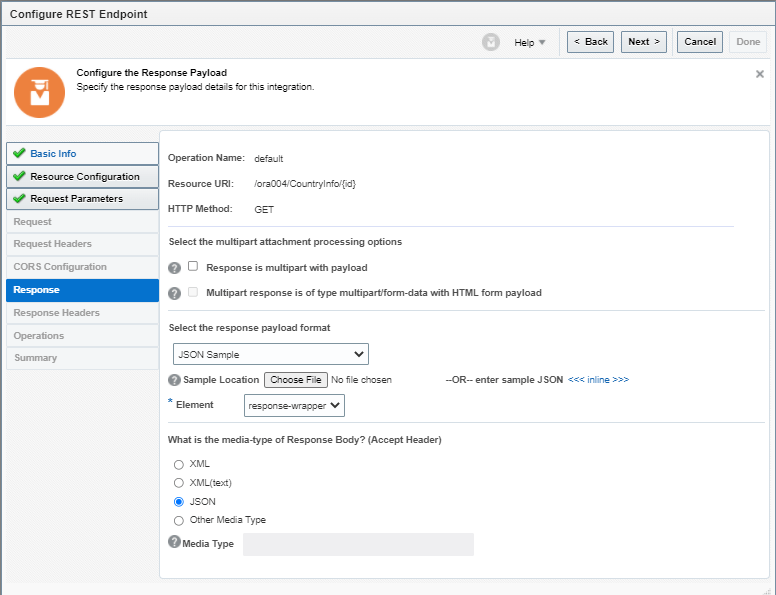
- Configure Response Parameters
- Response Payload format = JSON Sample
- Sample Location = Choose JSON file = OICCountryResponse.JSON
- Element = response-wrapper
- Media-type of Response Body = JSON
- After Verifying all details, click on Done at Summary Page.
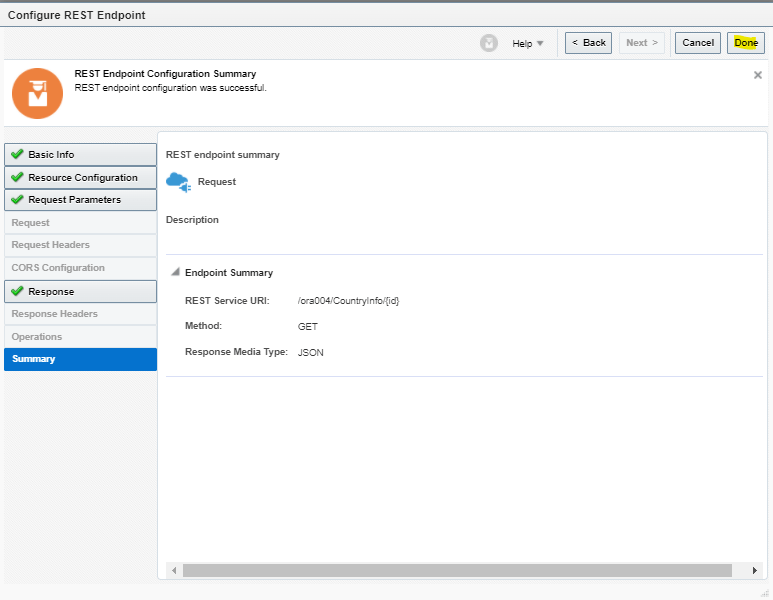
- It should look like below

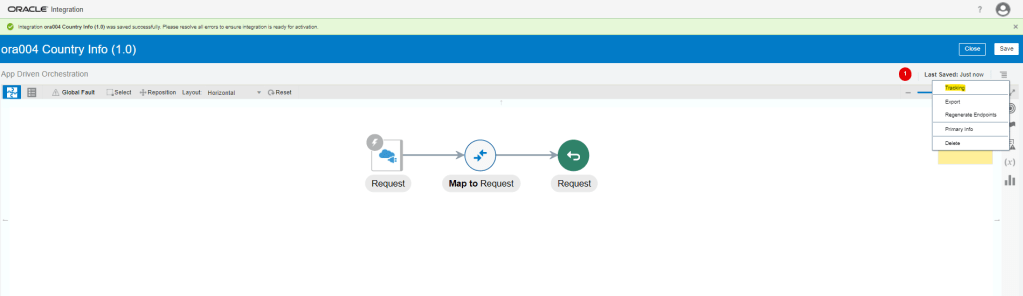
- Go to tracking and make “id” as tracking field.

Step 2.2 : Oracle ATP Database Adapter( ATP Demo Connection)
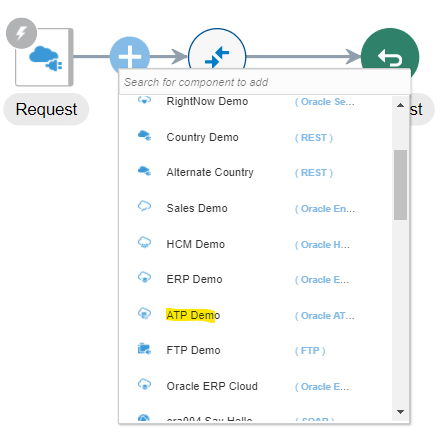
- Click on arrow between Request Endpoint and Map To Request and select ATP Demo connection.
- Configure Oracle Endpoint Adapter
- Endpoint Name = GetCode
- Endpoint Purpose = Invoke the ATP DB to retrieve the ISO 2-digit country code for the country indicated by the country ID.
- Operation to be performed = Perform an Operation on a Table
- What Operation do you want to perform on Table = “Select”

- Configure Operations on Table
- Select Schema = “SH”
- Filter By = Select Countries from Available list.
- Click on Import Tables.

- Click on Edit section of “Review and Filter Columns from Selected Database Tables.
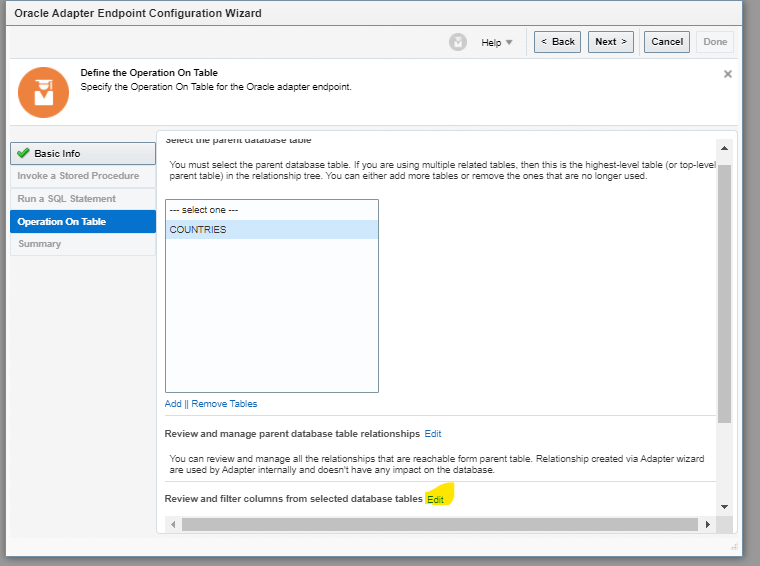
- Uncheck all columns of Countries field except “countryIsoCode(NOT NULL)”

- Click on Review and edit SQL query.
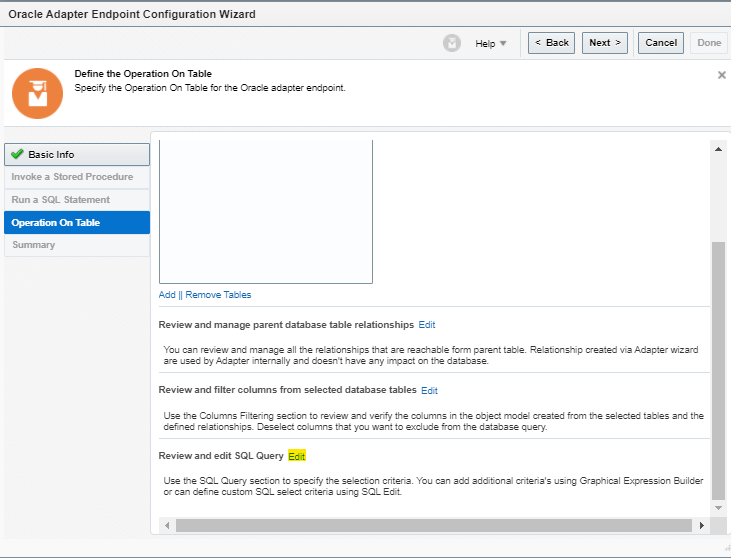
- Click on “Edit using Expression Builder”.

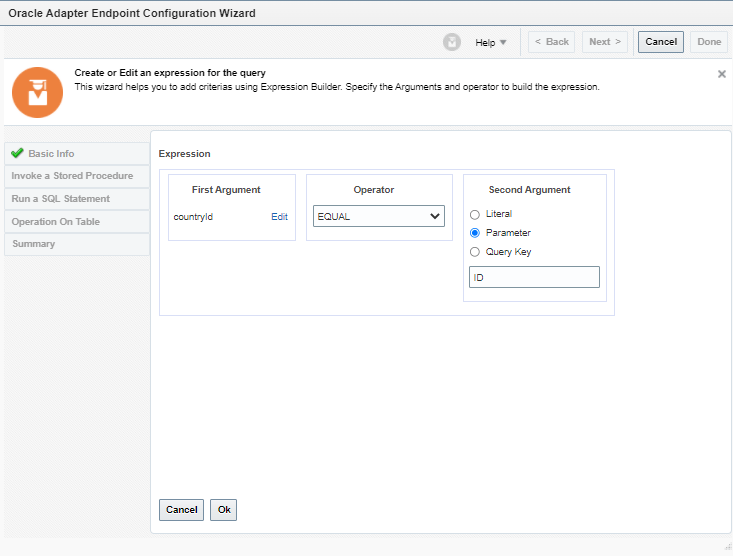
- Click on Query Criteria = “Add New”

- Change Second Argument to “Parameter” and enter the value “ID”. Click on Ok.
- Maximum number of records to be Fetched = “1” and click on done.
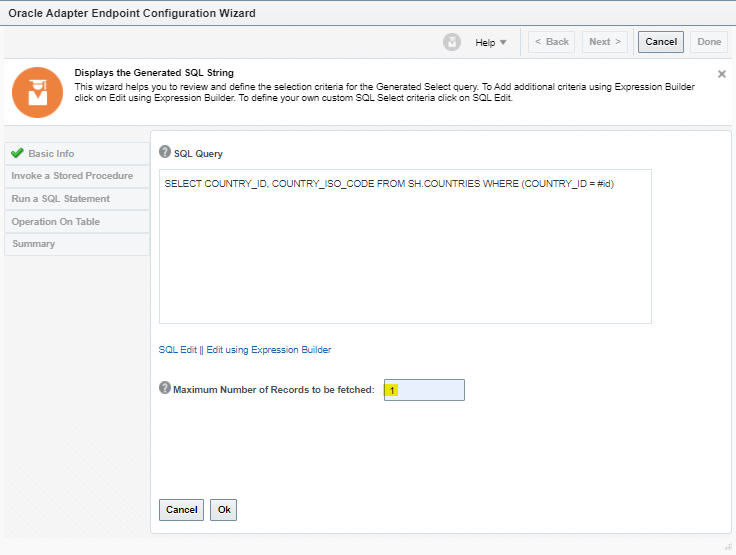
- Click on Next and on Summary Page click on SQL to verify the SQL. Post which click on Done.


- Click on Done

- This is how it should look

Step 2.4: Configure REST Adapter( Country Demo Connection)

- Enter following details
- Endpoint Name = GetCountryInfo.
- Description = Retrieving the country information from the remote REST web service by providing a valid 2-digit ISO country code.
- endpoint Relative resource URI = /alpha/{code}
- Action to be performed on Endpoint = GET
- Check on configure this endpoint to receive the response.

- Configure Request Parameter
- HTTP Method = GET
- One Query Parameter = code
- Data type of “code”= string

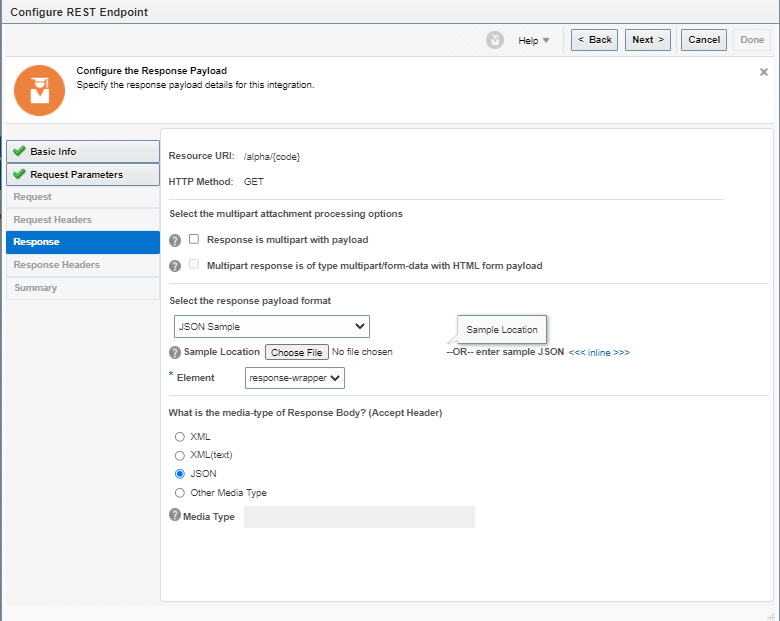
- Configure Response Parameters
- Response Payload format = JSON Sample
- Sample Location = Choose JSON file = ExternalCountryResponse.JSON
- Element = response-wrapper
- Media-type of Response Body = JSON
- On Summary page click on Done.

- After Configuring, Integration should look like below.

Step 2.4 : Data Mapping
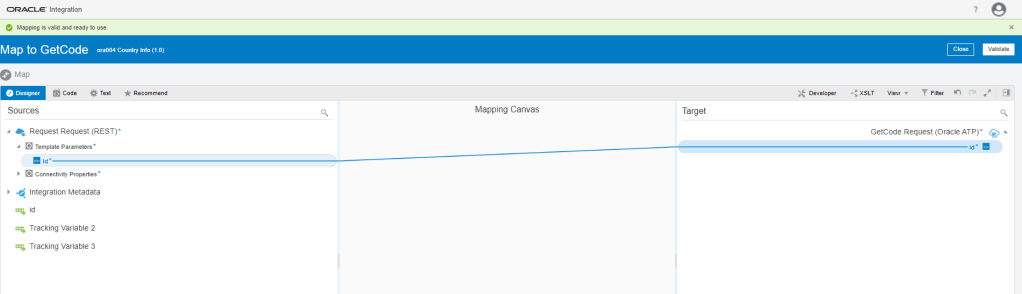
Step 2.4.1 Mapping between Request and GetCode.
- Click on Pencil button to edit the Mapping.
- Drag and drop to create Mapping between id of TemplateParameters to id of GetCodeSelect_idinputParameters.
- Click on Validate.
Step 2.4.2 Mapping between GetCode and GetCountryInfo
- Click on Pencil button to edit the Mapping.

- Drag and drop to create Mapping between countryIsoCode of Countries of CountriesColelction of $GetCode to code of TemplateParameters.
- Click on Validate.

Step 2.4.2 Mapping between GetCountryInfo and Request
- Click on Pencil button to edit the Mapping.
- Drag and drop to create Mapping between following
- excel sheet
- Click on Validate

- After mapping it should like below.

Step 3: Activate Integration
- Once Integration is in Configured mode. Click on Configure icon, it turns into power button which is used to activate the Integration.
- Click on Enable Tracing box.
- check on Include Payload box
- Click on Activate.

Step 4: Test Integration
- Click on Test

- Enter Id = “52781” and click on Test


 My Cloud Journey