Pick Confirmation performs the Subinventory transfer that systematically moves the material from its source location to the staging location.
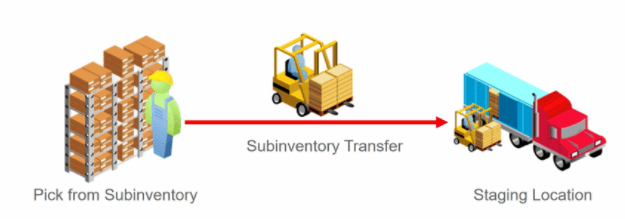
Summary of Pick Confirmation Process
- Based on the rule, It specify what all Shipment lines needs to be Pick Released or Allocated.
- Order Line status changes to Staged or Pick Confirmed.
- At staging Location location, Pick confirmation can be Manual or Automatic.
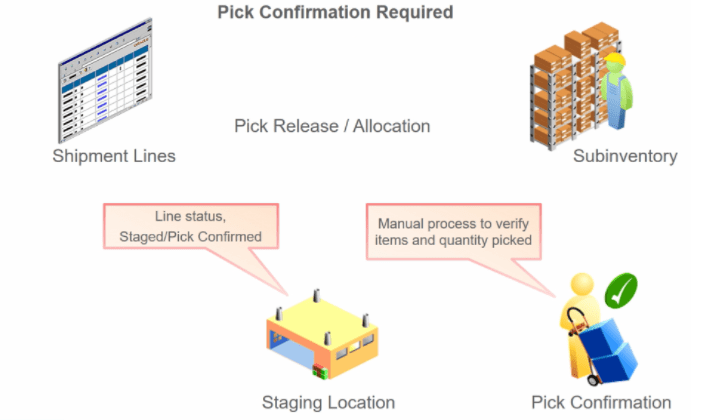
Steps of Pick Confirm
Step1: Create Order
- Create Order with Supply Warehouse as Seattle. Ensure Line status of this Order is “Awaiting Shipping”.

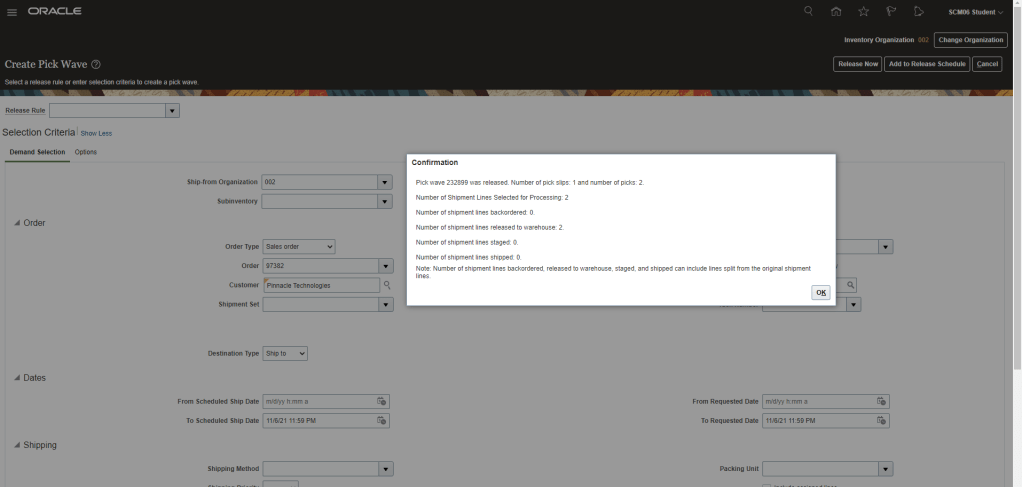
Step 2 : Create Pick Wave for Order 97382.
- Navigation : Go to Supply Chain Execution -> Inventory Management -> Right Hand Corner Go to Shipments -> Select Create Pick Wave.
- Enter Order Number “97382” and click on Release Now.
- Pick wave “232899” gets created.
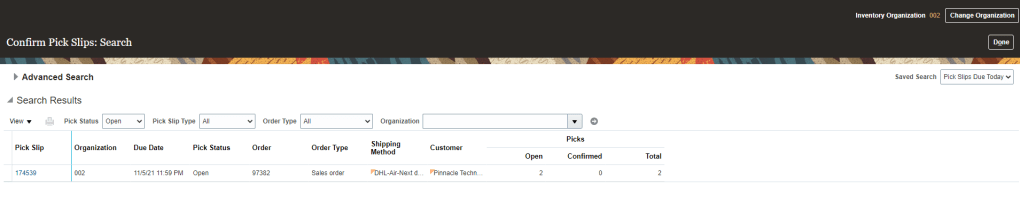
Step 3 : Pick Confirm Shipment Lines for Order 97382.
- Navigation : Go to Supply Chain Execution -> Inventory Management -> Right Hand Corner, Go to Shipments -> Select “Pick Confirm”.
- Enter Order Number to see Pick Slips.
- By default Picked Quantity value will be what was Ordered Quantity.
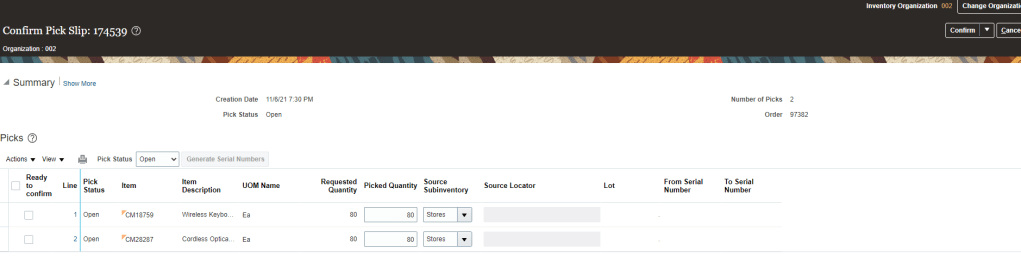
- Change Picked Quantity for both the lines, for one its under shipped( 75 instead of 80) and other line is Over shipped(84 instead of 80).
- Select “Ready to confirm” line for both lines and Click on Confirm and Go to Ship Confirm


 My Cloud Journey