OIC: Creating Publish / Subscribe Integrations with Lookups

Scope Statement : We will establish a mechanism to synchronize new accounts that are added to Oracle Engagement Cloud(Sales Demo) to ultimately create a new Organization(associated with account) in Oracle Service Cloud(RightNow). This will be done in 5 steps.

  • Step 0 : Create Adapters Oracle Engagement Cloud and Oracle Service Cloud.
  • Step 1 : Create a new Domain Value Map which in OIC world is know as a Lookup, which will be used to facilitate data mapping for Address Type information between the two SaaS application domains.
  • Step 2 : Create a new integration flow using the Publish style that receives the new account business object from Oracle Engagement Cloud.
  • Step 3 : Create a new integration flow using the Subscribe style, receiving the Engagement Cloud Account. Then leveraging your newly created lookup, map data between the Oracle Engagement Cloud Account business object and a request to create a new Organization business object in an Oracle Service Cloud(RightNow) application instance.
  • Step 4: Test the use case by invoking the Publish Integration, simulating an Oracle Engagement Cloud application sending a one-way message to OIC with the new account information.

Step 0 : Create below Adapters.

These adapters are already created and their details are mentioned in the link.

  • Oracle Engagement Cloud Adapter( Sales Demo Connection created in Step 5 in above Link)
  • Oracle Service Cloud Adapter( RightNow Demo Connection created in Step 4 in above Link).

Step 1: Creating a Lookup.

  • Navigation : Integrations -> Lookups -> Click on Create.
  • Enter Name = “ora004AddressType” and click on Create.
  • Select Domain_Name_1 and click on Replace with Adapter.
  • Select Adapter -> Oracle Engagement Cloud and click on Select.
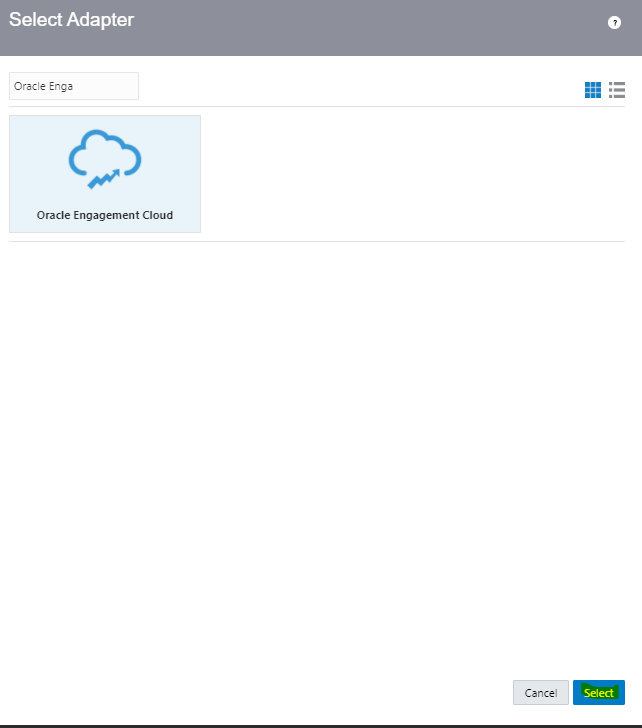
  • Repeat the above step for Domain_Name_2 and choose Adapter Oracle Service Cloud(RightNow).
  • Enter Lookup Values. To add new row, click on “+” button.
    • 1 = Billing
    • 2 = Shipping
  • Once all lookup values added, click on Save.

Step 2: Create Publish to OIC Integration

  • Navigation : Integrations -> Click on Create.
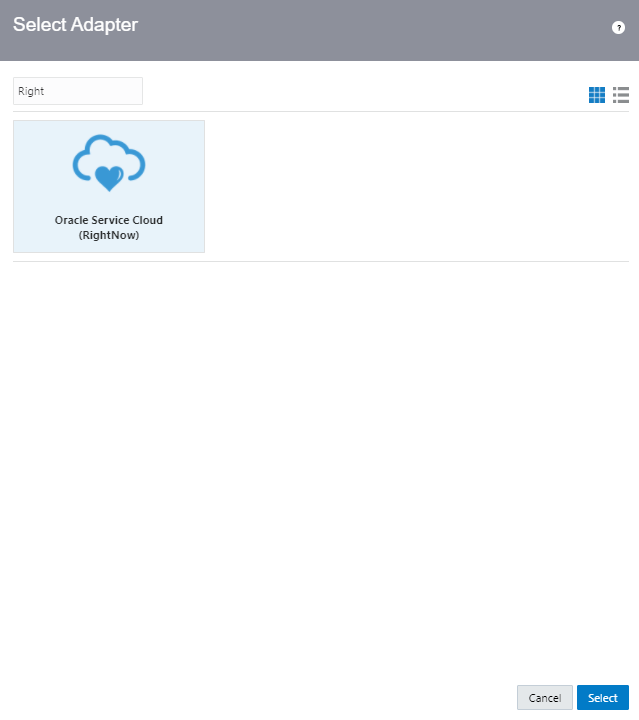
  • Choose Publish To OIC and click Select.
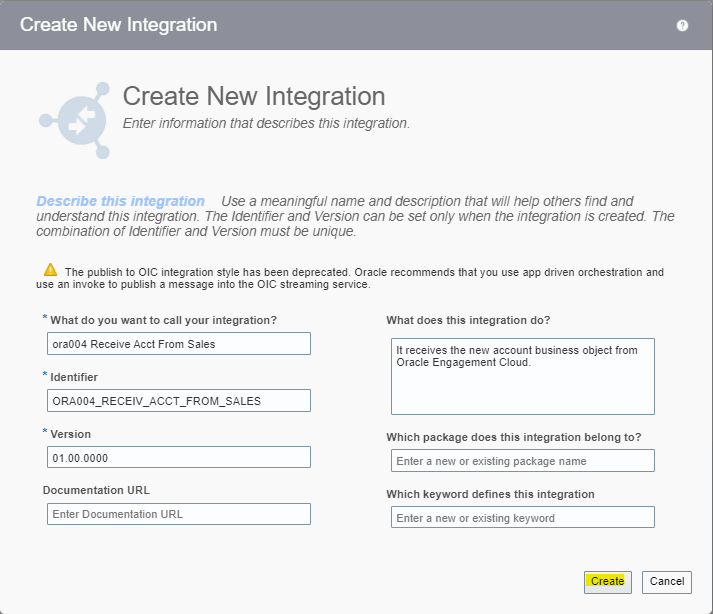
  • Enter Name = ora004 Receive Acct From Sales and click on create.
  • On Right side of Canvas, search for Sales Demo and Drag and Drop Sales Demo to the Trigger on Left Side.
  • Enter Details of Oracle Engagement Cloud Endpoint
  • Enter Name = “GetAccount”.
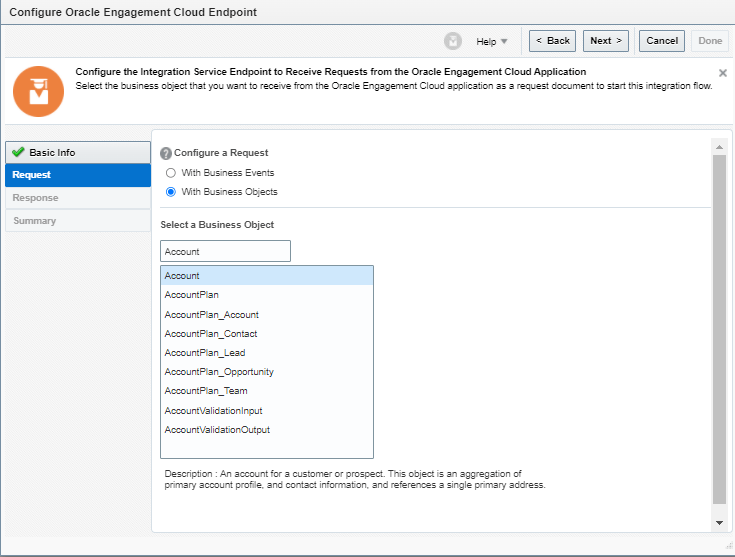
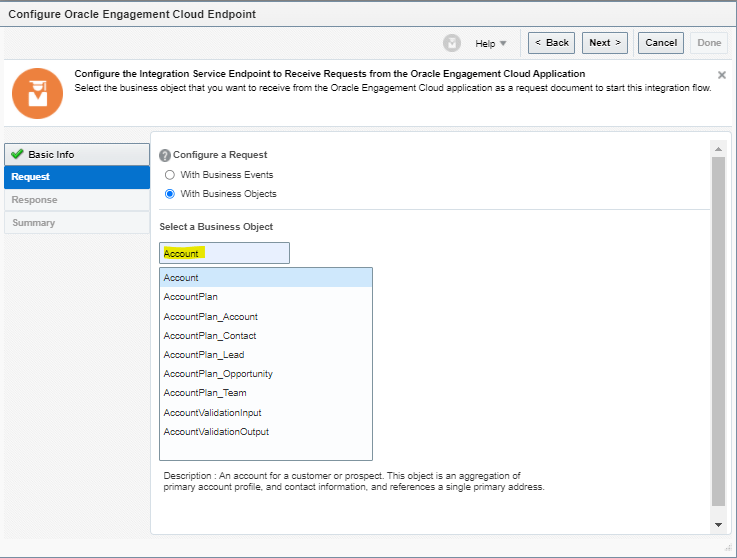
  • For Configure a Request, select “With Business Objects” and in Business Object field select as “Account” and click on Next.
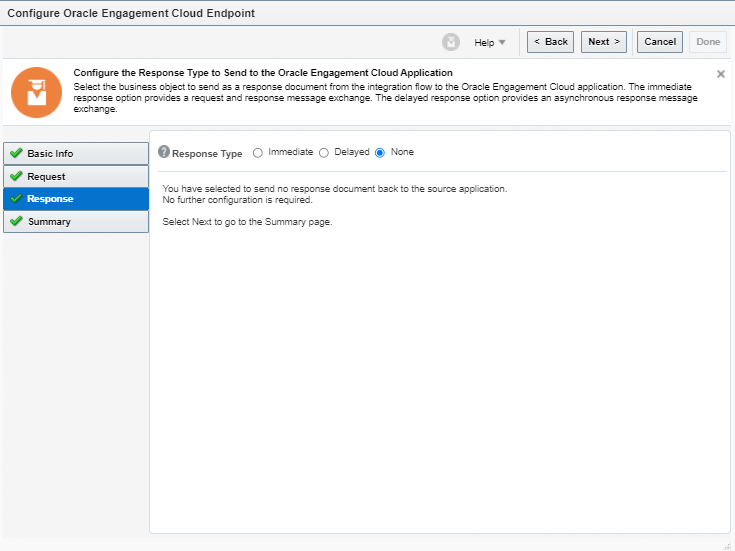
  • For Response type = select “None” as there is nothing to provide response since it is a Publish Style Integration.
  • On Summary page click on Done.
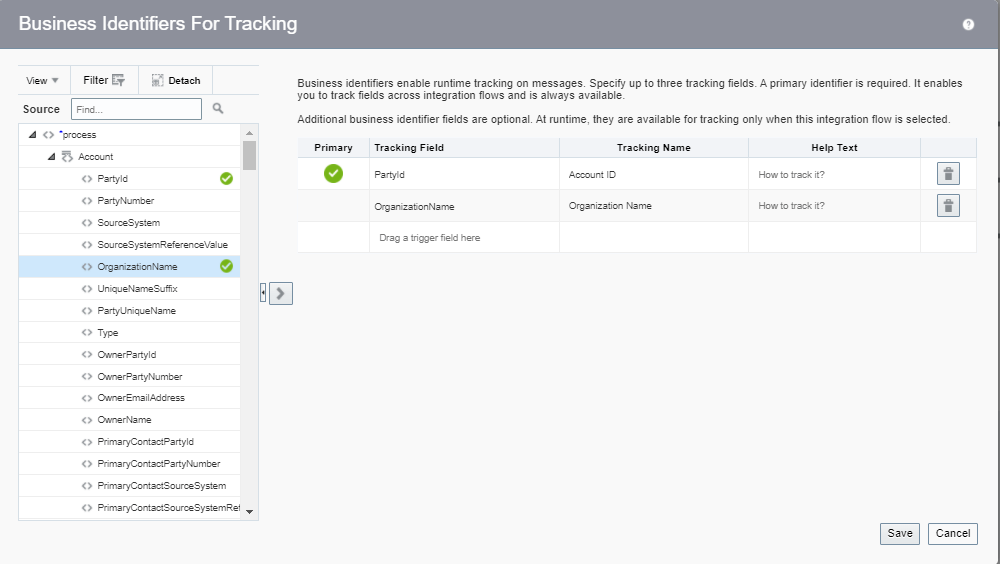
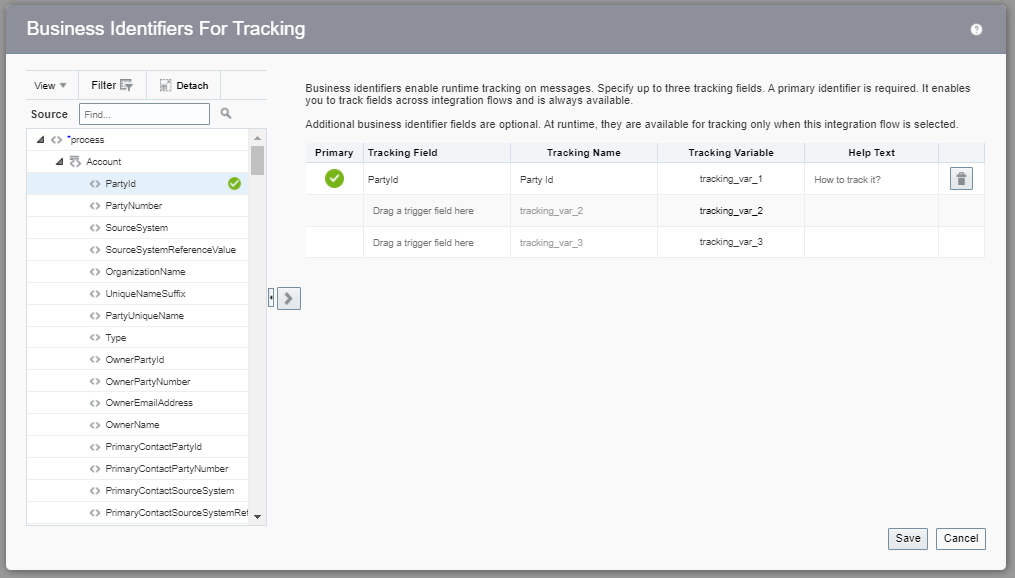
  • Add Tracking Id by selecting the PartyID of Account and change the Tracking Name to Account ID and click on Save.
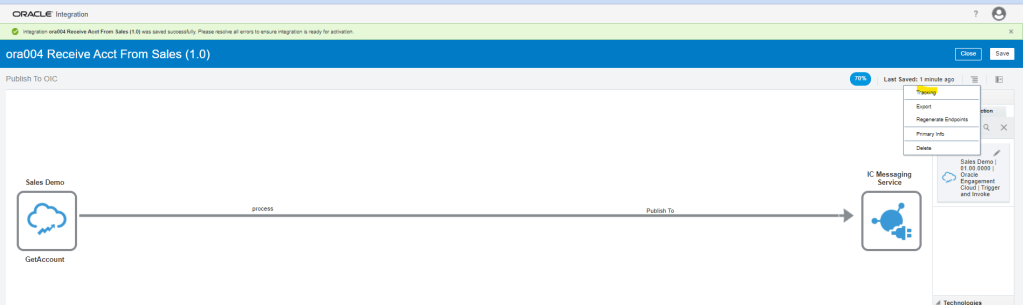
  • Save and Activate the Integration

Step 3: Create Subscribe to OIC Integration

  • Navigation : Integrations -> Click on Create.
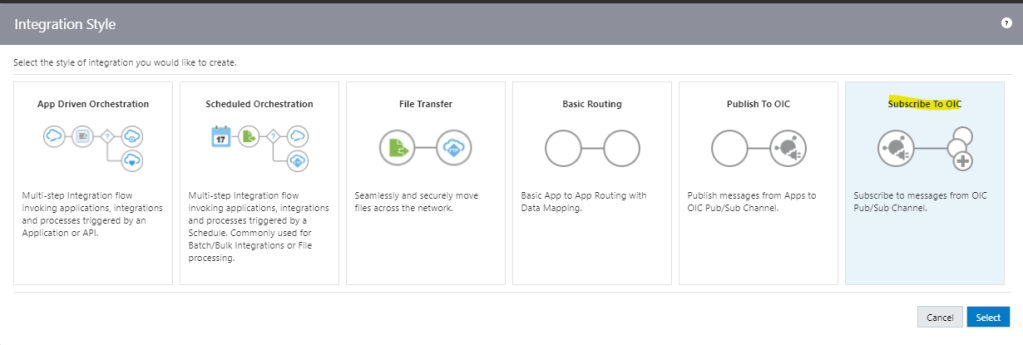
  • Choose Subscribe To OIC and click Select.
  • Enter Name and Subscription for below Integration and click on Create.
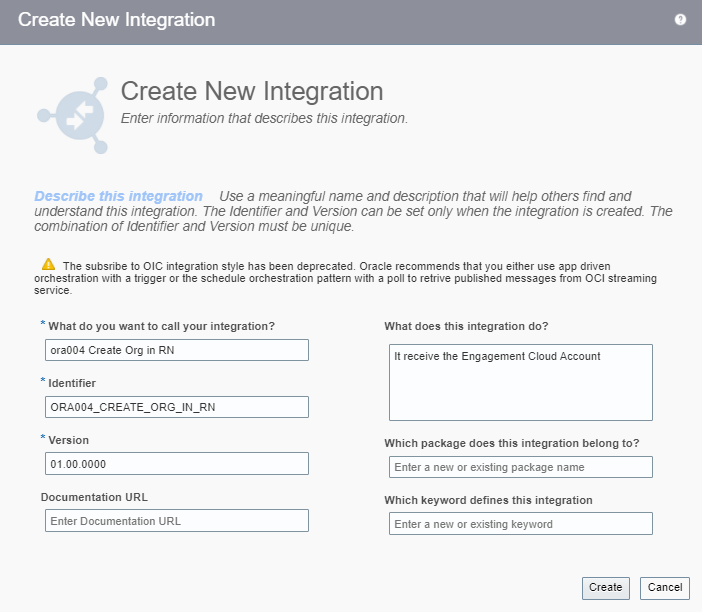
  • Select Published Integration “ora004 Receive ACCT From Sales” which was created in Step 2.
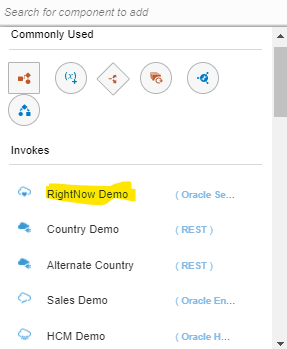
  • Search for RightNow Demo adapter on right hand corner and drag and drop on the right corner.
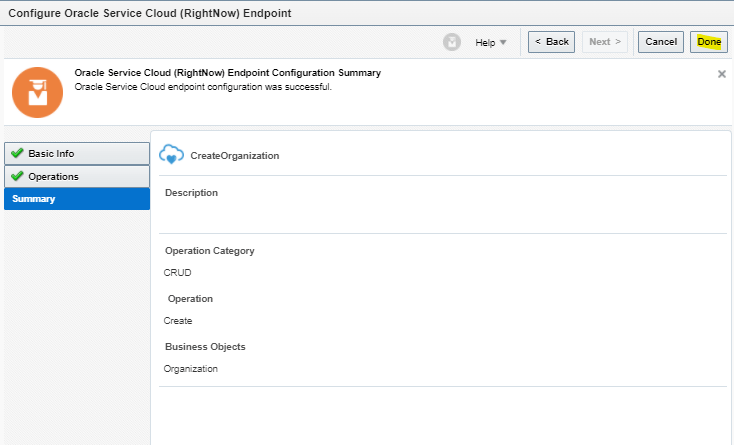
  • Enter name of Endpoint “CreateOrganization” and click on Next.
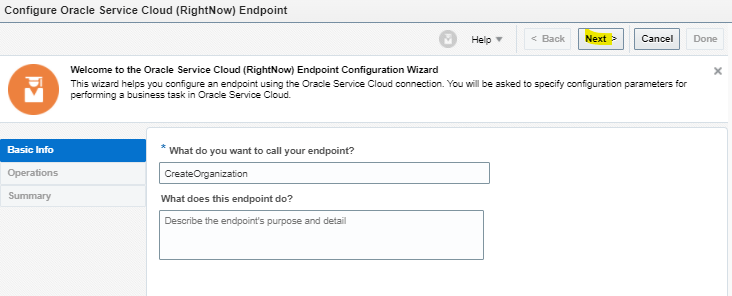
  • Select below Details and click on Next
    • Operation Mode = “Single Operation”.
    • Enter Operation Type = “CRUD”.
    • Operation = “Create”.
    • Business Object to be created = “Organization”.
  • On Summary page, click on Done.
  • Integration should look like below.
  • Click on Icon in center “Click Below to Create Map) to reach to Mapper screen.
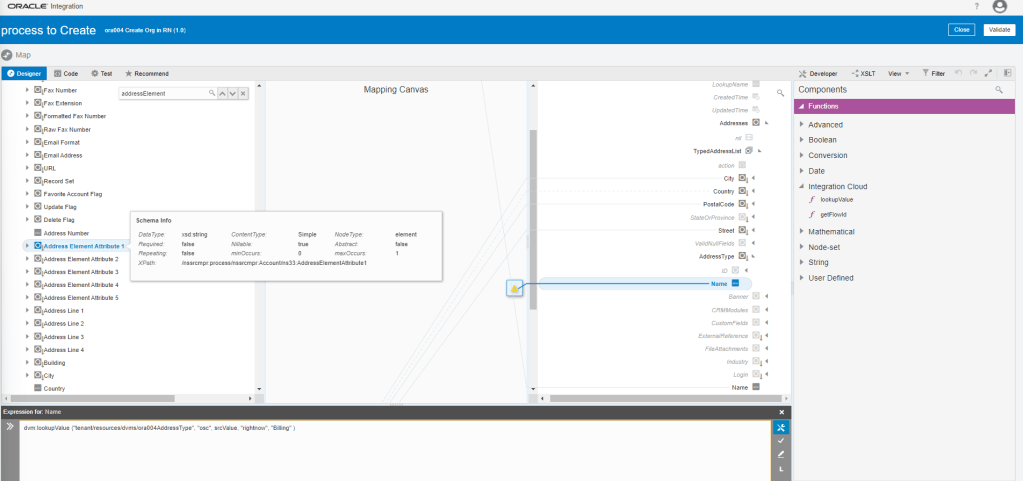
  • Create below Mapping using Drag and Drop.

  • Steps to add LookupValue created in Step1 to one of the field
    • Click on Toggle pane at extreme right corner, Functions tab will appear.
    • Under Functions, select lookupvalue and drop on Addresstype-> Name.
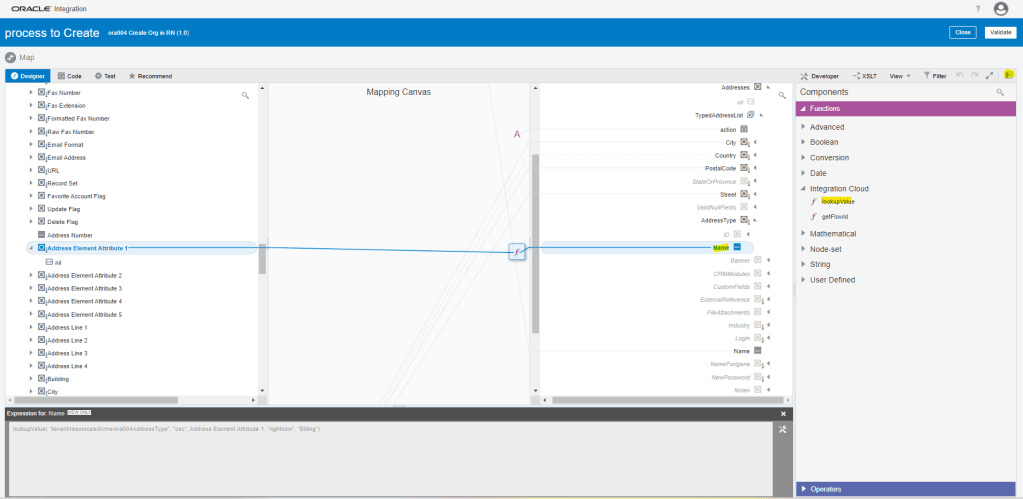
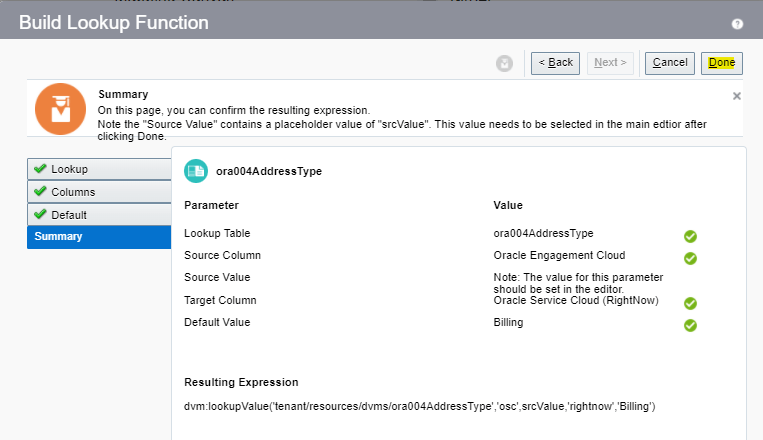
  • Below Lookup Function screen appears. Select the Lookup which was created in Step1 and click on Next.
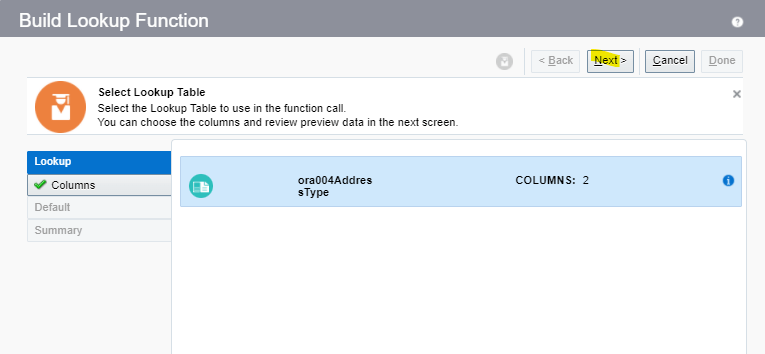
  • Click on Select Source Column. From popup screen of Select Source Column, select Oracle Engagement Cloud. This will populate the Source Value “1” and “2” created in Step1.
  • Repeat same steps for Target column and select Oracle Service Cloud(RightNow). This will populate the value “Billing” and “Shipping” created in Step1.
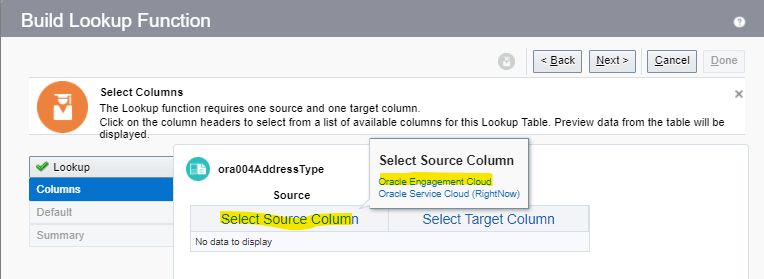
  • This screen shows the mapping between source and Target. Click Next.
  • For Default, enter the value = “Billing”. This will be used in case no value mapping exist for Addresstype.
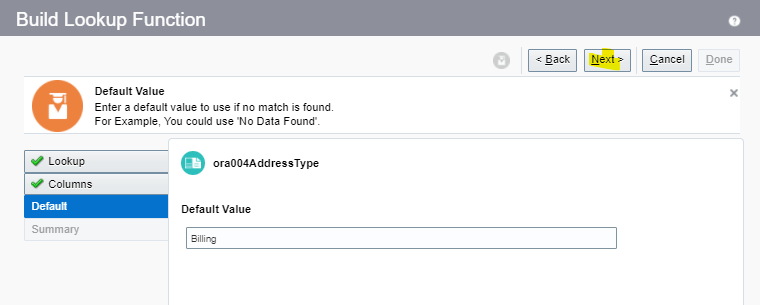
  • On Summary page, click on Done.
  • Click on AddressElementAttribute1 and right click to see Node Info. It will show the complete path of the field.
  • Click on NodeInfo to see the details.
  • Click on Function Name and in expression below and erase the value “srcvalue”.
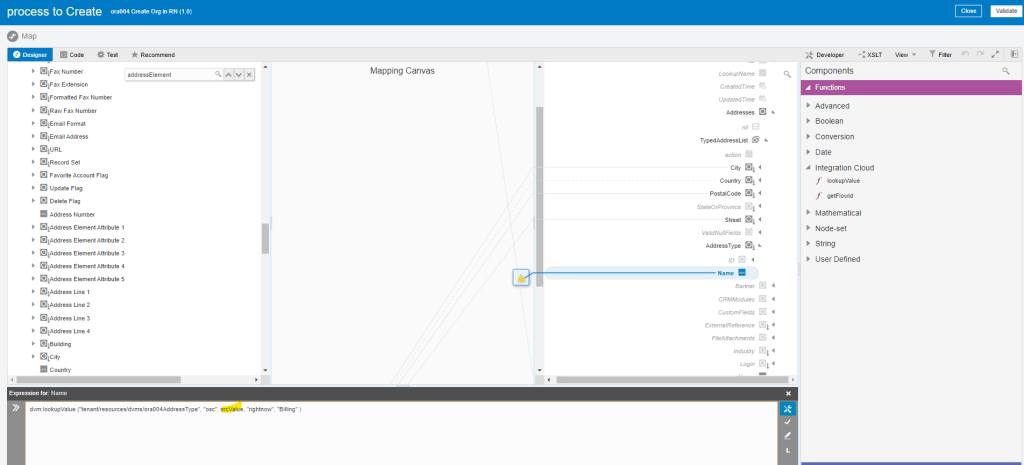
  • Drag and drop from Address ElementAddress1 at place of srcvalue which was erased at previous step.
  • So now we build a connection between Address ElementSrcValue1 to Name. Click on tick mark in the bucket.
  • It ties AddressElementAttribute1 as a value to the function, as a third parameter, which finally gets mapped to Name.
  • Click on Validate and Save.
  • Right click on Action field and select Create Target Node.
  • Click on Edit button, enter text “add”, and click on tick button and Validate
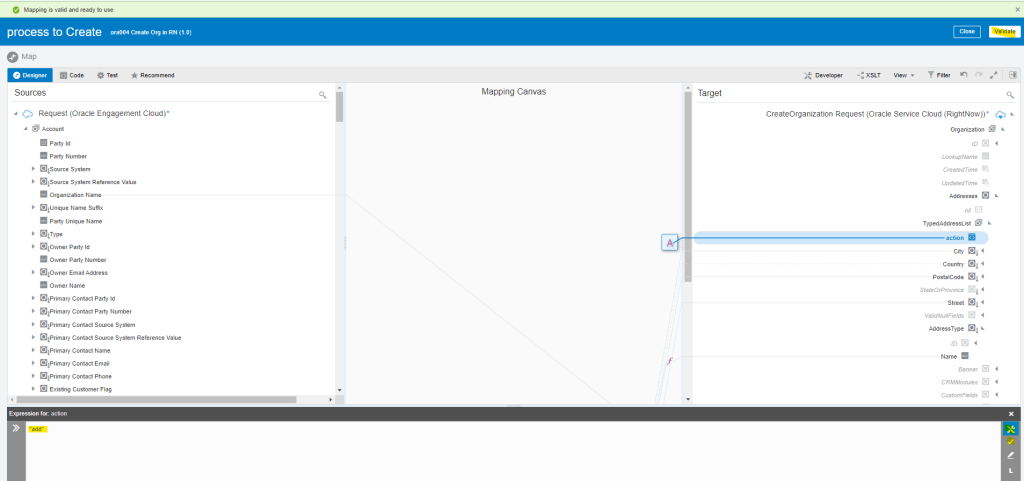
  • Add Tracking ID for the Integration
  • Add Tracking id OrganizationName
  • Activate the Integration

Step 4: Test the Integration

  • We can test Integration Using SOAP UI
  • Get URL from the OIC cloud by clicking on Play button and select WSDL URL.
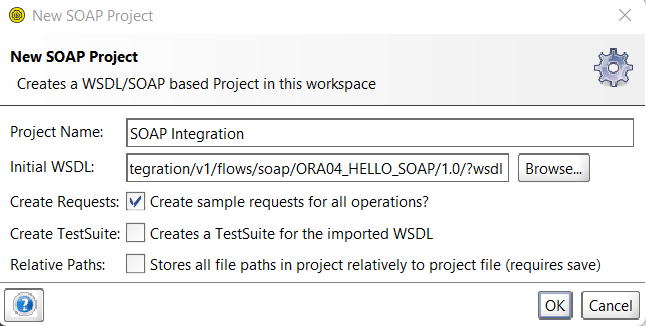
  • In SOAP UI, enter Project Name and Paste the URL in Initial WSDL section.
  • Once Project is added, Enter Firstname in Left pane which will be our input for testing..
  • On left Bottom, click on Auth and select Basic.
  • Enter Username and Password of OIC cloud.
  • Once Username and Password is added, right click on Left pane.
  • From List select “Add WSS Username token”, then select PasswordText from the dropdown list.
  • Click on OK.
  • From List select “Add WS-Timestamp”, then change the timestamp from 60 to 600.
  • Click on OK.
  • Enter Below Value
    • PartyId = “101”
    • OrganizationName = “Demo Org11 ora004”
    • AddressElementAttribute1 = “2”
    • AddressLine1 = “101 Main Street”
    • City = “Tampa”
    • Country = “US”
    • Postal Code = “33626”
  • Click on Green Button to run, XML will process correct.

Step 4.1 : Monitor the Integration

  • We can either go through Monitoring -> Integration -> Tracking
    • OR
  • Go to Integrations -> Integration and select the Integration. Click on Play Button and click on Track Instances.

  • Either way we will reach Integrations -> Tracking screen where it will show all instances of OIC Integration run.
  • Under status column it will show status of each run instance.
  • An eye will appear on each, on clicking it we will see the activity stream for the run.

  • Track Subscribe to OIC instance.
  • Verifying Publisher Run
OIC: ATP and REST Invoke Connection.

Scope Statement : In this case we will build an Integration flow designed with a REST interface trigger. REST client provides a template parameter with the unique numeric id of a country and expecting the return of a JSON string containing basic information about that corresponding country.

The country information is available in an existing REST web service, but that service requires the correct ISO 2-digit country code. We will make a call to a database table in ORACLE ATP retrieving the country code based on the client-provided numeric country id. We will use REST connection to call the country info web service.

Step 1 : Create below Adapters.

These adapters are already created and their details are mentioned in the link.

  • Oracle ATP Database Adapter( ATP Demo Connection created in Step 3 in above Link)
  • REST Adapter( Country Demo Connection created in Step 8 in above Link).

Step 2 : Create Integration

  • Create a App Driven Integration.

Step 2.1: Configure REST Adapter( Sample REST Endpoint Connection)

  • Select Sample REST Endpoint
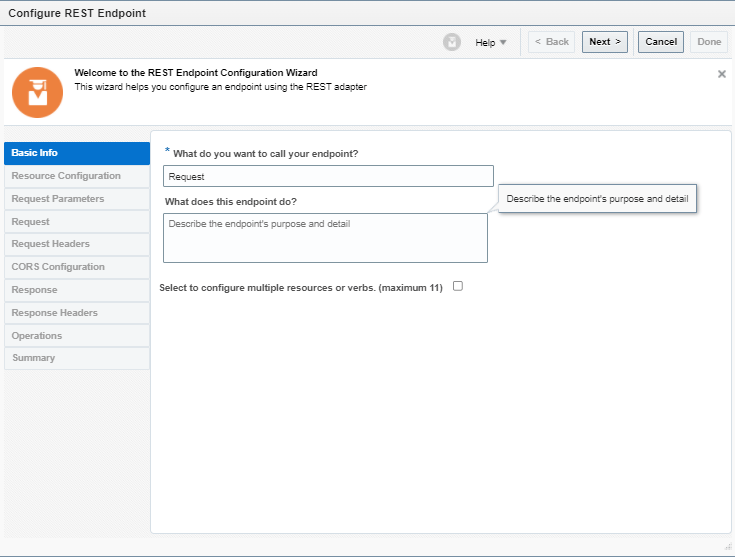
  • Configure REST Endpoint
  • Enter Below details for Resource Configuration
  • Operation Name = default
  • Endpoint’s relative resource URI = /ora004/CountryInfo/{id}
  • What action do you want to perform on the endpoint = GET
  • Check Configure this endpoint to receive the response
  • Configure Request Parameter
    • HTTP Method = GET
    • One Query Parameter = id
    • Data type of id = string
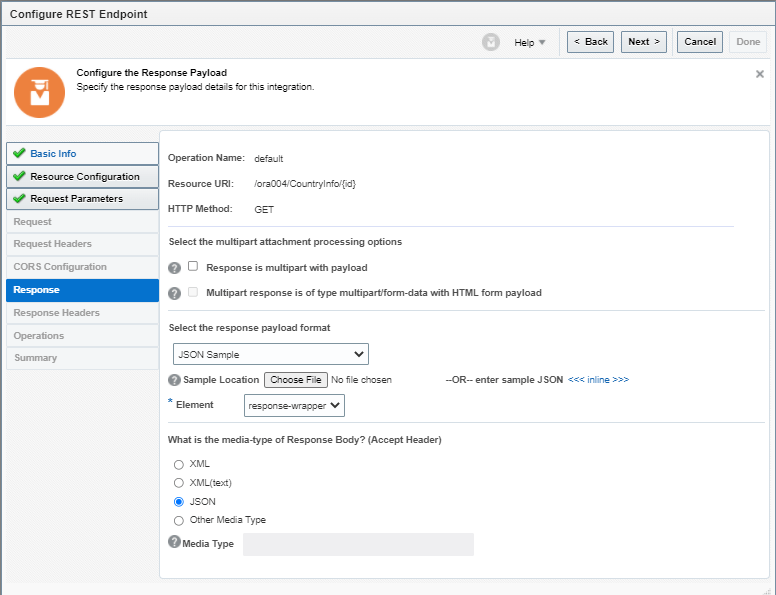
  • Configure Response Parameters
    • Response Payload format = JSON Sample
    • Sample Location = Choose JSON file = OICCountryResponse.JSON
    • Element = response-wrapper
    • Media-type of Response Body = JSON
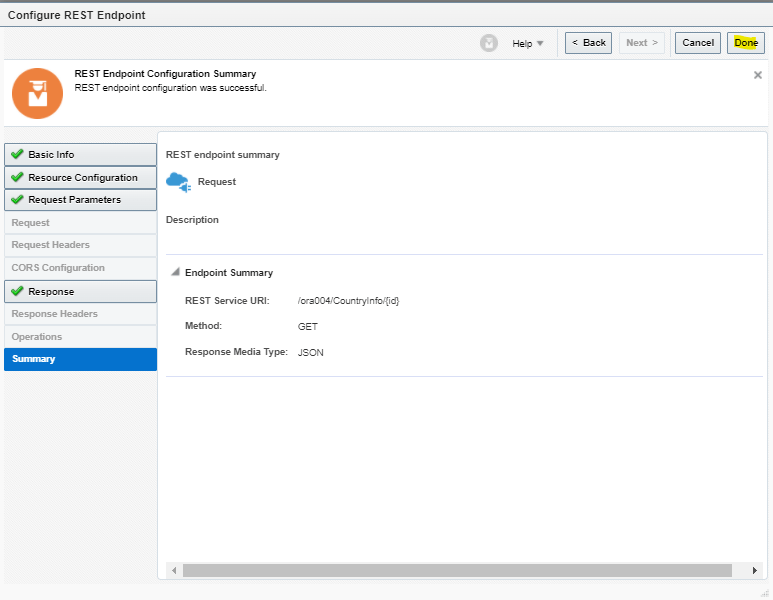
  • After Verifying all details, click on Done at Summary Page.
  • It should look like below
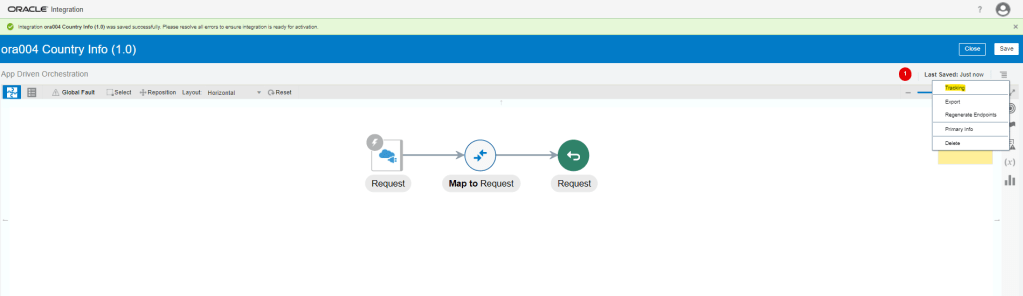
  • Go to tracking and make “id” as tracking field.

Step 2.2 : Oracle ATP Database Adapter( ATP Demo Connection)

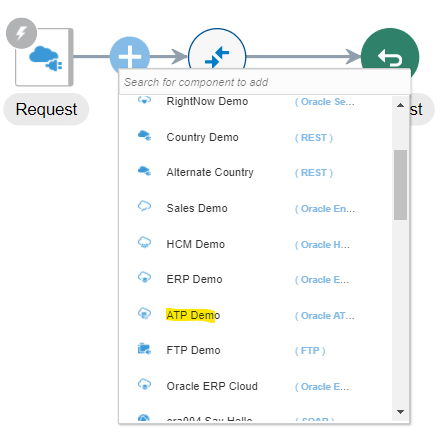
  • Click on arrow between Request Endpoint and Map To Request and select ATP Demo connection.
  • Configure Oracle Endpoint Adapter
    • Endpoint Name = GetCode
    • Endpoint Purpose = Invoke the ATP DB to retrieve the ISO 2-digit country code for the country indicated by the country ID.
    • Operation to be performed = Perform an Operation on a Table
    • What Operation do you want to perform on Table = “Select”
  • Configure Operations on Table
    • Select Schema = “SH”
    • Filter By = Select Countries from Available list.
    • Click on Import Tables.
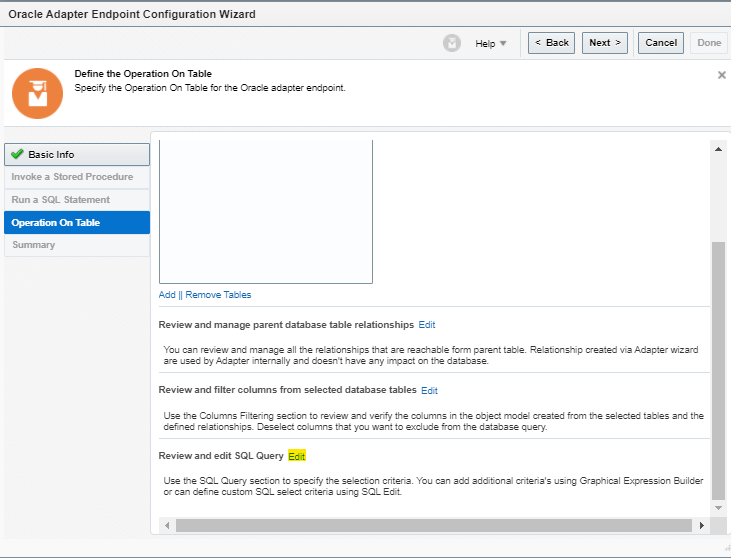
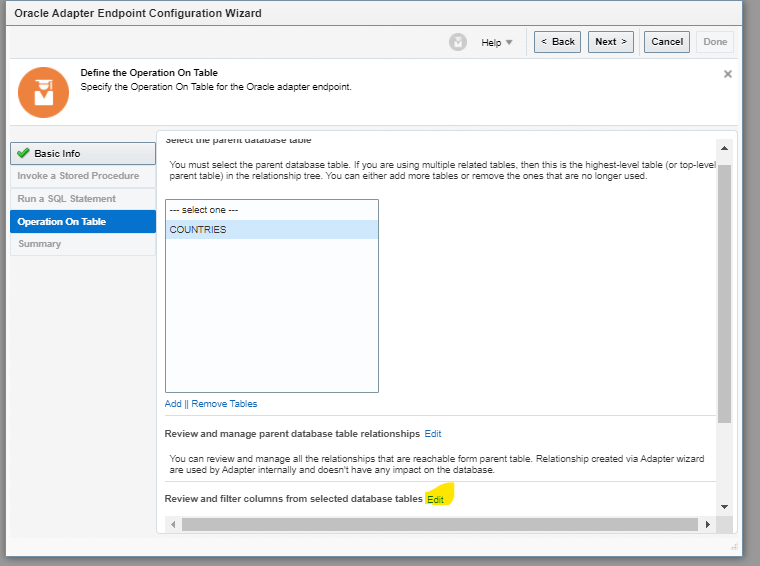
  • Click on Edit section of “Review and Filter Columns from Selected Database Tables.
  • Uncheck all columns of Countries field except “countryIsoCode(NOT NULL)”
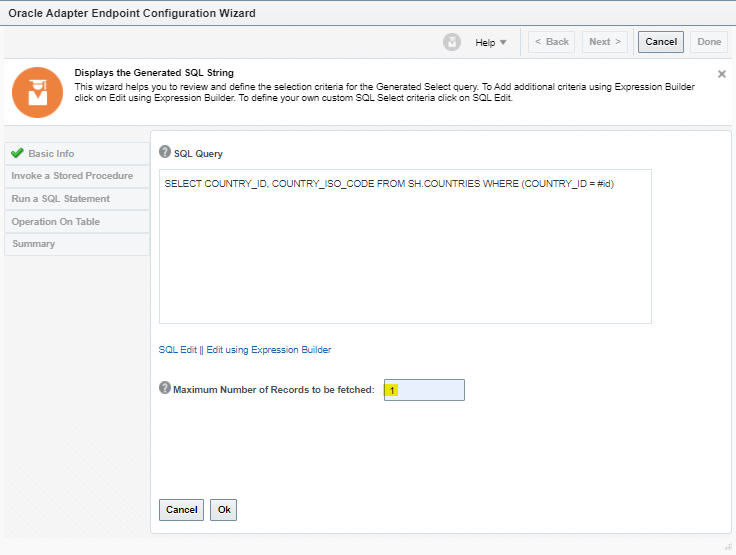
  • Click on Review and edit SQL query.
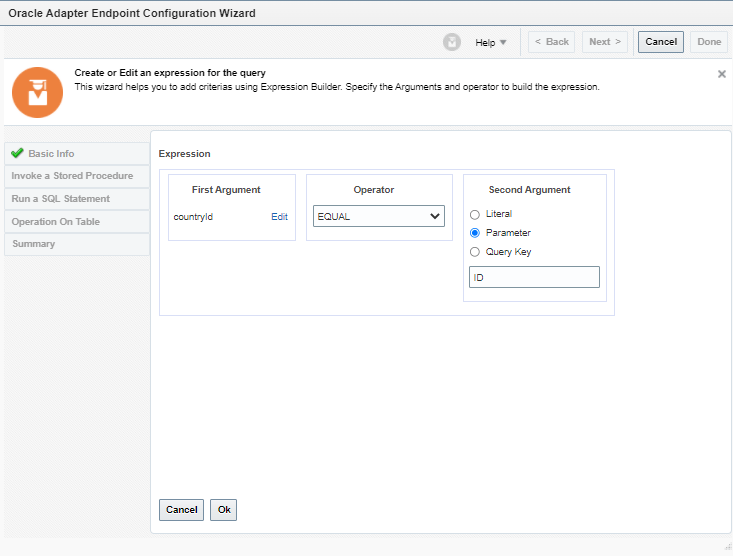
  • Click on “Edit using Expression Builder”.
  • Click on Query Criteria = “Add New”
  • Change Second Argument to “Parameter” and enter the value “ID”. Click on Ok.
  • Maximum number of records to be Fetched = “1” and click on done.
  • Click on Next and on Summary Page click on SQL to verify the SQL. Post which click on Done.
  • Click on Done
  • This is how it should look

Step 2.4: Configure REST Adapter( Country Demo Connection)

  • Enter following details
    • Endpoint Name = GetCountryInfo.
    • Description = Retrieving the country information from the remote REST web service by providing a valid 2-digit ISO country code.
    • endpoint Relative resource URI = /alpha/{code}
    • Action to be performed on Endpoint = GET
    • Check on configure this endpoint to receive the response.
  • Configure Request Parameter
    • HTTP Method = GET
    • One Query Parameter = code
    • Data type of “code”= string
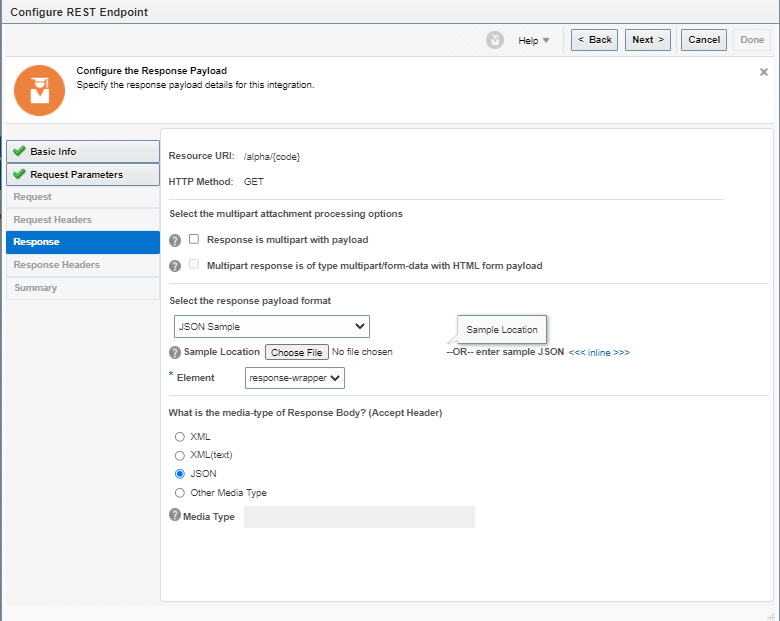
  • Configure Response Parameters
    • Response Payload format = JSON Sample
    • Sample Location = Choose JSON file = ExternalCountryResponse.JSON
    • Element = response-wrapper
    • Media-type of Response Body = JSON
  • On Summary page click on Done.
  • After Configuring, Integration should look like below.

Step 2.4 : Data Mapping

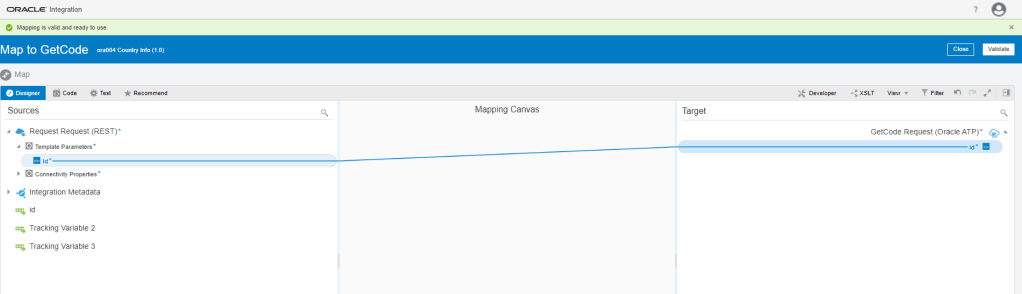
Step 2.4.1 Mapping between Request and GetCode.

  • Click on Pencil button to edit the Mapping.
  • Drag and drop to create Mapping between id of TemplateParameters to id of GetCodeSelect_idinputParameters.
  • Click on Validate.

Step 2.4.2 Mapping between GetCode and GetCountryInfo

  • Click on Pencil button to edit the Mapping.


  • Drag and drop to create Mapping between countryIsoCode of Countries of CountriesColelction of $GetCode to code of TemplateParameters.
  • Click on Validate.

Step 2.4.2 Mapping between GetCountryInfo and Request

  • Click on Pencil button to edit the Mapping.
  • Drag and drop to create Mapping between following
  • excel sheet
  • Click on Validate
  • After mapping it should like below.

Step 3: Activate Integration

  • Once Integration is in Configured mode. Click on Configure icon, it turns into power button which is used to activate the Integration.
  • Click on Enable Tracing box.
  • check on Include Payload box
  • Click on Activate.

Step 4: Test Integration

  • Click on Test
  • Enter Id = “52781” and click on Test

OIC- Creating a SaaS to SaaS Integration Flow.

Scope Statement : In this case we will build an Integration flow between Oracle Engagement Cloud(Sales Cloud) and Oracle Service Cloud(RightNow). Purpose of the integration is to retrieve a list of RightNow business objects(RN Incidents) that are related to an account in Oracle Sales Cloud, which will correspond to a RightNow organization. These will be transformed and returned to the Sales Cloud Client as OSC Incidents.

Step 1 : Create below Adapters.

These adapters are already created and their details are mentioned in the link.

  • Oracle Engagement Cloud Adapter( Sales Demo Connection created in Step 5 in above Link)
  • Oracle Service Cloud Adapter( RightNow Demo Connection created in Step 4 in above Link).

Step 2 : Create Integration

  • Create a App Driven Integration.

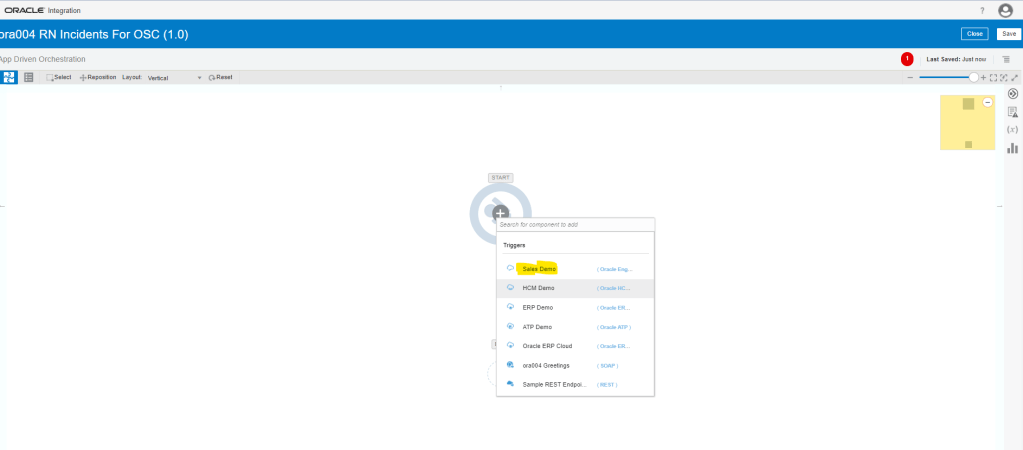
Step 2.1: Configure Oracle Engagement Cloud(Sales Demo)

  • Select Sales Demo Connection
  • Configure Oracle Engagement Cloud(Sales Demo) Endpoint
  • Configure Request by Selecting
    • Request type = “With Business Objects”.
    • Business Object = “Account”
  • Configure Response page by selecting
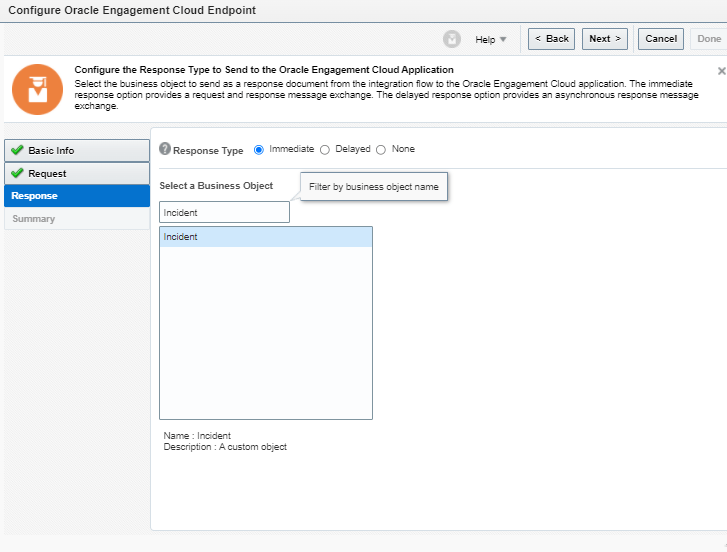
  • Response type = “Immediate
  • Business Object = “Incident” and click on Next.
  • Click Done
  • Integration with Sales Demo Adapter created.
  • Go to tracking and make PartyId field as primary tracking field.

Step 2.2 : Configure Oracle Engagement Cloud(RightNow) Connection

  • Click on arrow between OSC_Request and Map To OSC_Request and select RightNow connection.
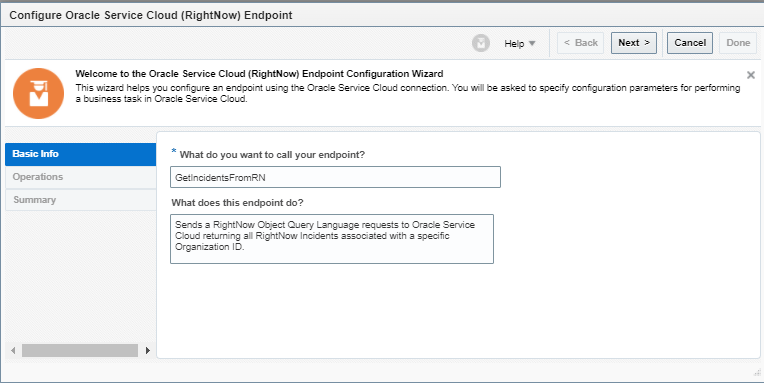
  • Enter Basic Info
    • Name = GetIncidentsFromRN
    • Description = Purpose of endpoint

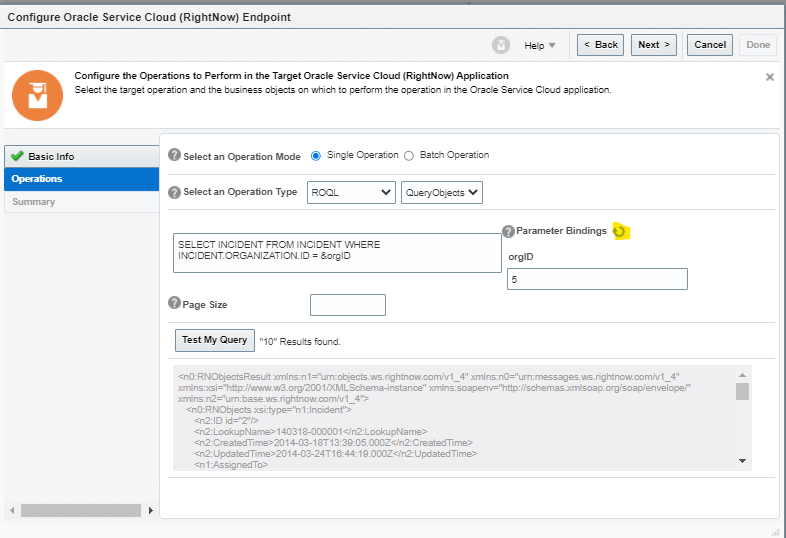
  • Select following
    • Operation Mode = Single Operation
    • Operations type = ROQL
    • Cloud Operations = QueryObjects
    • Enter query = SELECT INCIDENT FROM INCIDENT WHERE INCIDENT.ORGANIZATION.ID = &orgID
    • Click on Refresh next to Parameter Bindings option.
  • For Testing Purpose, Enter orgID = “5” and click on Test My Query.
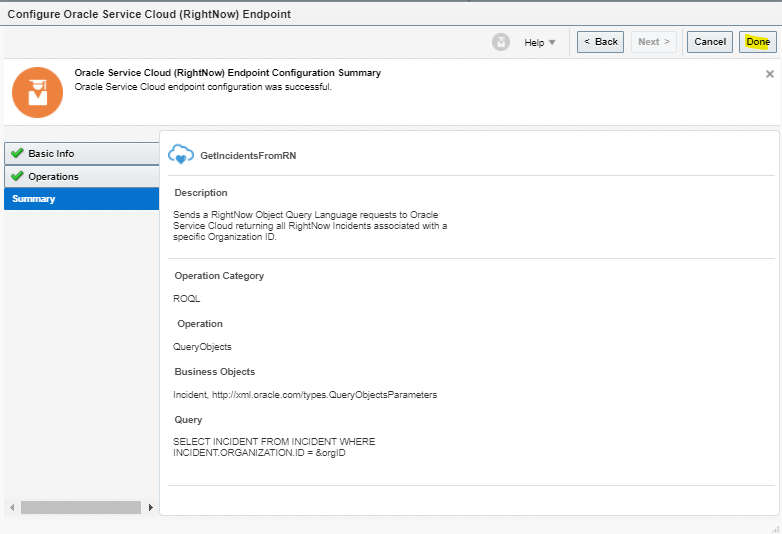
  • On Summary Page, click on Done.
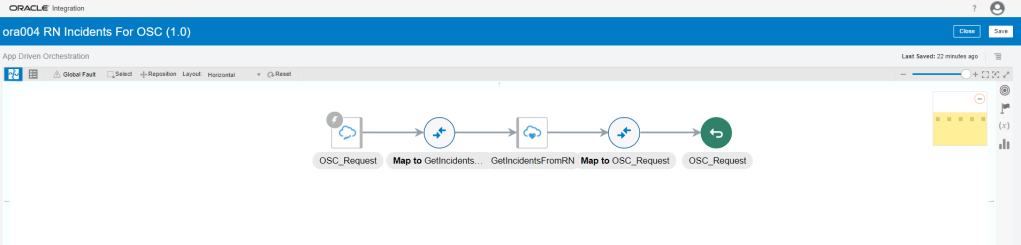
  • After configuration it should look like.

Step 2.3 : Data Mapping

Step 2.3.1 Mapping between Greetings and Say Hello.

  • Click on Pencil button to edit the Mapping.
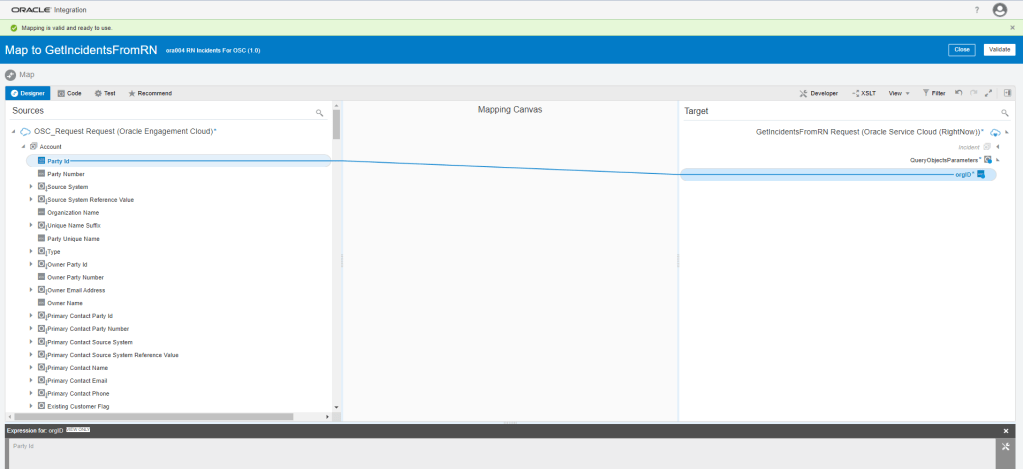
  • Drag and drop to create Mapping between PartyID of Account to orgID of GetIncidentFromRN Request.
  • Click on Validate.

Step 2.3.2 Mapping between GetIncidentsFromRN and OSC Request.

  • Click on Pencil button to edit the Mapping.
  • Map following fields from Source to Target

Step 3: Activate Integration

  • Once Integration is in Configured mode. Click on Configure icon, it turns into power button which is used to activate the Integration.
  • Click on Enable Tracing box.
  • check on Include Payload box
  • Click on Activate.
  • After activation, it should look like below

Step 4: Test the Integration

  • We can test Integration Using SOAP UI
  • Get URL from the OIC cloud by clicking on Play button and select WSDL URL.
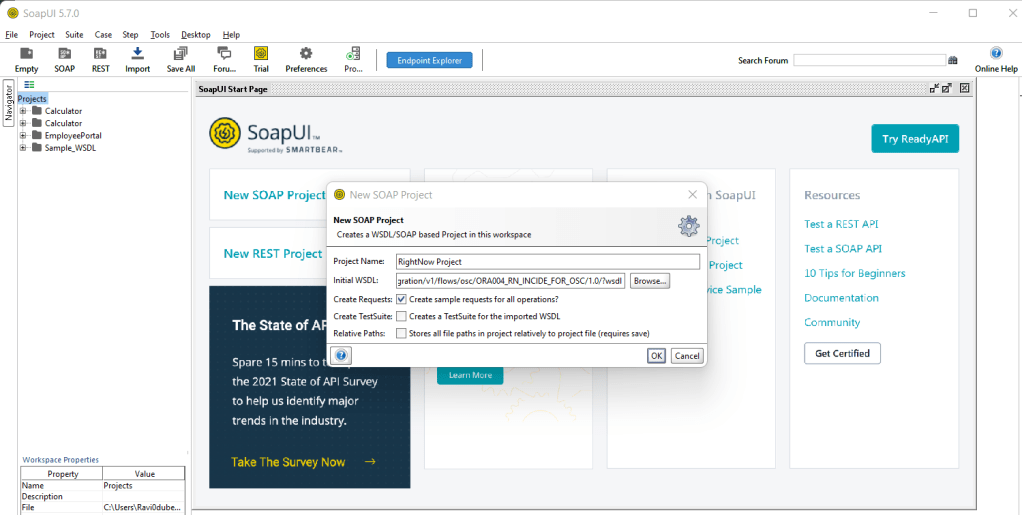
  • In SOAP UI, enter Project Name and Paste the URL in Initial WSDL section.
  • Once Project is added, Enter Firstname in Left pane which will be our input for testing..
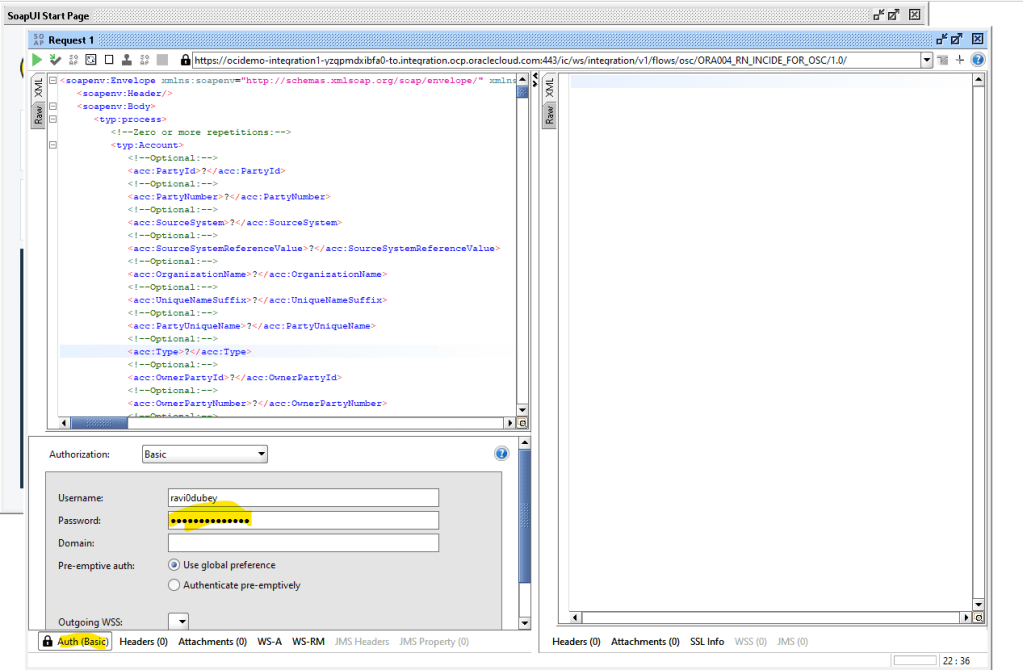
  • On left Bottom, click on Auth and select Basic.
  • Enter Username and Password of OIC cloud.

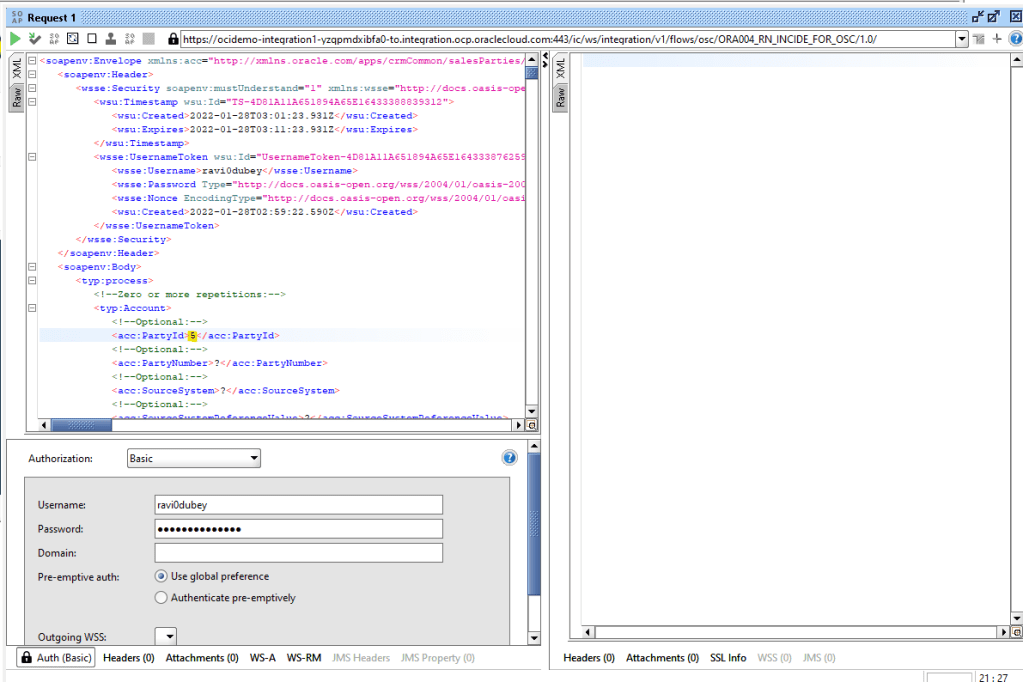
  • Once Username and Password is added, right click on Left pane.
  • From List select “Add WSS Username token”, then select PasswordText from the dropdown list.
  • Click on OK.
  • From List select “Add WS-Timestamp”,then change Timestamp value from “60” to “600”.
  • Click on OK.

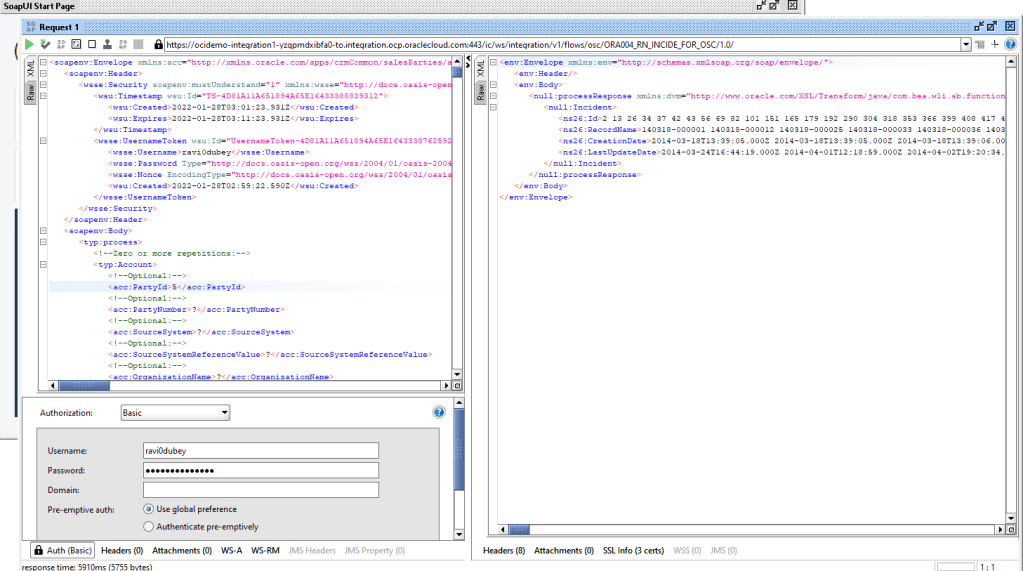
  • Change the Value of PartyId from “?” to “5”
  • Click on Green button to test.
  • We will see response from OIC cloud with collection of Incidents in the Body.

Step 5: Monitor the Integration

  • We can either go through Monitoring -> Integration -> Tracking
    • OR
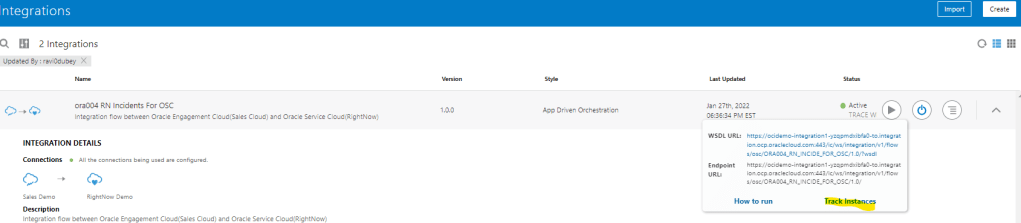
  • Go to Integrations -> Integration and select the Integration. Click on Play Button and click on Track Instances.
  • Either way we will reach Integrations -> Tracking screen where it will show all instances of OIC Integration run.
  • Under status column it will show status of each run instance.
  • An eye will appear on each, on clicking it we will see the activity stream for the run.

  • In each activity stream we can click on Message to see the message passed at each level. It will help to track and diagnose any error.

OIC: Creating Oracle Integration Cloud Adapter Connections

Step 1 : Create FTP Source Connection

  • Navigation : Integrations -> Connections -> Click on Create.
  • Select Adapter = “FTP”.
  • Enter Name = “FTP Demo”.
  • Identifier gets populated automatically.
  • Role = Trigger and Invoke.
  • Click on Create.
  • On Next Screen, enter following
    • FTP IP address = “129.213.37.102”.
    • Port Number = “22”
    • SFTP Connection = “Yes”
    • User Name = user1.
    • Password = “xxxxxx”.
  • Click on Save and Test.
  • Ensure its tested successfully and % is 100%.

Step 2 : FileZilla Setup

  • Using IP address, Userid and password of FTP server used in Step 1, connect to FTP server using Filezilla.
  • After connection is established, create an new directory Ora004 in FTP server.

Step 3 : Database Connection

  • After Logging into OCI, either take the route of OCI -> Autonomous Database and select the Database provided to you.
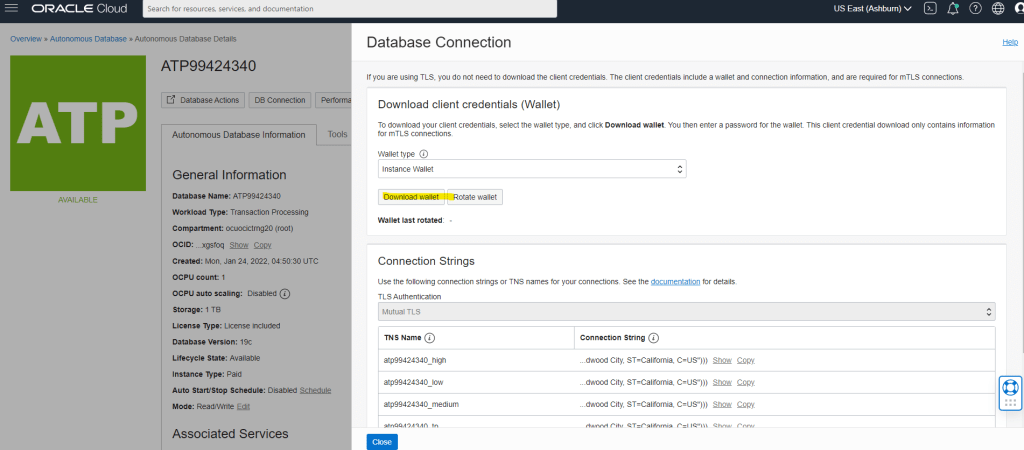
  • Select the Database ATP99424340 and click on DB Connection.
  • Click on Download Wallet
  • It will ask to create a Password, do note that password as it will be used later in the steps of OCI credentials. Click on Download and save the zip file.
  • Unzip wallet and click on tnsnames and open it in notepad. We will be needing port and host of “atp99424340_low” to create connection in OIC.

Create Connection for Oracle ATP

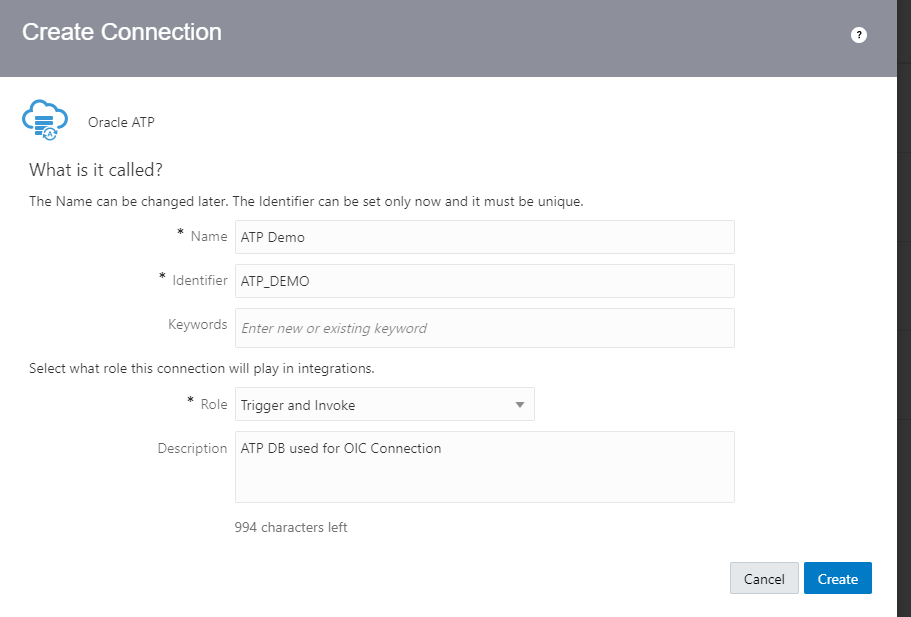
  • Navigation : Integrations -> Connections -> Click on Create.
    • Select Adapter = “Oracle ATP”.
    • Enter Name = “ATP Demo”.
    • Identifier gets populated automatically.
    • Role = Trigger and Invoke.
  • Click on Create.
  • Enter below details
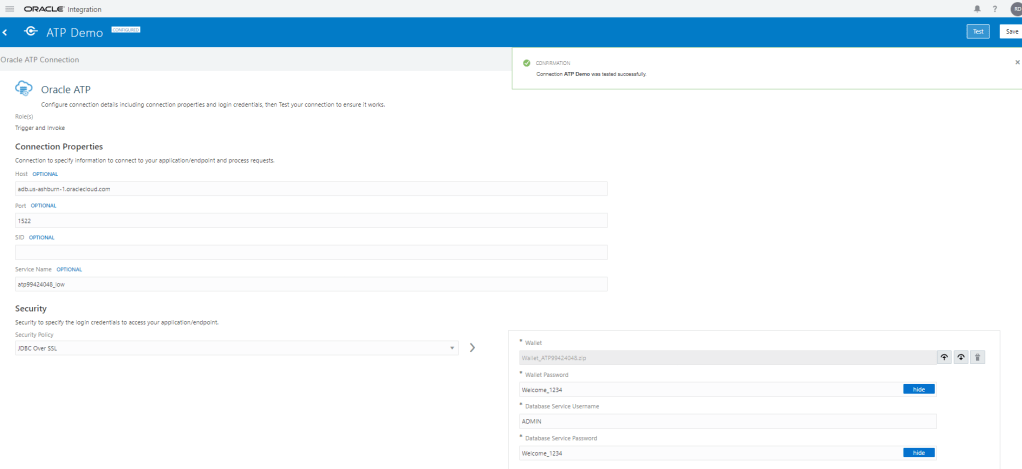
    • Host : url of Database Wallet in this case “adb.us-ashburn-1.oraclecloud.com”
    • Port : port of Database Wallet, in this case “1522”.
    • Service_Name = “atp99424340_low
    • Security Policy =”JDBC Over SSL”
    • Wallet = Upload the wallet in Zip file which was downloaded in Step 3
    • Wallet Password = Enter the password which was created at time of downloading the wallet. “Welcome_1234”.
    • Database Service Username = ADMIN
    • Database Service Password = Welcome_1234
  • Click on Save and Test Connection.

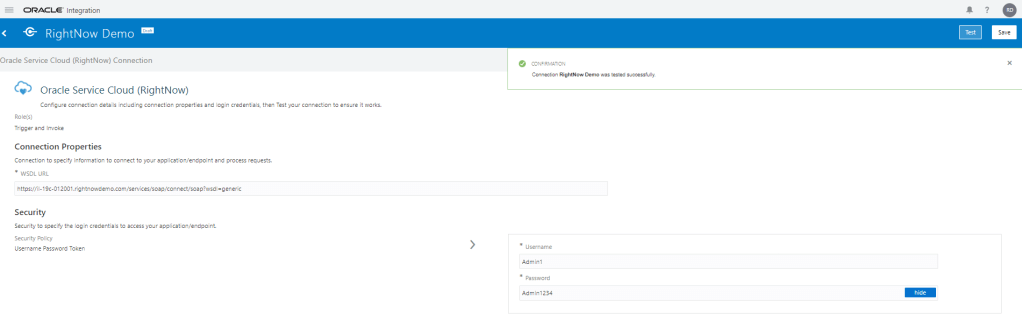
Step 4 : Create Connection for Oracle Service Cloud(RightNow)

  • Navigation : Integrations -> Connections -> Click on Create.
    • Select Adapter = “Oracle Service Cloud(RightNow)”.
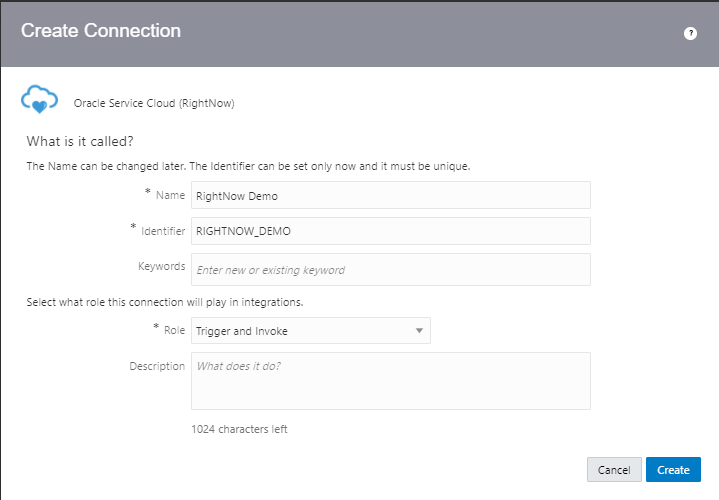
    • Enter Name = “RightNow Demo”.
    • Identifier gets populated automatically.
    • Role = Trigger and Invoke.
  • Click on Create.

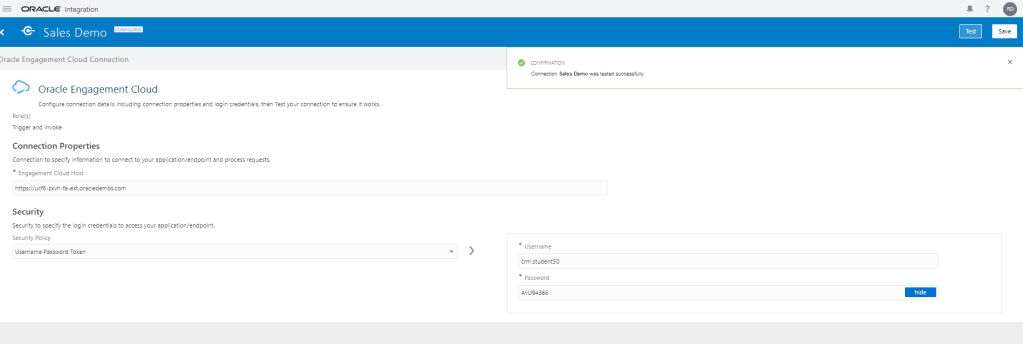
Step 5 : Create Connection for Oracle Engagement Cloud

  • Navigation : Integrations -> Connections -> Click on Create.
    • Select Adapter = “Oracle Engagement Cloud”.
    • Enter Name = “Sales Demo”.
    • Identifier gets populated automatically.
    • Role = Trigger and Invoke.
  • Click on Create.

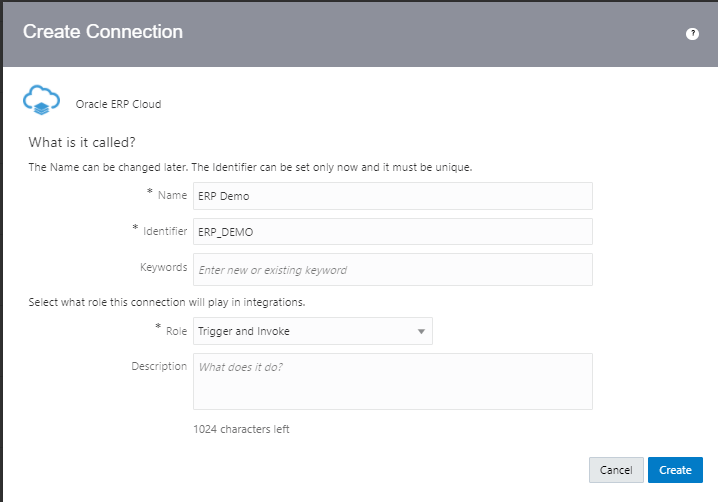
Step 6 : Create Connection for Oracle ERP Cloud

  • Navigation : Integrations -> Connections -> Click on Create.
    • Select Adapter = “Oracle ERP Cloud”.
    • Enter Name = “ERP Demo”.
    • Identifier gets populated automatically.
    • Role = Trigger and Invoke.
  • Click on Create.

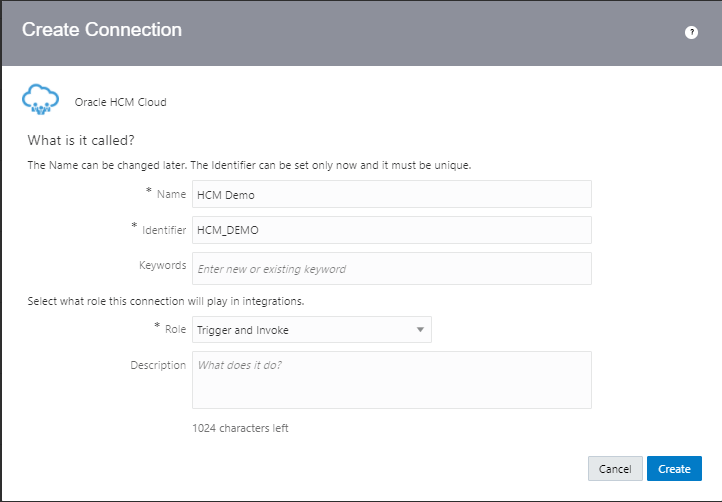
Step 7 : Create Connection for Oracle HCM Cloud

  • Navigation : Integrations -> Connections -> Click on Create.
    • Select Adapter = “Oracle HCM Cloud”.
    • Enter Name = “HCM Demo”.
    • Identifier gets populated automatically.
    • Role = Trigger and Invoke.
  • Click on Create.

Step 8 : Create REST Connection

  • Navigation : Integrations -> Connections -> Click on Create.
    • Select Adapter = “REST”.
    • Enter Name = “Country Demo”.
    • Identifier gets populated automatically.
    • Role = Invoke.
  • Click on Create.

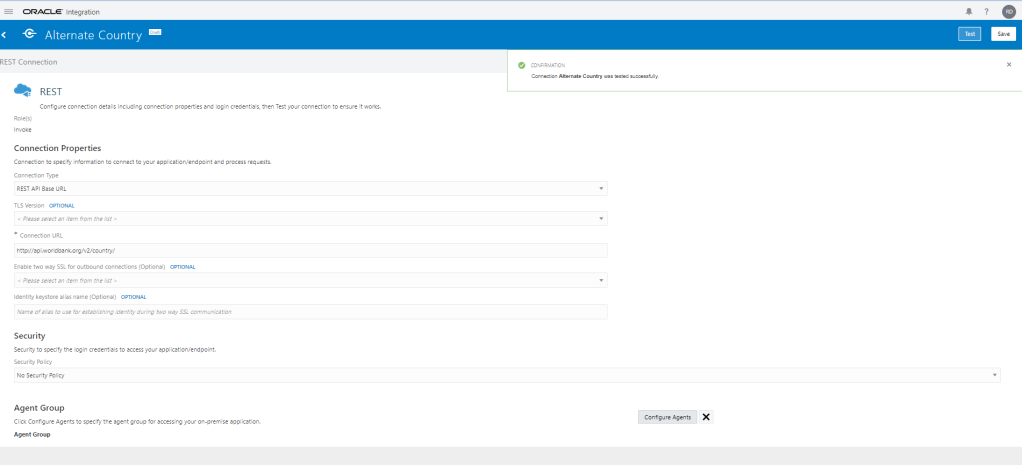
Step 9 : Create REST Connection

  • Navigation : Integrations -> Connections -> Click on Create.
    • Select Adapter = “REST”.
    • Enter Name = “Alternate Country “.
    • Identifier gets populated automatically.
    • Role = Invoke.
  • Click on Create.

OIC : APP Driven Integration

Workflow steps for OIC APP driven

  • Create a Source Connection, which is a Trigger role, for requests to be sent to OIC.
    • Select adapter
    • Define connection
    • Security properties
  • Target Connection, which is a Invoke role, for requests sent from OIC to the Target.
  • Add and configure the Source connection.
  • Add and configure the Target connection.
  • Data Mapping between connections
    • Map data for the invoke connection request.
    • Map data for the response to be returned to the source(if applicable).
  • Define key business identifiers for monitoring purpose.
  • Activate and test.

Creation of App Driven Integration

Step 1 : Create Source Connection

  • Navigation : Integrations -> Connections -> Click on Create.
  • Select Adapter = “SOAP”.
  • Enter Details of Connection
    • Enter Name = “ora004 Greetings”
    • Identifiers gets populated by default
    • Role = Trigger as this connection will serve as Interface into our connections
    • Click on Create.
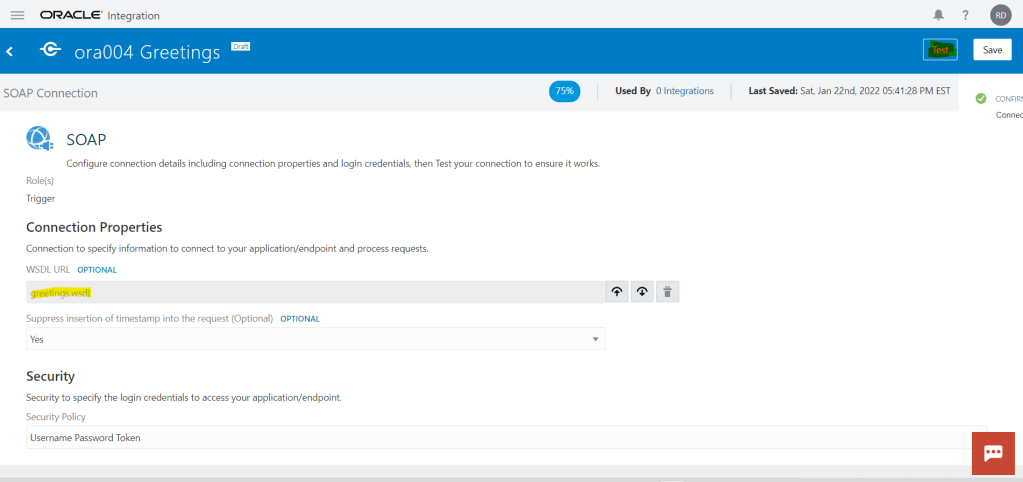
  • In next screen we need to
    • Select WSDL file, for which we will choose “greetings.wsdl”.
    • Suppress Insertion of timestamp = “Yes”.
    • Security Policy = “Username Password Token”.
    • Click on Save.
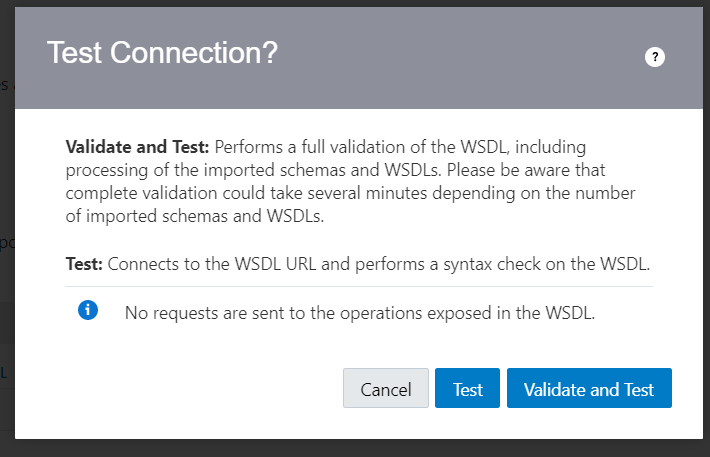
  • Click on Test. If there would be any error during testing, it will be reported which we need to fix else, test successful screen would appear.
  • Ensure % value should be 100% which denotes its ready to be used.
  • Click on Save and then < button to exit.

Step 2 : Create Target Connection

  • Navigation : Integrations -> Connections -> Click on Create.
  • Select Adapter = “SOAP”.
  • Enter Details of Connection
    • Enter Name = “ora004 Say Hello”
    • Identifiers gets populated by default
    • Role = Invoke as this connection will serve as Interface into our connections
    • Click on Create.
  • In next screen we need to
    • Select WSDL file, for which we will choose “HelloWorld.wsdl”.
    • Security Policy = “No Security Policy”.
    • Click on Save.
  • Click on Test. If there would be any error during testing, it will be reported which we need to fix else, test successful screen would appear.
  • Ensure % value should be 100% which denotes its ready to be used.
  • Click on Save and then < button to exit.

Step 3 : Create Integration

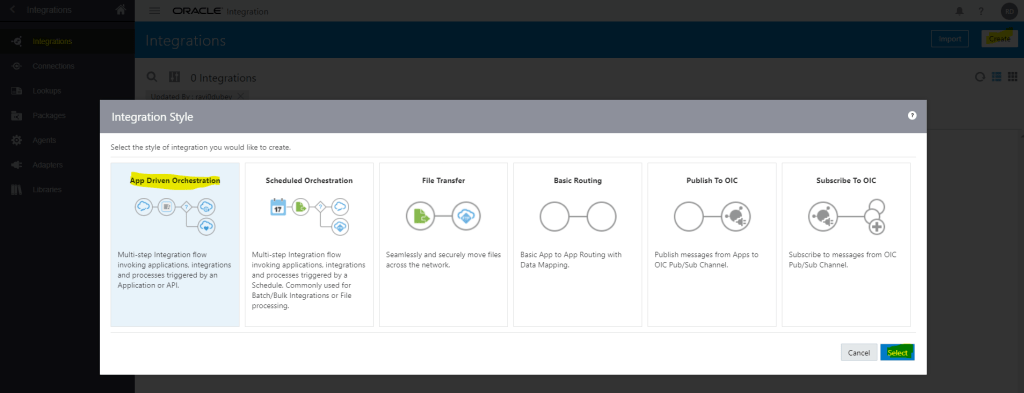
  • Navigation : Integrations -> Integrations-> Click on Create.
  • Select “App Driven Orchestration” and click on Select.
  • Enter Name, Identifier and Version gets populated by default.
  • Documentation URL , Keywords, Package and Description are optional fields.
  • Package can be entered when we want to club integration into One packages,
  • Click on Create.
  • A black canvas gets generated.
  • Click on Vertical to change it to Horizontal.
  • Click on + button and select trigger connection “ora004 Greetings” created in Step 1
  • Enter Name = “Greetings” and click on Next
  • Disable soapAction Validation = “No”
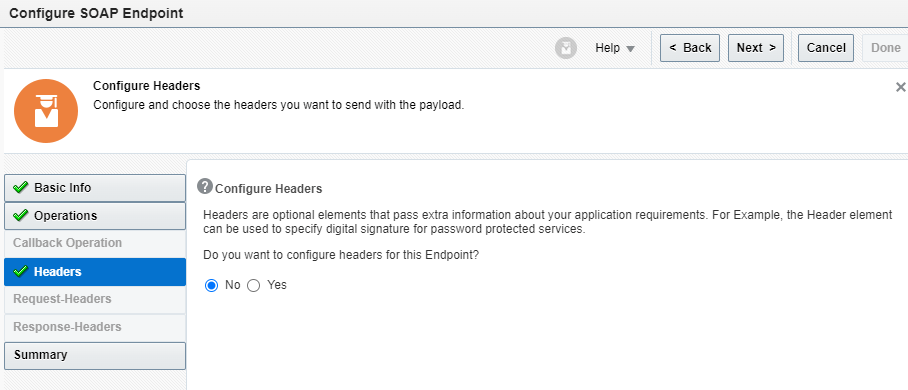
  • If we select configure Headers for this Endpoint = “Yes” then Request-Headers and Response-Headers will get enabled.
  • On Summary Page, click on Done.
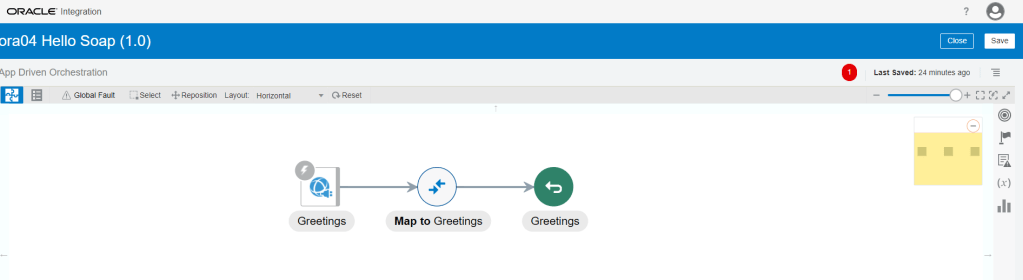
  • Trigger Connection gets integrated to Integration.
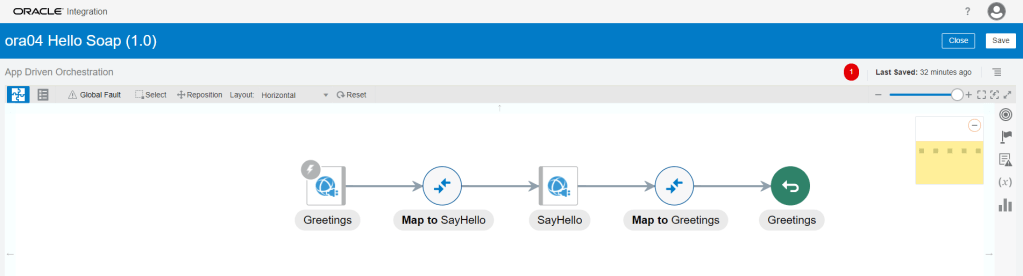
  • In between connection Greetings and Map to Greetings, click on Arrow. A + icon appears.
  • Click on “+” icon and select Invoke Connection “ora004 Say Hello” created in step 2.
  • Give name to Invoke Connection and click on “Next”.
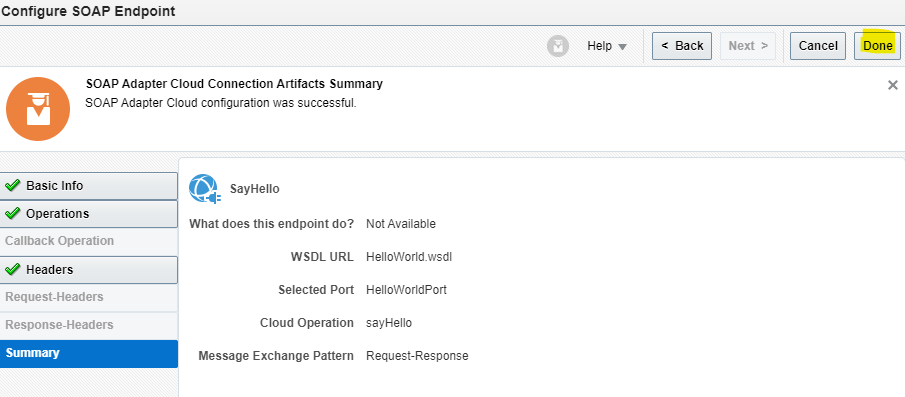
  • Select the Operation “sayHello”.
  • Click on next for header and on Summary Page, click on Done.
  • Both Trigger and Invoke connection gets added to Integration with the data Mapper in between.

Step 4 : Data Mapping

Step 4.1 Mapping between Greetings and Say Hello.

  • It allows us to configure data to be sent in the request to the SOAP web service invoke connection.
  • Mapping needs to be done for Source Field (Greetings Request -> FirstName) to Target Field (Body ->sayHello -> name).
  • Click on “Map to SayHello” and click on Pencil Button.
  • Below screen appears where mapping can be done. Drag and Drop from FirstName of Greetings Request to “name” field of SayHello Request Soap.
  • Click on Validate and Close.
  • Ensure circle of “Map to SayHello” turns solid.

Step 4.2 Mapping between Say Hello and Greetings.

  • It allows us to configure data to be sent as response to the integration client.
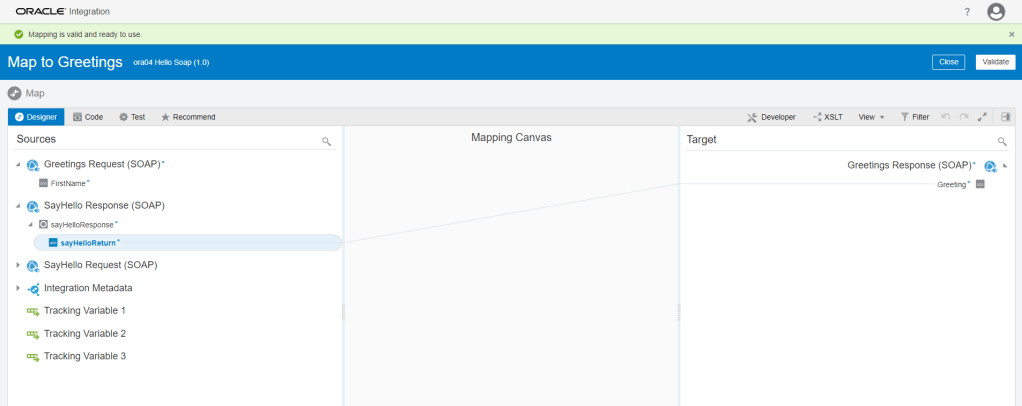
  • Mapping needs to be done for Source Field (SayHello Response ->sayHelloResponse -> sayHelloReturn) to Target Field (Greetings Response-> Greeting).
  • Click on “Map to Greetings” and click on Pencil Button.
  • Below screen appears where mapping can be done. Drag and Drop from “sayHelloReturn” of SayHelloResponse of SayHello Response to “Greeting” field of Greetings Response Soap.
  • Click on Validate and Close.
  • Ensure circle of “Map to Greetings” turns solid.
  • On right hand Corner, click on 4 lines, Tracking along with other option will appear.
  • Click on Tracking.
  • Drag and Drop Firstname from GreetRequest to Tracking field and click on Save.

Step 5: Activate the Integration

  • Once Integration is in Configured mode. Click on Configure icon, it turns into power button which is used to activate the Integration.
  • Click on Enable Tracing box.
  • check on Include Payload box
  • Click on Activate.
  • It will take some time to activate the integration post which Integration should be ready to be used.

Step 6: Test the Integration

  • We can test Integration Using SOAP UI
  • Get URL from the OIC cloud by clicking on Play button and select WSDL URL.
  • In SOAP UI, enter Project Name and Paste the URL in Initial WSDL section.
  • Once Project is added, Enter Firstname in Left pane which will be our input for testing..
  • On left Bottom, click on Auth and select Basic.
  • Enter Username and Password of OIC cloud.
  • Once Username and Password is added, right click on Left pane.
  • From List select “Add WSS Username token”, then select PasswordText from the dropdown list.
  • Click on OK.
  • Click on Green button to test.
  • We will see response from OIC cloud “Hello Ravi”

Step 7: Monitor the Integration

  • We can either go through Monitoring -> Integration -> Tracking
    • OR
  • Go to Integrations -> Integration and select the Integration. Click on Play Button and click on Track Instances.
  • Either way we will reach Integrations -> Tracking screen where it will show all instances of OIC Integration run.
  • Under status column it will show status of each run instance.
  • An eye will appear on each, on clicking it we will see the activity stream for the run.
  • In each activity stream we can click on Message to see the message passed at each level. It will help to track and diagnose any error.

OIC : Oracle Integration Cloud

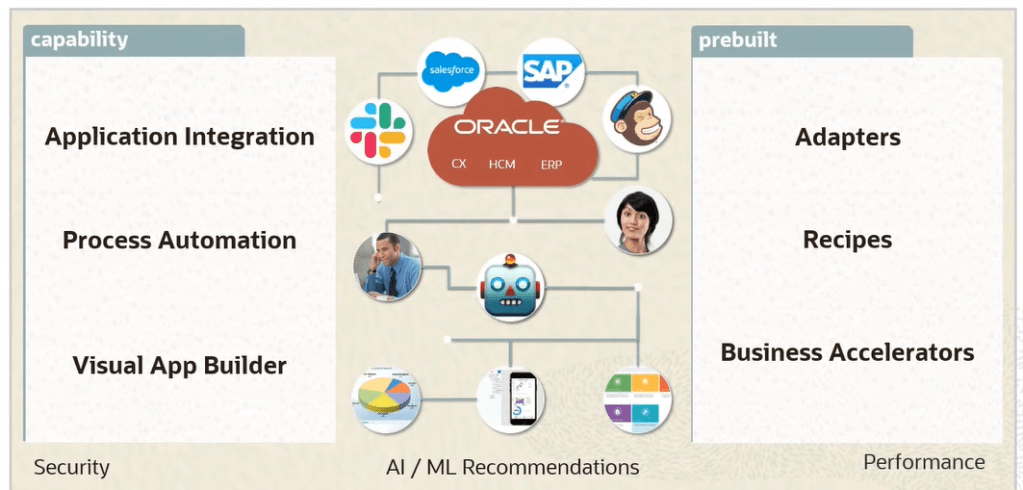
OC Connects applications and automate end-to-end Business process.

There are Three type of Oracle Integration Cloud Services

  • Integrations : Create and Manage Integrations using below steps
    • Create the connections to the applications with which we want to share data.
    • Setup the Integration using the connection you created.
    • Define the flow of data to be shared between connections.
  • Process Builder : Automate the business using below Process Applications
    • Develop
    • Test
    • Publish
    • Activate
  • Visual Builder : Develop Web and Mobile Applications by following below steps.
    • Quickly create and publish custom web and mobile applications using Visual Development tool.
    • Build the pages in our application using the components that is placed on a canvas and then integrate with other services.
    • There is no need for any setup or coding.

OIC : Integrations

  • OIC : Oracle Integration Cloud is a complete, secure and lightweight integration solution that enables us to connect our application in the cloud.
  • It simplifies connectivity between our applications and connects both our applications that live in the cloud and on premises.
  • It provides secure, enterprise-grade connectivity regardless of the applications we are connecting and where they reside.

SaaS-to-SaaS Integration

  • Business Case : All cases created in Salesforce are synchronized with Oracle Service Cloud
  • It automate real-time Integration
  • Streamline Business process by integrating across multiple business systems.

SaaS-to-PaaS Integration

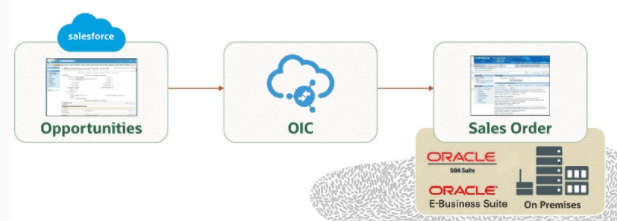
  • Business Case : Update of opportunities in Salesforce propagated to on-premises Order Management.
  • It shows an opportunity-to-order system that is distributed across E-Business Suite and Salesforce.com.
  • It is scenario using hybrid integration, which leverages OIC and SOA Suite on-premises.

OIC Integration Components

  • OIC uses adapters to connect to source and target systems and then extract data from the source system, Mediate the semantics and technical differences and publish the data to the target.
  • Leverage Oracle Public Cloud Services for storage and Messaging Services.

Workflow for Integration Development and management

  • Step 1: First step in Integration design is to identify the applications that we want to integrate and then configure the connection details for these applications.
  • Connections are created that are based on prebuilt adapters.
  • Step 2: Create Integrations by dragging these connections to the Designer.
  • Step 3: Create mapping of Data between applications using Graphic mapper.
  • Step 4: Activate the Integration.
  • Step 5: Monitor the Integration using monitoring dashboard. We can pinpoint bottlenecks, monitor errors and see details for each running integration.

OIC Connection

It is a resource that represent either a new OIC interface or an existing external application or system. Connection can be used in either of the roles

  • Trigger(Inbound)
    • Defines a SOAP or REST interface allowing clients to invoke an integration flow.
    • Allows for defining an event subscription or SOAP interface for a SaaS application.
    • Defines a polling trigger to consume a file or message from an upstream system.
  • Invoke(outbound)
    • Used to define an external service or system that can be called from an integration.

Steps for Creating Connection

  • Select an Adapter.
  • Provide Basic Information.
    • Name.
    • Identifier which is uppercase value of Name entered.
    • Role based on Adapter.
      • Trigger
      • Invoke
      • Trigger and Invoke
  • Configure Connection Properties based on Adapter chosen.
  • Configure Security based on Adapter chosen.
  • Test the Connection.

Point to Note

  • Generally we only create one connection for each external system or application, which get reused by Integrations. Exception are there based on scenario where we create more connections for each system.
  • Multiple runtime connections are managed by OIC for each integration flow as needed.

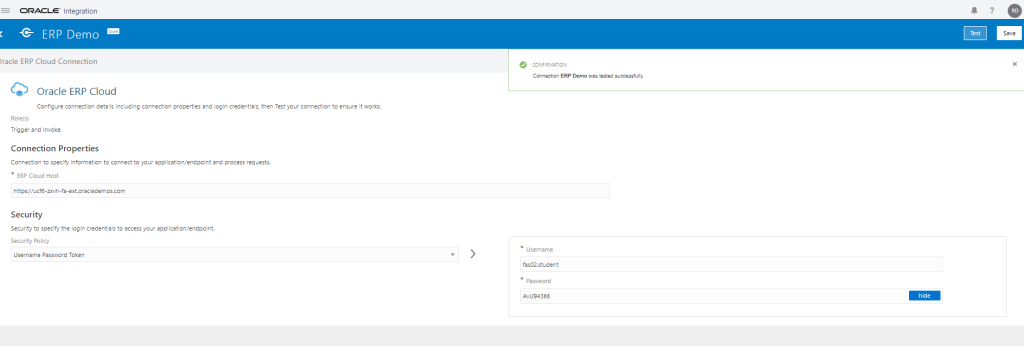
Connection for Oracle ERP Cloud.

Message Exchange Patterns

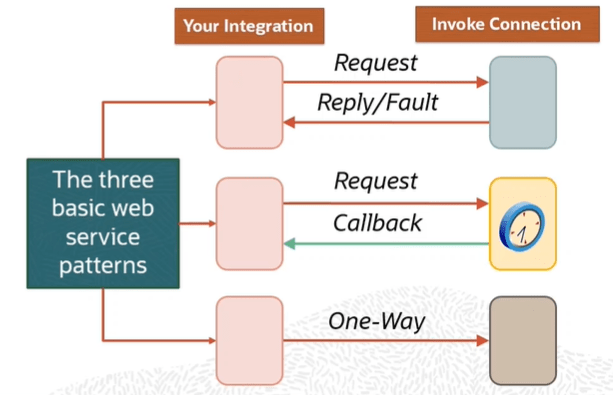
We create a business object-based or event-based orchestrated integrations which allows four interaction patterns

  • Synchronous Interface which is request-response
  • Asynchronous Interface which is one-way
  • Asynchronous Interface which is with callback
  • Event based or polling

Different types of Role of Adapter

  • Trigger Role
  • Invoke
  • Trigger and Invoke

Response Page