Oracle Fusion : Different Phases of Order during Submit Process

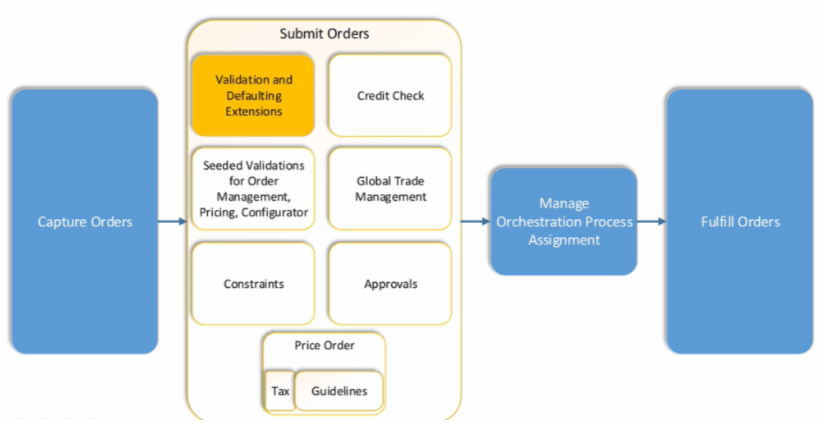
Order to Cash Process has below lifecycle right from Order Capture Process to Invoice & Collect

Order Once Submitted goes through following steps

  • Capture Order
  • Submit orders has following steps
    • Validation and Defaulting Extension
    • Credit check of Customer
    • Seeded Validations for Order management, Pricing, and Configurator
    • Global Trade management
    • Constraints
    • Approvals
    • Pricing of Order
  • Manage Orchestration Process Assignments
  • Fulfill Orders

Activities which takes place during Order Submission Process

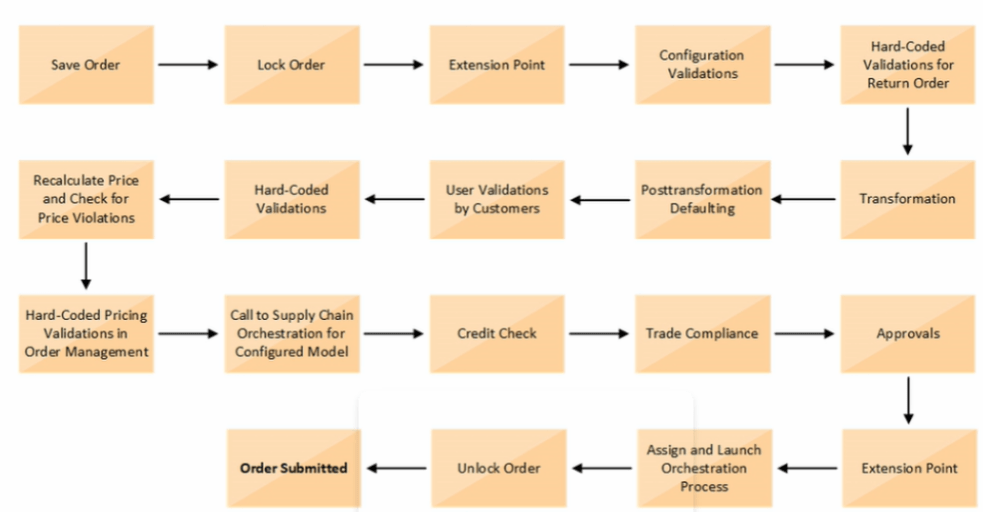
Below activities takes place as during Order Submission process

  • As soon as Order is Saved it gets Locked
  • Order Management Extension Point, Before Submission of Order, gets executed
  • Configuration Validations gets executed
  • In case of Return order, Hard-Coded Validations gets executed
  • Transformation rules run. See details
  • Post Transformation Defaulting rules gets executed. See details
  • User Validations by Customers gets executed
  • Hard-Coded Validations gets executed
  • Recalculate Price and Check for Price Violations. See Details
  • Hard-Code Pricing Validations in Order Management gets Executed
  • Call to Supply chain Orchestration for Configured Model. See Details for Configured Model
  • Credit Check of Customer
  • Trade Compliance
  • Approval flow of Order. See Details
  • Order Management Extension Point, During and After Submission of Order, gets executed
  • Assign and Launch Orchestration Process. See Details.
  • Unlock the Order
  • Finally Order gets submitted.

Order Management Extension

  • A Groovy script written by programmers which programmatically changes the Logic or changes the Order Management Deployment. It also call web services
  • For Order Submission, extensions can be written to
    • Validate the Order
    • Validate the Business Rule i.e. Verify that a PO number entered on the sales order matches a PO number in Procurement System.
    • Set Default values on the Order for following
      • Default attributes on an Order Line
      • Fetch Order preferences from Customer Masters to the Order
      • Fetch values from Original Order to Return Lines
      • Convert Shipment cost to freight charge in Order Management and then send it to Invoicing
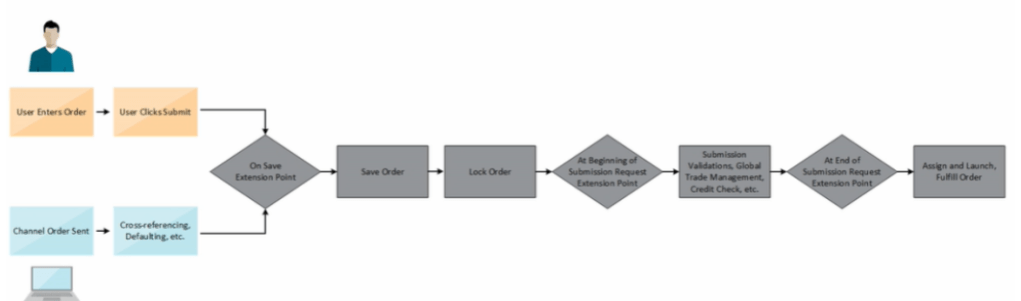
  • Below is the flow of Order Management Extension. Extension comes into play
    • At Beginning of Submission Request
    • During Submit Request
    • At end of Submission Request

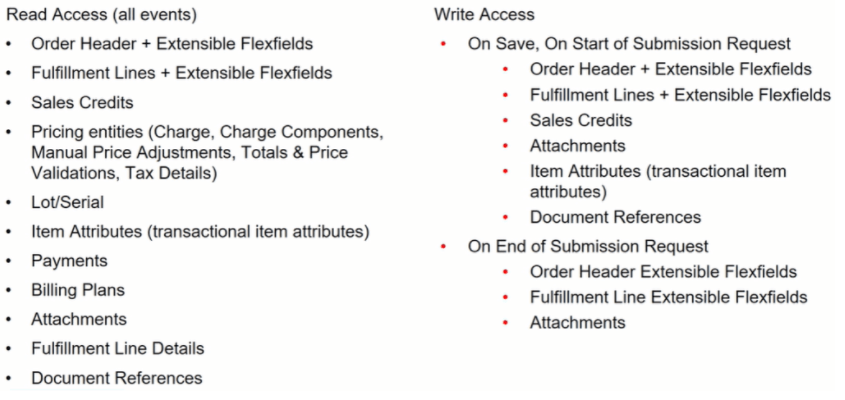
Order Management Extensions : Data Available for Read/Write

Order Management Extension: Read and Write Access
Order Management Extension : Filtering lines in Extensions, Rules and Constraints

  • Make sure we filter out lines that we don’t want to process when we create an Order Management Extension, Business Rule or Processing Constraint.

Validations of Order

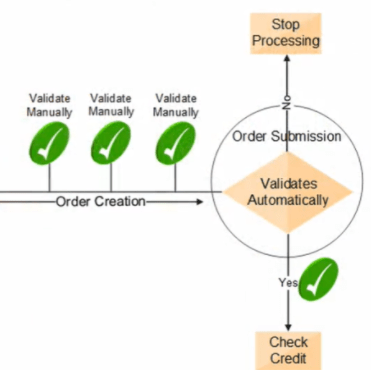
  • Before Submission, we can validate Order Manually
  • At Submission, Order Management Validate Sales Orders Automatically
    • Verifies required attributes
    • Check errors related to constraints, pricing, configuration and Taxes
    • If the Sales Order Validation
      • Passes, then the process checks the credit, (if this step is part of the Orchestration process)
      • Fails, then processing stops and the order is in Draft Status
Global Trade Management

If GTM is integrated with Order Management, then GTM may perform below actions upon Order Submission

  • Verify that Sales order passes any Trade Compliance rules that is setup in Organization
  • Screen for Export Compliance
  • Determine License

Service Mappings

Gives us the ability to pass data from an attribute or Extensible Flexfield in Order management to a descriptive flexfield or Interface column in following Oracle Fusion Fulfillment Systems

  • Shipping
  • Receiving
  • Receivables
  • Purchasing

Service Mappings : Flow

Service Mappings : High-Level Setup Steps

Below are the High Level Setup Steps

  • Get values that identify the attribute.
  • Use the Manage Service Mappings Page to map the attributes or Extensible Flexfields to Descriptive Flexfields or Interface Columns
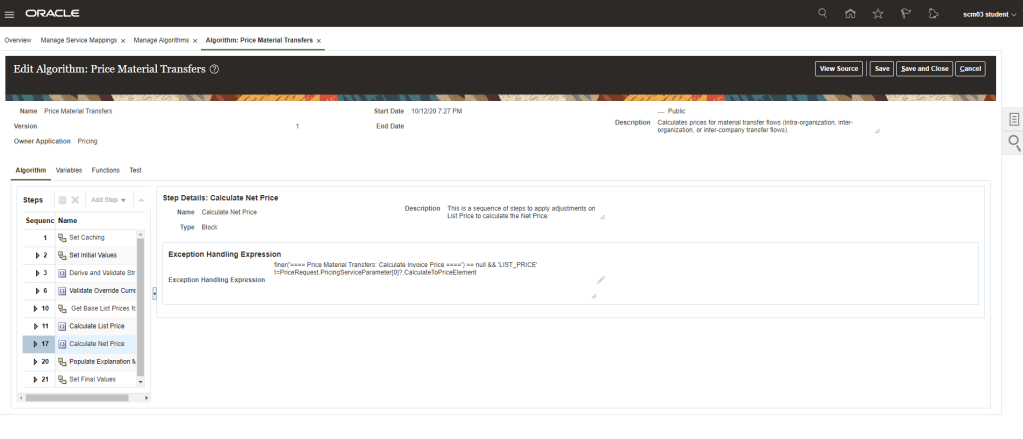
  • Use the Manage Algorithms page to include additional Logic or Mapping Information from a different level, for example
    • From Order Header to Invoice Interface Line
    • From Extensible Flexfields to Interface Line
Order Management Parameters

These Parameters affect most or all of the Order management Cloud

Types of Encoding in Machine Learning

Encoding is a technique of converting categorical variables into numerical values so that it could be easily fitted to a machine learning model.

Before getting into the details, let’s understand about the different types of categorical variables.

  • Nominal Categorical
  • Ordinal Categorical

Nominal Categorical Variable:

Nominal categorical variables are those for which we do not have to worry about the order of the categories.

Example,

i. suppose we have a gender column with categories as Male and Female.
ii. We can also have a state column in which we have different states like NY, FL, NV, TX

Ordinal Categorical Variable:

Ordinal categorical variables are those for which we have to worry about the order of the categories.

Example,

i. Education Degrees, it starts with “High School”, “Graduate”, “Master”, and “P.H.D”

If we are filling Education details of a person It has to start from highest education to Lowest or Lowest to Highest. It cannot be entered randomly.

What is Encoding

A machine learning algorithm needs to be able to understand the data it receives. For example, categories such as “small”, “medium”, and “large” need to be converted into numbers. To solve that, we can for example convert them into numeric labels with “1” for small, “2” for medium, and “3” for large.

Different types of Encoding

1. One Hot Encoding

This method is applied to nominal categorical variables.

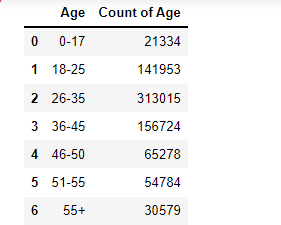
Example, suppose we have a column containing 7 categorical variables , then in one hot encoding 7columns will be created each for a categorical variable.

We can encode the Age using python code pd.get_dummies(df_bf_final[‘Age’]) and it will get 7 columns

Dummy Variable Trap : We can drop one column from the set as we can read its value from existing columns. Code to delete is pd.get_dummies(df_bf_final[‘Age’],drop_first=True)

Disadvantage of One -Encoding: It does not make sense to convert categories values into the columns and add to the existing dataset.

Note: If there is a lot of categorical variables in a column then we should not apply this technique.

2. One Hot Encoding with Multiple Categories

In this out of most repeated categories, top 10 categories are selected and they are converted into 9 columns using the Dummy Variable Trap method.

3. Mean Encoding

If we have feature like Zipcode, it will fall under Nominal Category. We cannot use Zipcode directly into machine learning algorithm. We need to convert into numerical variable.

We will use the Output column to and for each categories we will calculate the Mean. This mean values will be used further instead of using zipcode directly

4. Target Guided Ordinal Encoding

In this case we will club the Feature and the output. Then we will take mean of each feature. Once done based on the mean we will assign rank to the feature. Rank can be ascending or Descending order

A has output 1,2,2 so its mean is 1.66. B has output values as 1,4,2 so its Mean is 2.33

Since it is for Ordinal categories, based on Product and Business knowledge we will assign rank to the Mean of each features.

Here A has least mean so it is given rank of 4 which is meant to the least. C has mean value of 3.5 which is highest among all hence given the rank of 1.

5. LABEL Encoding

Part of Ordinal Encoding program, categorical variables are assigned rank based on the the order provided by Business.

If we take categorical variable Education as example we cannot use Education values directly. We need to convert it into numerical values.

We will Label encoding where in Business has provided the ranking of Education. P.H.D stands 1st rank in the list and High School as Rank4.

Oracle Inventory : Unit of Measures

Unit of measure is a value which specifies the quantity of an item. UOM is used in

  • Inventory Management
  • Product Management
  • Order Management
  • Global Order Promising

Unit of Measure Class

Unit of measure classes represent groups of units of measure with similar characteristics. Creating unit of measure classes is the first step in unit of measure management. Each unit of measure we define must belong to a unit of measure class. Some of the UOM Classes are

  • Count
  • length
  • Time
  • Volume
  • Mass
  • Area

Each class has a base unit of measure. The base unit of measure is used to perform conversions between units of measure in the class. For this reason, the base unit of measure should be representative of the other units of measure in the class, and generally one of the smaller units. For example, you could use CU (cubic feet) as the base unit of a class called Volume. Unit of measure classes are not organization-specific. Default unit of measure classes are not provided.

Below table depicts assigning Base UOMS to UOM Classes

Step 1: Creation of UOM Classes

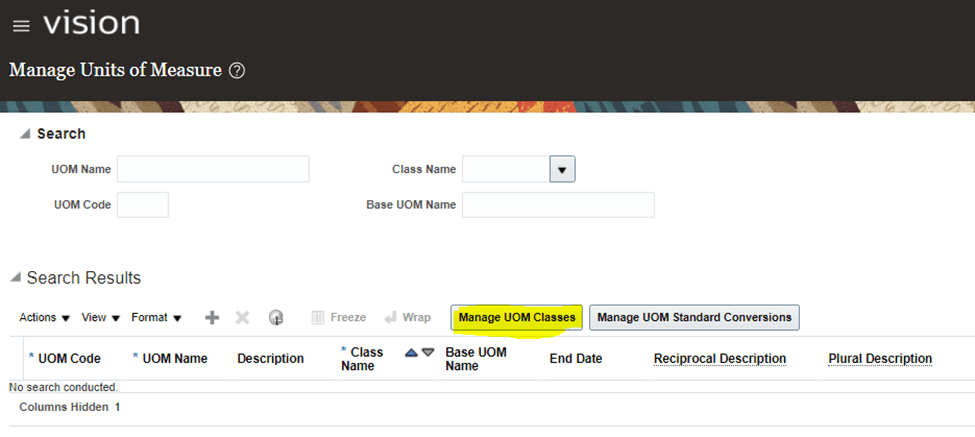
  • Navigation ->Go to setup and Maintenance -> Click on Task Pane Carousel -> Click on Search -> Enter Task “Manage Units of Measure”.
  • Click on Task to reach below screen. Click on Manage UOM Classes.
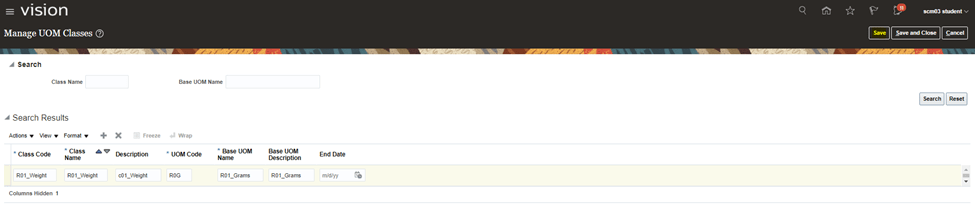
  • Click on + button to create new UOM Classes.
  • Enter following
    • Class Code = “R01_Weight”
    • Class Name = “R01_Weight”
    • Description = “R01_Weight”
    • UOM Code = “R0G”
    • Base UOM Name = “R01_Grams”
    • Base UOM Description= “R01_Grams”
  • Click on Save.

Step 2: Creation of Unit of Measures

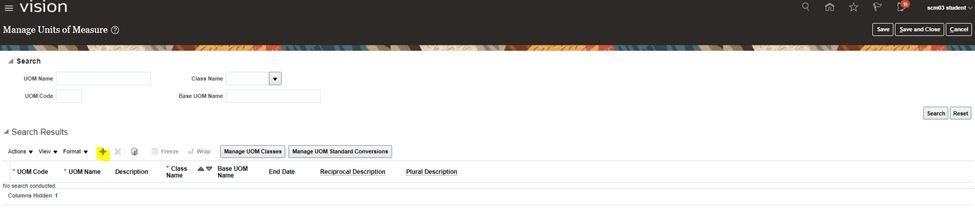
  • On Units of Measure screen, Click on + button to create New Unit of Measure.
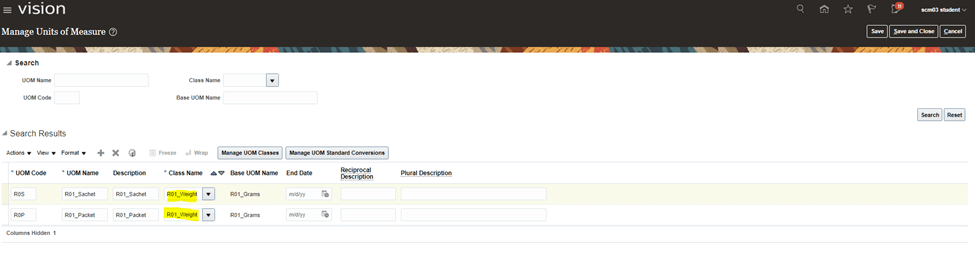
  • Create two Unit of Measure Code
    • Enter UOM code = “R0S”
    • UOM Name = “R01_Sachet
    • Description = “R01_Sachet
    • Select Class Name(R01_Weight) created in Step 1.
    • Base UOM_Name “R01_Grams” will get defaulted.
  • Repeat above steps for UOM code = “R0P”

Step 3: Unit of Measures Standard Conversion

  • This is used to signify how two Unit of Measures are related to each other
  • Click on Manage UOM Standard Conversions
  • Click on + Button to create New Standard Conversion
  • Make Below Entry
    • Conversion for R01_Sachet
      • UOM Name = R01_Packet
      • Conversion = 20
      • It signifies 1 R01_Packet = 20 Grams
    • Conversion for R01_Sachet
      • UOM Name = R01_Sachet
      • Conversion = 10
      • It signifies 1 R01_Packet = 10 Grams
    • Hence using above conversion 2 R01_Sachet is equivalent to 1 R01_PACKET

Oracle Fusion: Simplified Setup/Quick Setup

Simplified setups reduces need for users to perform several steps to create a bunch of setups. It will create basic minimal mandatory setups which are required for business to perform. It is generally done when Implementation team needs to quickly setup data and business flows so that it can be tested or sort of to give a headstart.

  • It will create the basic setups like
    • Subinventories
    • Receiving Parameters
    • Manufacturing Plant Parameters if Org is meant to be setup as Manufacturing org.
  • It will Seed data which will be used in SCM setups.

Benefits of Simplified setups

  • It helps in creating multiple task with bare minimal input.
  • It reduces implementation time through automated setup.
  • All information’s are setup with consistent data across the system.

SCM Simplified common components

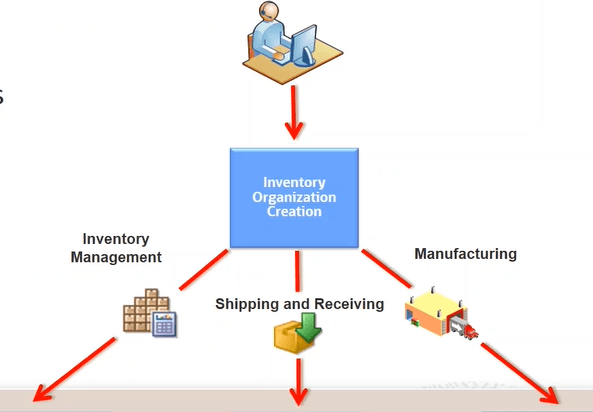
  • Using quick setups below components gets created
    • Calendar
    • Unit of Measures
    • Master Organization
    • One or More Inventory, Manufacturing, or Maintenance Organization

SCM quick setup

  • Navigation : Go to Others -> Setup and Maintenance -> Manufacturing and Supply Chain Materials Management
  • Select Facilities -> Click on Gear Box

Setup 1 : Calendar Setup

  • First screen appears for Calendar.
  • We can change the Start date, Weekend, Start and End time and Duration
  • Once created it can be viewed by using task ” Manage Schedules”.

Setup 2 : Unit of Measure Setup

  • Second setup is of Unit of Measure
  • We can choose following Unit of Measure
    • Time(Chosen by default)
    • Length
    • Area(Chosen by default)
    • Volume
    • Mass
    • Count

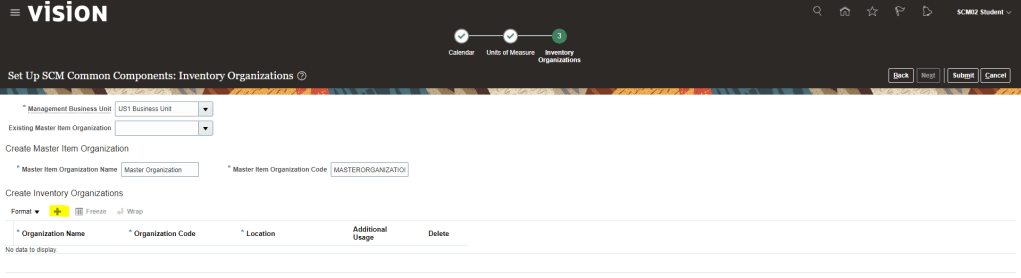
Setup 3 : Inventory Organization

  • Third setup is of Inventory Organization.
  • Choose Management Business Unit for which Inventory Organization will be created
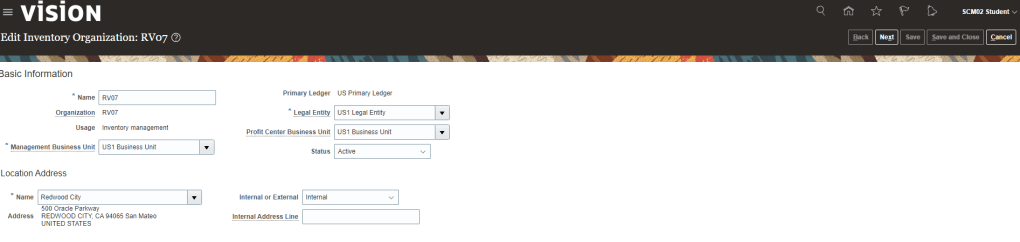
  • Select “+” button to create new Organization
  • Enter Organization Name = “RV07”.
  • Operation Code gets defaulted by value put in Organization Name.
  • Location can be chosen from the list of Location which are part of Master Organization.
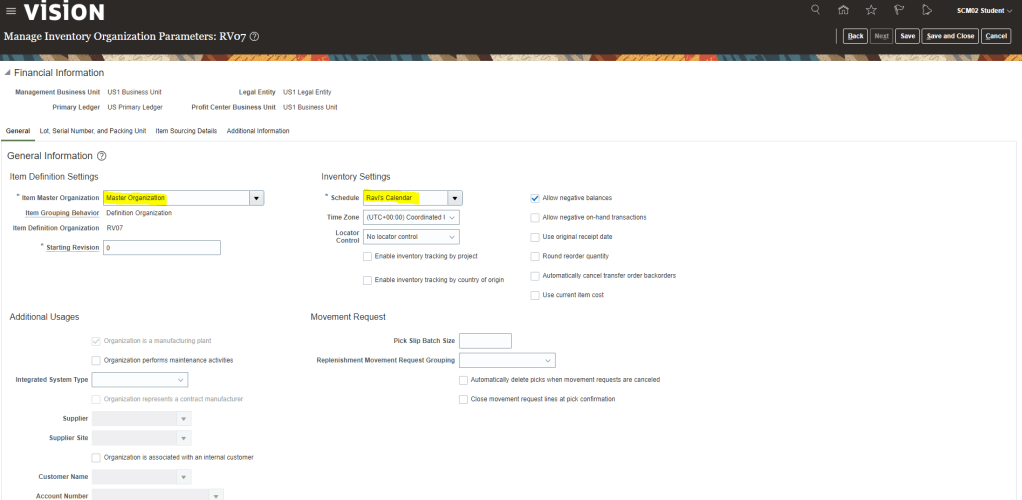
  • Additional Usage : It determines the purpose of the inventory organization, be it for Manufacturing or Non Manufacturing Purpose.
  • On clicking Submit, we will get below message

  • Master Item Organization got created.
  • Inventory Organization “RV07” got created.
  • Calendar “Ravi’s Calendar” got created and can be seen in Schedule Section of Inventory Organization
  • Calendar details can also be seen using task “Manage Schedules”
  • I have got error in Units of measure and have been asked to use task ” Manage Units of Measure” and “Manage UOM Classes” to create it. It is an environment issues as it is a training environment and all these unit of measure already exists.

Oracle Fusion : Order Fulfillment Process

In Order Management and Fulfillment Flow, any order goes through Order cycle which has two major steps

  • Order Captures
    • Orders get into system through either of the steps
      • Orders are entered by users
      • Order gets into system through Import process
    • Once order gets into system they go through Transformation process
  • Fulfillment of Orders ->
    • Orchestration process happens either within Oracle fusion or External Fulfillment system. which is managed by External Interface Layer

Order Management and Fulfillment Business Flows comprises of below elements

  • Physical Goods
    • Shipment from a warehouse
    • Dropship
    • Back-to-back
  • Non-physical goods(services)
  • Returns
  • Transfer Orders
  • Change Orders

Process Flow of Physical Goods

Any Physical product follows below mentioned steps

  • Step 1: Order Capture Process
    • Product Items are added to Order, price of each item is fetched from Pricing List.
    • GOP checks supply of product item
    • Order gets validated and booked.
  • Step 2: Order Fulfillment
    • GOP does scheduling of each product item
    • Based on Branching condition, it chooses either of shipment process
      • Drop Shipment, if Supplier ID exist on product line
      • Back to Back Shipment, if Fulfillment Mode = “BB”
      • Shipment from warehouse , if none of the above conditions are met

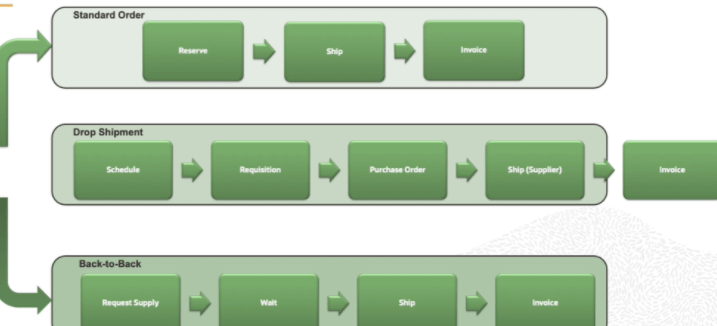
Order Fulfillment process can be done through 3 steps

  • Standard order = It has following steps, Reserve -> Ship -> Invoice
  • Drop Shipment = It has following steps, Schedule -> Requisition -> Purchase Order -> Ship(Supplier) -> Invoice. Details of Back to Back can be found in link.
  • Back-to-Back = It has following steps, request supply -> Wait -> Ship -> Invoice. Details of Back to Back can be found in link.

Process Flow of Non-Physical Goods

Non Physical product like service, warranty etc. follows below mentioned steps

  • Step 1: Order Capture Process
    • Product Items are added to Order, price of each item is fetched from Pricing List.
    • GOP checks supply of product item
    • Order gets validated and booked.
  • Step 2: Order Fulfillment
    • Only Invoicing Happens

Process flow of Return Order

Orders which needs to be returned follow below steps

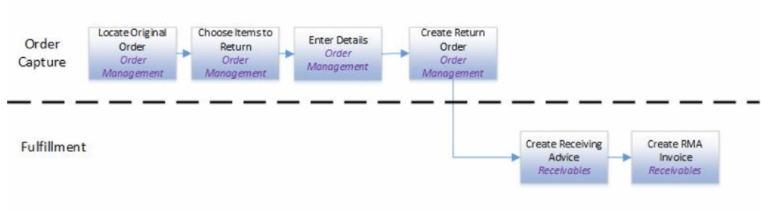
  • Step 1: In Order Capture Process using Order Management follow below steps
    • Locate Original Order
    • Select items to return
    • Enter Order Details
    • Create Return order.
  • Step 2: Order Fulfillment
    • Create Receiving Advice in
    • Create RMA Invoice

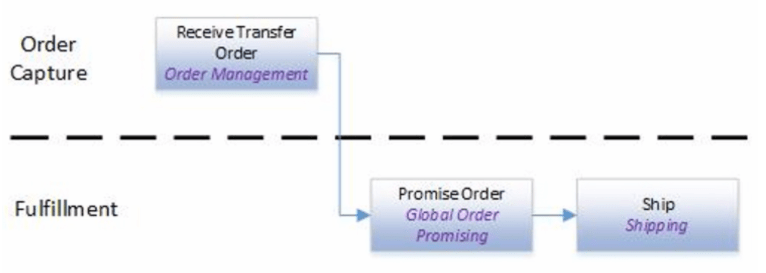
Process flow of Transfer Order

Orders which needs to be Transferred follow below steps

  • Step 1: In Order Capture Process
    • Receive Transfer Order in Order Management
  • Step 2: Order Fulfillment
    • Promise Order using GOP
    • Ship the order using Shipping module

Process flow of Change Order

Orders which needs to be Changed, follow below steps

  • Step 1: In order Capture process,
    • Locate Original Order using Order Management,
    • Create revision of Order using Order Management,
    • Make Changes to order using using Order Management,
    • Submit Change order using Order Management.
    • During entire process of Order change, price will be fetched for Pricing Modules.
  • Step 2: In Order Fulfillment process
    • Pick release the order using Inventory Management.
    • Perform Ship confirm using Shipping option

Order Management Integrations

Oracle Order Management Cloud has following integrations

  • Order Capture will be done either using Configure Price Quote(CPQ) and other way of order capture process
  • Order Fulfillment happens either within Oracle Fusion, E-Business suite or other fulfillment system.

Oracle Fusion : Pick Confirm in Order Management

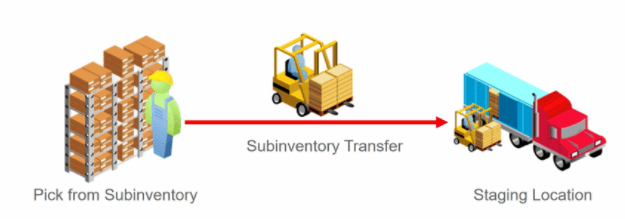
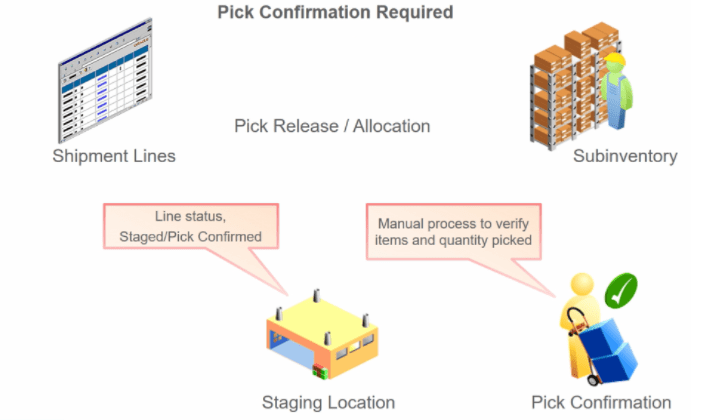
Pick Confirmation performs the Subinventory transfer that systematically moves the material from its source location to the staging location.

Summary of Pick Confirmation Process

  • Based on the rule, It specify what all Shipment lines needs to be Pick Released or Allocated.
  • Order Line status changes to Staged or Pick Confirmed.
  • At staging Location location, Pick confirmation can be Manual or Automatic.

Steps of Pick Confirm

Step1: Create Order

  • Create Order with Supply Warehouse as Seattle. Ensure Line status of this Order is “Awaiting Shipping”.

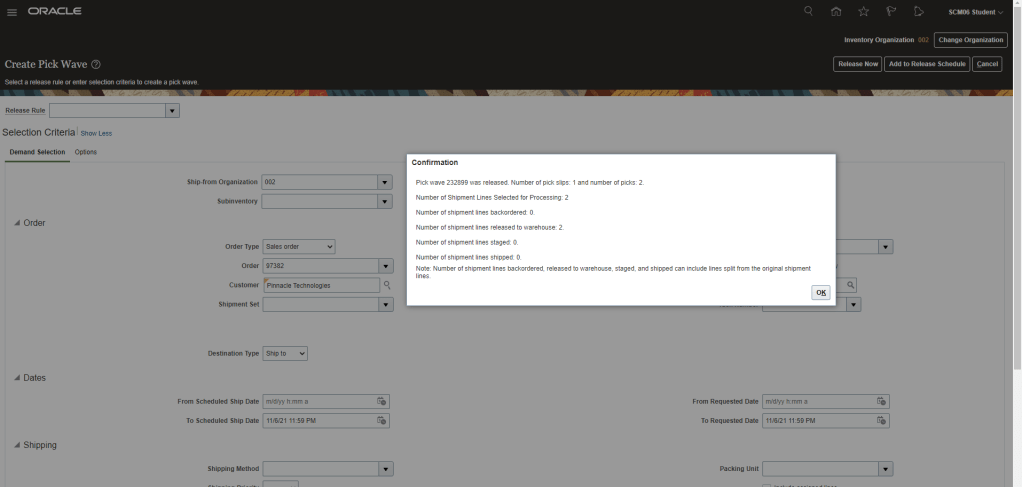
Step 2 : Create Pick Wave for Order 97382.

  • Navigation : Go to Supply Chain Execution -> Inventory Management -> Right Hand Corner Go to Shipments -> Select Create Pick Wave.
  • Enter Order Number “97382” and click on Release Now.
  • Pick wave “232899” gets created.

Step 3 : Pick Confirm Shipment Lines for Order 97382.

  • Navigation : Go to Supply Chain Execution -> Inventory Management -> Right Hand Corner, Go to Shipments -> Select “Pick Confirm”.
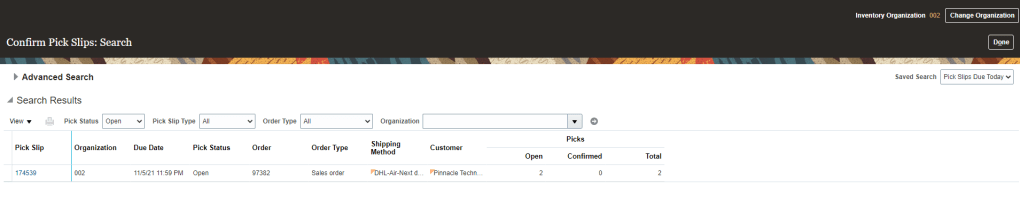
  • Enter Order Number to see Pick Slips.
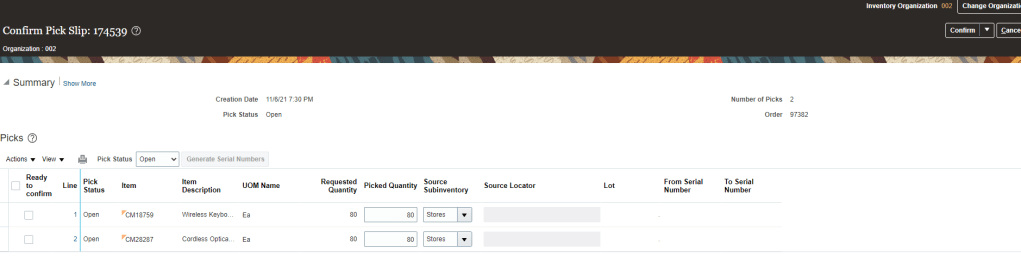
  • By default Picked Quantity value will be what was Ordered Quantity.
  • Change Picked Quantity for both the lines, for one its under shipped( 75 instead of 80) and other line is Over shipped(84 instead of 80).
  • Select “Ready to confirm” line for both lines and Click on Confirm and Go to Ship Confirm

OIC: Creating Publish / Subscribe Integrations with Lookups

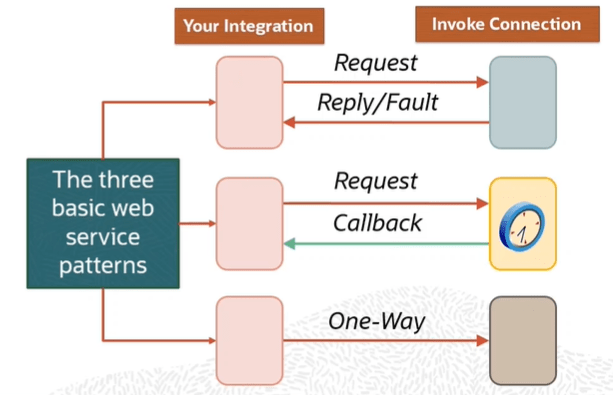
Scope Statement : We will establish a mechanism to synchronize new accounts that are added to Oracle Engagement Cloud(Sales Demo) to ultimately create a new Organization(associated with account) in Oracle Service Cloud(RightNow). This will be done in 5 steps.

  • Step 0 : Create Adapters Oracle Engagement Cloud and Oracle Service Cloud.
  • Step 1 : Create a new Domain Value Map which in OIC world is know as a Lookup, which will be used to facilitate data mapping for Address Type information between the two SaaS application domains.
  • Step 2 : Create a new integration flow using the Publish style that receives the new account business object from Oracle Engagement Cloud.
  • Step 3 : Create a new integration flow using the Subscribe style, receiving the Engagement Cloud Account. Then leveraging your newly created lookup, map data between the Oracle Engagement Cloud Account business object and a request to create a new Organization business object in an Oracle Service Cloud(RightNow) application instance.
  • Step 4: Test the use case by invoking the Publish Integration, simulating an Oracle Engagement Cloud application sending a one-way message to OIC with the new account information.

Step 0 : Create below Adapters.

These adapters are already created and their details are mentioned in the link.

  • Oracle Engagement Cloud Adapter( Sales Demo Connection created in Step 5 in above Link)
  • Oracle Service Cloud Adapter( RightNow Demo Connection created in Step 4 in above Link).

Step 1: Creating a Lookup.

  • Navigation : Integrations -> Lookups -> Click on Create.
  • Enter Name = “ora004AddressType” and click on Create.
  • Select Domain_Name_1 and click on Replace with Adapter.
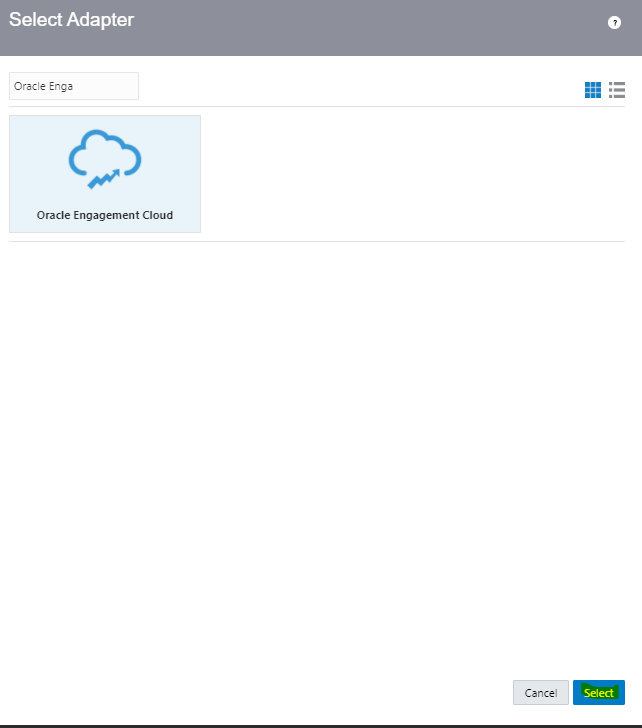
  • Select Adapter -> Oracle Engagement Cloud and click on Select.
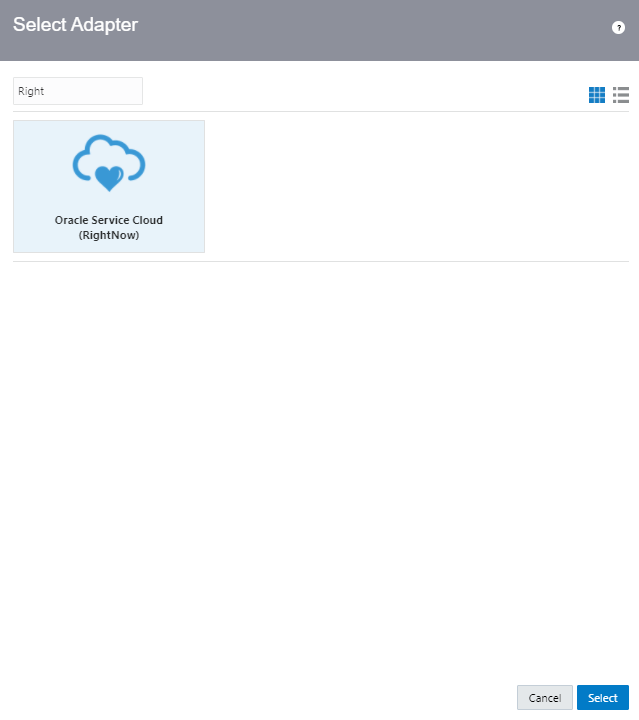
  • Repeat the above step for Domain_Name_2 and choose Adapter Oracle Service Cloud(RightNow).
  • Enter Lookup Values. To add new row, click on “+” button.
    • 1 = Billing
    • 2 = Shipping
  • Once all lookup values added, click on Save.

Step 2: Create Publish to OIC Integration

  • Navigation : Integrations -> Click on Create.
  • Choose Publish To OIC and click Select.
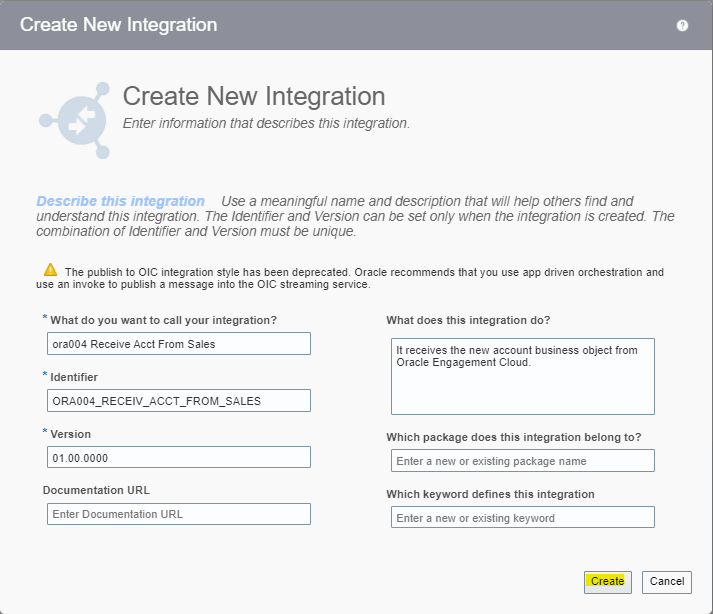
  • Enter Name = ora004 Receive Acct From Sales and click on create.
  • On Right side of Canvas, search for Sales Demo and Drag and Drop Sales Demo to the Trigger on Left Side.
  • Enter Details of Oracle Engagement Cloud Endpoint
  • Enter Name = “GetAccount”.
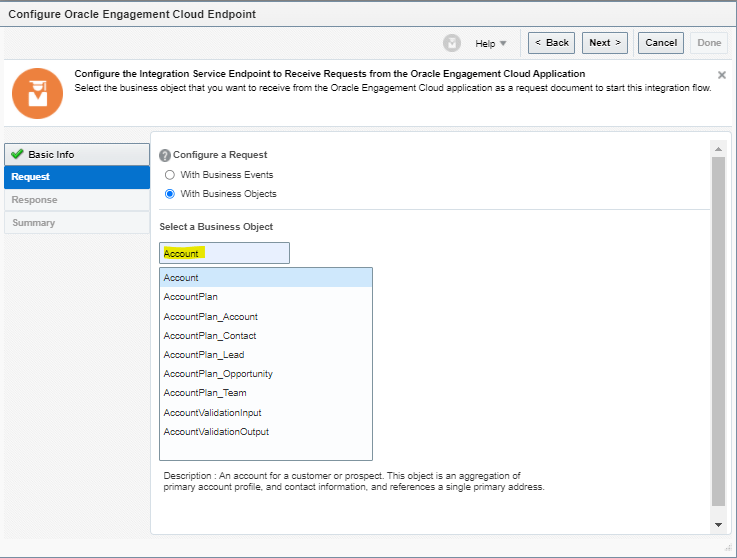
  • For Configure a Request, select “With Business Objects” and in Business Object field select as “Account” and click on Next.
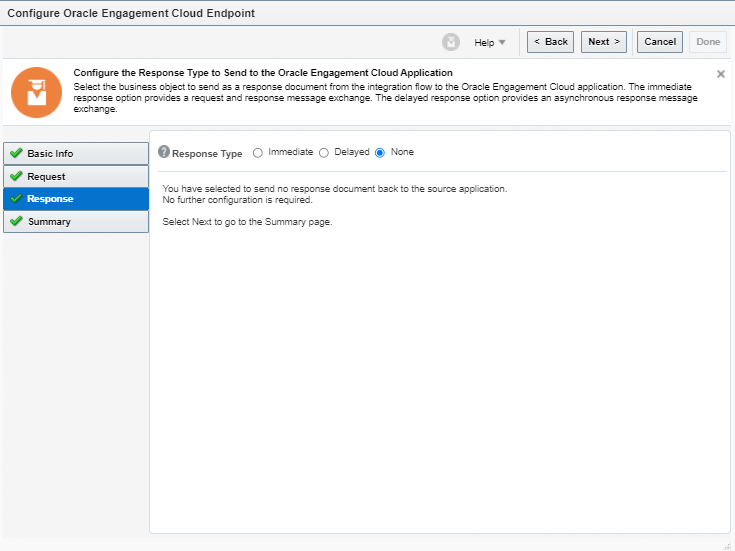
  • For Response type = select “None” as there is nothing to provide response since it is a Publish Style Integration.
  • On Summary page click on Done.
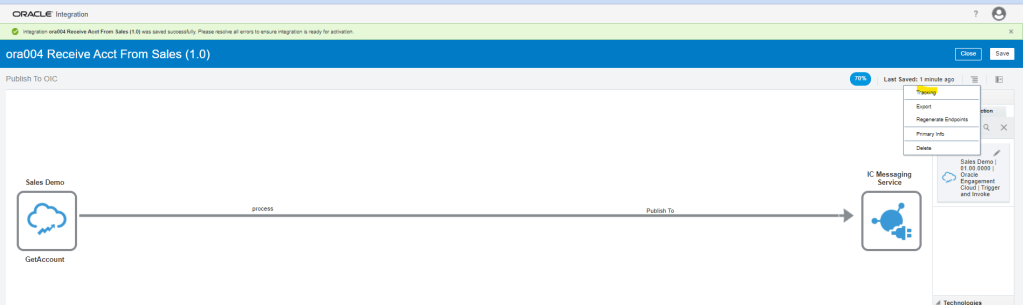
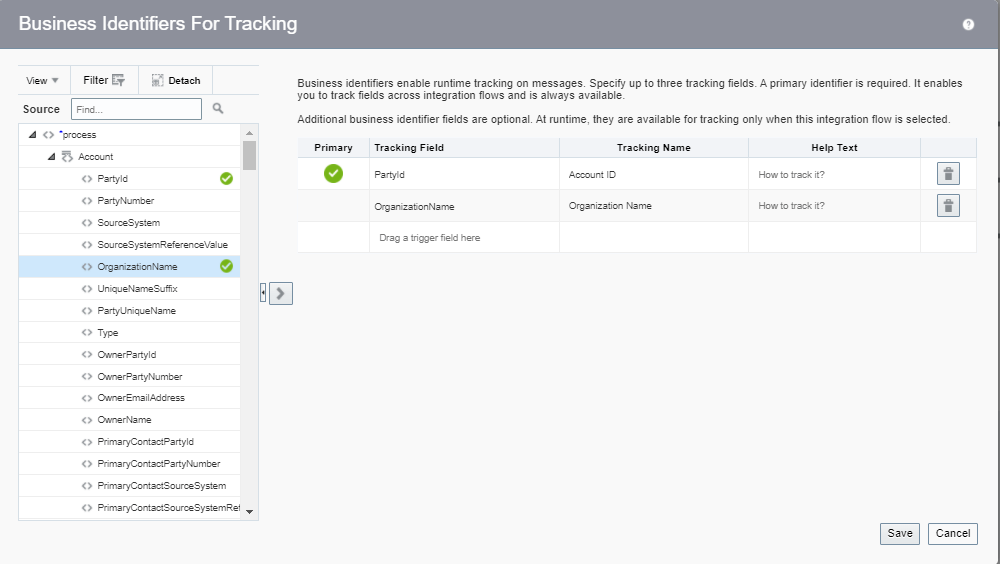
  • Add Tracking Id by selecting the PartyID of Account and change the Tracking Name to Account ID and click on Save.
  • Save and Activate the Integration

Step 3: Create Subscribe to OIC Integration

  • Navigation : Integrations -> Click on Create.
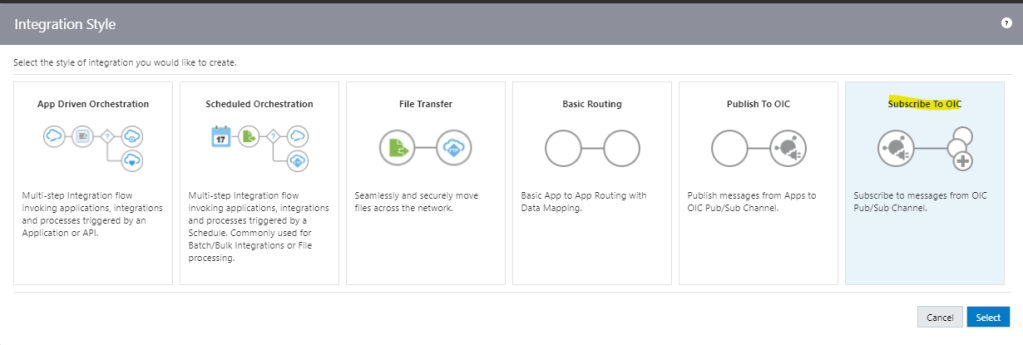
  • Choose Subscribe To OIC and click Select.
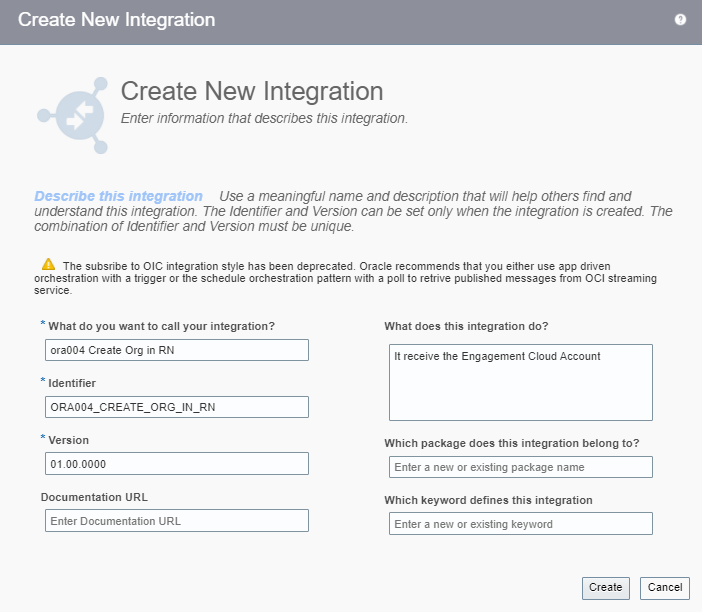
  • Enter Name and Subscription for below Integration and click on Create.
  • Select Published Integration “ora004 Receive ACCT From Sales” which was created in Step 2.
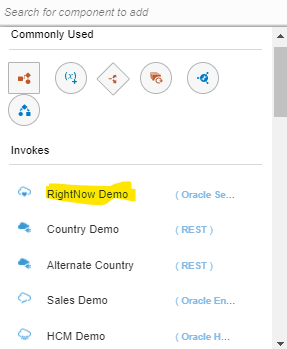
  • Search for RightNow Demo adapter on right hand corner and drag and drop on the right corner.
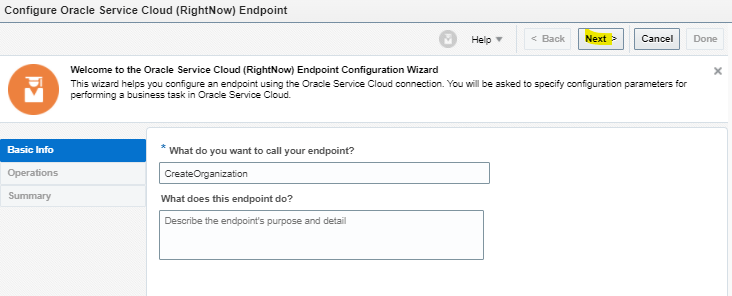
  • Enter name of Endpoint “CreateOrganization” and click on Next.
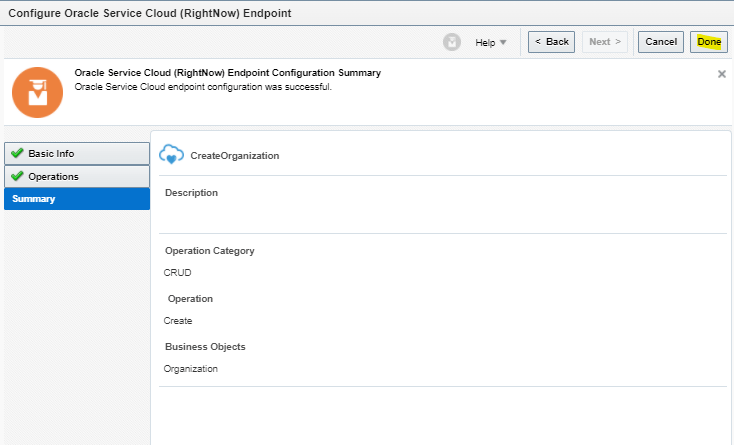
  • Select below Details and click on Next
    • Operation Mode = “Single Operation”.
    • Enter Operation Type = “CRUD”.
    • Operation = “Create”.
    • Business Object to be created = “Organization”.
  • On Summary page, click on Done.
  • Integration should look like below.
  • Click on Icon in center “Click Below to Create Map) to reach to Mapper screen.
  • Create below Mapping using Drag and Drop.
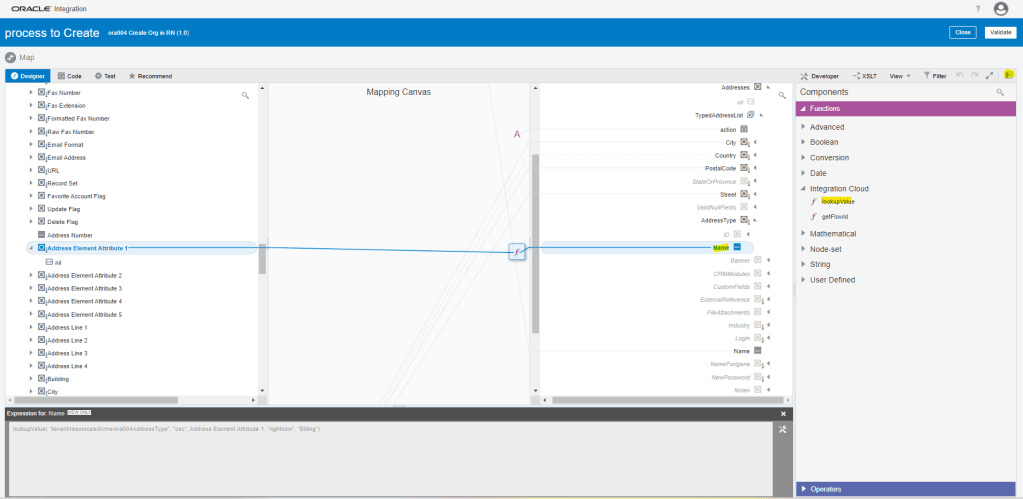
  • Steps to add LookupValue created in Step1 to one of the field
    • Click on Toggle pane at extreme right corner, Functions tab will appear.
    • Under Functions, select lookupvalue and drop on Addresstype-> Name.
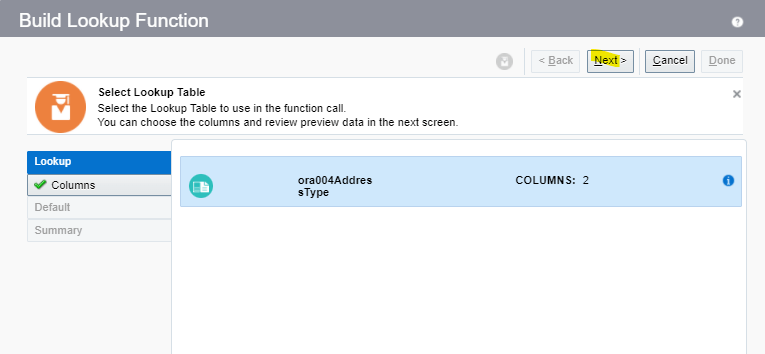
  • Below Lookup Function screen appears. Select the Lookup which was created in Step1 and click on Next.

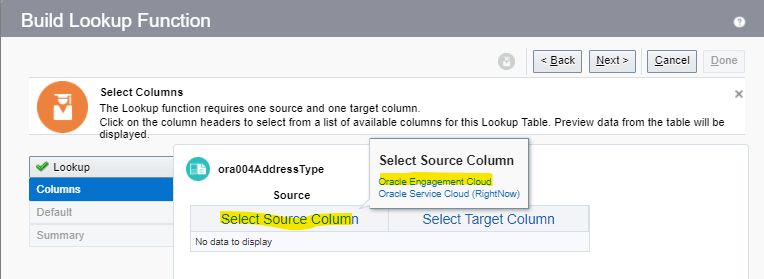
  • Click on Select Source Column. From popup screen of Select Source Column, select Oracle Engagement Cloud. This will populate the Source Value “1” and “2” created in Step1.
  • Repeat same steps for Target column and select Oracle Service Cloud(RightNow). This will populate the value “Billing” and “Shipping” created in Step1.
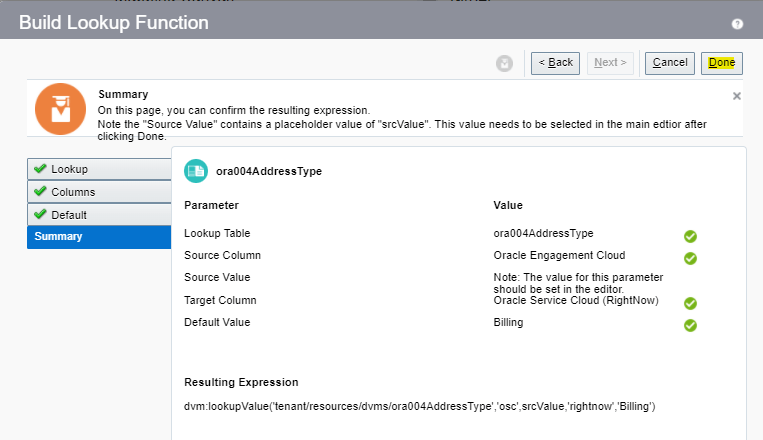
  • This screen shows the mapping between source and Target. Click Next.
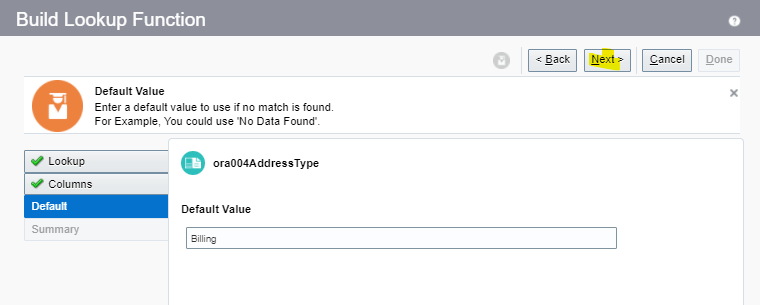
  • For Default, enter the value = “Billing”. This will be used in case no value mapping exist for Addresstype.
  • On Summary page, click on Done.
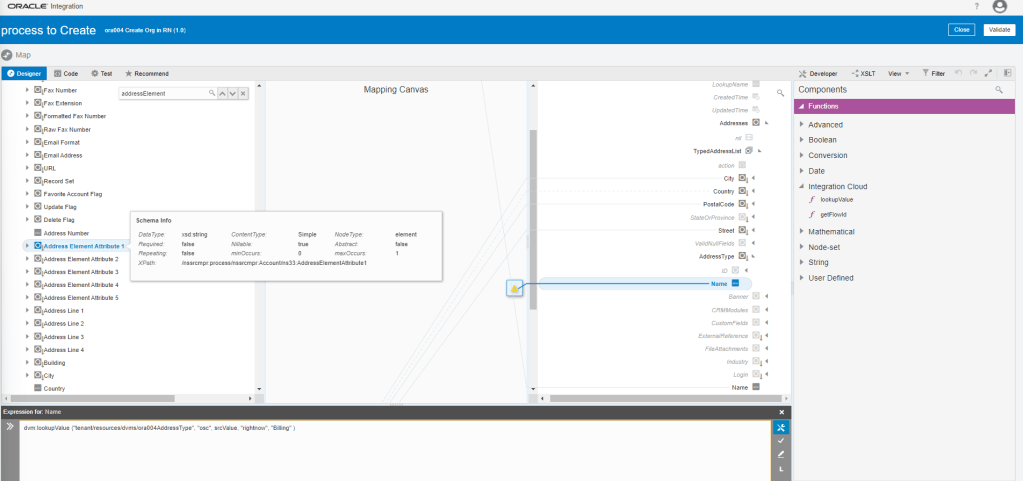
  • Click on AddressElementAttribute1 and right click to see Node Info. It will show the complete path of the field.
  • Click on NodeInfo to see the details.
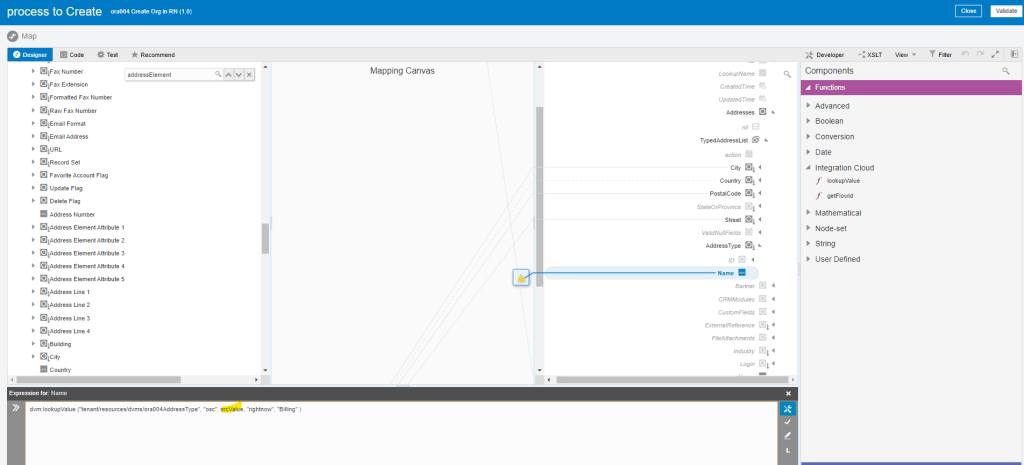
  • Click on Function Name and in expression below and erase the value “srcvalue”.
  • Drag and drop from Address ElementAddress1 at place of srcvalue which was erased at previous step.
  • So now we build a connection between Address ElementSrcValue1 to Name. Click on tick mark in the bucket.
  • It ties AddressElementAttribute1 as a value to the function, as a third parameter, which finally gets mapped to Name.
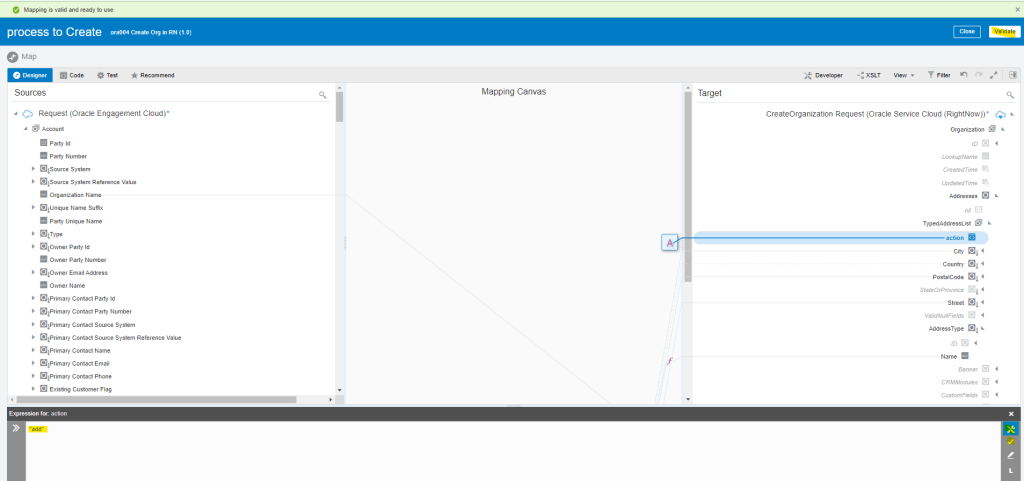
  • Click on Validate and Save.
  • Right click on Action field and select Create Target Node.
  • Click on Edit button, enter text “add”, and click on tick button and Validate
  • Add Tracking ID for the Integration
  • Add Tracking id OrganizationName
  • Activate the Integration

Step 4: Test the Integration

  • We can test Integration Using SOAP UI
  • Get URL from the OIC cloud by clicking on Play button and select WSDL URL.
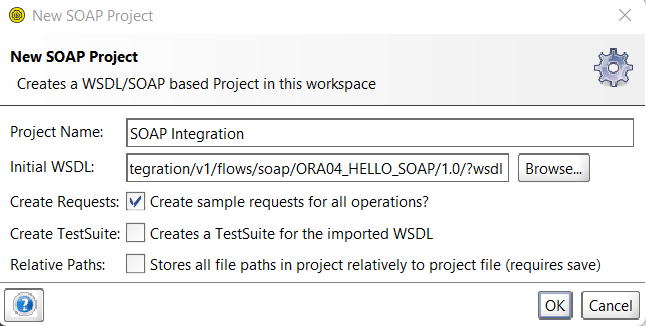
  • In SOAP UI, enter Project Name and Paste the URL in Initial WSDL section.
  • Once Project is added, Enter Firstname in Left pane which will be our input for testing..
  • On left Bottom, click on Auth and select Basic.
  • Enter Username and Password of OIC cloud.
  • Once Username and Password is added, right click on Left pane.
  • From List select “Add WSS Username token”, then select PasswordText from the dropdown list.
  • Click on OK.
  • From List select “Add WS-Timestamp”, then change the timestamp from 60 to 600.
  • Click on OK.
  • Enter Below Value
    • PartyId = “101”
    • OrganizationName = “Demo Org11 ora004”
    • AddressElementAttribute1 = “2”
    • AddressLine1 = “101 Main Street”
    • City = “Tampa”
    • Country = “US”
    • Postal Code = “33626”
  • Click on Green Button to run, XML will process correct.

Step 4.1 : Monitor the Integration

  • We can either go through Monitoring -> Integration -> Tracking
    • OR
  • Go to Integrations -> Integration and select the Integration. Click on Play Button and click on Track Instances.
  • Either way we will reach Integrations -> Tracking screen where it will show all instances of OIC Integration run.
  • Under status column it will show status of each run instance.
  • An eye will appear on each, on clicking it we will see the activity stream for the run.
  • Track Subscribe to OIC instance.
  • Verifying Publisher Run

OIC: ATP and REST Invoke Connection.

Scope Statement : In this case we will build an Integration flow designed with a REST interface trigger. REST client provides a template parameter with the unique numeric id of a country and expecting the return of a JSON string containing basic information about that corresponding country.

The country information is available in an existing REST web service, but that service requires the correct ISO 2-digit country code. We will make a call to a database table in ORACLE ATP retrieving the country code based on the client-provided numeric country id. We will use REST connection to call the country info web service.

Step 1 : Create below Adapters.

These adapters are already created and their details are mentioned in the link.

  • Oracle ATP Database Adapter( ATP Demo Connection created in Step 3 in above Link)
  • REST Adapter( Country Demo Connection created in Step 8 in above Link).

Step 2 : Create Integration

  • Create a App Driven Integration.

Step 2.1: Configure REST Adapter( Sample REST Endpoint Connection)

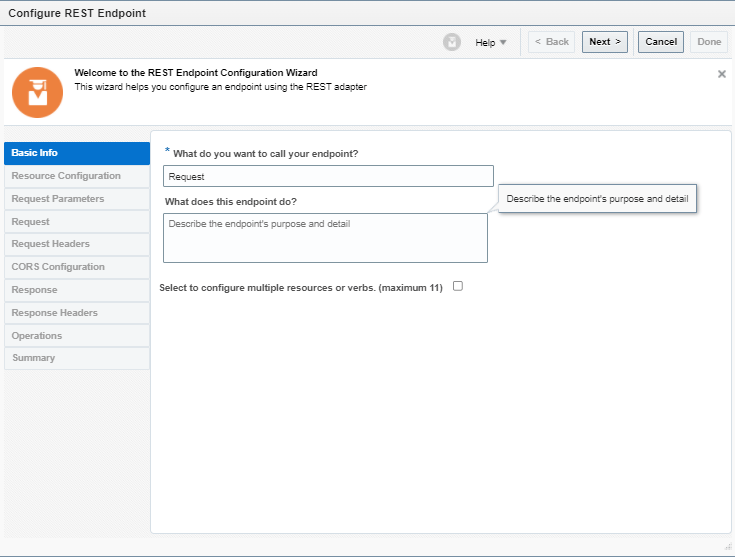
  • Select Sample REST Endpoint
  • Configure REST Endpoint
  • Enter Below details for Resource Configuration
  • Operation Name = default
  • Endpoint’s relative resource URI = /ora004/CountryInfo/{id}
  • What action do you want to perform on the endpoint = GET
  • Check Configure this endpoint to receive the response
  • Configure Request Parameter
    • HTTP Method = GET
    • One Query Parameter = id
    • Data type of id = string
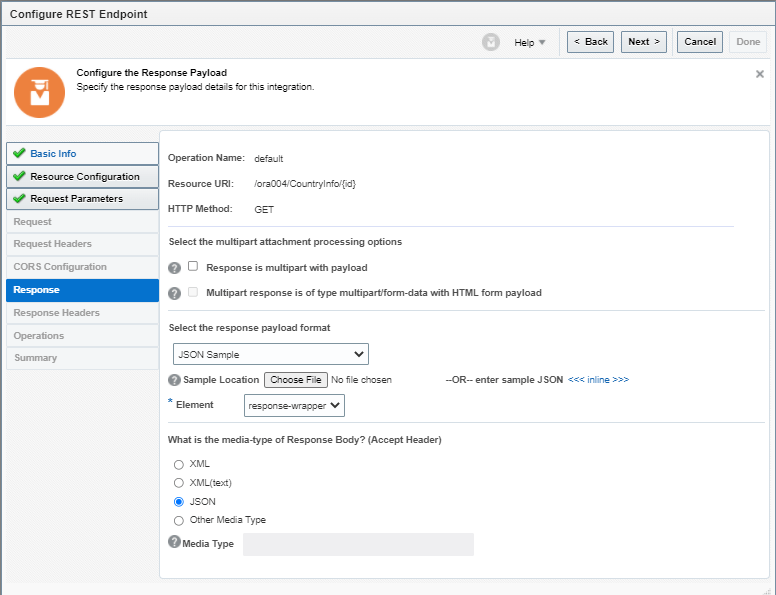
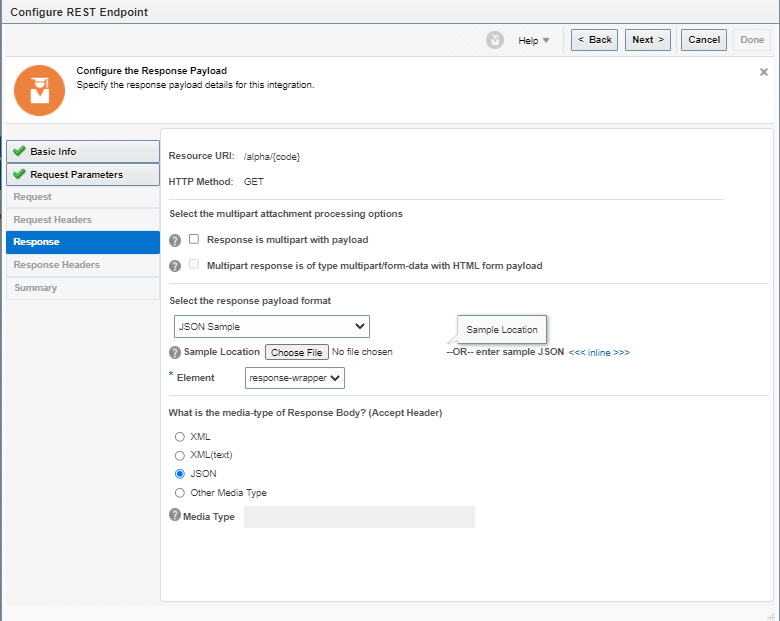
  • Configure Response Parameters
    • Response Payload format = JSON Sample
    • Sample Location = Choose JSON file = OICCountryResponse.JSON
    • Element = response-wrapper
    • Media-type of Response Body = JSON
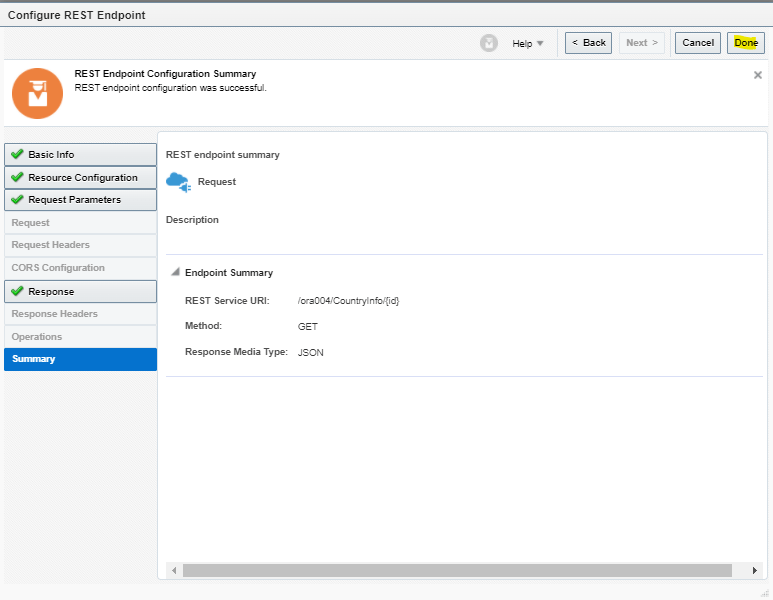
  • After Verifying all details, click on Done at Summary Page.
  • It should look like below
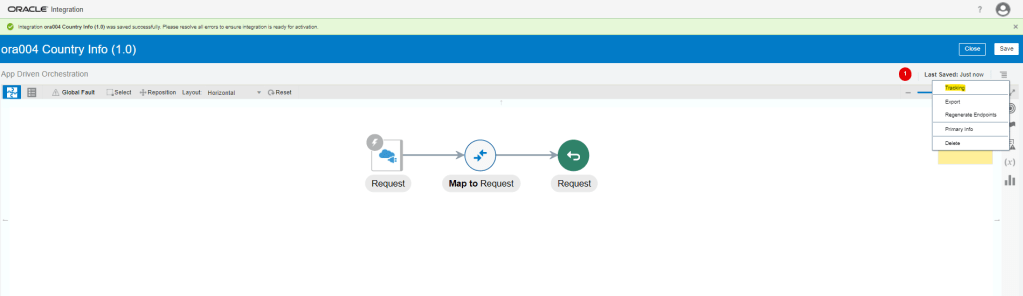
  • Go to tracking and make “id” as tracking field.

Step 2.2 : Oracle ATP Database Adapter( ATP Demo Connection)

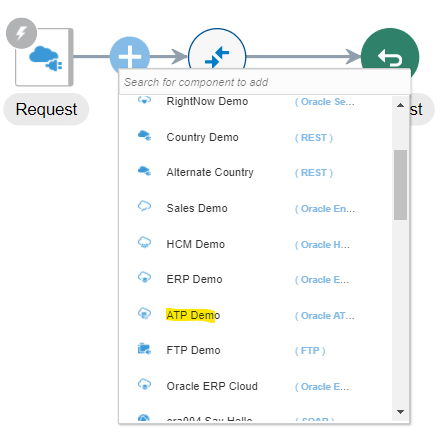
  • Click on arrow between Request Endpoint and Map To Request and select ATP Demo connection.
  • Configure Oracle Endpoint Adapter
    • Endpoint Name = GetCode
    • Endpoint Purpose = Invoke the ATP DB to retrieve the ISO 2-digit country code for the country indicated by the country ID.
    • Operation to be performed = Perform an Operation on a Table
    • What Operation do you want to perform on Table = “Select”
  • Configure Operations on Table
    • Select Schema = “SH”
    • Filter By = Select Countries from Available list.
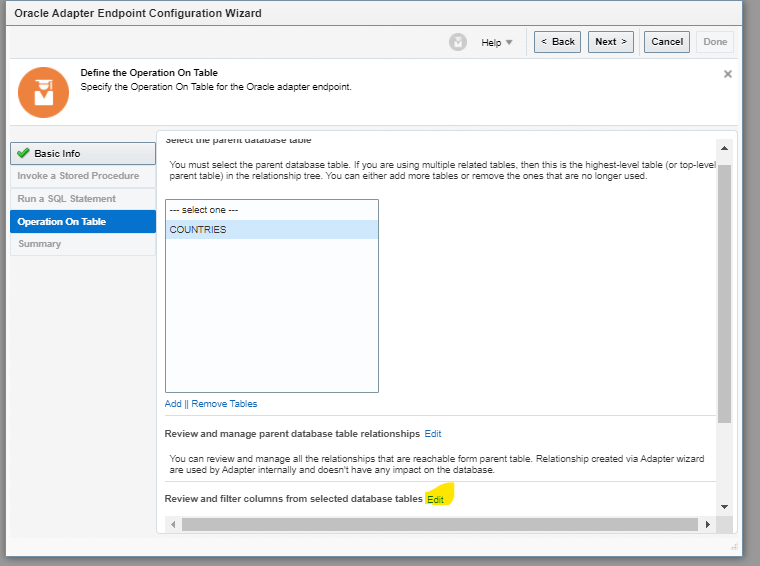
    • Click on Import Tables.
  • Click on Edit section of “Review and Filter Columns from Selected Database Tables.
  • Uncheck all columns of Countries field except “countryIsoCode(NOT NULL)”
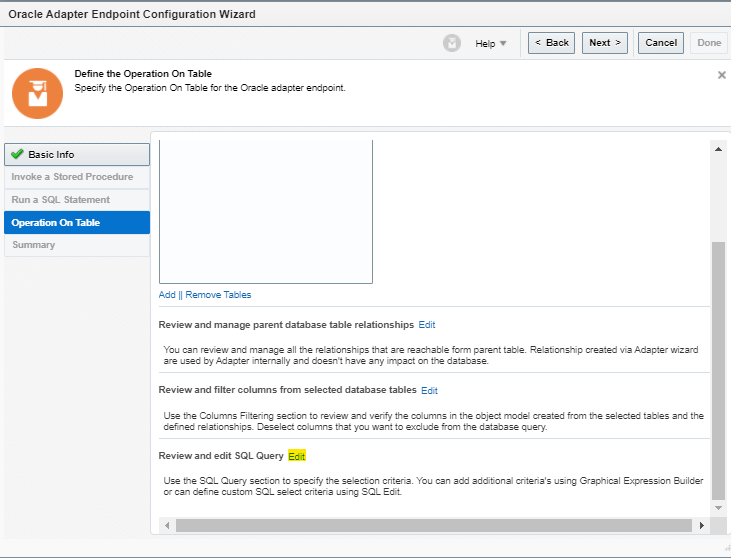
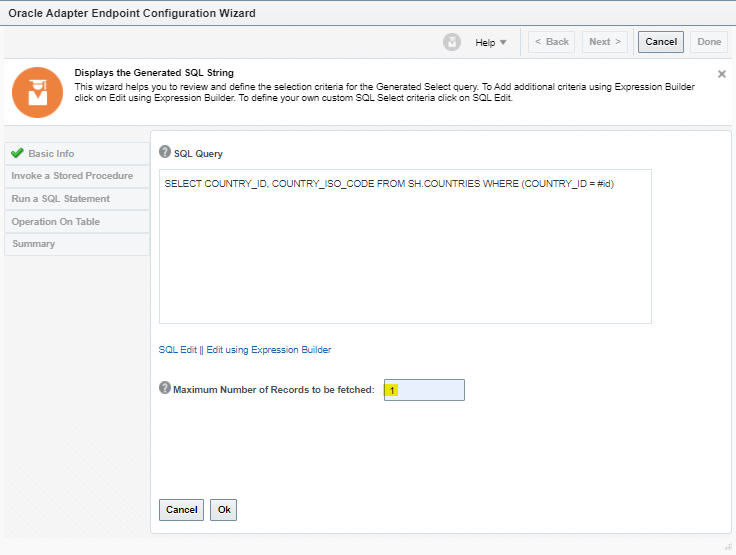
  • Click on Review and edit SQL query.
  • Click on “Edit using Expression Builder”.
  • Click on Query Criteria = “Add New”
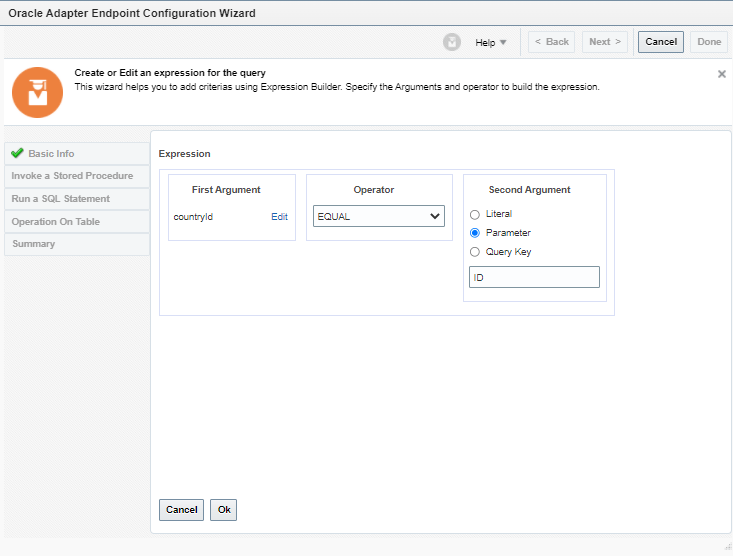
  • Change Second Argument to “Parameter” and enter the value “ID”. Click on Ok.
  • Maximum number of records to be Fetched = “1” and click on done.
  • Click on Next and on Summary Page click on SQL to verify the SQL. Post which click on Done.
  • Click on Done
  • This is how it should look

Step 2.4: Configure REST Adapter( Country Demo Connection)

  • Enter following details
    • Endpoint Name = GetCountryInfo.
    • Description = Retrieving the country information from the remote REST web service by providing a valid 2-digit ISO country code.
    • endpoint Relative resource URI = /alpha/{code}
    • Action to be performed on Endpoint = GET
    • Check on configure this endpoint to receive the response.
  • Configure Request Parameter
    • HTTP Method = GET
    • One Query Parameter = code
    • Data type of “code”= string
  • Configure Response Parameters
    • Response Payload format = JSON Sample
    • Sample Location = Choose JSON file = ExternalCountryResponse.JSON
    • Element = response-wrapper
    • Media-type of Response Body = JSON
  • On Summary page click on Done.
  • After Configuring, Integration should look like below.

Step 2.4 : Data Mapping

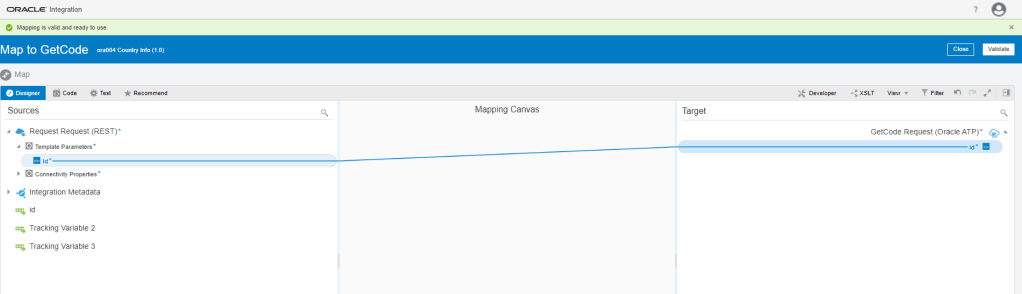
Step 2.4.1 Mapping between Request and GetCode.

  • Click on Pencil button to edit the Mapping.
  • Drag and drop to create Mapping between id of TemplateParameters to id of GetCodeSelect_idinputParameters.
  • Click on Validate.

Step 2.4.2 Mapping between GetCode and GetCountryInfo

  • Click on Pencil button to edit the Mapping.


  • Drag and drop to create Mapping between countryIsoCode of Countries of CountriesColelction of $GetCode to code of TemplateParameters.
  • Click on Validate.

Step 2.4.2 Mapping between GetCountryInfo and Request

  • Click on Pencil button to edit the Mapping.
  • Drag and drop to create Mapping between following
  • excel sheet
  • Click on Validate
  • After mapping it should like below.

Step 3: Activate Integration

  • Once Integration is in Configured mode. Click on Configure icon, it turns into power button which is used to activate the Integration.
  • Click on Enable Tracing box.
  • check on Include Payload box
  • Click on Activate.

Step 4: Test Integration

  • Click on Test
  • Enter Id = “52781” and click on Test

OIC- Creating a SaaS to SaaS Integration Flow.

Scope Statement : In this case we will build an Integration flow between Oracle Engagement Cloud(Sales Cloud) and Oracle Service Cloud(RightNow). Purpose of the integration is to retrieve a list of RightNow business objects(RN Incidents) that are related to an account in Oracle Sales Cloud, which will correspond to a RightNow organization. These will be transformed and returned to the Sales Cloud Client as OSC Incidents.
Step 1 : Create below Adapters.

These adapters are already created and their details are mentioned in the link.

  • Oracle Engagement Cloud Adapter( Sales Demo Connection created in Step 5 in above Link)
  • Oracle Service Cloud Adapter( RightNow Demo Connection created in Step 4 in above Link).

Step 2 : Create Integration

  • Create a App Driven Integration.

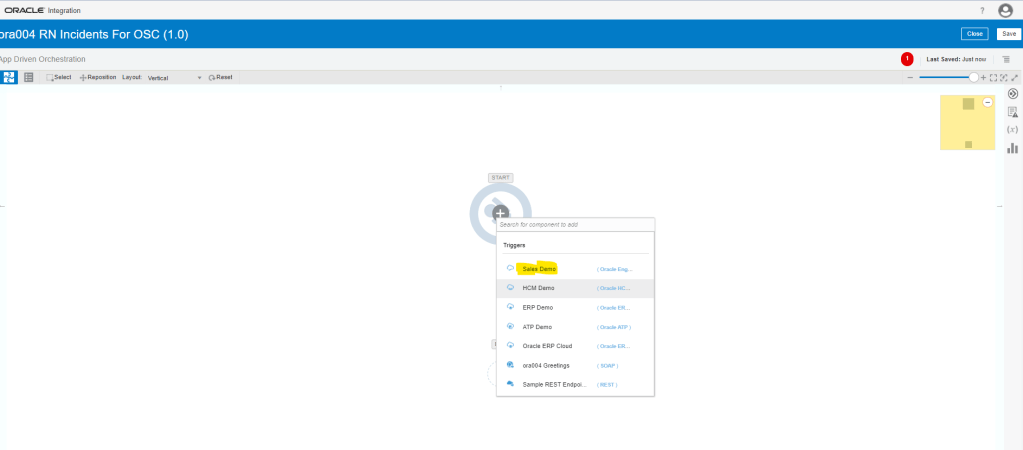
Step 2.1: Configure Oracle Engagement Cloud(Sales Demo)

  • Select Sales Demo Connection
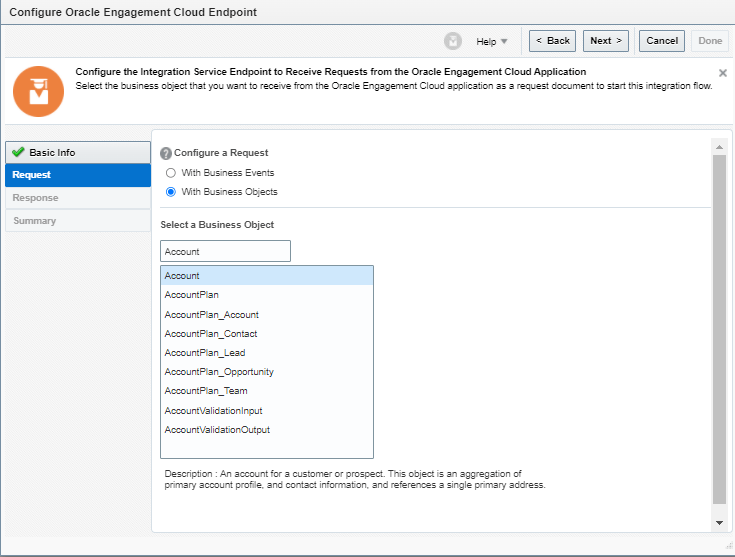
  • Configure Oracle Engagement Cloud(Sales Demo) Endpoint
  • Configure Request by Selecting
    • Request type = “With Business Objects”.
    • Business Object = “Account”
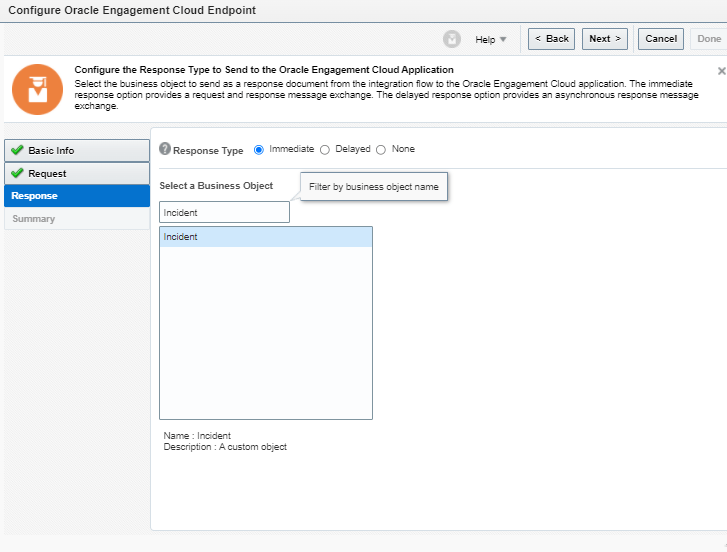
  • Configure Response page by selecting
  • Response type = “Immediate
  • Business Object = “Incident” and click on Next.
  • Click Done
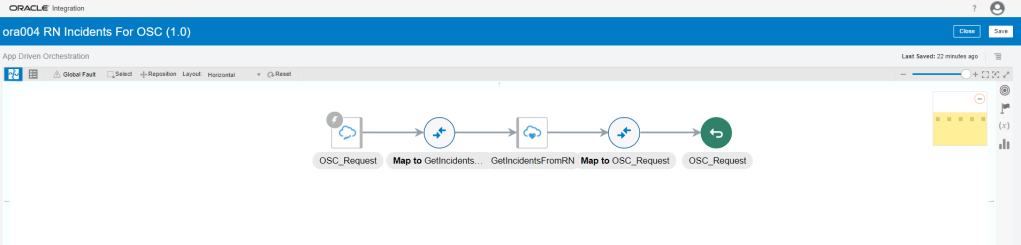
  • Integration with Sales Demo Adapter created.
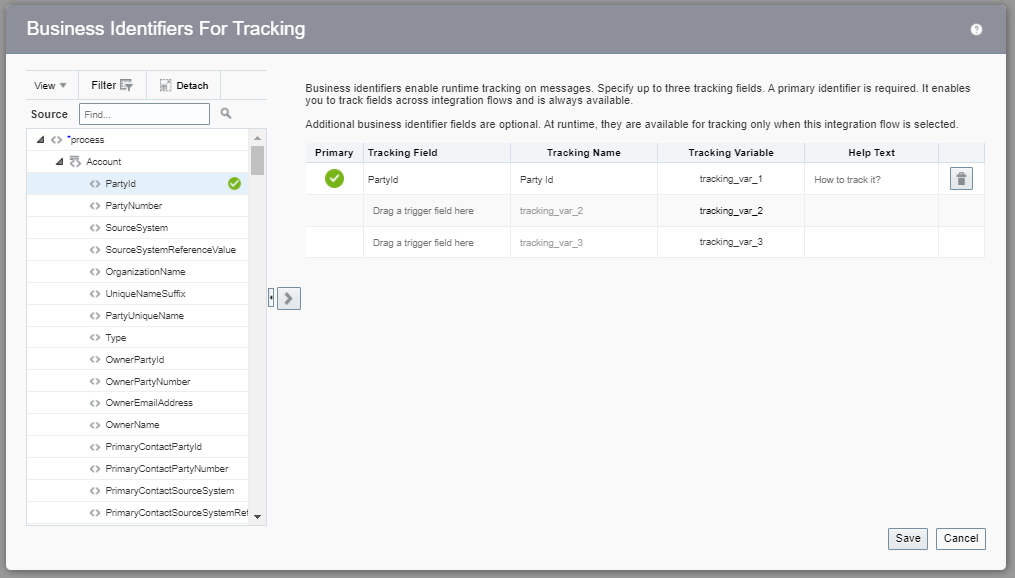
  • Go to tracking and make PartyId field as primary tracking field.

Step 2.2 : Configure Oracle Engagement Cloud(RightNow) Connection

  • Click on arrow between OSC_Request and Map To OSC_Request and select RightNow connection.
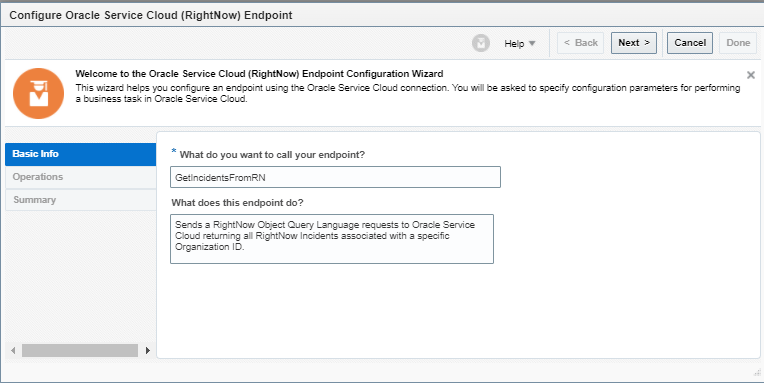
  • Enter Basic Info
    • Name = GetIncidentsFromRN
    • Description = Purpose of endpoint

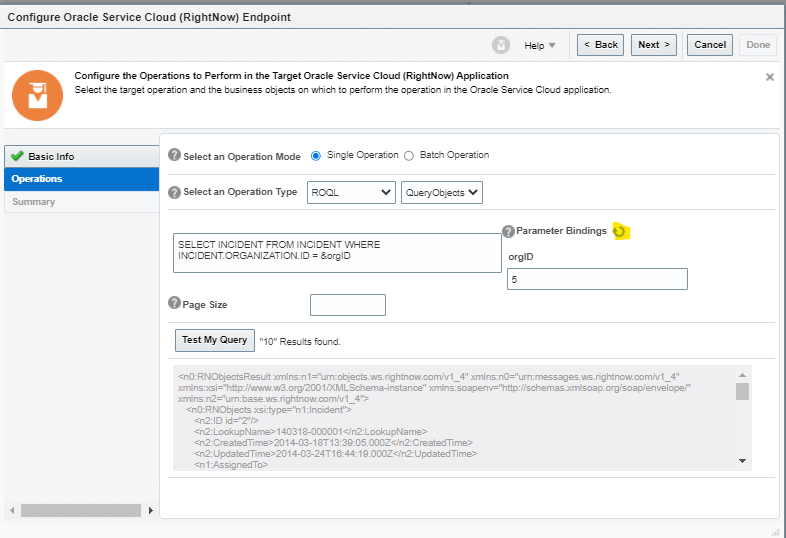
  • Select following
    • Operation Mode = Single Operation
    • Operations type = ROQL
    • Cloud Operations = QueryObjects
    • Enter query = SELECT INCIDENT FROM INCIDENT WHERE INCIDENT.ORGANIZATION.ID = &orgID
    • Click on Refresh next to Parameter Bindings option.
  • For Testing Purpose, Enter orgID = “5” and click on Test My Query.
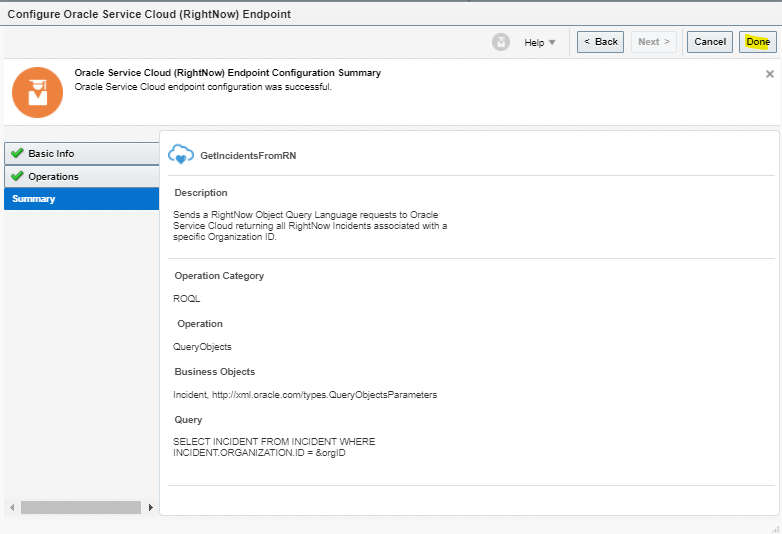
  • On Summary Page, click on Done.
  • After configuration it should look like.

Step 2.3 : Data Mapping

Step 2.3.1 Mapping between Greetings and Say Hello.

  • Click on Pencil button to edit the Mapping.
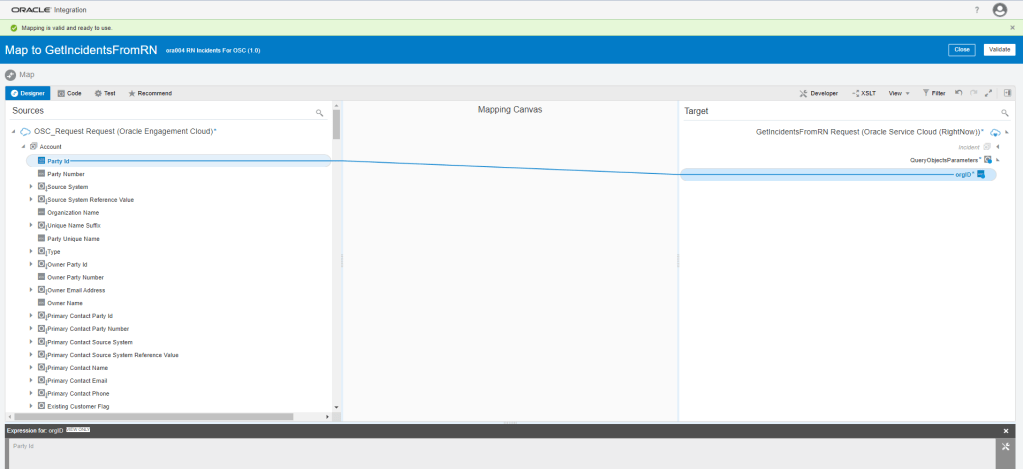
  • Drag and drop to create Mapping between PartyID of Account to orgID of GetIncidentFromRN Request.
  • Click on Validate.

Step 2.3.2 Mapping between GetIncidentsFromRN and OSC Request.

  • Click on Pencil button to edit the Mapping.
  • Map following fields from Source to Target

Step 3: Activate Integration

  • Once Integration is in Configured mode. Click on Configure icon, it turns into power button which is used to activate the Integration.
  • Click on Enable Tracing box.
  • check on Include Payload box
  • Click on Activate.
  • After activation, it should look like below

Step 4: Test the Integration

  • We can test Integration Using SOAP UI
  • Get URL from the OIC cloud by clicking on Play button and select WSDL URL.
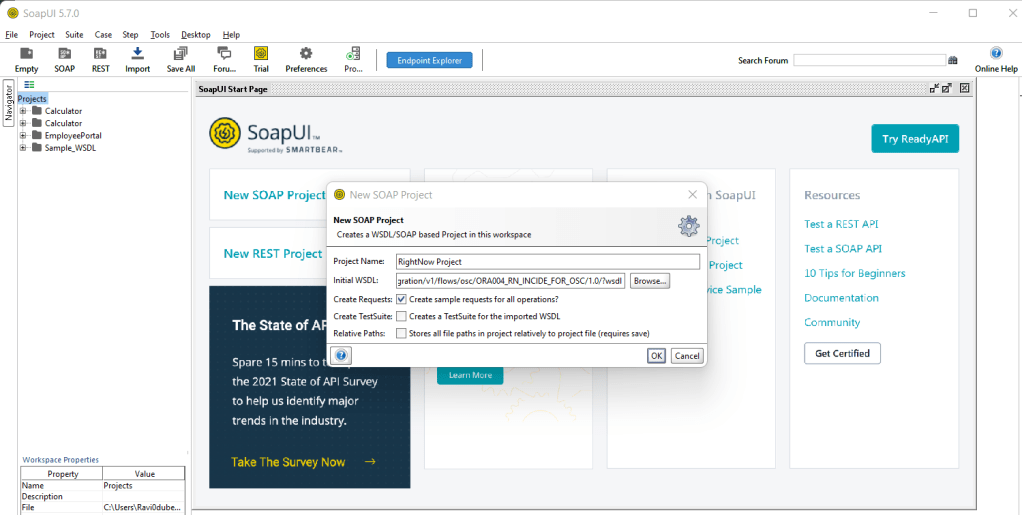
  • In SOAP UI, enter Project Name and Paste the URL in Initial WSDL section.
  • Once Project is added, Enter Firstname in Left pane which will be our input for testing..
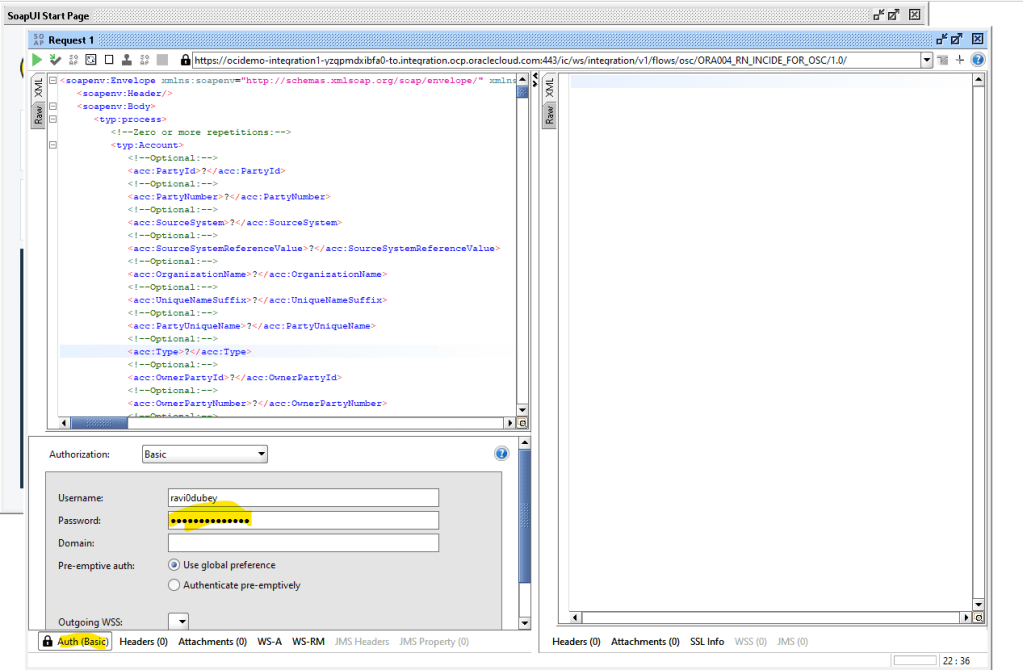
  • On left Bottom, click on Auth and select Basic.
  • Enter Username and Password of OIC cloud.

  • Once Username and Password is added, right click on Left pane.
  • From List select “Add WSS Username token”, then select PasswordText from the dropdown list.
  • Click on OK.
  • From List select “Add WS-Timestamp”,then change Timestamp value from “60” to “600”.
  • Click on OK.

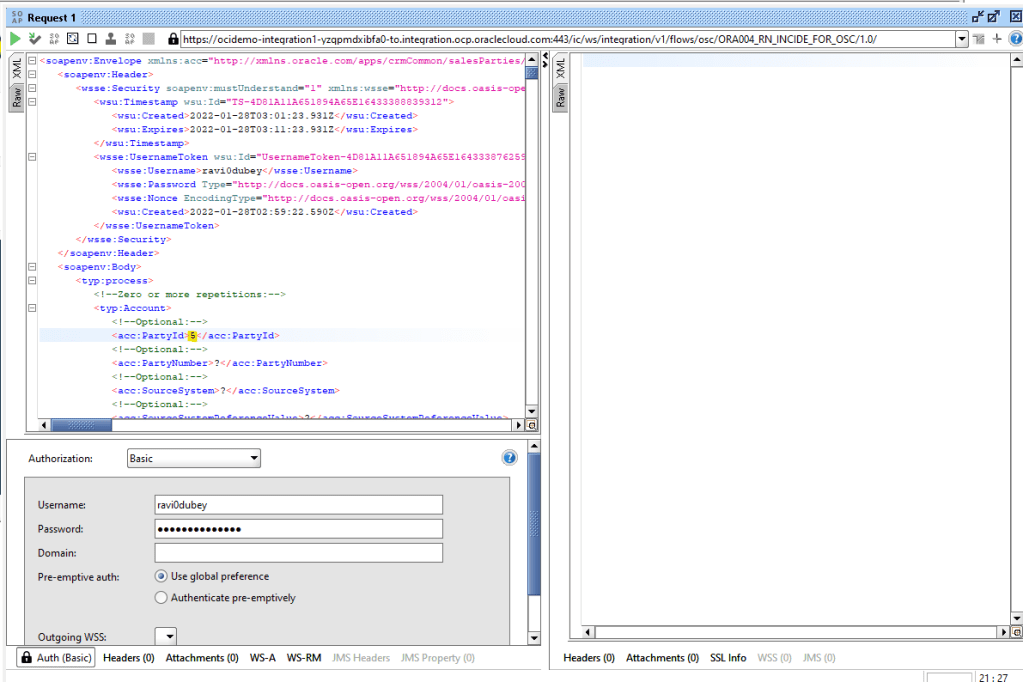
  • Change the Value of PartyId from “?” to “5”
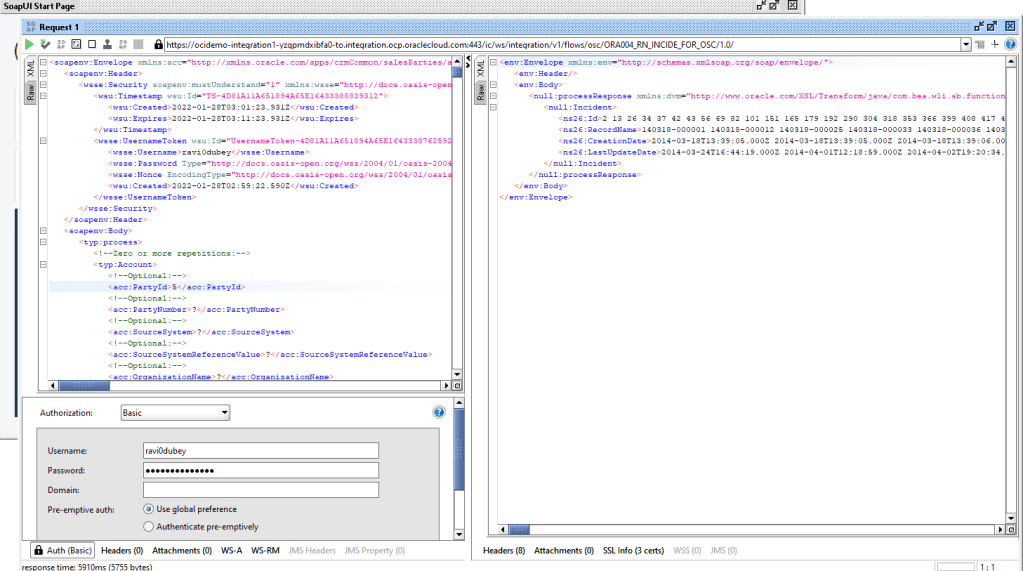
  • Click on Green button to test.
  • We will see response from OIC cloud with collection of Incidents in the Body.

Step 5: Monitor the Integration

  • We can either go through Monitoring -> Integration -> Tracking
    • OR
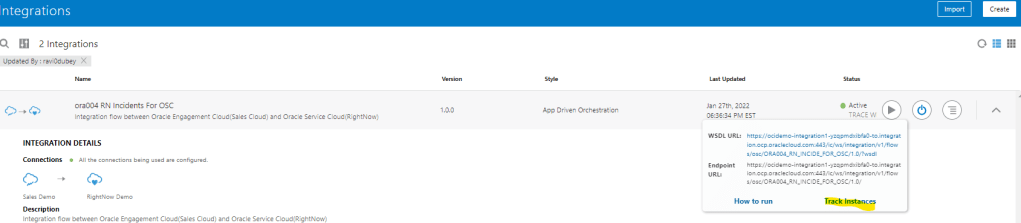
  • Go to Integrations -> Integration and select the Integration. Click on Play Button and click on Track Instances.
  • Either way we will reach Integrations -> Tracking screen where it will show all instances of OIC Integration run.
  • Under status column it will show status of each run instance.
  • An eye will appear on each, on clicking it we will see the activity stream for the run.
  • In each activity stream we can click on Message to see the message passed at each level. It will help to track and diagnose any error.

OIC: Creating Oracle Integration Cloud Adapter Connections

Step 1 : Create FTP Source Connection

  • Navigation : Integrations -> Connections -> Click on Create.
  • Select Adapter = “FTP”.
  • Enter Name = “FTP Demo”.
  • Identifier gets populated automatically.
  • Role = Trigger and Invoke.
  • Click on Create.
  • On Next Screen, enter following
    • FTP IP address = “129.213.37.102”.
    • Port Number = “22”
    • SFTP Connection = “Yes”
    • User Name = user1.
    • Password = “xxxxxx”.
  • Click on Save and Test.
  • Ensure its tested successfully and % is 100%.

Step 2 : FileZilla Setup

  • Using IP address, Userid and password of FTP server used in Step 1, connect to FTP server using Filezilla.
  • After connection is established, create an new directory Ora004 in FTP server.

Step 3 : Database Connection

  • After Logging into OCI, either take the route of OCI -> Autonomous Database and select the Database provided to you.
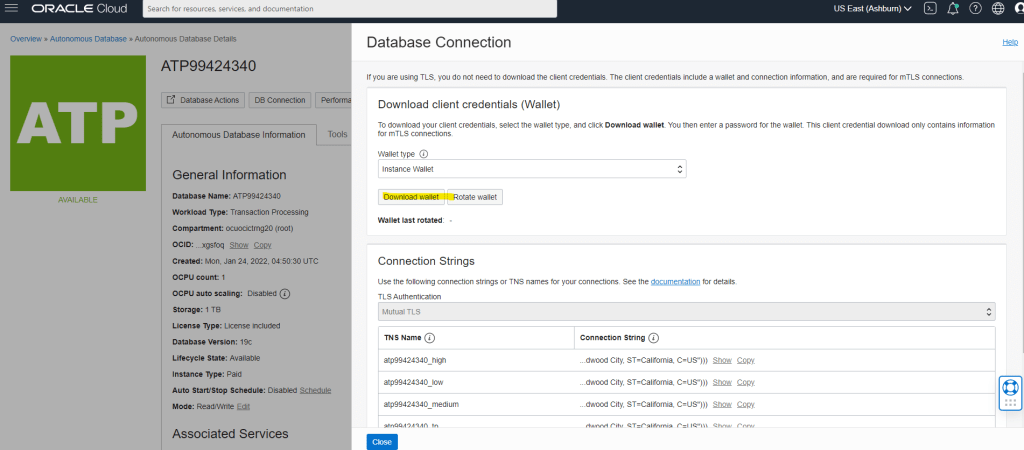
  • Select the Database ATP99424340 and click on DB Connection.
  • Click on Download Wallet
  • It will ask to create a Password, do note that password as it will be used later in the steps of OCI credentials. Click on Download and save the zip file.
  • Unzip wallet and click on tnsnames and open it in notepad. We will be needing port and host of “atp99424340_low” to create connection in OIC.

Create Connection for Oracle ATP

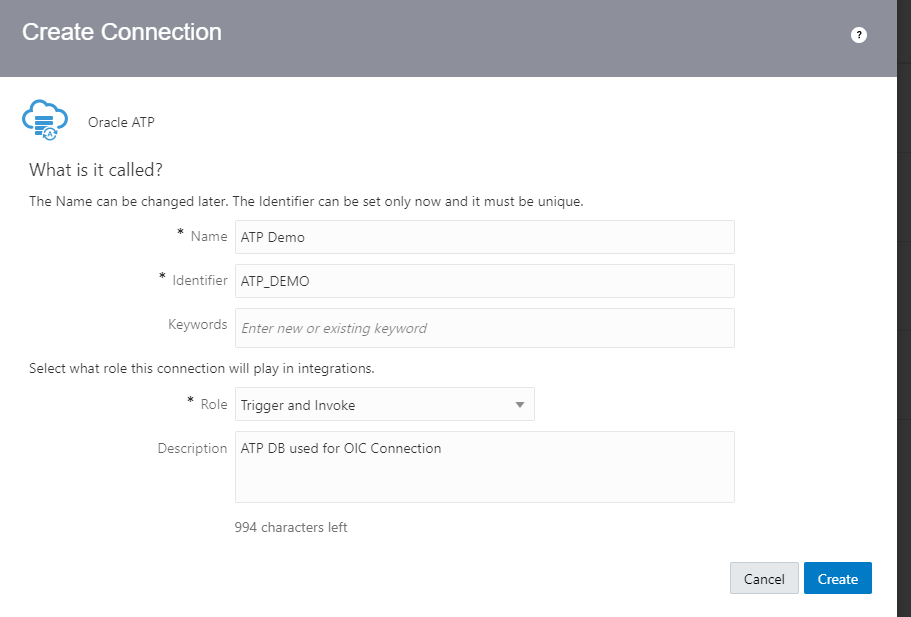
  • Navigation : Integrations -> Connections -> Click on Create.
    • Select Adapter = “Oracle ATP”.
    • Enter Name = “ATP Demo”.
    • Identifier gets populated automatically.
    • Role = Trigger and Invoke.
  • Click on Create.
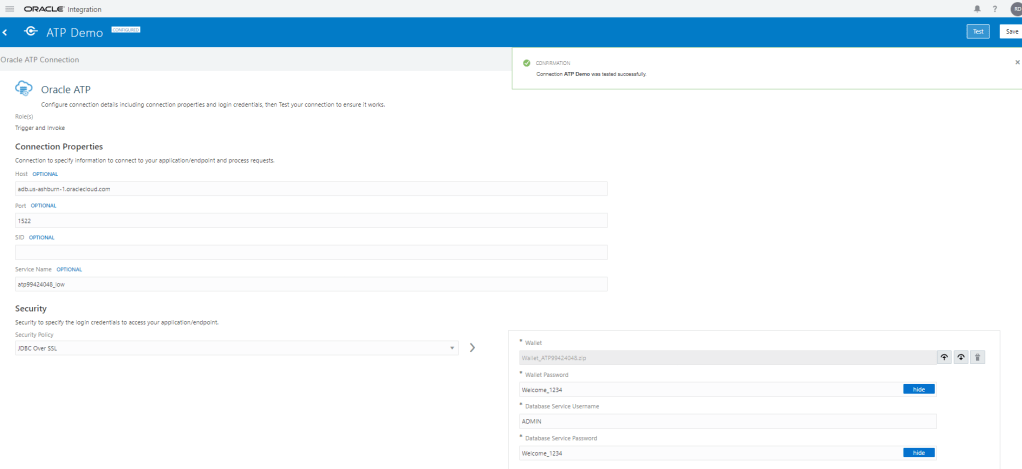
  • Enter below details
    • Host : url of Database Wallet in this case “adb.us-ashburn-1.oraclecloud.com”
    • Port : port of Database Wallet, in this case “1522”.
    • Service_Name = “atp99424340_low
    • Security Policy =”JDBC Over SSL”
    • Wallet = Upload the wallet in Zip file which was downloaded in Step 3
    • Wallet Password = Enter the password which was created at time of downloading the wallet. “Welcome_1234”.
    • Database Service Username = ADMIN
    • Database Service Password = Welcome_1234
  • Click on Save and Test Connection.

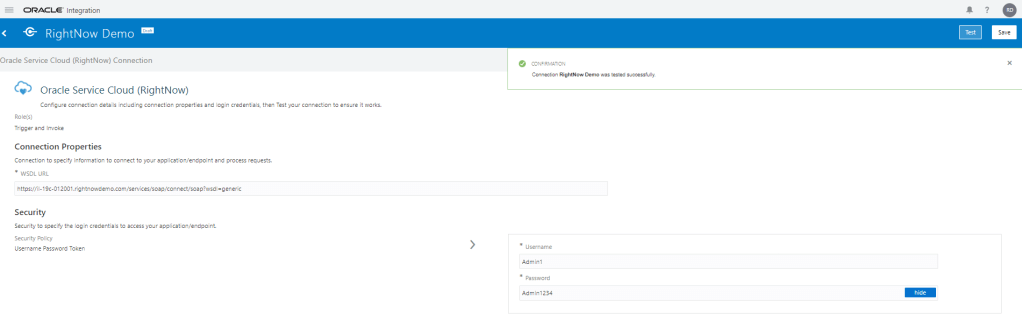
Step 4 : Create Connection for Oracle Service Cloud(RightNow)

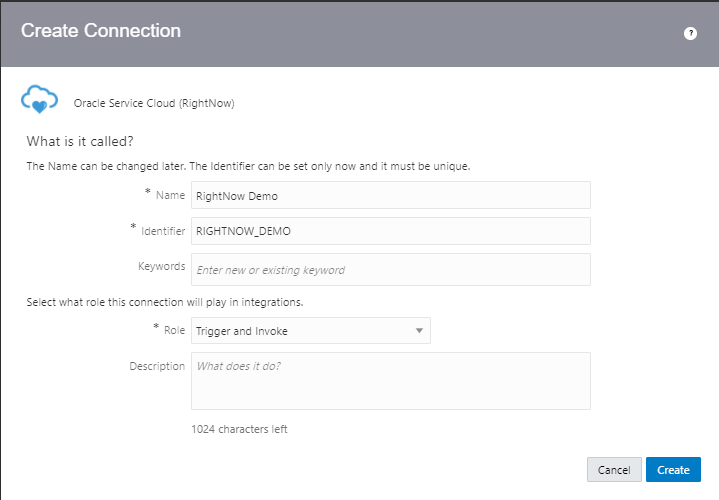
  • Navigation : Integrations -> Connections -> Click on Create.
    • Select Adapter = “Oracle Service Cloud(RightNow)”.
    • Enter Name = “RightNow Demo”.
    • Identifier gets populated automatically.
    • Role = Trigger and Invoke.
  • Click on Create.

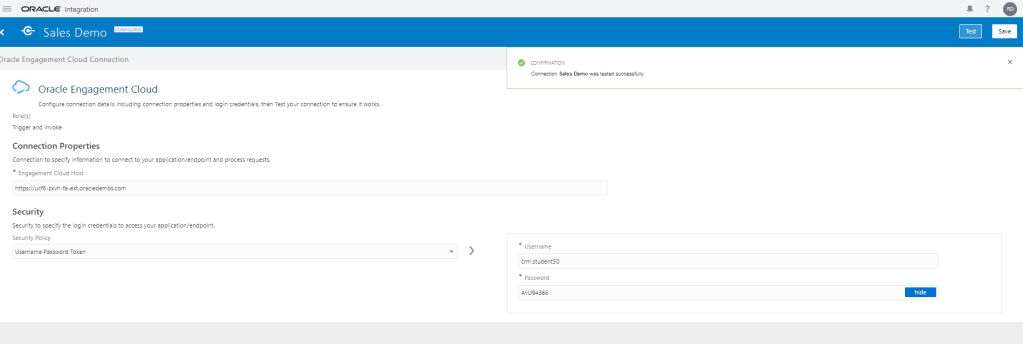
Step 5 : Create Connection for Oracle Engagement Cloud

  • Navigation : Integrations -> Connections -> Click on Create.
    • Select Adapter = “Oracle Engagement Cloud”.
    • Enter Name = “Sales Demo”.
    • Identifier gets populated automatically.
    • Role = Trigger and Invoke.
  • Click on Create.

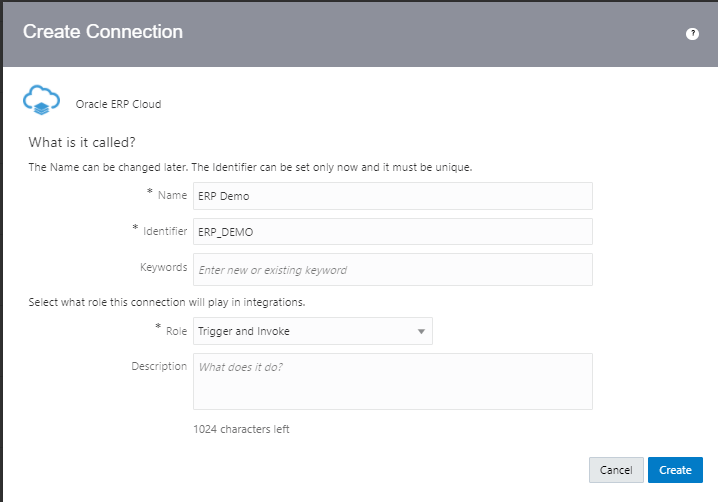
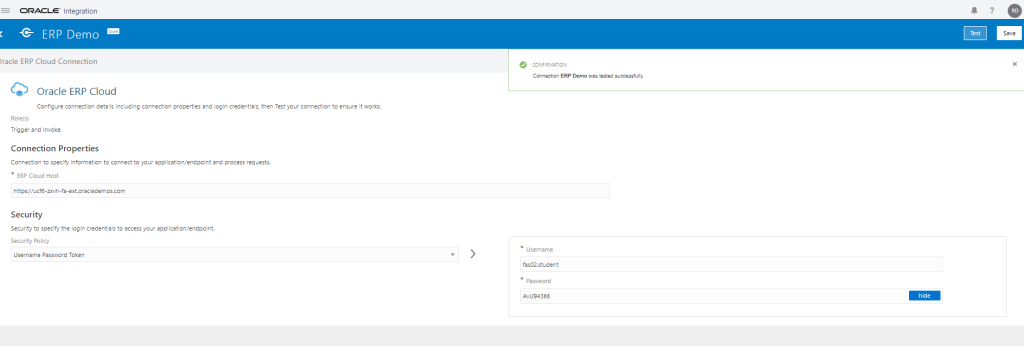
Step 6 : Create Connection for Oracle ERP Cloud

  • Navigation : Integrations -> Connections -> Click on Create.
    • Select Adapter = “Oracle ERP Cloud”.
    • Enter Name = “ERP Demo”.
    • Identifier gets populated automatically.
    • Role = Trigger and Invoke.
  • Click on Create.

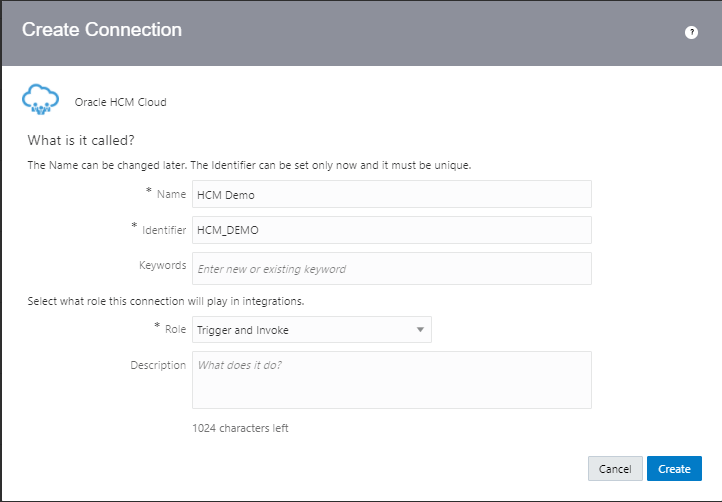
Step 7 : Create Connection for Oracle HCM Cloud

  • Navigation : Integrations -> Connections -> Click on Create.
    • Select Adapter = “Oracle HCM Cloud”.
    • Enter Name = “HCM Demo”.
    • Identifier gets populated automatically.
    • Role = Trigger and Invoke.
  • Click on Create.

Step 8 : Create REST Connection

  • Navigation : Integrations -> Connections -> Click on Create.
    • Select Adapter = “REST”.
    • Enter Name = “Country Demo”.
    • Identifier gets populated automatically.
    • Role = Invoke.
  • Click on Create.

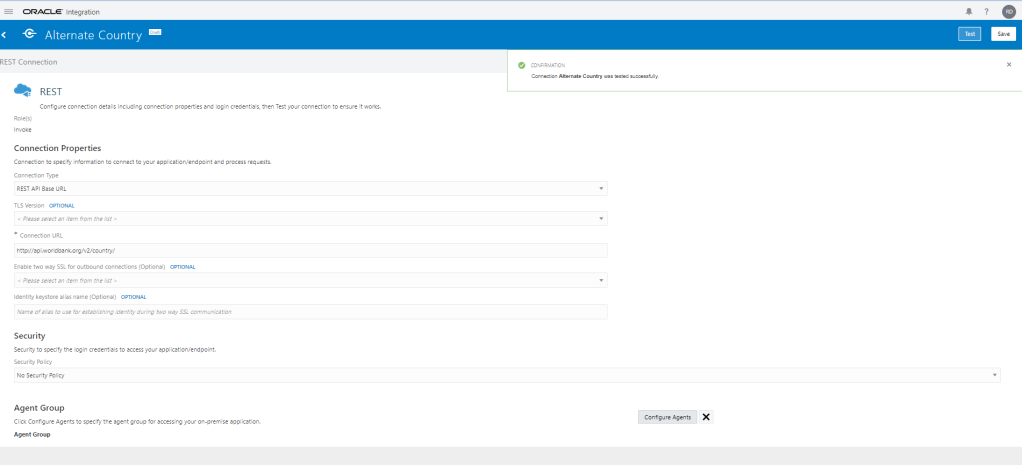
Step 9 : Create REST Connection

  • Navigation : Integrations -> Connections -> Click on Create.
    • Select Adapter = “REST”.
    • Enter Name = “Alternate Country “.
    • Identifier gets populated automatically.
    • Role = Invoke.
  • Click on Create.

OIC : APP Driven Integration

Workflow steps for OIC APP driven

  • Create a Source Connection, which is a Trigger role, for requests to be sent to OIC.
    • Select adapter
    • Define connection
    • Security properties
  • Target Connection, which is a Invoke role, for requests sent from OIC to the Target.
  • Add and configure the Source connection.
  • Add and configure the Target connection.
  • Data Mapping between connections
    • Map data for the invoke connection request.
    • Map data for the response to be returned to the source(if applicable).
  • Define key business identifiers for monitoring purpose.
  • Activate and test.

Creation of App Driven Integration

Step 1 : Create Source Connection

  • Navigation : Integrations -> Connections -> Click on Create.
  • Select Adapter = “SOAP”.
  • Enter Details of Connection
    • Enter Name = “ora004 Greetings”
    • Identifiers gets populated by default
    • Role = Trigger as this connection will serve as Interface into our connections
    • Click on Create.
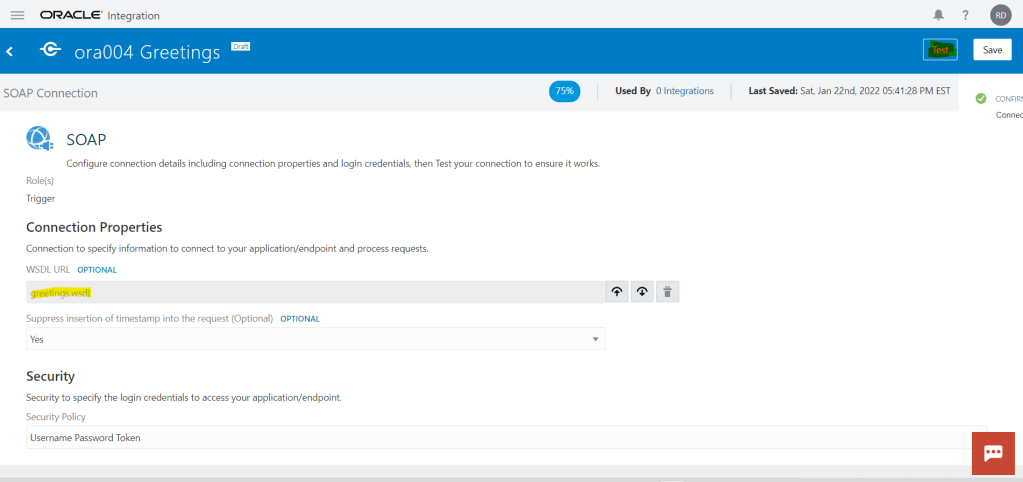
  • In next screen we need to
    • Select WSDL file, for which we will choose “greetings.wsdl”.
    • Suppress Insertion of timestamp = “Yes”.
    • Security Policy = “Username Password Token”.
    • Click on Save.
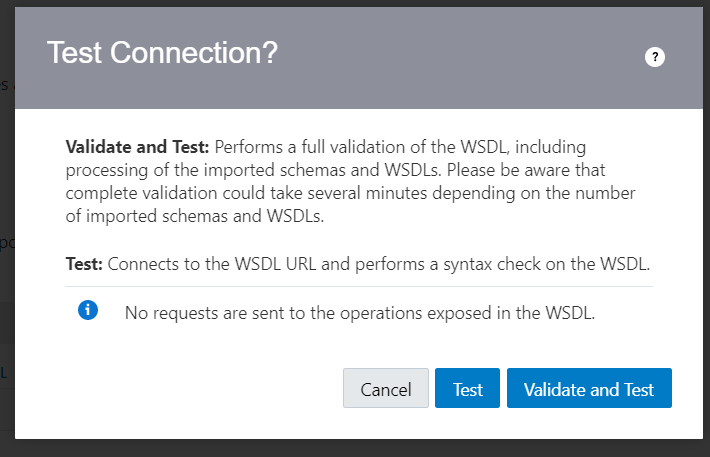
  • Click on Test. If there would be any error during testing, it will be reported which we need to fix else, test successful screen would appear.
  • Ensure % value should be 100% which denotes its ready to be used.
  • Click on Save and then < button to exit.

Step 2 : Create Target Connection

  • Navigation : Integrations -> Connections -> Click on Create.
  • Select Adapter = “SOAP”.
  • Enter Details of Connection
    • Enter Name = “ora004 Say Hello”
    • Identifiers gets populated by default
    • Role = Invoke as this connection will serve as Interface into our connections
    • Click on Create.
  • In next screen we need to
    • Select WSDL file, for which we will choose “HelloWorld.wsdl”.
    • Security Policy = “No Security Policy”.
    • Click on Save.
  • Click on Test. If there would be any error during testing, it will be reported which we need to fix else, test successful screen would appear.
  • Ensure % value should be 100% which denotes its ready to be used.
  • Click on Save and then < button to exit.

Step 3 : Create Integration

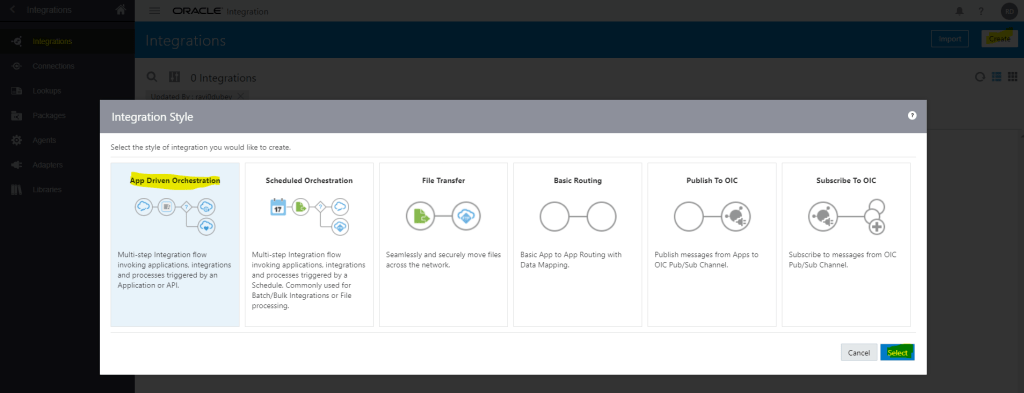
  • Navigation : Integrations -> Integrations-> Click on Create.
  • Select “App Driven Orchestration” and click on Select.
  • Enter Name, Identifier and Version gets populated by default.
  • Documentation URL , Keywords, Package and Description are optional fields.
  • Package can be entered when we want to club integration into One packages,
  • Click on Create.
  • A black canvas gets generated.
  • Click on Vertical to change it to Horizontal.
  • Click on + button and select trigger connection “ora004 Greetings” created in Step 1
  • Enter Name = “Greetings” and click on Next
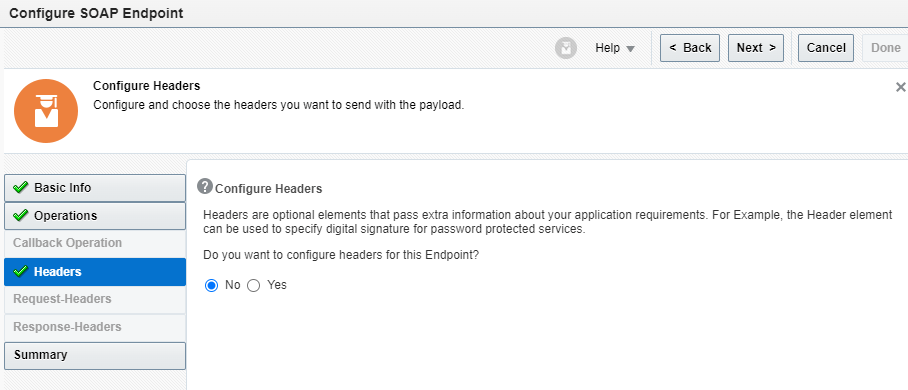
  • Disable soapAction Validation = “No”
  • If we select configure Headers for this Endpoint = “Yes” then Request-Headers and Response-Headers will get enabled.
  • On Summary Page, click on Done.
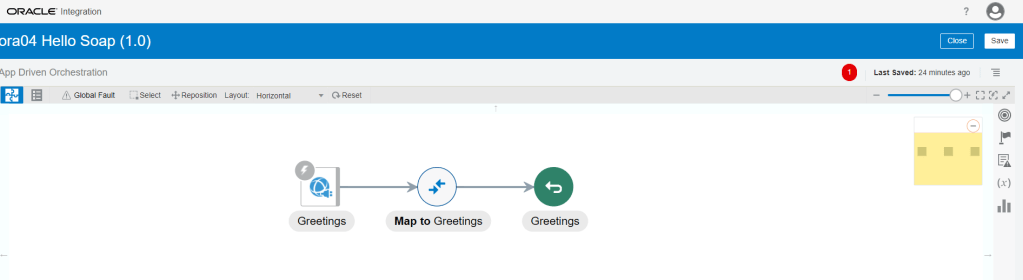
  • Trigger Connection gets integrated to Integration.
  • In between connection Greetings and Map to Greetings, click on Arrow. A + icon appears.
  • Click on “+” icon and select Invoke Connection “ora004 Say Hello” created in step 2.
  • Give name to Invoke Connection and click on “Next”.
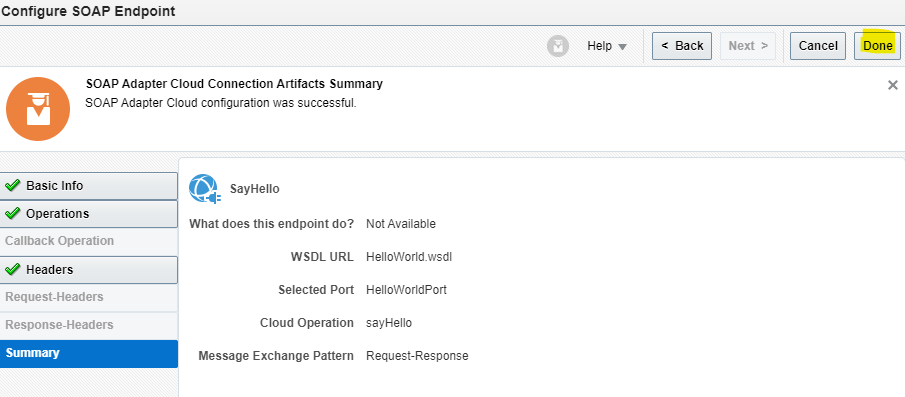
  • Select the Operation “sayHello”.
  • Click on next for header and on Summary Page, click on Done.
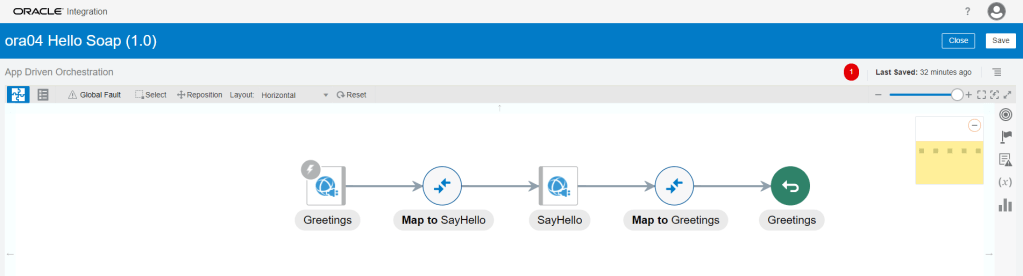
  • Both Trigger and Invoke connection gets added to Integration with the data Mapper in between.

Step 4 : Data Mapping

Step 4.1 Mapping between Greetings and Say Hello.

  • It allows us to configure data to be sent in the request to the SOAP web service invoke connection.
  • Mapping needs to be done for Source Field (Greetings Request -> FirstName) to Target Field (Body ->sayHello -> name).
  • Click on “Map to SayHello” and click on Pencil Button.
  • Below screen appears where mapping can be done. Drag and Drop from FirstName of Greetings Request to “name” field of SayHello Request Soap.
  • Click on Validate and Close.
  • Ensure circle of “Map to SayHello” turns solid.

Step 4.2 Mapping between Say Hello and Greetings.

  • It allows us to configure data to be sent as response to the integration client.
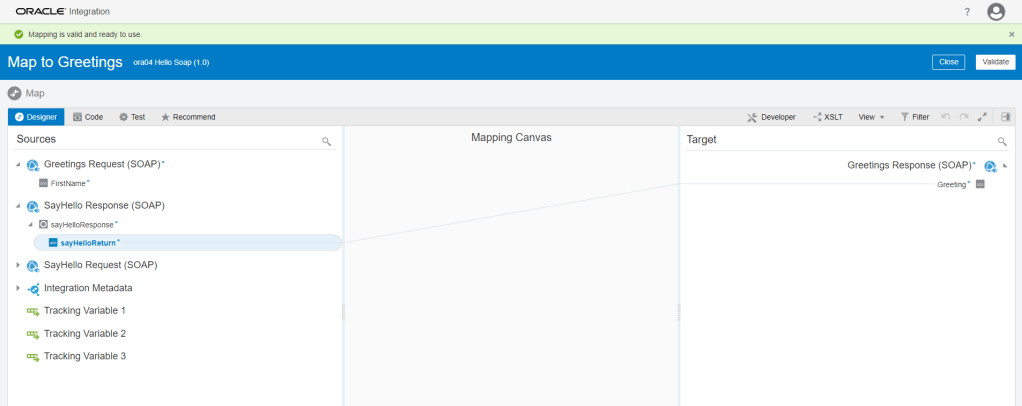
  • Mapping needs to be done for Source Field (SayHello Response ->sayHelloResponse -> sayHelloReturn) to Target Field (Greetings Response-> Greeting).
  • Click on “Map to Greetings” and click on Pencil Button.
  • Below screen appears where mapping can be done. Drag and Drop from “sayHelloReturn” of SayHelloResponse of SayHello Response to “Greeting” field of Greetings Response Soap.
  • Click on Validate and Close.
  • Ensure circle of “Map to Greetings” turns solid.
  • On right hand Corner, click on 4 lines, Tracking along with other option will appear.
  • Click on Tracking.
  • Drag and Drop Firstname from GreetRequest to Tracking field and click on Save.

Step 5: Activate the Integration

  • Once Integration is in Configured mode. Click on Configure icon, it turns into power button which is used to activate the Integration.
  • Click on Enable Tracing box.
  • check on Include Payload box
  • Click on Activate.
  • It will take some time to activate the integration post which Integration should be ready to be used.

Step 6: Test the Integration

  • We can test Integration Using SOAP UI
  • Get URL from the OIC cloud by clicking on Play button and select WSDL URL.
  • In SOAP UI, enter Project Name and Paste the URL in Initial WSDL section.
  • Once Project is added, Enter Firstname in Left pane which will be our input for testing..
  • On left Bottom, click on Auth and select Basic.
  • Enter Username and Password of OIC cloud.
  • Once Username and Password is added, right click on Left pane.
  • From List select “Add WSS Username token”, then select PasswordText from the dropdown list.
  • Click on OK.
  • Click on Green button to test.
  • We will see response from OIC cloud “Hello Ravi”
Step 7: Monitor the Integration

  • We can either go through Monitoring -> Integration -> Tracking
    • OR
  • Go to Integrations -> Integration and select the Integration. Click on Play Button and click on Track Instances.
  • Either way we will reach Integrations -> Tracking screen where it will show all instances of OIC Integration run.
  • Under status column it will show status of each run instance.
  • An eye will appear on each, on clicking it we will see the activity stream for the run.
  • In each activity stream we can click on Message to see the message passed at each level. It will help to track and diagnose any error.