Pricing in Oracle Fusion Order Management

Crux of Pricing

  • Lower level is Customer Pricing Profile, which determines what are spending habits of customer.
  • Based on habits (value sets) customers are categorized under Pricing Segment.
  • Based on Segments, Pricing Strategy Assignment will link Pricing Segment to Appropriate Pricing Strategy
  • Within Pricing Strategy (Pricing rules, Shipping Rules, Guidelines are defined)
  • Under Pricing Rules (Price list, Discount list etc. are defined)

Below components constitute Pricing:
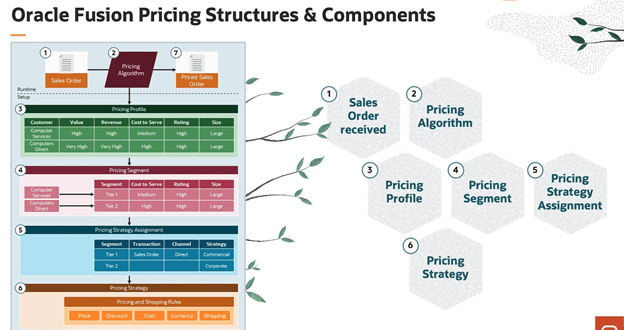
1. Pricing Profile. Categorize customers with similar characteristics. Example: Categorize a customer as large customer size, high customer value, medium customer rating, and high revenue potential.

2. Pricing Segment. Assign customers with similar buying practices to a pricing segment, and then associate this segment with a pricing strategy that meets the business and revenue goals that you set for this segment.

3. Pricing Strategy. Implement and enforce corporate pricing strategies and pricing objectives so they meet your business and revenue requirements. Group pricing rules in a pricing strategy to control pricing behavior.

4. Lists. Create lists, such as a price list, that include rules that calculate price and shipping charges for an item, and then reference these lists from the pricing strategy. You can:

  • Apply multiple charges to an item. For example, you can define a charge for a one-time sales price for a desktop computer in one pricing rule, and then apply another charge for maintenance service for this desktop computer that recurs monthly in another pricing rule.
  • Define currency conversion rules that manage pricing for different currencies. For more information about currency conversion lists, go to docs.oracle.com.

5. Pricing Algorithm. Set up the process that Pricing uses during pricing calculations, including pricing algorithms and service mappings. Pricing processes are extensible to model complex pricing scenarios. It is expected that you will extend them to accommodate your business practices.

When order is entered, Pricing Strategy is executed.

Oracle Fusion Pricing is the pricing solution used in Order Management. We can

  • Create Pricing rules that meet our revenue and business objectives so that we can price items for each pricing segment
  • Create Pricing Algorithms that support our corporate pricing practices.
  • Modify predefined logic, so that we can implement a pricing algorithm that runs the pricing rules which deployment requires
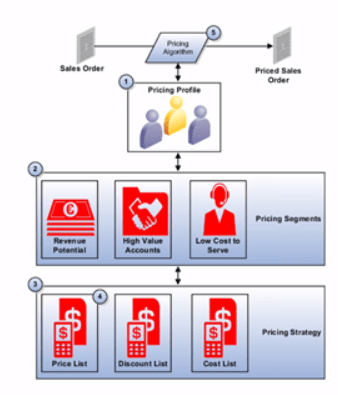
Step 1: Determine Pricing Profile of the Customer

  • Figure out what are spending habit of each customer.
  • Set of pricing-related attributes that describes a customer’s buying behavior
  • Date-effective to accommodate changes in a customer profile
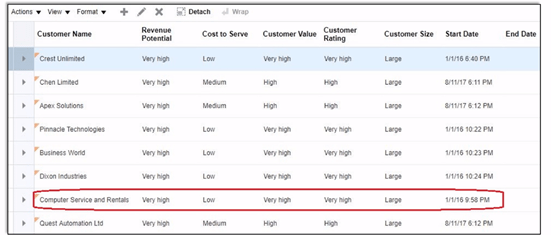
  • Navigation -> Go to Order Management -> Pricing Administrator -> In Right Corner Reading Pane under section Pricing Strategies -> Manage Customer Pricing Profiles.
  • Go to Search Results search for your customer or else under Actions -> Click on Create.
  • Against each customer name, determine Revenue Potential, Cost to Server, Customer Value, Customer Rating and Customer Size.
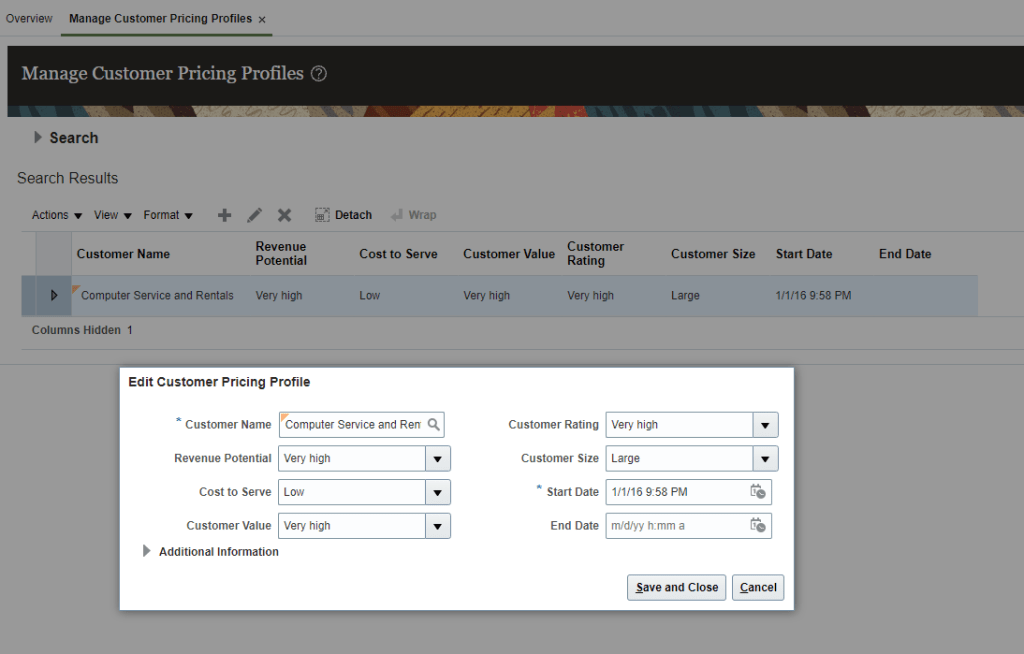
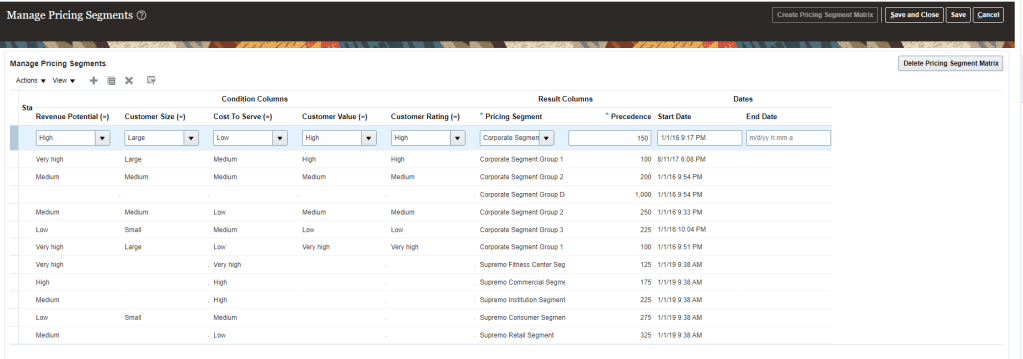
Step 2: Categorize each customer into Pricing Segment

  • Based on spending habits (Value set) in Step1, customer is assigned to corresponding Pricing Segment.
  • Pricing Segments is a grouping of customers who exhibit a common set of characteristics and similar buying behaviors
  • Identifies targeted groups of customers in order to apply specific pricing strategies
  • Leverages extensibility of Matrix
  • Navigation -> Go to Order Management -> Pricing Administrator -> In Right Corner Reading Pane under section Pricing Strategies -> Manage Pricing Segments.
Step 3: Pricing Strategy

  • Purpose is to have specific pricing criteria for each set of customers. It has subcomponents of Price list, Shipping list, Discount lists which should be suitable for right set of customers.
  • It is configurable process to derive the pricing strategy using
    • Customer pricing profile
    • Pricing segment
    • Pricing strategy assignment
  • Pricing strategy is the container for the pricing rules which comprises of
    • Price Lists
    • Discount Lists
    • Shipping Charge Lists
    • Cost Lists
    • Currency conversion lists
    • Guidelines etc.
  • Navigation -> Go to Order Management -> Pricing Administrator -> In Right Corner Reading Pane under section Pricing Strategies -> Manage Pricing Strategies.
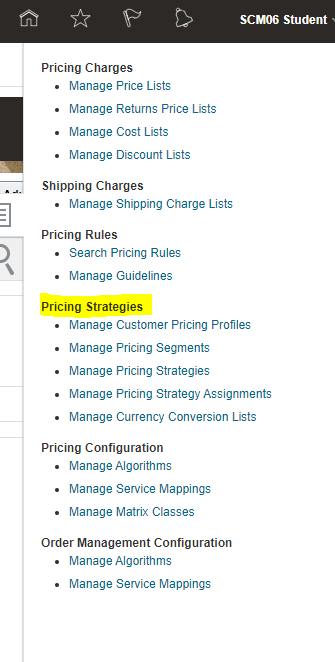
  • Search for existing Pricing Strategies or create a new one. In below case we took Corporate

  • Click on Corporate Pricing Strategy Group1
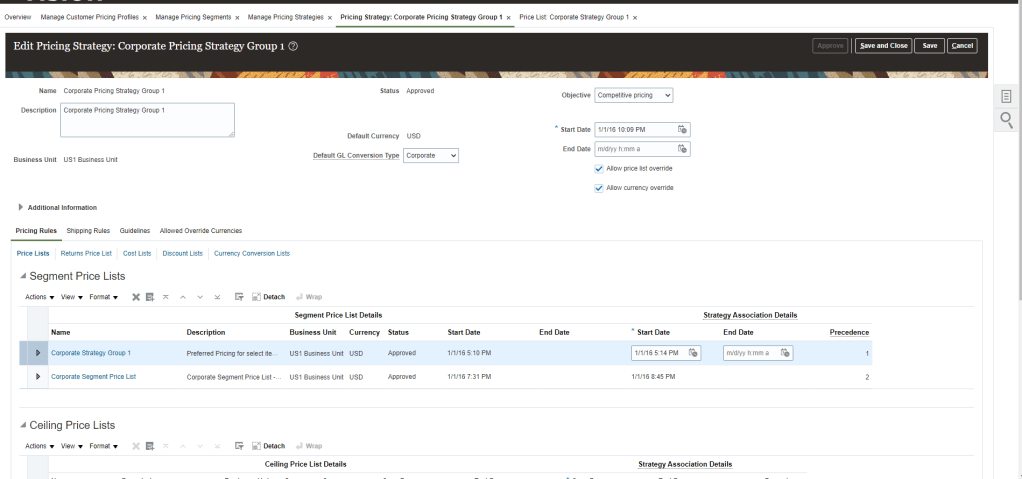
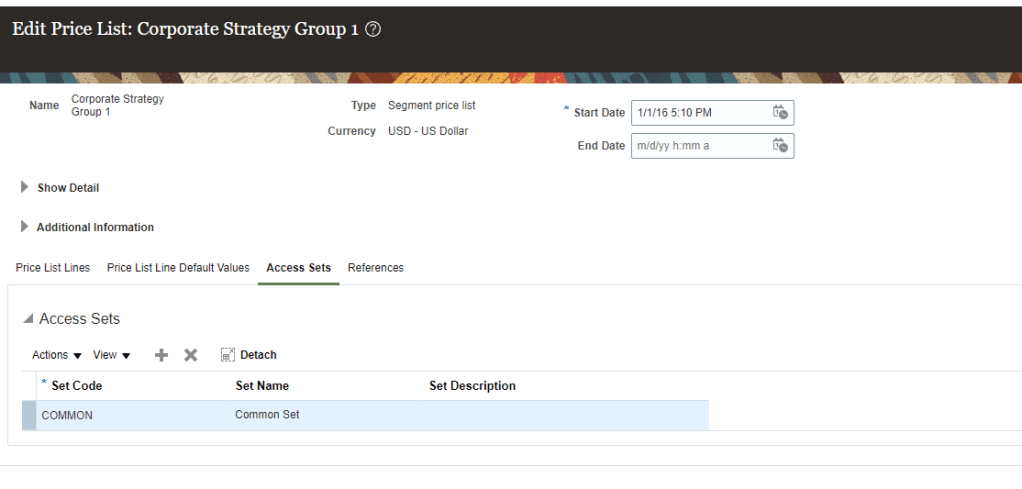
  • Under Segment Price List, click on Corporate Strategy Group1
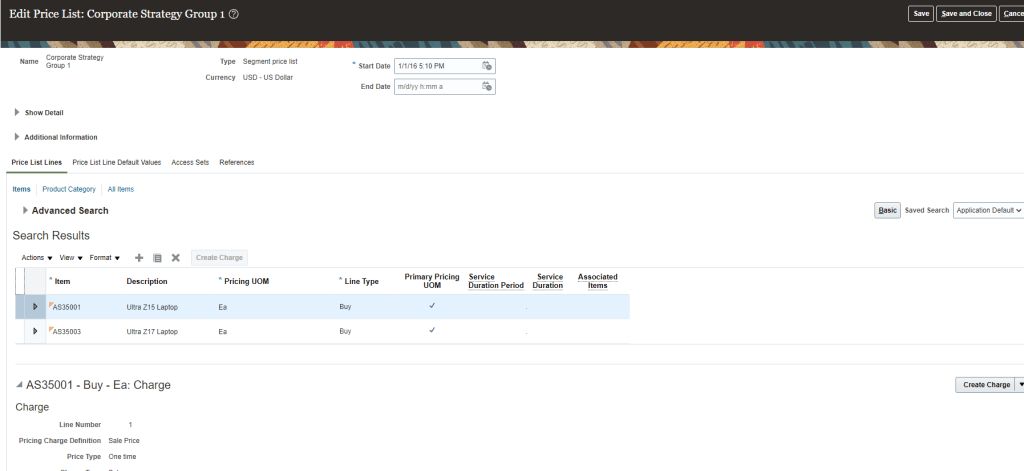
  • Below setup has Item with unit price which was added by clicking on Create Charge and then unit price was added with Dates
  • Once all Setup completed under Additional Information click on Access Sets and enter Common
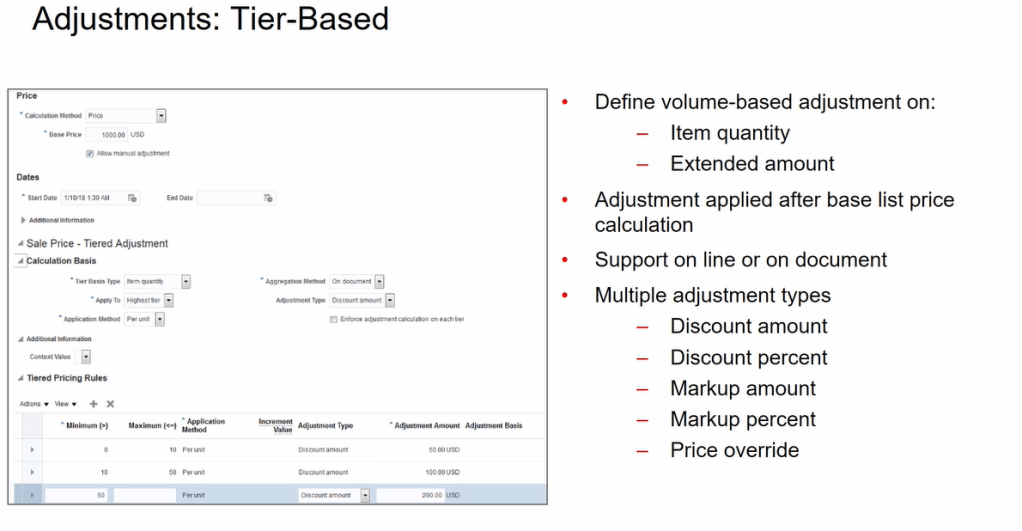
  • Price list can also be created with Tiered Adjustment
  • Similarly we can create Discount list under Pricing Strategy

Step 4: Pricing Strategy Assignment

  • It is the assignment of Pricing Segment to the Pricing Strategy.
  • It determines what pricing will be applied based on Channel Method. i.e for Same set of customers, Sales orders coming form Outside, different pricing will be applied, for Sales order coming from Dealer, different pricing will be applied.
  • It Provides a mechanism to employ different pricing strategies for the same pricing segment in different selling scenarios.
  • Pricing Segment Created in Step 2 is married with Pricing Strategy created in Step 3 using Pricing Strategy Assignment.
  • It uses extensibility of the Matrix.
  • Navigation -> Go to Order Management -> Pricing Administrator -> In Right Corner Reading Pane under section Pricing Strategies -> Manage Pricing Strategy Assignments.

Adjustment Applied

  • Aggregation Method
    • On Document -> Adjustment applied at Order Header
    • On Line -> Adjustment applied at Line Level.
Adjustment Attribute Based

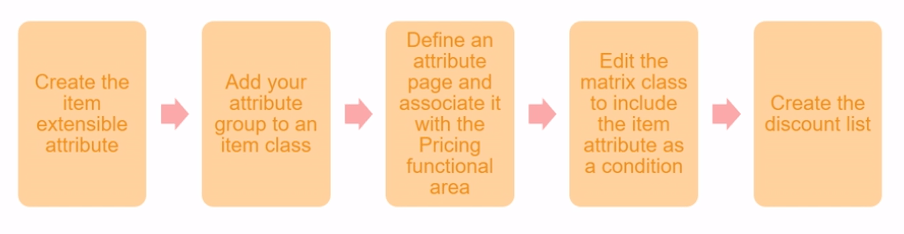
  • Set up pricing rules based on a set of conditions or attributes
  • Set up attribute-based pricing adjustments using matrix rules
    • You can define charges based on the color, size or other attributes
  • Example: you can define adjustments for a specific customer as shown below

Adjustments: Manual

In pricing Administration, determine whether to let order entry specialists apply manual adjustments in Order management. Specifically, you can let them:

  • Adjust net price according to:
    • Percentage of the list price or Net Price
    • Amount
  • Set a new value for the net price(price override).
  • Apply one or more price adjustments to a charges for each order line
  • Specify a reason for the price adjustment.

One time Price Charge Setup

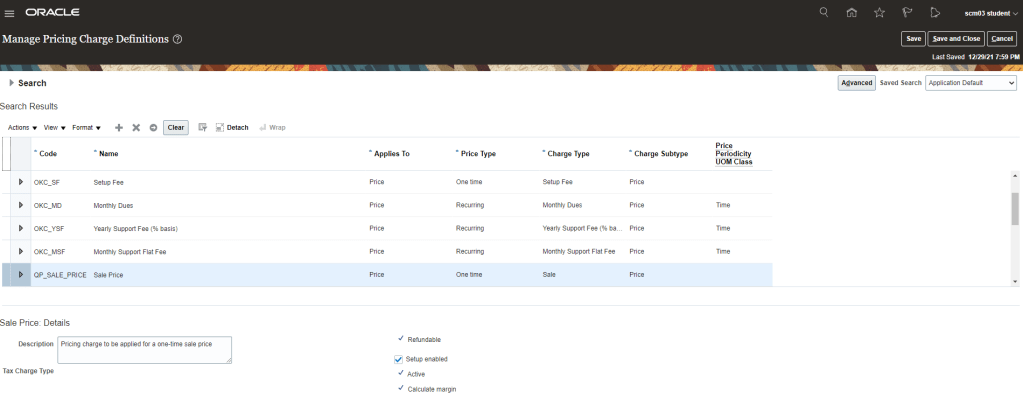
  • Navigation : Go to Others -> Setup and Maintenance -> Search for Task “Manage Pricing Charge Definitions“.
  • Setup Sale Price which is one time price charge setup.
Creating Price List

  • Navigation : Go to Orders and Management -> Pricing Administrator -> Click on Manage Price Lists.
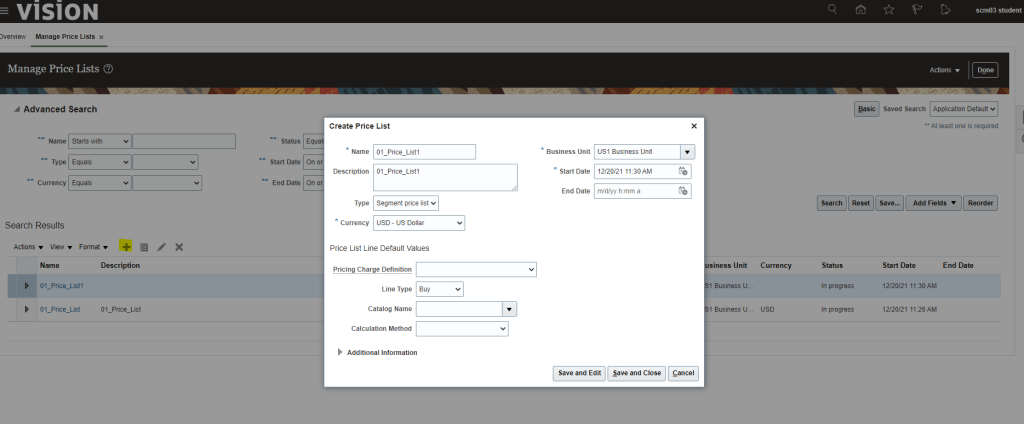
  • Click on “+” button to create Price List
  • Create Price List screen opens, enter following
    • Name
    • Business Unit
    • Start Date
    • Type -> Choose anyone from below
      • Segment Price List
      • Floor Price List
      • GSA Price List
      • Ceiling Price List
    • Pricing Charge Definition
      • Set Up Fee
      • Monthly Dues
      • Yearly Support Fee
      • Monthly Support Flat Fee
      • Sale Price
      • Recurring Sale Price
      • Data Storage
      • Warranty/Service- Recurring Charge
      • Usage Time(Hours)
    • Line Type
      • Spaces
      • Buy
      • SL Bill Only
    • Catalog Name
    • Calculation Method
      • Price
      • Cost
      • Source Document Cost
      • Covered Item Price Percent

Recurring Price Charge Setup

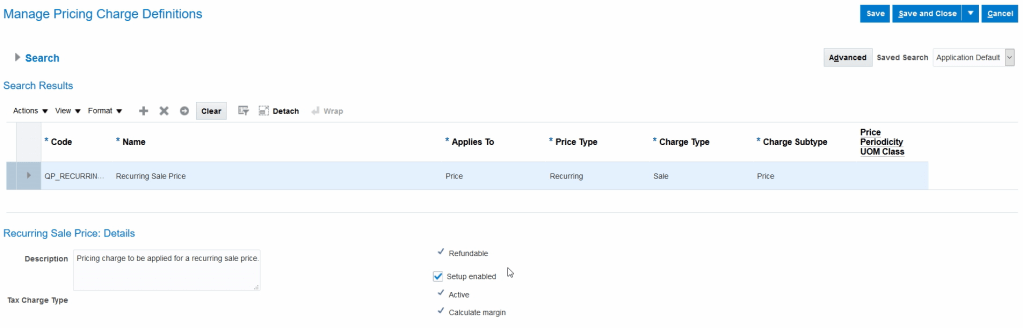
  • Navigation : Go to Others -> Setup and Maintenance -> Search for Task “Manage Pricing Charge Definitions”.
  • It will show definition of Recurring charges.
Recurring Price List for Items

  • Navigation : Go to Orders and Management -> Pricing Administrator -> Click on Manage Price Lists. Click on “+” button to create Price List
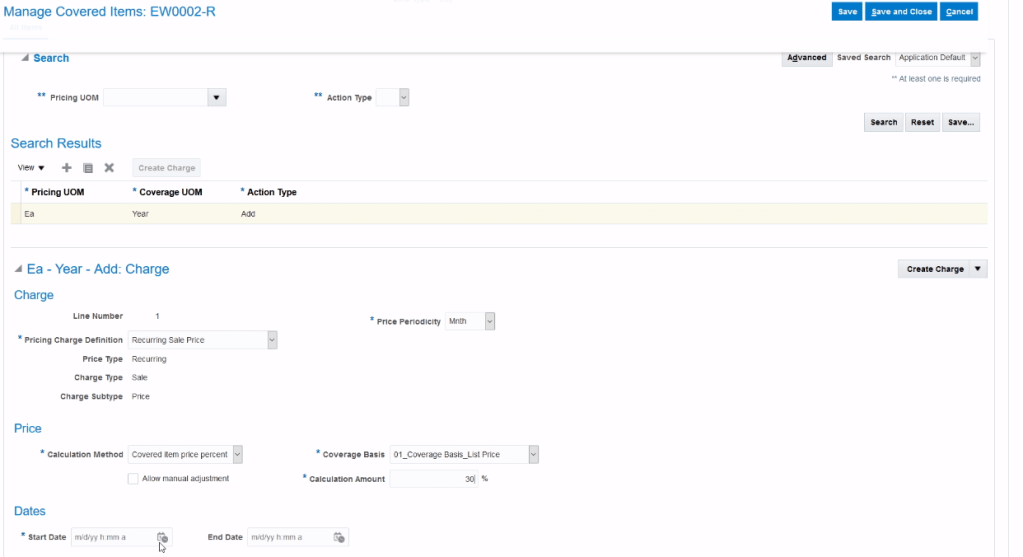
  • Add item with Recurring Price Charge Definition and Price Periodicity which could be Week, Monthly or Yearly.

Creating Coverage Bases

  • It is to add criteria for Charge.
  • Navigation : Go to Others -> Setup and Maintenance -> Search for Task “Manage Pricing Bases”.

Pricing of Coverage Items

  • Coverage Item : An item that adds value by providing coverage for a covered item. Provides a service to another item.
  • When you define coverage items you include a duration and period which are
    • Characterized by Service Duration Type, Service Duration and Duration Period
    • Service Duration Type
      • Fixed
      • Variable
      • Open-Ended

Pricing of Subscription Items

  • Subscriptions have service duration and period.
  • Define subscription items
    • Include a duration and period
    • Characterized by Service Duration Type, Service Duration and Duration Period
    • Service Duration Type
      • Fixed
      • Variable
      • Open-Ended
    • Calculate duration Extended amount
    • Define one-time and recurring charges
    • Define tier-based and attribute-based adjustments

Pricing of Configurable Items (Models)

  • Define charges for a configured item and its components. Charges are then rolled up to the root at runtime to provide the price of entire configuration.
    • Define adjustments only at the root.
    • Define price for a model component in a price list, and apply this price to all configurator models.
  • Manage Model-specific, component-level charges through:
    • Hierarchical view
    • Summary view

Discount Lists

  • Navigation : Go to Orders and Management -> Pricing Administrator -> Click on Manage Discount Lists. Click on “+” button to create Discount List.
  • Simple Discount List
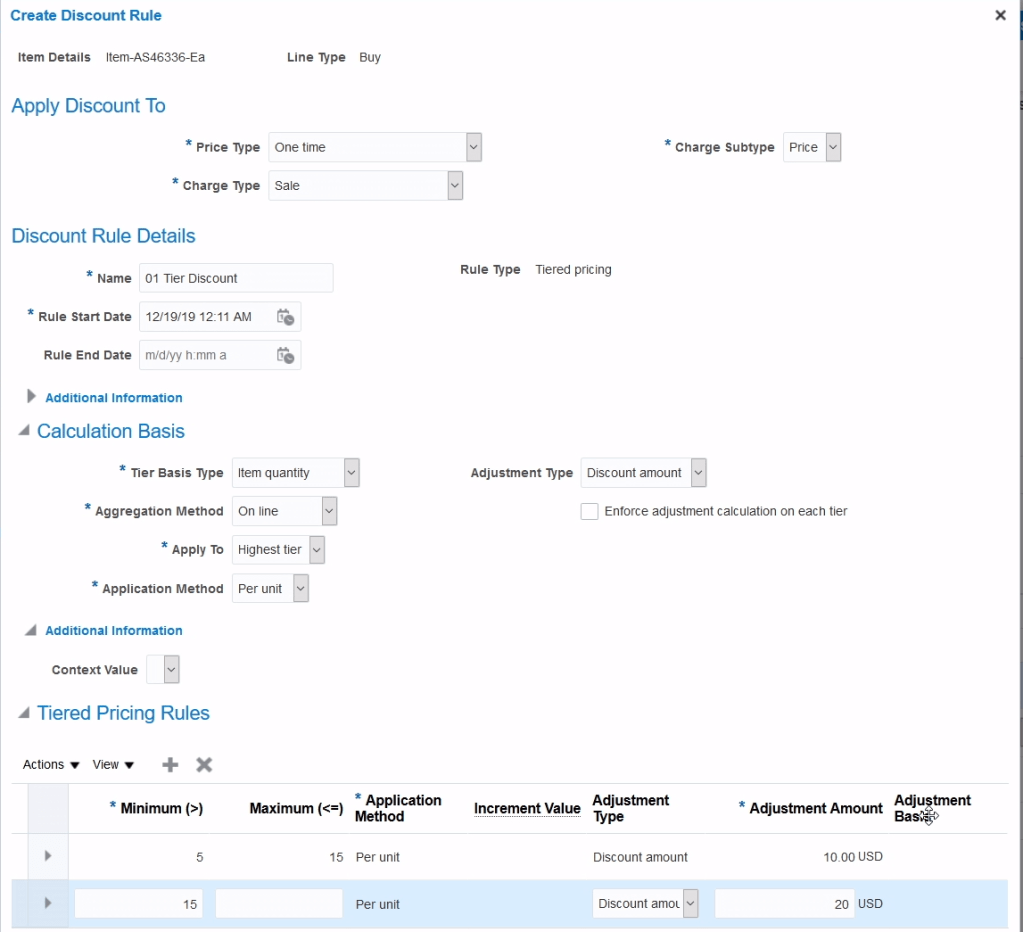
  • Tier-Based Discount List
    • Attribute-Based
    • Manual

Discounts for Configurable Models

We can define Discount rules as following

  • Define Discount Rules for the root and for the components
  • Choose where to discount the charges
    • Root Item
    • Component
    • Rollup Charge
  • Define Tier-based and attribute-based adjustment
    • At the root
    • Not supported for the component
  • Manage Component-level rules through
    • Hierarchical view
    • Summary view

Shipping Charges

  • Shipping Charge Lists
    • It capture Shipping Charges based on Shipping Method.
    • Multiple Shipping Charges exists for one or more Items.
    • Item-based Shipping Charges.
    • Assign to pricing strategy.
  • Item Based Shipping Charges
    • An item can have multiple shipping charges, each for a different shipping method
    • Date effectivity for item, shipping method, and shipping charge definition combination
    • When a configured item is priced, only the shipping charges at the root model item are applied
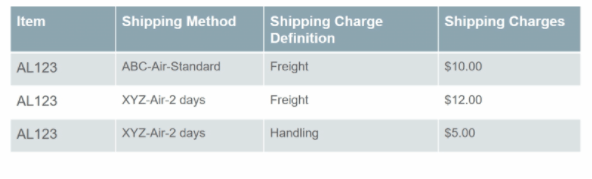
  • Navigation : Go to Orders and Management -> Pricing Administrator -> Click on Manage Shipping List.
  • For same item “AS46336” we have two separate shipping charges based on type of shipment.

Pricing Guideline

  • Guidelines are used to enforce organization’s pricing policies.
  • Guidelines are assigned to a Pricing Strategy.
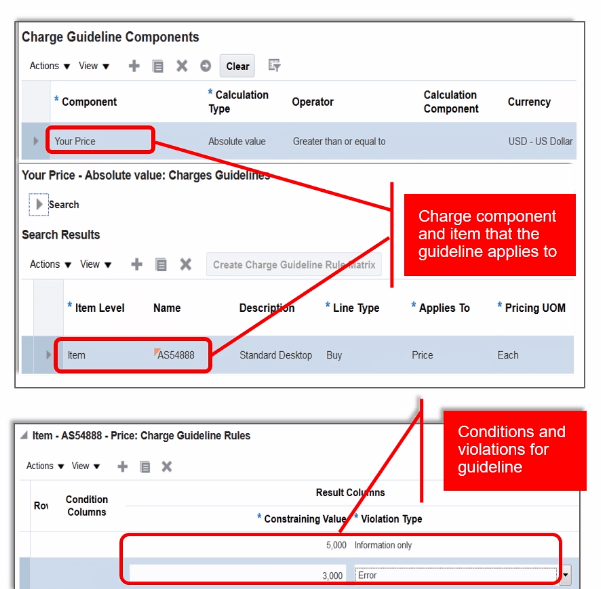
  • Setup for Guideline
  • Enable element by checking “Used in Pricing Guidelines”.
  • Navigation : Go to Orders and Management -> Pricing Administrator -> Click on “Manage Guidelines”.
  • Below setup has any manual adjustment done for more than $500 will be treated as error.

Serial Controlled Inventory Transactions in Oracle Fusion

Serial Number Assignment

  • You must assign serial numbers whenever you receive items under serial number control into inventory.
  • If an item is under Predefined control-> We can choose from the list of predefined serial numbers for that item.
  • If an item is under Dynamic entry At inventory receipt -> We can choose from a predefined list of serial numbers or enter any serial number, depending on the uniqueness control for your organization. You can create and assign serial numbers individually or as a range to speed up data entry.
  • If your Item is under Dynamic entry At sales order issue -> We can only assign serial numbers when we perform a shipment transaction in Oracle Order Entry/Shipping.
  • Once Serial number is assigned to an item, the combination of the serial number and the Item is an entity known as a Serialized unit. From that point on, Oracle Inventory tracks all movements and maintains the following information for each serialized unit:
    • Receipt or Ship Date: The date on which you last performed a material transaction for your serialized unit. Material transactions update this information when you move your serialized unit.
    • Serial Status Oracle Inventory assigns one of the following statuses to your serialized unit: Defined but not used, Resides in inventory, Issued out of inventory, or Resides in in transit.
    • Location: The organization, Subinventory, and locator in which the serialized unit currently resides. Material transactions update this information when you transfer the serialized unit.
    • Revision level: The revision of the item when you assign the serial number to the unit.
    • Lot number: During material transactions, you first specify the lot number and then the serial number. Oracle Inventory tracks the lot from which a specific serialized unit originates.

Case 1: Create Serial Controlled Item with Serial Generation at “Dynamic entry at Inventory Receipt”.

  • Create Item with below features
  • Navigation On Item screen -> Go To Specifications Tab -> Inventory -> Under Serial Section, ensure we select Generation =Dynamic Entry at Inventory Receipt.
  • Enter values in
    • Starting Prefix = “LAP_”
    • Starting Number = “101”
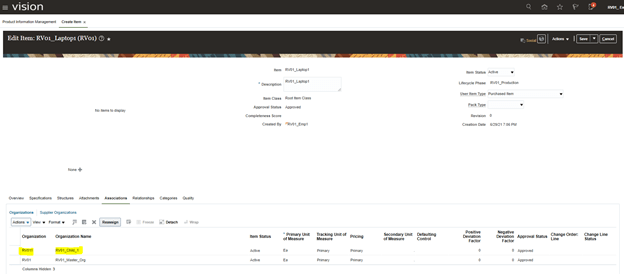
  • Go To Associations -> Search Child Organization and add RV01_Child_1.

Case 2: Change setup at Child Inventory Organization for Serial Number Generation.

  • Navigation -> To go Setup and Maintenance -> Click on Task Pane Carousel -> Click on Search. Enter Task “Manage Inventory Organization”
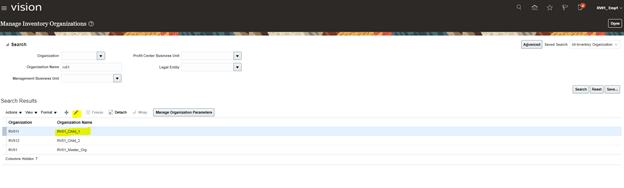
  • Search with organization RV01 to fetch Child Org RV011. Select Child Org RV011 and Click on Pencil button to Edit.
  • Click on Next button.
  • Click on tab “Lot, Serial Number and Packing Unit” and Change Values under section Serial Number Generation
    • Set Generation = “At Item Level”
    • Prefix= “HP_”
    • Starting Serial Number= “101”.

Case 3 : Generate Serial Number

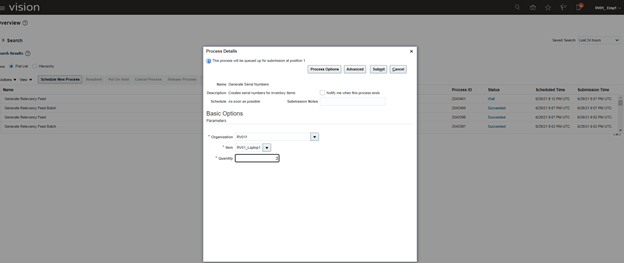
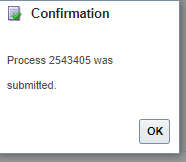
  • Schedule process to Generate Serial Number.
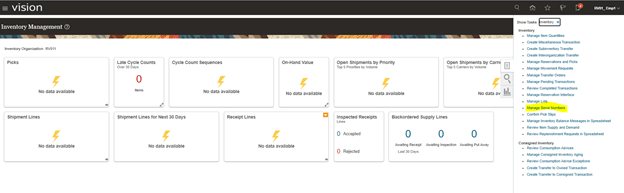
  • Go to Supply Chain Execution -> Inventory management -> From Task Carousel select Manage Serial Numbers.
  • Search for Item RV01_Laptop. 2, Serial Numbers would be generated.
  • Note: Serial Number starts with Prefix LAP_.
  • Reason:  Since in Step 1(b), “Inventory Organization setup”, Serial number generation is set at Item level, so despite giving HP_ in Inventory organization setup, Prefix LAP_, given at Item level got selected.

If we would have given, at Organization Level, in Step 1(b), Serial number would had got generated with prefix LAP_.

Case 4. Generate Serial Number during Miscellaneous Receipt Transaction

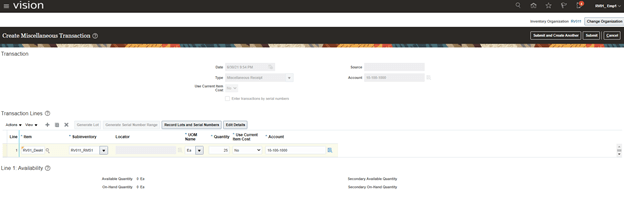
  • Create Miscellaneous receipts. Click on Record Lots and Serial Numbers
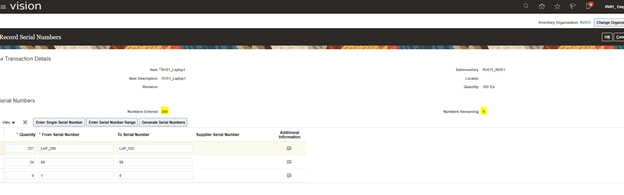
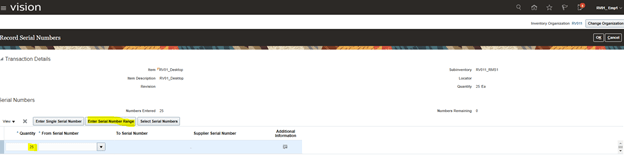
  • Click on Enter Serial Number Range.  
  • Default Screen appears with Quantity as 300, qty entered above.
  • If we enter value in “From Serial Number” as 1, it will default “To Serial number” to 9 as well.
  • It will also populate values in Change Numbers Entered and Numbers remaining.
  • Enter values in “From Serial Number” as shown below. It will generate “To Serial Number” and do calculation accordingly.
  • Click on OK and Submit.
  • Verify Generated Serial Number using Step C.
  • Do note the usage of existing serial number and newly created serial Number.
  • In below screenshot, Lap_101 and LAP_102 was created at step 1.C and its usage is Defined but not used.
  • LAP_299 to LAP_ 555, is created during Miscellaneous transaction and its usage is “Resides in stores”.

Case 5. Add Supplier Details in Serial Number.

  • In case supplier is providing item and want their Name and Serial Number in the list, we can do following.
  • Navigation -> To go Setup and Maintenance -> Click on Task Pane Carousel -> Click on Search.
  • Enter Task “Manage Serial Number”.
  • Search with Serial Number and then Click on Pencil button to Edit.
  • Enter Supplier Details and Supplier Provided Serial Number. Note: I didn’t enter correct supplier Number, so it is coming as error.
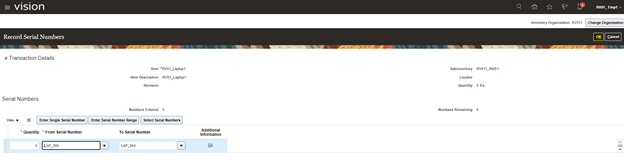
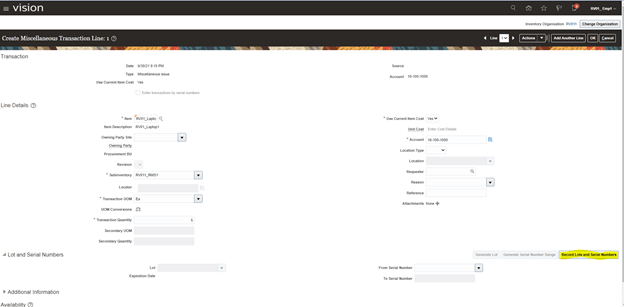
Case 6. Create Miscellaneous Issue transaction

  • Navigation
  • Go to Supply Chain Execution -> Inventory management -> From Task Carousel select Create Miscellaneous Transaction. Verify Organization is RV011 at top right corner.
  • Enter following Details:
  • Type= Miscellaneous Issue,
  • Use Current Item Cost = Yes
  • Account = 10-100-1000
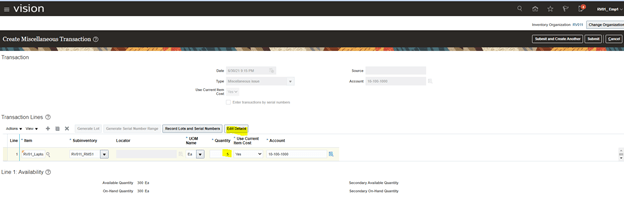
  • Click on Actions -> Add.
  • Enter Item and QTY and Click on “Edit Details”
  • Note: We cannot generate Serial Number during Miscellaneous Issue. As can be seen in above and below screen, Generate Serial Number Range is not Editable. Click on Record Lots and Serial Numbers.
  • Click on Enter Serial Number Range.
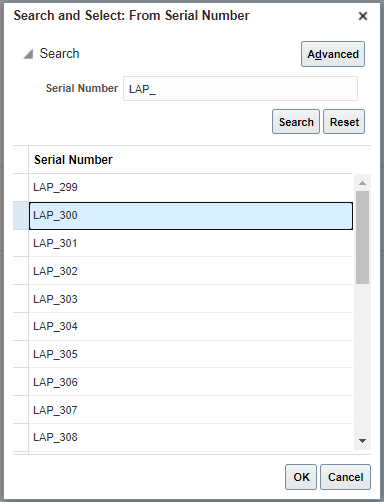
  • Click on Drop Down option and then Click on Search button of From Serial Number.
  • Select Lap_300, which was created during Miscellaneous Receipt Transaction.
  • By Default, to Serial Number gets defaulted with End Sequence value. Click on Ok.
  • Click on Submit.
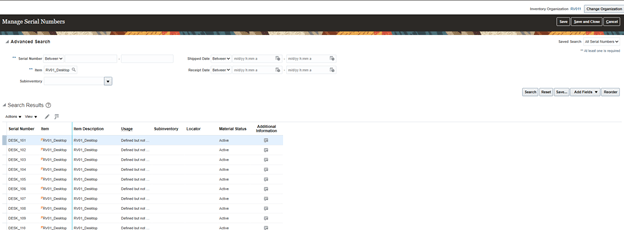
  • Verify Serial Numbers. Above entered Serial Number Starting from LAP_300 to LAP_304, status is Issued out Stores.  

Case 7. Create Items with Predefined Serial Number Generation.

  • Note: For Predefined Serial Number, Serial numbers cannot be generated at run time. Serial Numbers needs to be created first before getting used/Issue.
  • Create Item with below exception being In Serial Number Generation Setup, change it to “Predefined Serial Number”.
  • Generate Serial Number following Step C.
  • Below Serial Numbers got generated.
  • Create miscellaneous Receipt.
  • Try entering Quantity as 25 instead of 10.  You will not be able to generate Serial numbers during Receipt.
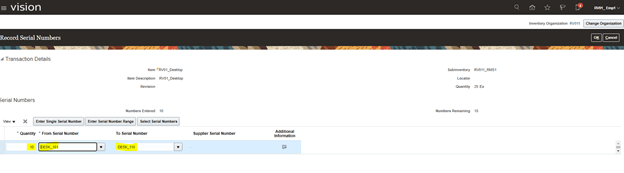
  • Click on Edit Details -> Record Lots and Serial Number. Qty Field has value 25.
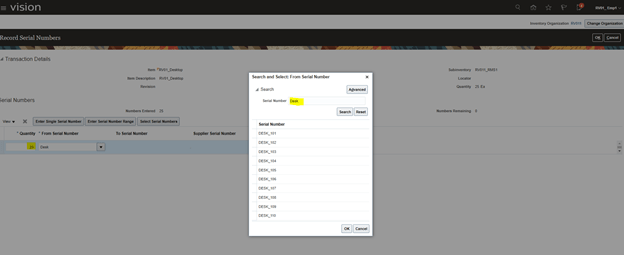
  • Click on From Serial Number and Choose DESK_101. Keep a note on Qty which is still 25.
  • Now Qty Changes to 10 and “From” and “To” serial number becomes DESK_101 and Desk_110, respectively. Since we had 10 serial numbers printed for this item only 10 Qty would be issued.
  • In case you wish to Enter Serial Number Range for Qty 15, you cannot find Serial Number.
  • If we try to do transaction only for 10 Serial Number without Changing entered QTY 25, at initial level, we will get error. Change Receipt Qty to 10 and then proceed further.
Product Transformation Rules

Order Management automatically transforms Sales Orders to Transformed orders according to rules you setup. For example, you might setup a transformation rule that defaults a country-appropriate AC adapter for a laptop based on the ship-to country on the Sales order.
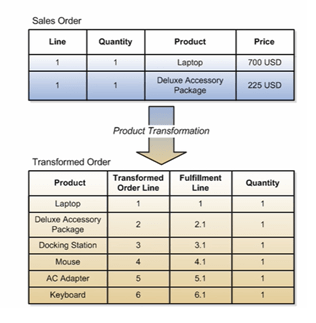
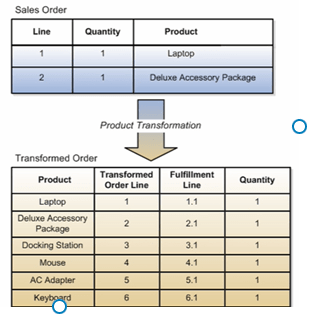
Below Image represent difference between Sales Order and Transformed Order. A Sale order has Sales order lines but each Sales order gets transformed to Fulfillment lines based on the transformation rules.

  • Below is a classic example of Sales Order line getting transformed to multiple lines.
  • Product Deluxe Accessory Package comprises of Docking Station, Mouse, AC Adapter and Keyboard. So this line gets transformed to 5 lines starting from Line number 2 till 6.

Types of Transformation

  • Product Transformation is executed using a combination of:
    • Product Relationships
    • Product Structures
    • Transactional item attributes
    • Business rules
  • You can write rules to enable the following types of product transformation:
    • Product-to-product
    • Product-to-Attribute
    • Attribute-to-Product
    • Attribute-to-Attribute
    • Context-to-Attribute
    • Context-to-Product

1. Product to Product Transformation:

  • In Product to Product Transformation one product item can contains many items attached to it. So as soon as transformation rule see the line in Sales order it brings attached lines and add it to fulfillment lines.
  • In below case Product Deluxe Accessory Package comprises of Docking Station, Mouse, AC Adapter and Keyboard. So this line gets transformed to 5 lines starting from Line number 2 till 6.

2. Attribute to Product Transformation

  • Based on attribute like Color, size, capacity, relevant product is chosen.
  • Sales order has requirement of Product Mini Plus with attributes
    • Color = Silver
    • Size = 8 MB
  • Product Transformation rules has different product code based on the features. Seeing the requirement it will pick Product VIS481A from the below table.

3. Context to Product Transformation

  • Based on certain criteria or value in Order, Product mapping is done. E.g. If shipping address is Domestic address in US, deliver 2 pin chargers of laptop. If Delivery Address is outside US, like U.K then deliver 3 pin charger.
  • Since Sales order has requirement of Product = Vision Pro Plus HD Wide-screen Laptop to be Delivered to USA address. Based on transformation rule Product AC12345 with 2-pin Power Cord gets picked.

4. Product to Attribute Transformation

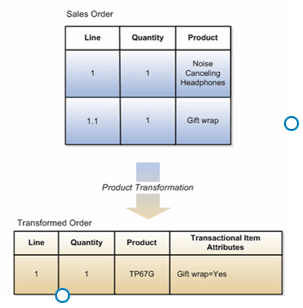
  • If Order has 2 lines, then they can be clubbed together to one line with Item which has second line as it’s Transactional Attribute.
  • We have requirement of Gift Wrap as part of Sales Order, based on transformation rule, Product “TP67G” will be picked which has default attribute of “Gift Wrap“.

5. Attribute to Attribute

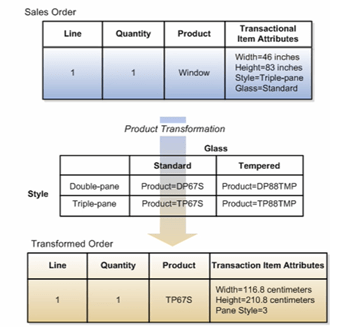
  • Based on Transactional attributes of Product in Sales order, Transformation rules determine the attributes of Product.
  • In below case we have product “Window” with attribute of Glass = Standard and Style = “Triple-Pane”. Seeing the Glass and Style type transformation Rules pick up Product =TP67S with attributes of Width, Height and Pane Style which gets stored in Transaction Item Attributes.

6. Context to Attribute Transformation:

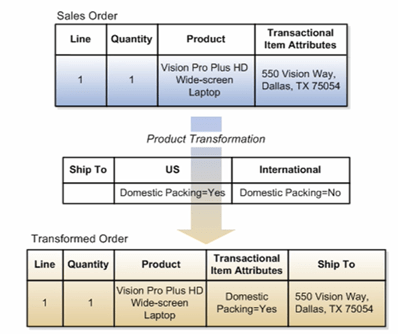
  • Packaging is an important component for any delivered. Packaging of product is usually determined based on the shipping address.
  • If Shipping address is Domestic, then we have different kind of packaging and if its International we have different style of Packaging. This packaging type gets stored as Transactional Item Attributes.
  • In below sales order since Shipping address is Domestic, then packaging details gets stored as transactional attribute in the Product.

Setting up Transformation

  • Step 1: Define Items in Product Information Management Work Area
  • Step 2: Define and Generate rule bucket sets
  • Step 3: Set the bucket sets to the facts when creating Conditions
  • Step 4: Create Rules

Transformation Rule Use Case

Transformation Using Oracle Business Rules.

Following components are used in Oracle Business Rules

  • Rule conditions
  • Rule actions
  • Facts
  • Bucket Sets
  • Dictionaries
  • Decision tables

Product Transformation Rule

  • Navigation : Go to Others -> Setup and Maintenance -> Order Management -> Search for task “Manage Product Transformation Rules“.

Case 1: To Substitute One Item with Another Item during Orchestration Process

  • Go to Others -> Setup and Maintenance -> Order Management -> Enter Task “Manage Product Transformation Rules”
  • Create new Rules, click on Active and Advanced Mode
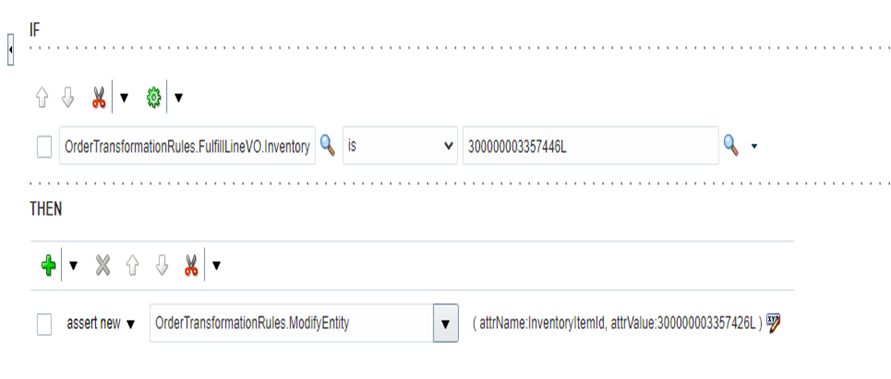
  • Enter condition as shown
    OrderTransformationRules.FulfillLineVO.InventoryItemId.longValue() is 300000003357446L
    Then
    assert new -> OrderTransformationRules.ModifyEntity ->
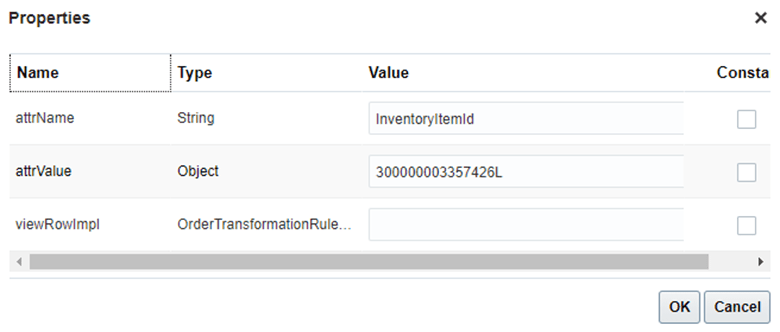
  • Click on Properties icon, right section of Assert New line and and enter below values.
  • Do click on Constant check box for attrValue line.
  • Click on Save and close.
  • Click on Release

Case 2 : To add additional line if order qty is more than 4.

  • Go to Others -> Setup and Maintenance -> Order Management -> Enter task “Manage Product Transformation Rules”
  • Create new Rules, click on Active and Advanced Mode
  • Enter condition as shown in next column
    IF FLINERV is a OrderTransformationRules.FullFillLineVO and FLINERV.InventoryItemId is “1234”
    and FLINERV.ORDERQTY is 4
    then assert new -> OrderTransformationRules.AddNewOrderLine newItemId:1234, viewRowImpl:FLINERV.ViewRowimpl
  • Properties section should look like below
  • Click on Save
  • Click on Release

Pre-Transformation Rule

Case 1 : To automatically adds text instruction into the Shipping Instructions field of the fulfillment line based on the item.

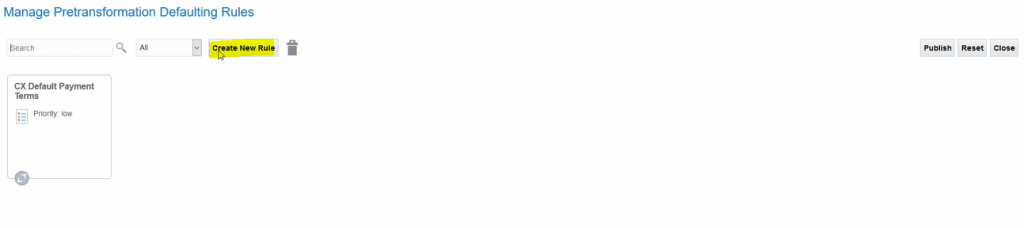
  • Go to Others -> Setup and Maintenance -> Order Management -> Enter task “Manage Pretransformation Rules for Sales Orders”
  • Click on Create new Rules
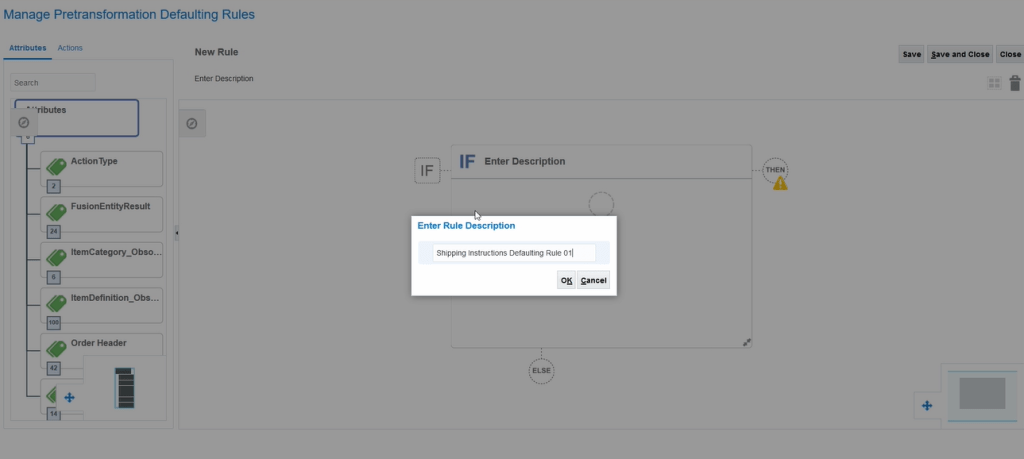
  • Enter Rule Description text = “Shipping Instruction Defaulting Rule 01” and click OK
  • Enter Description Value for IF section “Item is CM50008”
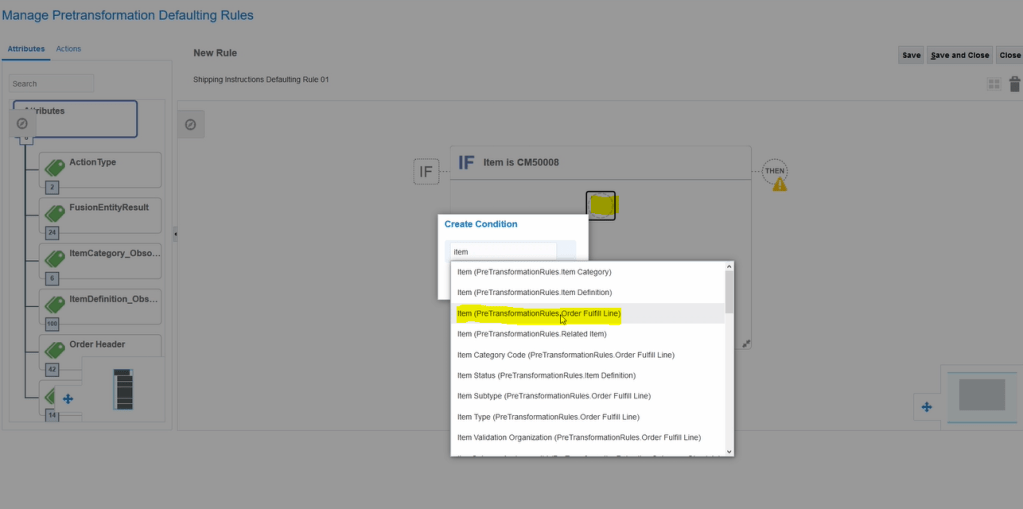
  • Click on Circle to add condition.
  • Enter Item and Search for Item.preTransformationRules.OrderFulfillLine
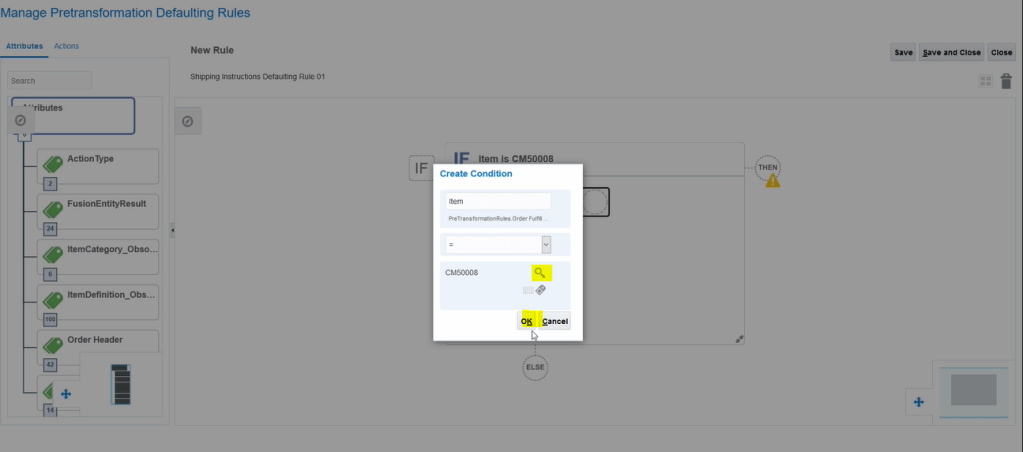
  • Select Operator “=”
  • Click on Search Icon and search for Item = “CM500008” and click on Ok
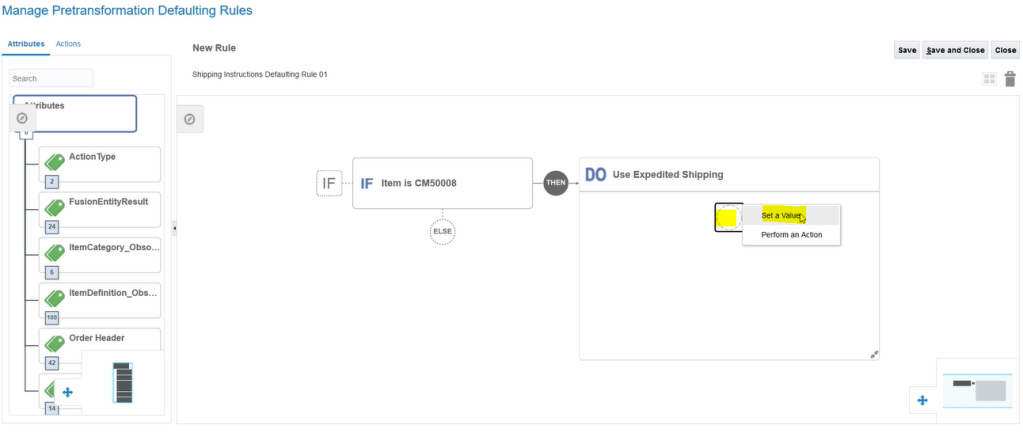
  • Click on Then -> DO
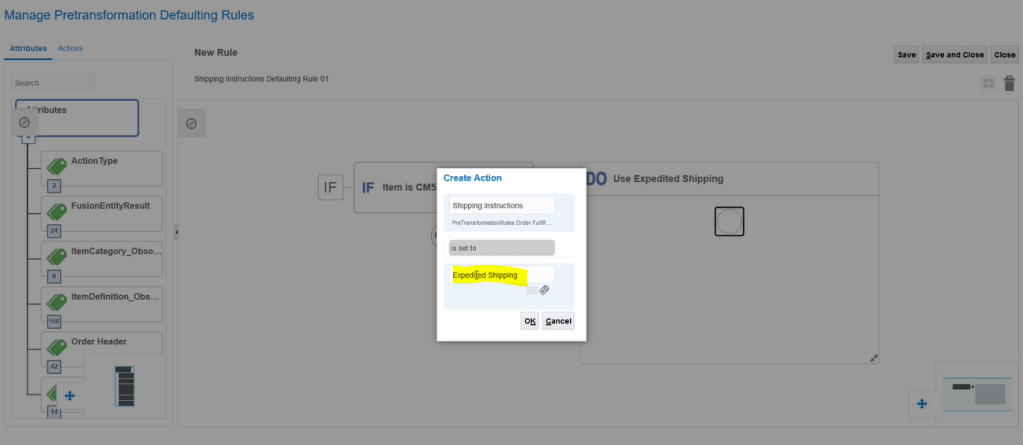
  • Enter Description = “Use Expedited Shipping”
  • Click on circle for Condition and select Set a Value
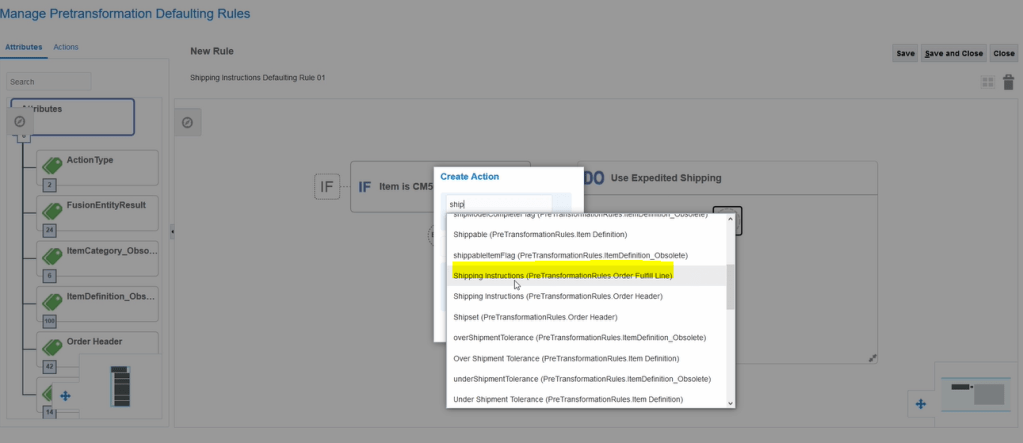
  • In Create Action > select Shipping Method = Shipping Instructions(PreTrasnformationRules.Order Fulfill Line)
  • is set to “Expedited Shipping”
  • Click on Save and close
  • Click on Publish

Case 2 : To Automatically set default values or perform any action

  • Go to Others -> Setup and Maintenance -> Order Management -> Enter Task “Manage Pretransformation Rules for sales orders”.
  • Click on Create New Rule and enter Description
  • In IF condition (Can enter multiple condition with AND clause)
    a. Enter Attribute as Order Type(Order Header)
    b. is equal to
    c. click on lens icon to search values or click on attribute to select any attribute value
  • In THEN section
    a.Select Set a Value-> Enter attribute-> Warehouse( Order Fullfill Line) -> is set to ->click on lens icon to search values or click on attribute to select any attribute value
    b. Select Perform an Action -> set value to Header Extensible FlexFields or set Value to Fullfillment Line Extensible Flexfields -> Select Header Context Segment Attribute type from drop down
    enter Value based on data type
  • Click on save and close
  • Click on rule -> Activation Rule -> Check to box
  • Click on Publish

Post-Transformation Rule

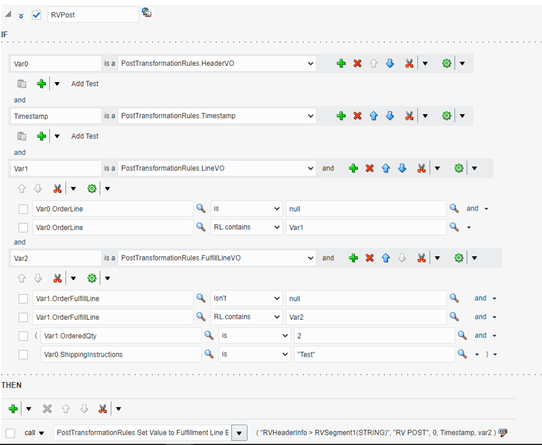
Case 1 : Automatically set default values or perform any action.

  • Go to Others -> Setup and Maintenance -> Order Management -> Enter task “Manage Posttransformation Defaulting Rules”.
  • Ensure Active and Advanced Mode is checked
  • In Then section, if you want to default value in Fullfillment line EFF select PostTransformationRules.Set Value to Fulfillment Line Extensible Flexfields
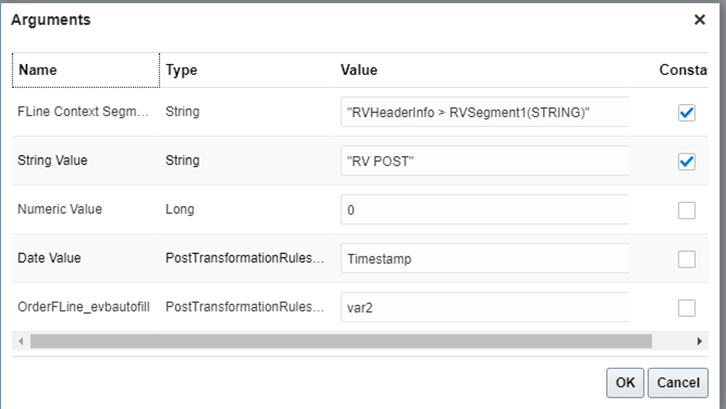
  • Click on Pencil Button and then enter value
  • First value is code of Context and second value is code of Context Sensitive Segments
  • Click on Save
  • Click on Publish

My Cloud Journey

I will be Presenting My Journey from Legacy System, AS400 to Oracle Cloud. In between have learned few other Technologies which i will be Sharing.

I am Ravi Dubey having 15 years of Experience in AS400 Technology. Domain expertise if Primarily into Supply Chain Management. Other Domain being Banking and Insurance.

Printing Software Migration from Organization AWS Blanket Group to Dedicated AWS Group

Problem Statement:

My client is a famous publishing company known for publishing, selling and distributing comics, books and educational materials for schools, teachers, parents and children. They use many applications most of which are On-Premise based due to security Reasons. With Advent of Cloud, all less critical servers which does not require Office Premise were moved to AWS cloud. Unfortunately, all Software were placed under one Bucket without segregating them on Line of Business(LOB). Due to which

  1. Managing and providing access for each applications became a cumbersome process.
  2. It became difficult to identify what all applications are really needed and what have become obsolete.
  3. Cost/overhead of each LOB became difficult to identify as Client used to get bill for entire bucket instead so it was difficult to identify cost spent on each servers for their respective LOB’s.

Solution: Client decided to build AWS group for each LOB and put their respective servers. It will help them to manage, provide access to dedicated groups and Billing will also be easier to manage.Here comes challenging part:

AS400 application is using one software which is used for printing. There are 2 EC2 instances are part of LOB which host printing software.The software is used by Client to generate Ink Jet file formats that Kit Mailing partners uses to print out the labels for Application kits. This process is controlled by ECS and the simplified workflow is as follows:

  • AS400 process creates a ZIP file in the IFS on the I-Series (Shared folder)
  • The AWS process is then kicked off – the process:
    • Maps a network drive to the i-series IFS
    • Copies the ZIP file over to local storage
    • Unzips the ZIP file locally
    • S/W processes the unzipped files and generates output files
    • ZIP up the S/W output files
    • Copies the Zipped output files over to the IFS on the I-series
    • Deletes the input and output files from local storage.

The process is pretty much pull/read/write/push/cleanup.

Migration Steps:

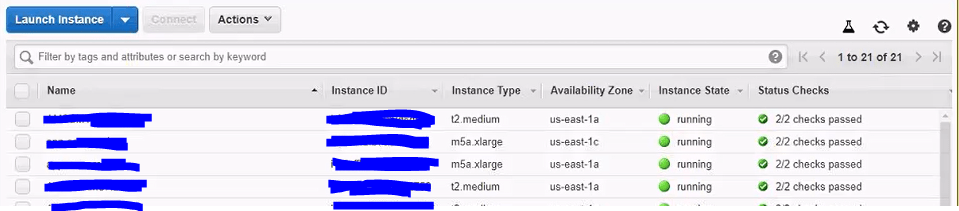
List of Already executing instances:

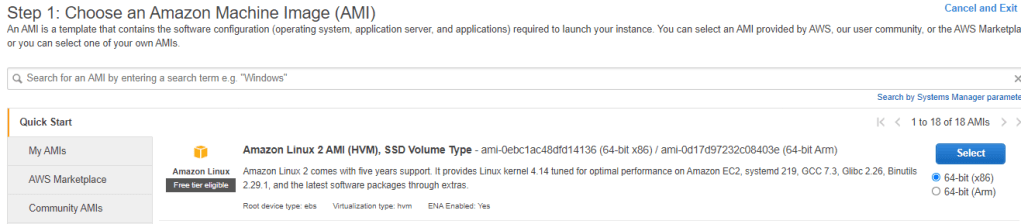
Step 1: Launch an Instance : Choose Instance which is shared with Client. We will choose AMI as Windows-2016-base-V1.01

Above is Representational Image

Step 2: Instance type : Choose Instance type as t2.Medium with vCPUs = 2, Memory(GiB) = 4.

Step 3: Configure Instance Details : Set all options as default and select below options

  • Network : ams-nonprod
  • Subnet : amp-nonprod-private-us-east-1a
  • IAM role : EC2-Global-Profile
  • Protect against accidental termination : Mark it as “Yes” to prevent accidental termination. By this it will choose 2 step process.
  • Enable CloudWatch detailed monitoring : “Yes”
  • Tenancy : Shared- Run a shared hardware Instance.
  • User Data : As soon as Instance is launched, DNS Server is setup. So to do it code is inserted in Powershell.

Step 4: Add Storage : Since Server has 2 Drives of 80 GB each so below will be chosen.

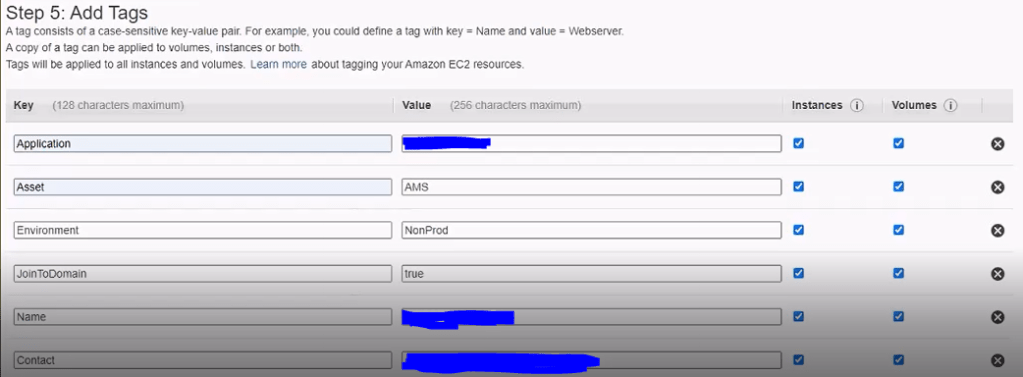
Step 5: Add Tags: If its public facing server Joint to Domain should always be False. In case of Private, it should always be True.

Step 6: Configure security group : Choose from already setup up Security group.

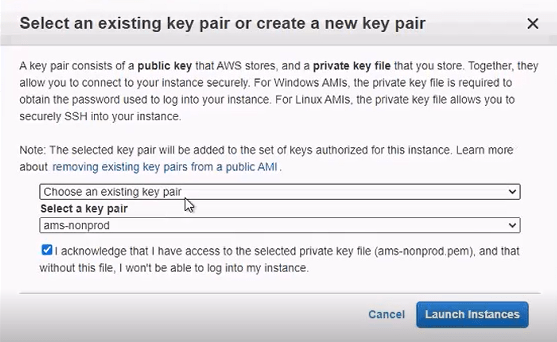
Step 6: Review and Launch : Review the already predefined processes and Launch the instance.

A mail is received once Instance is configured and initialized.

Launching Instance:

Step 1: Launch Instance : Click on connect to launch the instance

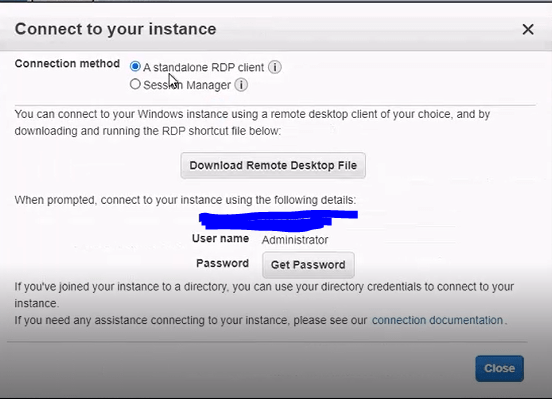
Step 2: Connect to Instance : Connect to Instance using options A standalone RDP client or using Session Manager.

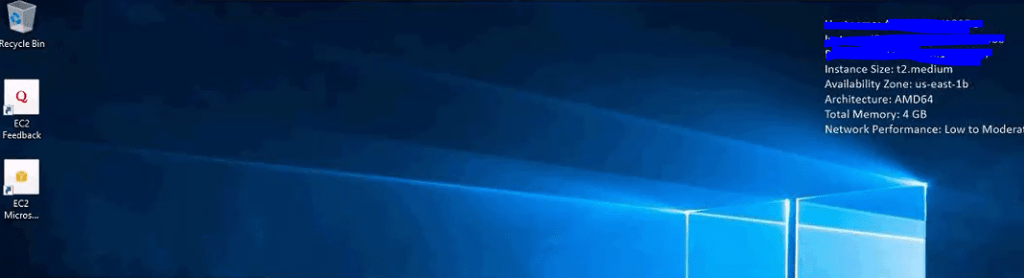
Step 3: Instance Verification :Verify Instance Details.

Powershell gets invoked by default.

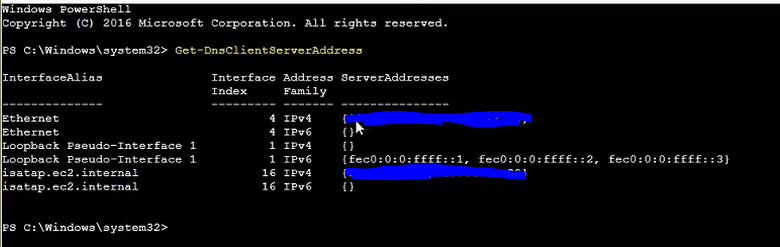
To verify list of IP Address: Type command Get-DnsClientServerAddress. It will show below list of IP address by default.

To see List of Admins : Type command Get-LocalGroupMember -Group “Administrators”. It will show list of all users and groups. Users are local users to machine and they get added by default.

To grant access to List of Users and Group : Type command Add-LocalGroupMember -Group “Administrators” -Member “CORP\XXXX”

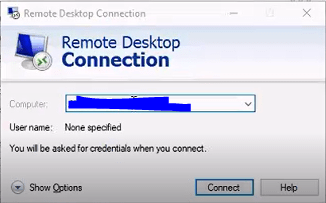
Type in the New Server Name in RDP and press Enter to connect to Server.

Step : Go to Ethernet-> Properties and Select IPV4

Step : Click Properties-> View the list of Allowed IP address

Step : Click Advanced-> DNS Tab -> Append DNS Suffix -> Click on Add to add Domain Suffix. It will allows Corp server to connect to other server using Short Name like AWSSTR*****.

Step : Go to Computer Management-> Storage -> Disk Management

Step : Bring D drive online

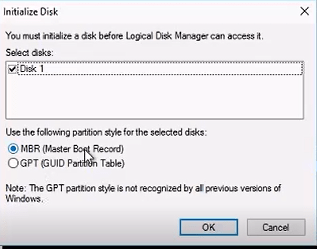
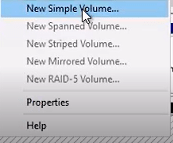
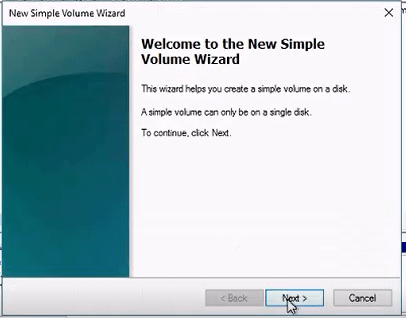
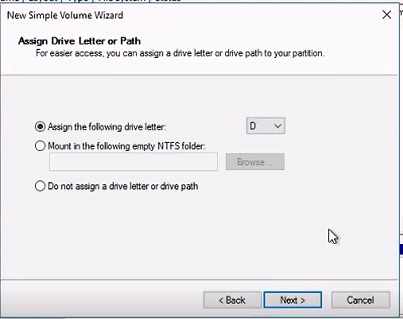
Step : Initialize D drive

Installation of Software