Steps to Deploy Orchestration Process Definition
- Navigation: Go to Others -> Setup and Maintenance -> Order Management -> Enter Rules “Manage Orchestration Process Definition”
- Choose any Existing Orchestration Process to Edit
- After making changes to Orchestration process, go to Right Hand Corner. There is Action Button. Choose Action Button. Under Action Button, first click on Validate to verify error if any.
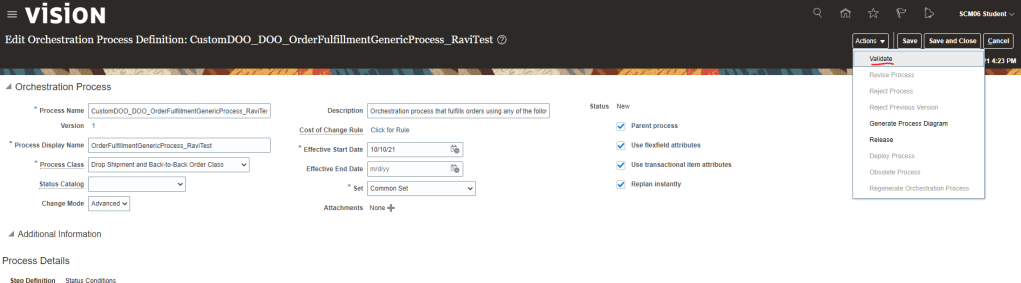


- We should get below message. No need to Download, simply click Cancel button.

- Under Action Button, Deploy button will get enabled. Click on Deploy.

- System will ask for user name and password along with Target Host and Port Number. Enter the details and click on “Deploy”.

- Orchestration process gets deployed successfully. In case if there is any error, we should see logs to verify the error.

- While Creating Order if we enter Packing Instruction if we enter Planning Orchestration id, it will be picked


