Statuses play key role in Order Management to determine the life cycle of Order. Any order goes through series of steps and Status helps in identifying the current status of order. Status defined in Orchestration Process will reflect in Order Management.
Statuses are determined at two level
- Orchestration Process
- Designate the statuses that represent an Orchestration Process
- Select a preset group of Orchestration process statuses
- Create rules that govern how statuses are attained
- Fulfillment Line
- A status catalog provides a means to differentiate status values by item characteristics.
- A status rule set is:
- A set of rules that govern the conditions under which status codes are assigned to fulfillment lines
- used to apply a set of sequential statuses to the fulfillment line that is processed by the orchestration process
Statuses goes through a life cycle
- First we get status from fulfillment system which could be internal or External.
- External Interface layer translate/maps the fulfillment system status value into Order Orchestration status value.
- Task Layer Determine the status message to be send.
- Using Source and Target mapping, task status is set during Orchestration processing
- Set Fulfillment line status based on task statuses associated with the fulfillment line.
- Set Orchestration Order Line status based on the whether the associated fulfillment lines are opened or closed.
- Set Orchestration Order status based on whether the associated orchestration order lines are opened or closed.
- Set Orchestration Process status based on status of all tasks within the process.
Status setup involves two main activities
- Creating Status Values : Create Status Codes and designate where we want the status codes to be used. Example, we might want to allow Invoiced to be used for the fulfillment line status.

- Creating Status Conditions: Create If-Then conditions that designate when you want a status code to be used. Example: If the ship task status is Shipped, then use Shipped as the status of the Orchestration process.
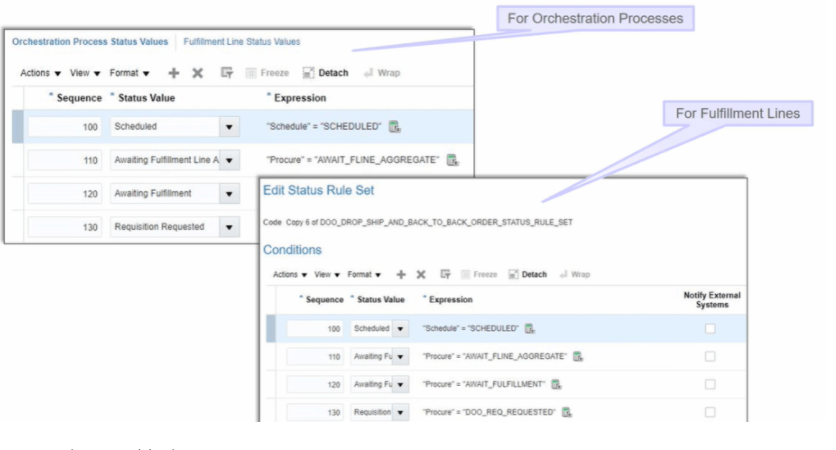
Case 1: To create new status Values and assign it to Fulfillment Lines.
- Navigation: Go to Others -> Setup and Maintenance -> Order Management -> Enter task “Manage Status Values“
- Under tab Status Codes-> Go to Actions -> click on Create and then add Status Code.
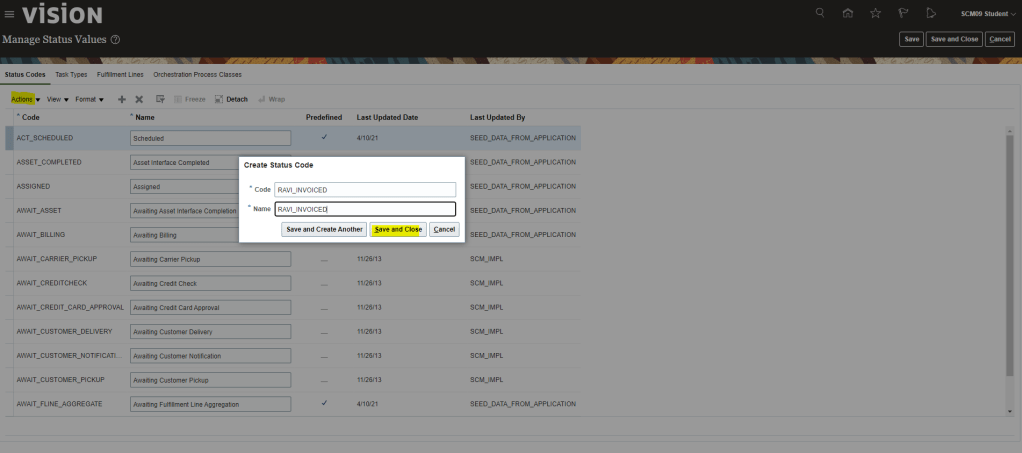
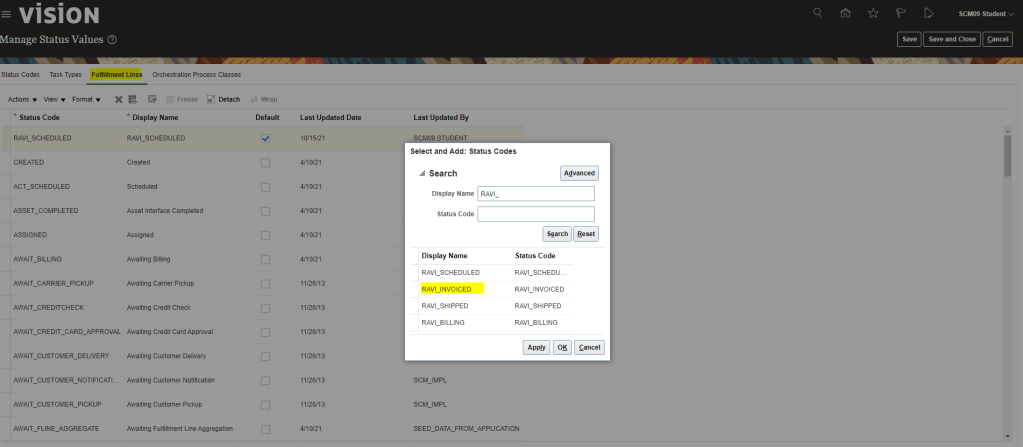
- Under tab Fulfillment Lines ->
- Go to Actions ->
- Click on Select and Add Status code ->
- Search with either Status code or Display Name ->
- Once Status code appears click on Apply ->
- On top right corner click on Save and Close.
Case 2: To create new status Values and enabling it to pass through i.e. it can be used for Fulfillment lines and Task Types.
Step 1: Create Status Values
- Go to Others -> Setup and Maintenance -> Order Management -> Enter task “Manage Status Values” within this
- Under tab Status Codes-> Go to Actions -> click on Create and then add Status Code
- we need to enable Status values so it can be used under fulfillment lines.
- Under tab Fulfillment Lines -> Go to Actions -> click on Select and Add Status code -> search with either status code or Display Name -> once status code appears click on Apply -> and on Top right corner click on Save and Close.
- Under tab Task Types-> Select Task to which we want to associate Status Code. On Top section, scroll down to select Shipment. Under Bottom Section of Activity Go to Actions -> click on Add row-> Search status value created in previous Steps. Enter Split Priority and Click on Save and Close
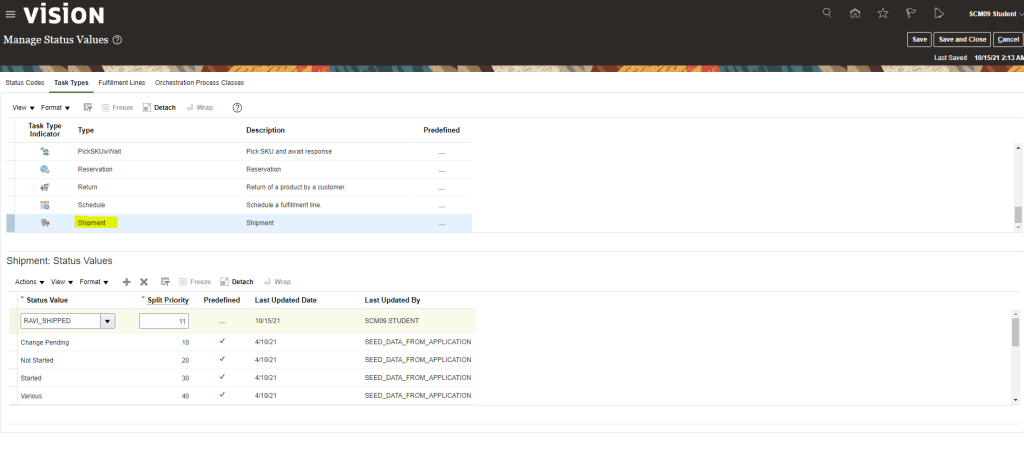
Step 2: Use Status created in Step1 to map it to Task
- Go to Others -> Setup and Maintenance -> Order Management -> Enter task “Manage Task Status Conditions”
- Search for Shipment at top section by scrolling Down. Created in Step1.
- In lower section under Shipment Status Conditions -> Go to Actions -> click on Add row-> In Internal Status value search with either status code or Display Name -> In Display Status Value search with search with either status code or Display Name -> Once value is selected then select both the values and Mark as Complete -> And on top right corner click on Save and Close.


Step 3: Creating Orchestration Process Class
Orchestration Process Class holds all Status values which will be used in Orchestration. It gives the flexibility of grouping all custom defined status under one umbrella.
- Navigation: Go to Others -> Setup and Maintenance -> Order Management -> Enter Task “Manage Status Values” within this
- Under Orchestration Process Classes-> Click on Actions -> Click on Create -> Add Code with Name and Description
- Under Process Class Status Values -> Click on Actions -> add Status Code.
- Keep on adding Status Code in Process Class. After which on top right corner click on Save and Close
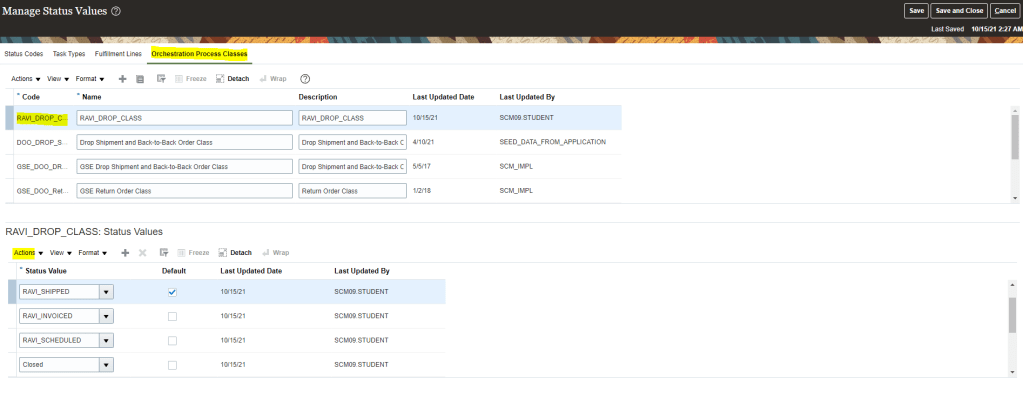
Step 4: Creating Custom Defined Statuses in Orchestration Process Definition.
- Navigation :Go to Others -> Setup and Maintenance -> Order Management -> Enter task “Manage Orchestration Process Definitions”
- Edit or Create New Orchestration Process Definition
- From drop down list, Select Process Class Created in steps “Creating Orchestration Process Class”

- Click on Status condition. Under Orchestration Process Status Values, Click on Actions -> Add

- Enter Sequence as 10, Status Values which was created in Step “Status Values”
- Click on Expression, Below screen appears. Since we are creating status for Shipping, select CustomDOO step which is meant for Shipping and then click on Insert into Expression link.

- Then click on necessary operators, next to Tasks Tab and choose “=”. We can manually type “=”
- Expand Custom DOO and then choose relevant Status. Click on Insert into Expression
- Finally we will have Expression “Ship” = “SHIPPED”.

- Repeat steps for all status which were created earlier.
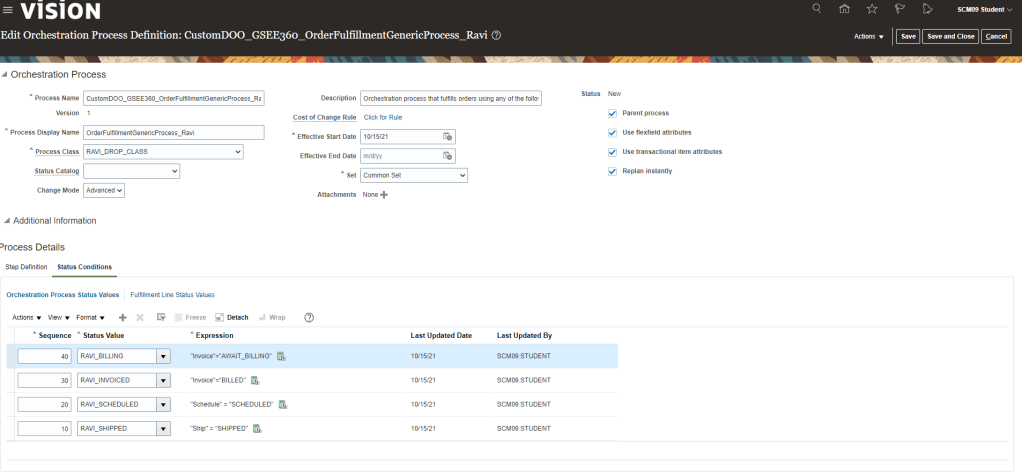
Step 5: Setting Up Status for Fulfillment Lines
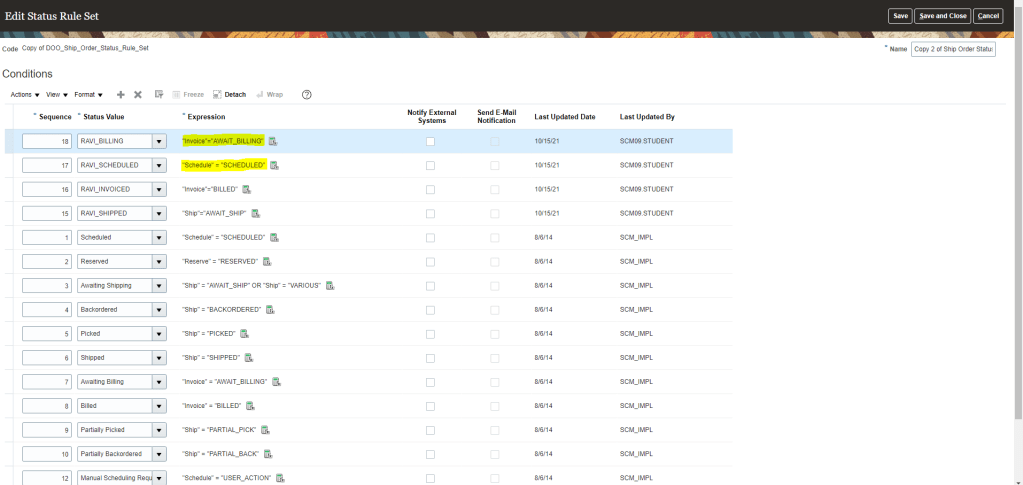
- Under Status Condition -> Fulfillment Line Status Values -> Click on Status Rule Set -> Copy Rule Set
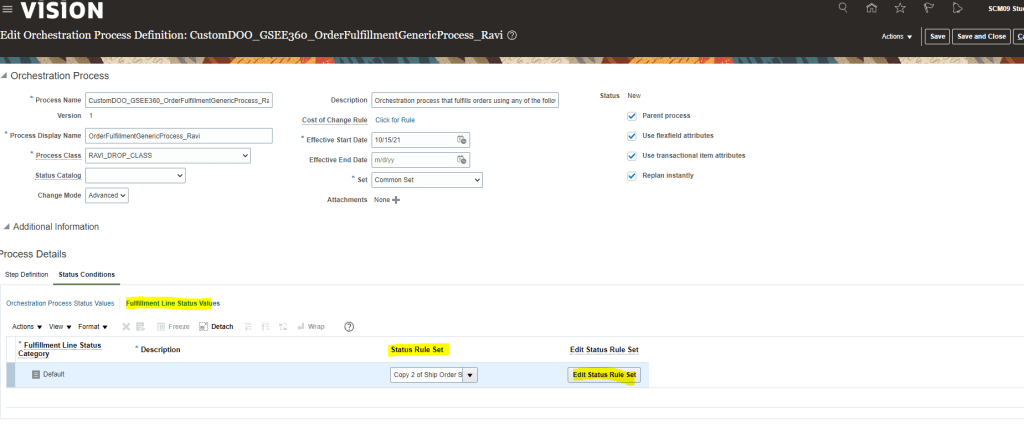
- Click on Edit Rule Set, Below screen should appear
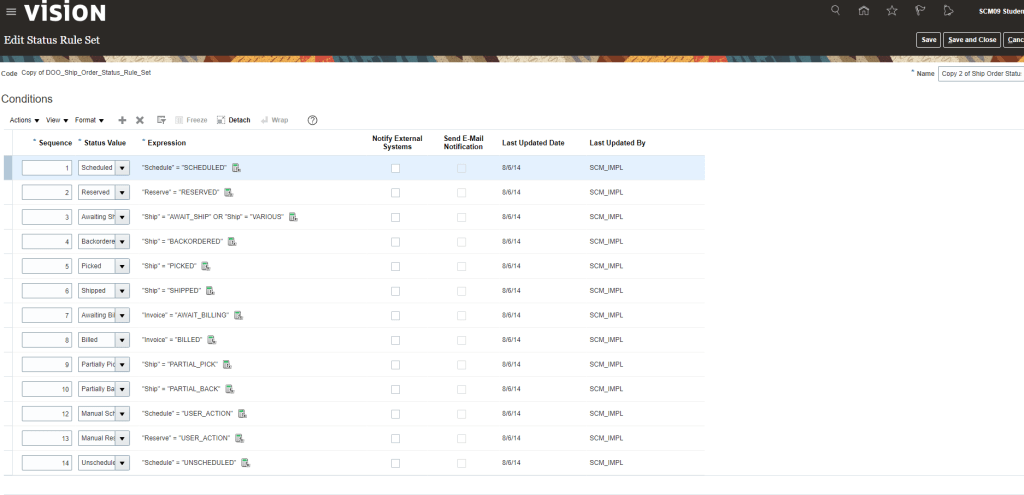
- Enter Value for Sequence. From drop down list Select custom defined Status Values.
- Click on Expression and follow same steps of adding Expression which was used in Orchestration Process Status Values.

 My Cloud Journey