Order Management uses a sales order hold to temporarily stop an orchestration process from processing an order line or fulfillment line. You can use a hold to manage order fulfillment.
- Hold can be applied Manually
- Holds can be applied at Order Level, Order Line Level and Fulfillment line.
- In case Hold is applied to a Model or Shipment set, the Hold get applied to all levels.
- Only certain set of users who have necessary roles can Apply and Release Holds.
- Hold can be applied Automatically
- In case of Credit check of customer.
- OM automatically applies a hold if a change in the OM work area requires it to compensate the orchestration process. OM sends a message to the fulfillment system to apply a hold so fulfillment stops while OM compensates the orchestration process.
- Order Management automatically releases the hold after it finishes compensation.
- An orchestration process can automatically apply a hold only when a hold request already exists in Order Management, in the source system, or in the fulfillment system.
- For example, assume an orchestration process is at the scheduling step when a source system sends a request to hold the shipping task. Order Management stores the request until the orchestration process reaches the shipping step. It then searches for existing requests, and then applies them.
- When fulfillment lines having a hold is split, OM automatically applies hold to each of the lines that result from the split. eg if Fulfillment lines of 100 is split on 25 each, holds will be applied on each fulfillment lines.
- Propagate hold
- Order Management transforms a hold that it receives from a source system or a fulfillment system. The hold becomes part of the sales order.
- If a Source order includes a Hold, then Order Management includes it on the fulfillment lines that it maps to the sales order.
- If a fulfillment line includes a hold, and if Order Management splits the fulfillment line, then it includes the hold on each new fulfillment line that it creates to do the split.
- If Order Management applies a hold to one or more lines in a shipment set, then it applies the hold on the entire shipment set.
- Order Management transforms a hold that it receives from a source system or a fulfillment system. The hold becomes part of the sales order.
- Display and Process Active Hold
- An active hold is a current hold on an orchestration process.
- The Hold Source System attribute displays the location of where the hold was applied.
- If a fulfillment line includes a hold, and if the orchestration process that the fulfillment line references hasn’t reached the step that includes the hold, then Order Management might continue to run the process until it reaches the step that includes the hold.
- If a fulfillment line includes a hold that Order Management hasn’t released, then Order Management displays it as an active hold even if the line doesn’t include an active hold.
How Holds behave
Below flowchart depicts how holds behave. Applying of Holds from Fulfillment system via webservices to Order Management.

Types of Holds
There are three types of holds which are applicable for all types of items like: Standard Item, PTO Model, Kit and Hybrid etc.
- Generic Hold -> Holds not linked to any specific Task. These holds can be applied and released at any step.
- Task Specific Holds -> Holds which are linked to specific task and service. It can be used to pause the processing of specific task on the sales order
- System Holds: System holds are automatically applied and released at the end of the processing of the sales order. E.g. Hold for change request / Credit check Hold.

How to Apply and Release Holds on Order, Lines and Fulfillment Lines
- Holds Applied to the Header are cascaded to lines automatically.
- Users can apply holds from User Interface, Webservice and Fulfillment views.
- Hold codes are set enabled so that Business Unit level segregation can be controlled.
- Holds can be applied at any time, like Invoicing Hold can be applied after Order Submission. Order goes on holds once Invoicing task is reached.
- Holds applied on Pause task will not have any effect.
- Multiple holds can be applied on Sales Orders.
- User can apply and release holds across multiple Sales Orders.
- Hold Request Task(HRT) is a flag which is used to forcefully pause proceeding of an order/line at a particular task, by sending the hold request to the fulfillment system currently processing the task.
- Currently if an order needs to be created with a Hold applied, it has to be done on a Draft Order.
Setup for Hold Codes.
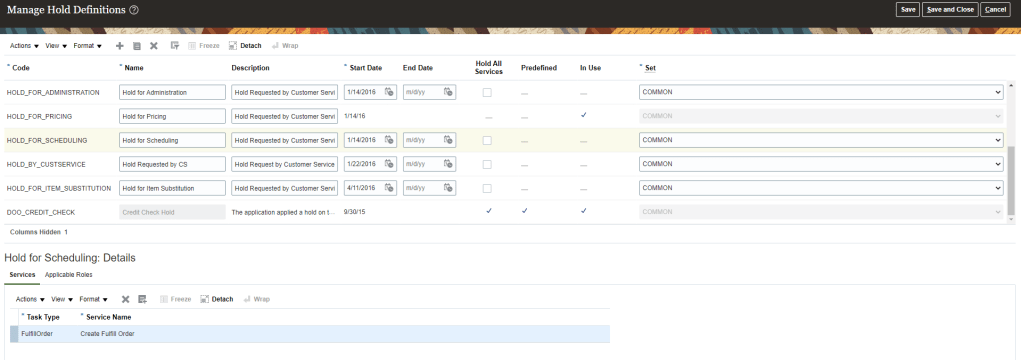
- Navigation: Go to Others -> Setup and Maintenance -> Order Management -> Enter Task “Manage Hold Codes”
- In Hold Codes -> Select any Code
- If “Hold ALL Services” is Checked than Task Types at bottom section will be empty.
- If “Hold ALL Services” is Not Checked than we need to add Task Type and Service Name for which hold will be applicable. i.e. in below snapshot, Hold Definition “Hold_For_Scheduling” does have Task Type and Service Name to which Hold will be applicable.
- Set will be “Common” for all Business Unit.
- Go to Applicable Roles tab and either select All Roles or select any specific Roles for which Apply Hold and Release Holds will be applicable.
Setup for Hold Code Reason.
- Navigation : Go to Others -> Setup and Maintenance -> Order Management -> Enter task “Manage Order Lookups”
- Enter Lookup code “DOO_HLD_RELEASE_REASON”.
- Verify Lookup code, its Start date and End Date.

- Holds can be migrated from One Instance to Other.
Hold Release Process
Manual Release of Hold
- You can release a hold that you applied in the Order Management only in the Order Management work area.
- Only the user of a source system can release a hold that another user of the source system applies.
- If you don’t cancel an orchestration process, then you must manually release each hold and provide a release reason
- You can release hold in any channel irrespective of the channel that applied it in the first place, as long as you have sufficient roles and privileges.
Automatic Release of Hold happens
- Once Order Management finishes compensating for a change to the order.
- After we cancel an Orchestration process, Order Management Automatically releases any holds that reference this process.
- After credit check case folder is approved in Oracle Fusion Credit Management.

 My Cloud Journey
Very informative for oracle
LikeLike