Oracle Fusion: Global Order Promising in Order Management.

Global Order Processing a.k.a GOP is a heart of planning within order orchestration process which will help in taking note of current inventory stocks we have in our system. It uses collections to fetch details from various systems to know current level of inventory stocks and whether it will be able to meet the shipping date as per customer request Or what is the best case scenario which can be achieved on requested shipping date.
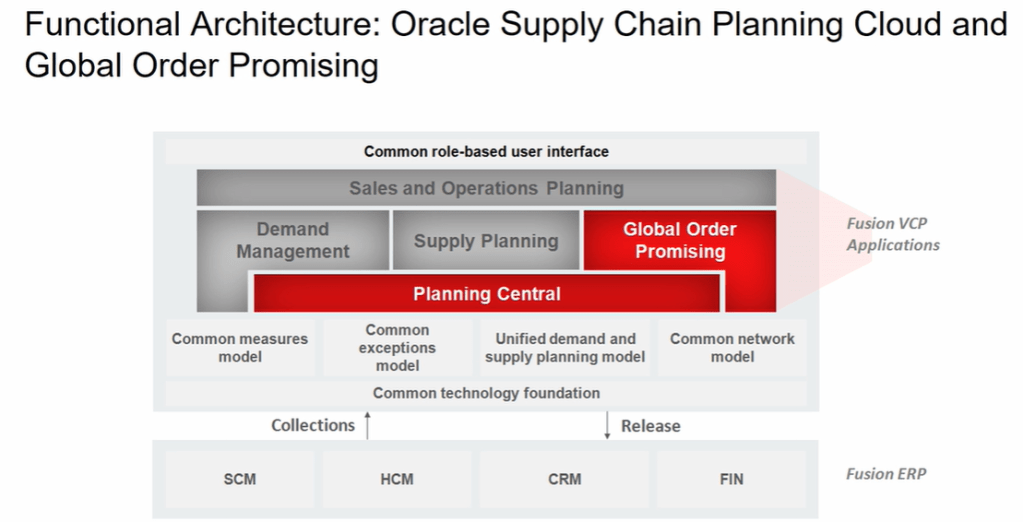
Below snapshot depicts two components which communicate with each other on Regular basis.

  • Order Management
    • Gets Demands in form of Orders, inquiries and returns from
      • E-commerce site
      • Stores
      • Mobile Apps
      • Call centers
    • It reaches to Oracle Supply chain Planning to
      • Check the availability of Items, whether we have sufficient stocks of item to fulfill the order.
      • Perform Scheduling Requests. Based on stock availability, it determines what could be best suited shipping date for the item.
  • Supply Chain Planning
    • Gets current stocks of Items from
      • Open Purchase Orders
      • Supplier Requisitions
      • On-Hand Inventory
      • Internal Requisitions
      • In-Transit Supplies
    • It further provide information back to Order Management about
      • Fulfillment Sources
      • Promise Dates

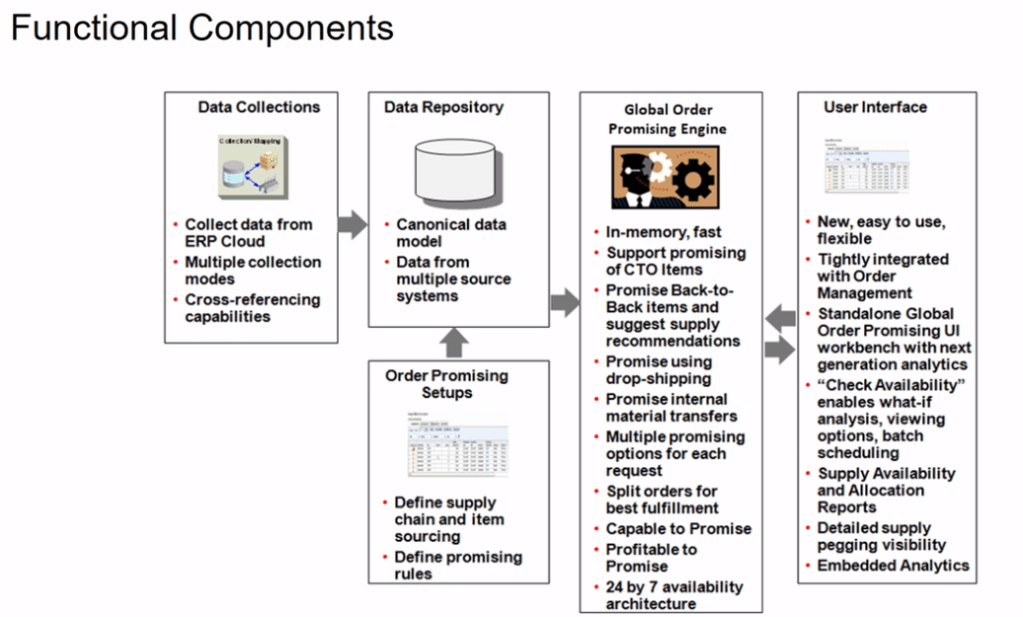
Functional Component of GOP

  • It collects Data from Different systems using different collection method.
  • Stores collected data from different systems in a Data Repository.
  • Take Snapshot of current status of each items.
  • Promising engine uses Snapshot to fulfill the order. Since Snapshot is getting used, its quite faster as it do not query different systems, at run time, to get the status thereby eliminating any time delay.
How Order Orchestration Communicate with GOP

Below diagram depicts interaction between Order Orchestration Process and Global order Promising.

GOP has 3 Major Components

  • Sourcing Rules : It determines, for specific product or family of product, where can we get the item in case we do not have sufficient stock on hand. What is the Hierarchy to be followed to source it. Whether we should procure the item or always manufacture the item or look for in transit.
  • Available to Promise(ATP) Rules and Allocations Rules : It determines what is the availability based on the source. Different rules can be used based on different methods. It not only consider what sources to reach out to when we do not have adequate supply but also how to promise/allocate hand inventory we have at particular location.

We can use any promising mode while using ATP rule.

  • Assignment Set : It associate Sourcing rule to the Item or Organization.

Steps involved in GOP

Step1: Create Sourcing Rules

Sourcing rule is created at Global or at Item level.

  • Global
    • For Item
    • For Category
  • Local only for Item.
  • Navigation: Go to Global Order Promising In Order Management -> Click on right corner of Task Panel -> Manage Sourcing Rules
  • Go to Action Button -> Click on Create Rule
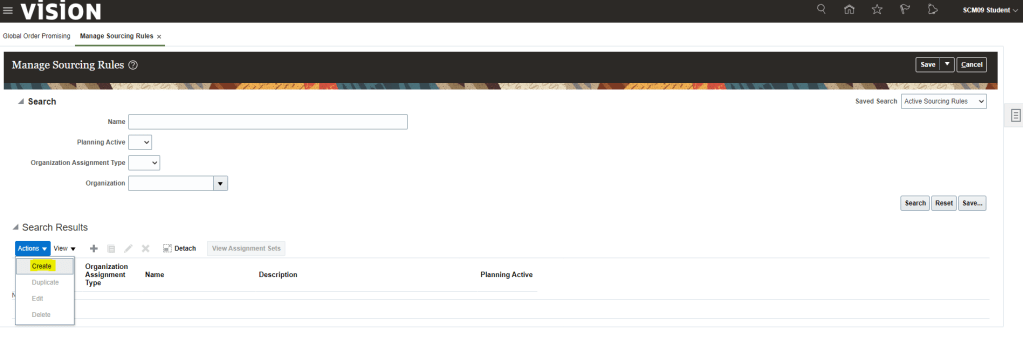
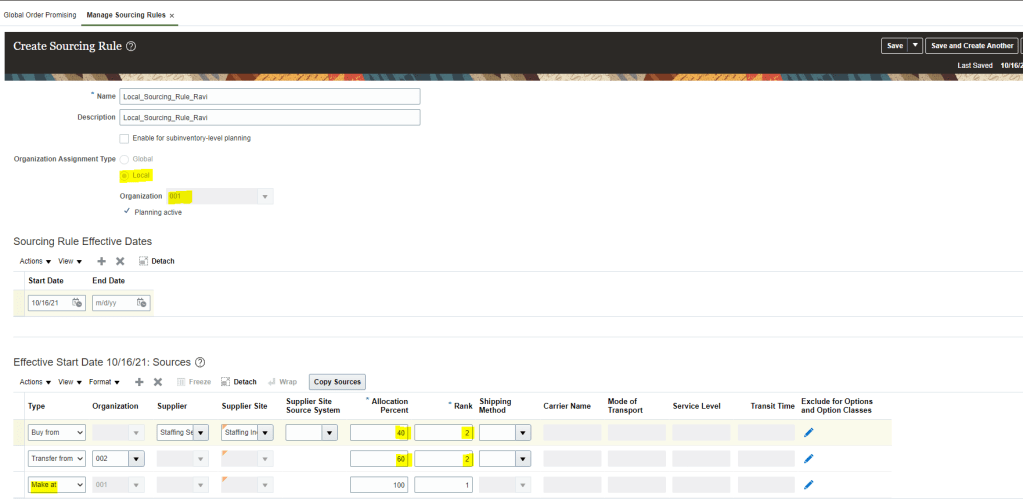
  • Enter Name, Description, Start Date(When Sourcing Rule will come into effect).
  • Organization Assignment Type -> Choose either Global or Local.
  • In Type Section
    • Buy From -> Enter Supplier Name , Supplier Site, Allocation Percent an Rank 1.
    • Transfer From -> select Organization as 001, Allocation 100% and Rank 2.
  • Click on Save and Close(Under Drop down menu of Save).
  • In case we chose Assignment Type as Local,
    • Organization needs to be filled .
    • We get Sourcing option of “Make at”, which will be Organization we chose at header level. It is protected value and we cannot change it.
    • We have Sourcing option of Buy from and Transfer from. We can keep both at same Rank but allocation percent can be divided based on Business demand.
Step2: Create Assignment Set

  • Navigation: Go to Global Order Promising In Order Management -> Click on right corner of Task Panel -> Manage Assignment sets
  • Go to Action Button -> Click on Create
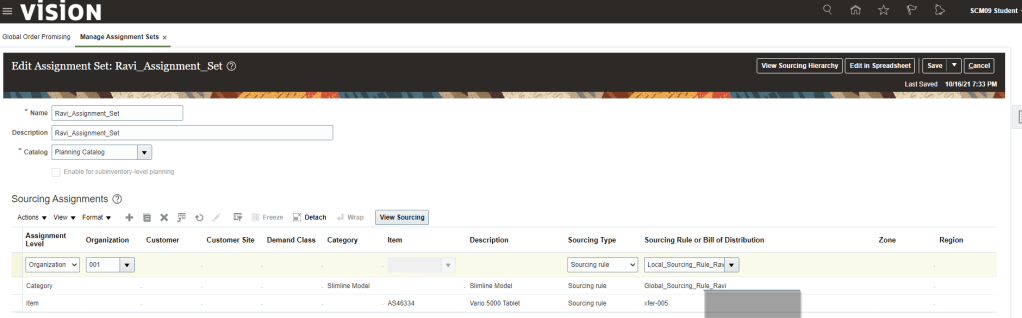
  • Enter Name, Description, Catalog. Beneath Actions Button click on Add Row.
  • Go to Sourcing Assignment , Click on Action -> Add Row
    • Assignment Level =Category , Item = slimline Tablet, Sourcing Type = Sourcing Rule , Sourcing Rule = Global_Sourcing_Rule_Ravi
    • Assignment Level = Item, Item = “AS46334”, Sourcing Type = Sourcing Rule , Sourcing Rule = “Global_Sourcing_Rule_Ravi”
    • Assignment Level = Organization , Organization = 001, Sourcing Type = Sourcing Rule , Sourcing Rule = Local_Sourcing_Rule_Ravi
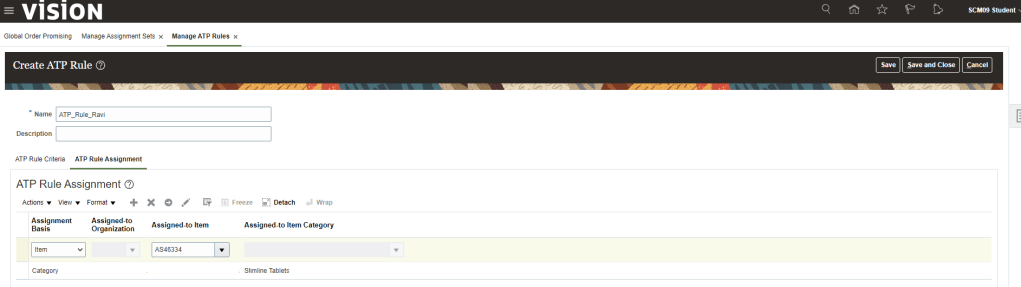
Step3: Create ATP Rule

  • Navigation: Go to Global Order Promising In Order Management -> Click on right corner of Task Panel -> Manage ATP rules
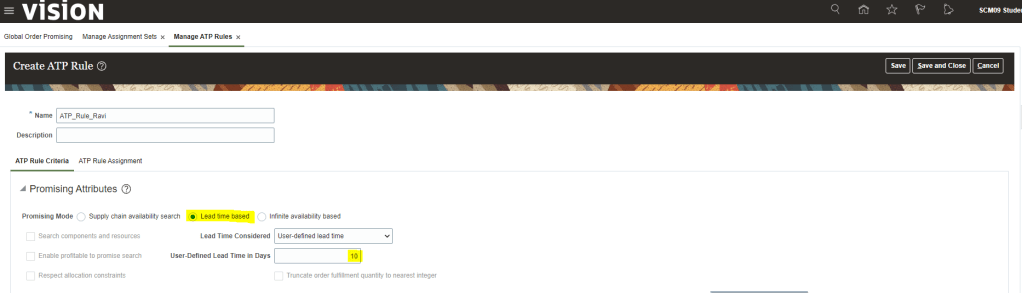
  1. Go to Action Button -> Click on Create -> Enter Name, Description
  • We can choose any Promising Mode. Select Promising Mode as Lead Time Based and provide Lead Time value.
  • Under ATP Rule Assignment Tab , Click on Action -> Add Row
    • Enter Assignment Basis = Category , Assigned-to Item Category = Slimline Laptop
    • Enter Assignment Basis = Item , Assigned-to Item = “AS46334”
Business Scenario on Applicability of Sourcing rules and Assignment sets.

Below scenarios depicts Global Sourcing rules and Assignment sets used to fulfill Product item or family of Item from the fulfillment sources.

To fulfill above requirement we will have following sourcing rules
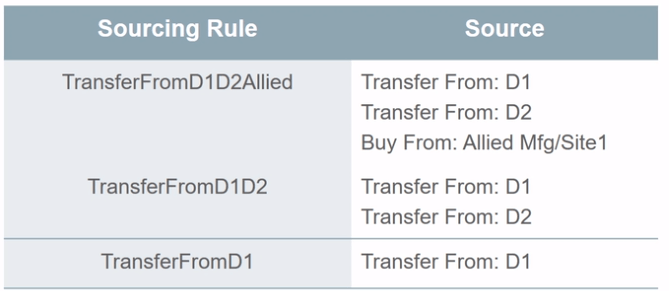
Assign above created Sourcing rules at different Assignment levels within same assignment set.

View Promising Rules which got applied to an Order line.

  • Navigation: Go to Order Management -> Actions -> Switch to Fulfillment View
  • Click on Line -> Click on Fulfillment Lines
  • Under Fulfillment Lines -> Click on Check Availability
  • Select Line -> Actions-> Order Promising rules -> View Sourcing Rules
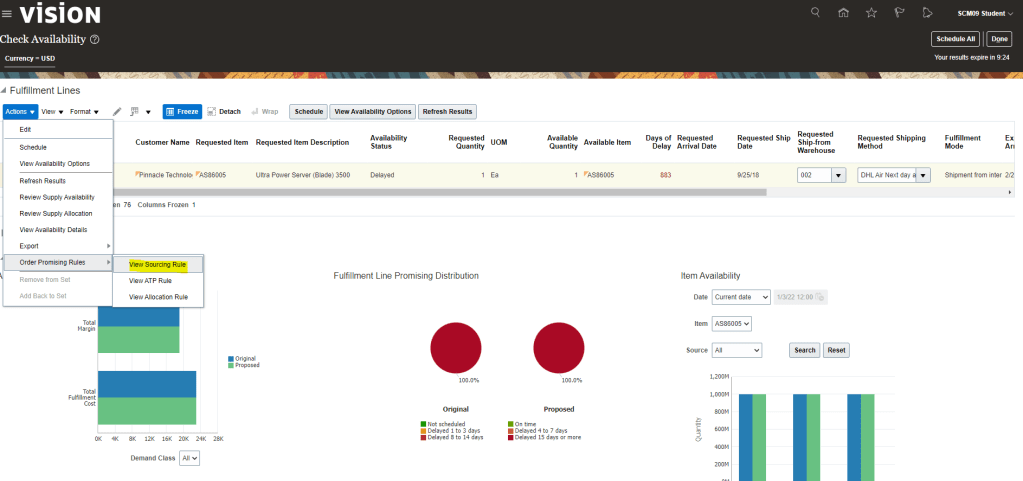
  • Below sourcing rule is applied to the Line.
  • Please note: Below screenshot is of existing order so it does not contain Sourcing Rule created by me.
  • Similarly we can choose option View ATP Rule -> View Allocation Rule to verify applicable ATP rule.

Restarting GOP Engine

Run job to restart GOP Engine and refresh its data. All data which are already collected in GOP can be refreshed. Even during refresh process, GOP continues to promise the orders.

  • Navigation -> Setup and Maintenance -> Scheduled Process -> Run job “Refresh and Start the Order Promising Server”.
  • Select specific Entities and Click on Submit

Data collections of Global Order Promising

  • Below diagram very well depict data collection done by Supply Chain Planning from different Sources in order to have one repository.
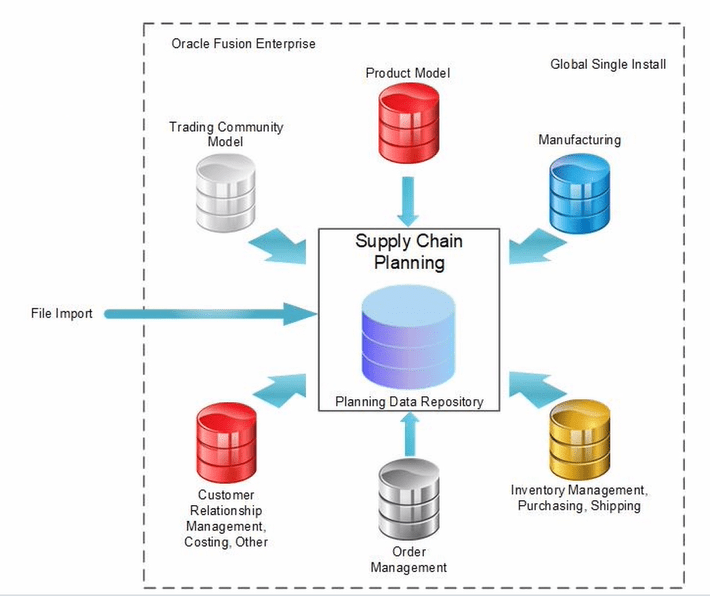
  • Data which gets collected are
  • Data Collections using File-Based Import. Data which gets collected are
    • Customer-Specific Item Relationships
    • Item Costs
    • Demand Classes
    • Planning allocation rules and their assignments
    • ATP rules and their assignments
    • Real-Time supply update rules
    • Sourcing rules and assignments
    • Cross-reference mapping information
    • Supplier Capacity and approved supplier lists
    • Planned Order Supplies
    • Payment Methods
    • Receipt Method
    • Shipping Priority
    • Return Reason
    • Document Categories
    • Activity type
    • Tax Classifications
    • Tax Exemption reasons
    • Sales Credit types
    • Freight Terms
  • Configuration required for Data Collection
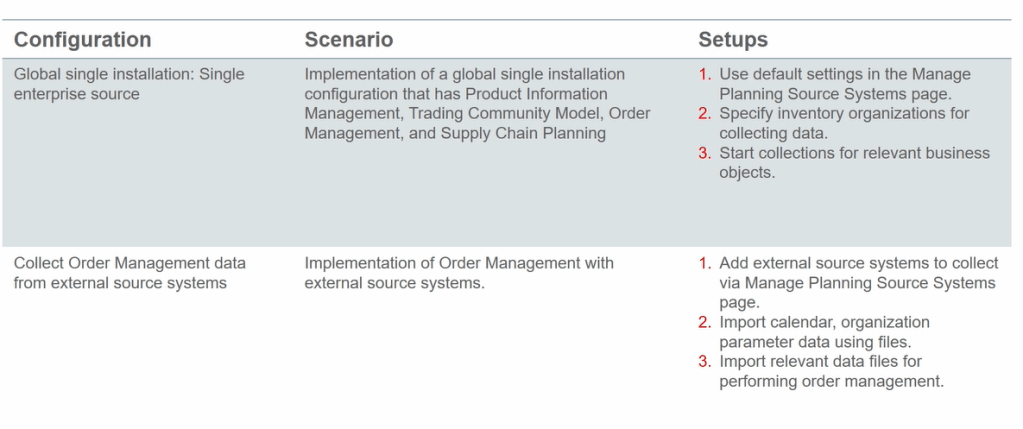
  • Below are the External Source Setup which needs to be done
    • Define Item Organizations in Product Model
    • Define External Source system as Collection Source
    • Load Organization and Calendar Data using File Import
    • Commence collections for Order Management using File Import
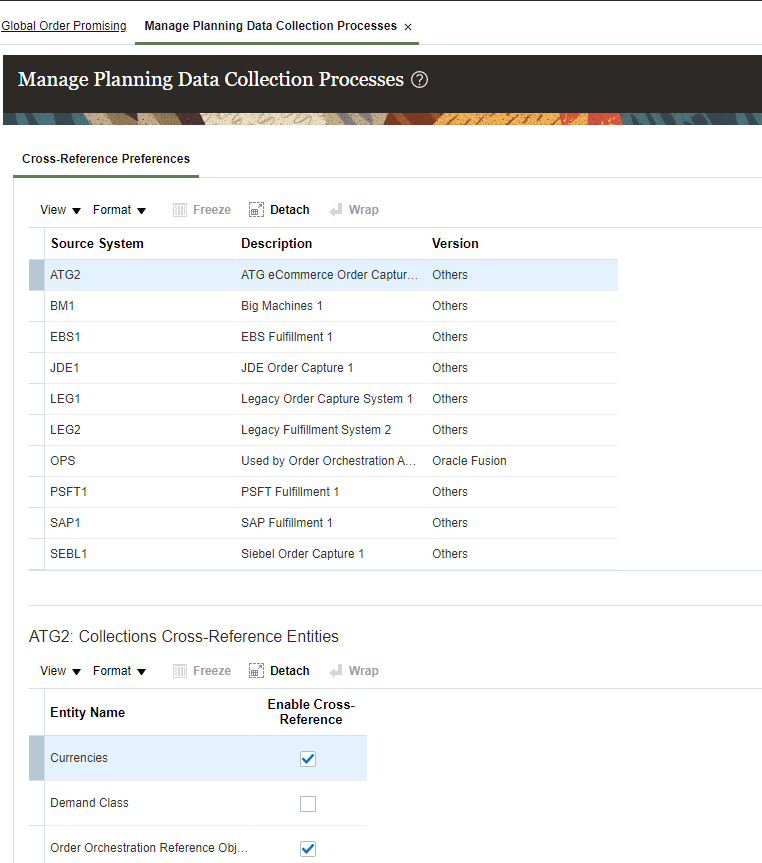
  • Under Global Order Promising -> use Manage Planning Data Collection Process to collect data from external source setup
Orchestration Process in Oracle Fusion

Order has different stages. It is first entered into system then it gets schedule. After scheduling it gets picked/packed and shipped. After shipping it gets invoiced and then finally closed. There are multiple system and entities involved in complete life cycle of Order.

Oracle has come up with Orchestration which is a set of activities performed on any single Order to complete its Life cycle. These activities can be performed as a single step across large number of systems. It comes up with a workflow automation tool in Oracle Cloud define schedules for workflow executions repeatedly or in the future.

Snapshot of Orchestration

Orchestration Groups

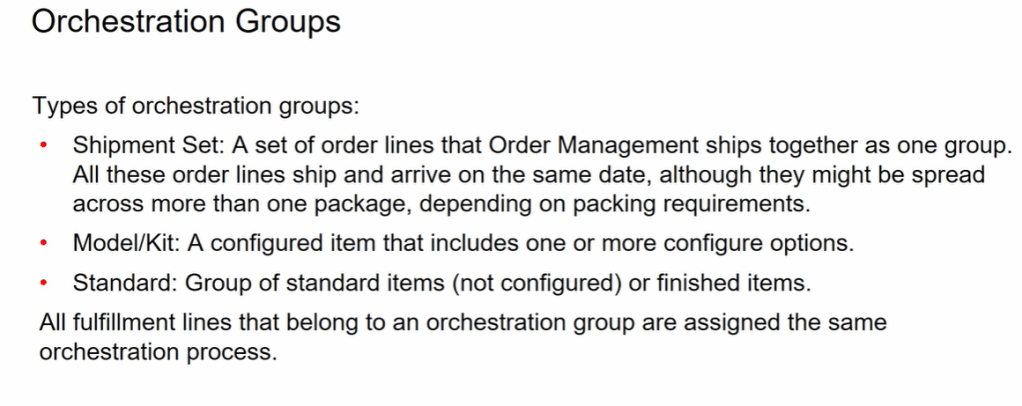
All fulfillment lines that belong to an orchestration group are assigned the same Orchestration Process. Types of Orchestration groups:

  • Shipment Set : A set of order lines that Order Management ships together as one group. All these order lines, ship and arrive on the same date, although they might be spread across more than one package, depending on packing requirements.
  • Model/Kit : A configured item that includes one or more configure options.
  • Standard : Group of Standard items(not configured) or finished items.

Orchestration Process Components.

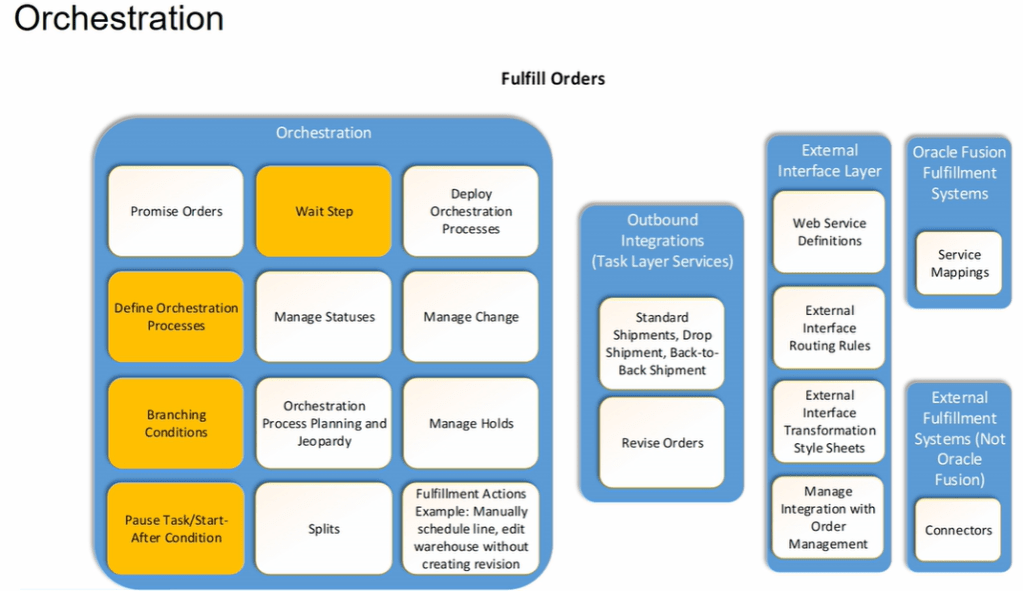
Fulfillment of any Order happens using Orchestration process which has 4 components to it.

  • Within Orchestration Process -> Task like Shipment, Invoices etc. which takes care of activity within fusion.
  • Outbound Integrations/Task Layer Services -> Order Management different tasks like Shipment, Invoices etc. connects with fulfillment system using Outbound Integrations.
  • External Interface Layer -> It uses different technique i.e. web services, Routing Rules, TSS etc. to communicate specific task from OM system to Fulfillment systems.
  • Orchestration Fulfillment Systems-> It could be either Inventory system, Shipping or Invoicing system within Oracle cloud or could be External fulfillment system.

Example: We could be using Oracle fusion for Order management and Legacy system of Warehouse. We need to setup communication using External Interface Layer(Routing Rules) .

Orchestration Processes Life Cycle

  • Create/Copy Orchestration Process
  • Validate Process
  • Release Process
  • Deploy Process

Default Orchestration Process Provided By Oracle

  1. DOO_BillOnlyGenericProcess –> Used for Invoice for items like Extended warranty which are not physical items. It can only be billed but cannot be shipped.
  2. DOO_OrderFulfillmentGenericProcess
  3. DOO_SubmitSalesOrderProcess
  4. ReturnOrderGenericProcess –> It is used for Return. It follows cycle of Return -> Invoice
  5. ShipOrderGenericProcess –> It follow cycle of Schedule -> Reserve -> Ship -> Invoice

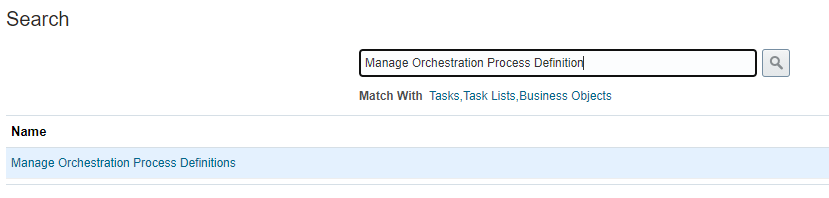
Navigation: Go To setup and Maintenance -> Order Management -> Select task “Manage Orchestration Process Definition.

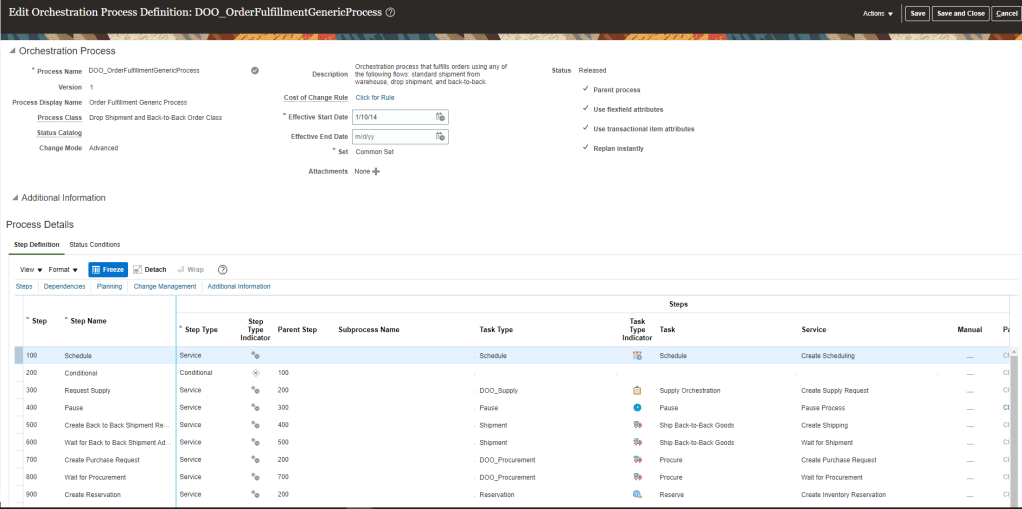
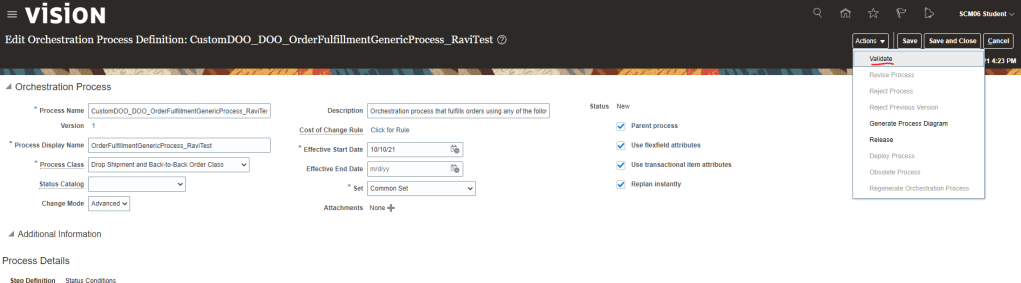
List of Available Orchestration process will appear. Select DOO_OrderFulfillmentGenericProcess and click on Edit. Below screen appears.

Oracle Business Rules(OBR) in Orchestration Process

Attributes in Process definition of Orchestration, uses OBR to make runtime decisions for process behavior:

  • Cost of Change: It is not measured in monetary terms rather its measured in resources getting utilized when any changes are to be made in an order. It gives ranking in difficulty of making changes and whether the change should be allowed.
  • Compensation Pattern: If changes are allowed in order then whether all steps needs to be executed or only few steps needs to be executed and already executed steps need not run.
  • Lead Time Expression : Time taken to run or rerun the task of orchestration process.
  • Line Selection Criteria : If change is to be allowed in Order, than this criteria helps to filter out steps which do not affect re-planning.
  • Branching Condition : Set criteria to call different branches.
  • Pause Rule : To wait until a task gets executed.

Tasks within Orchestration Process

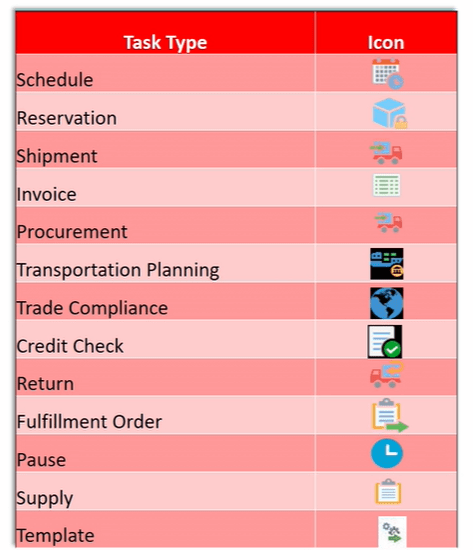
Below are the different task we have in our Orchestration Process.

Status in Orchestration Process

Statuses play key role in Order Management to determine the life cycle of Order. Any order goes through series of steps and Status helps in identifying the current status of order. Status defined in Orchestration Process will reflect in Order Management.

Please refer to link to get complete picture of Status, How to create new setups as well as custom defined setup done in Orchestration process Definition

Planning Parameters to an Orchestration Process Definition

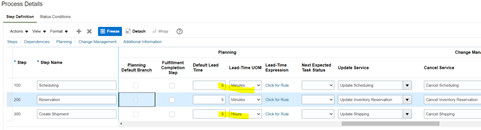
Planning Parameters decides how much time each task within Orchestration Process will take , which will give estimate of sum total time taken by complete orchestration process.

  • Navigation: Go to Others -> Setup and Maintenance -> Order Management -> Enter Rules “Manage Orchestration Process Definition”
    • Edit Existing Orchestration Process
    • Go Planning tab, under Step Definition of Process Details
    • Enter Default Lead time and lead Time UOM.
    • Lead time determines max time taken by each steps under normal circumstances.

Making changes to Orchestration Process

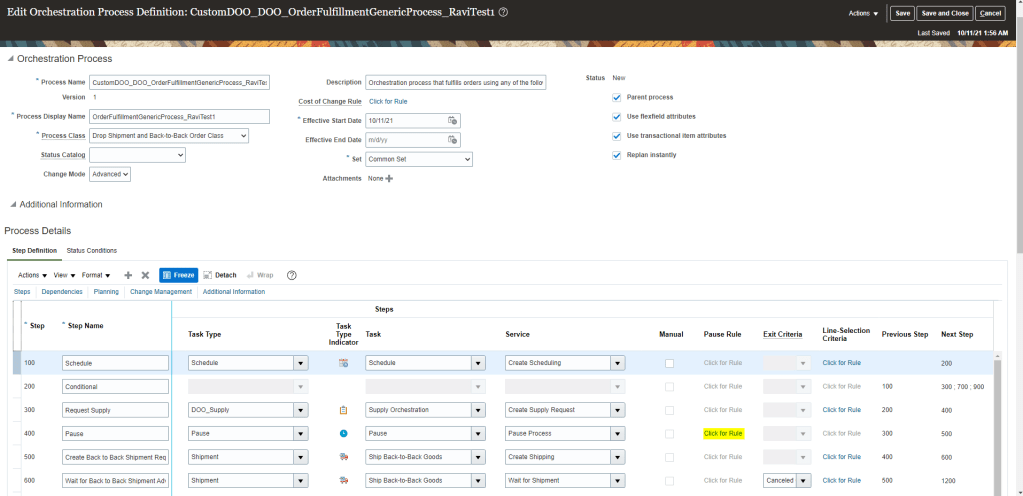
Suppose we need to make any change to Task like “Pause Rule”

  • Go to Others -> Setup and Maintenance -> Order Management -> Enter Rule “Manage Orchestration Process Definition”.
  • Create a new orchestration process definition or choose existing definition
  • Go to Pause step and click on “Click for Rule”
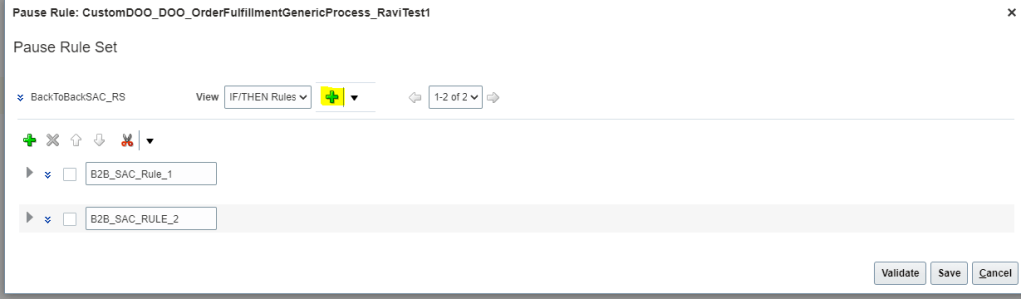
  • Below Rule Set screen appears. Click on Green Plus Button to create new Rule.
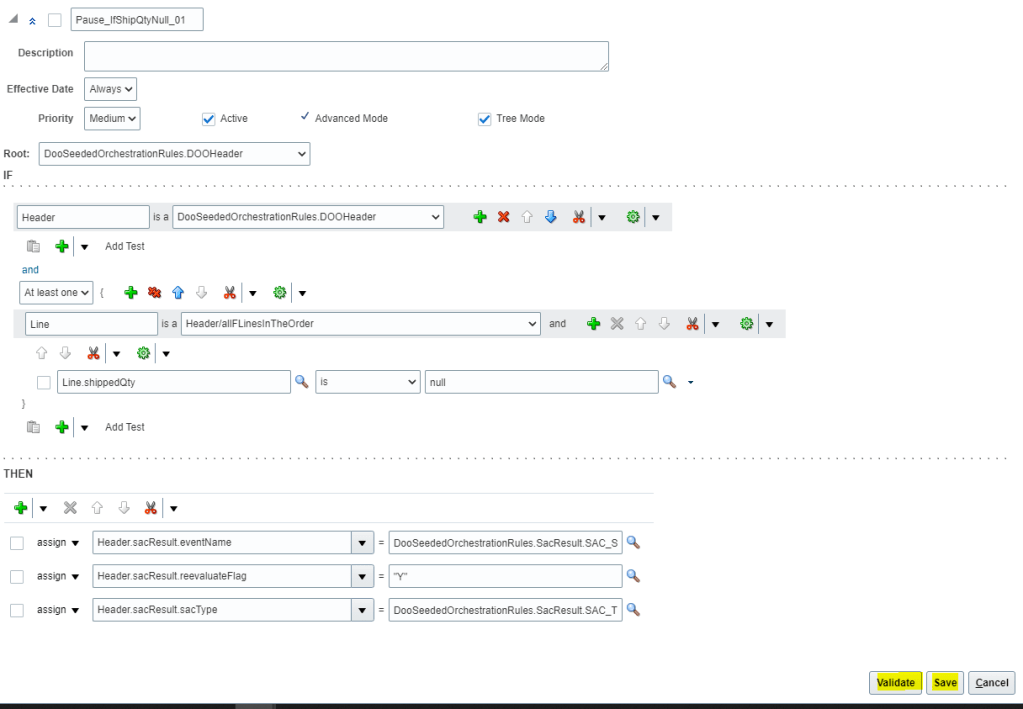
  • Give Name of the Rule = “Pause_IfShipQtyNull_01” . Check Active, Advanced and Tree Mod
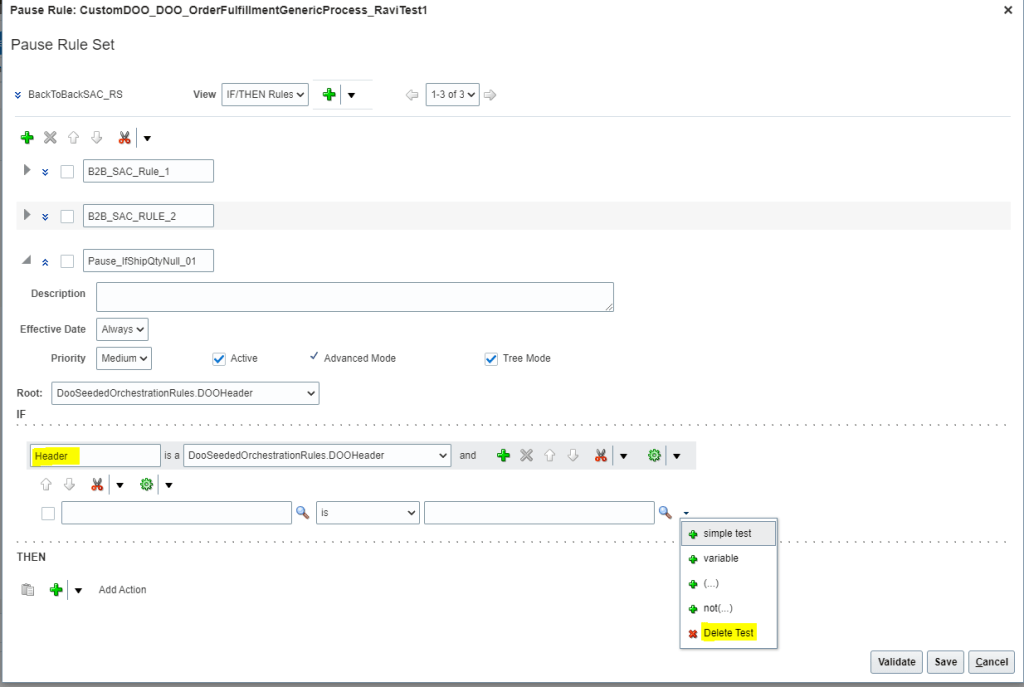
  • Open the Root list and then select “DooSeededOrchestrationRules.DOOHeader” list item.
  • Underneath the IF label, in the left field that contains DooSeededOrchestrationRules.DOOHeader, substitute the current text with Header.
  • Below Header -> Click on Search Button and from Drop down select “Delete Test” to the delete additional line.
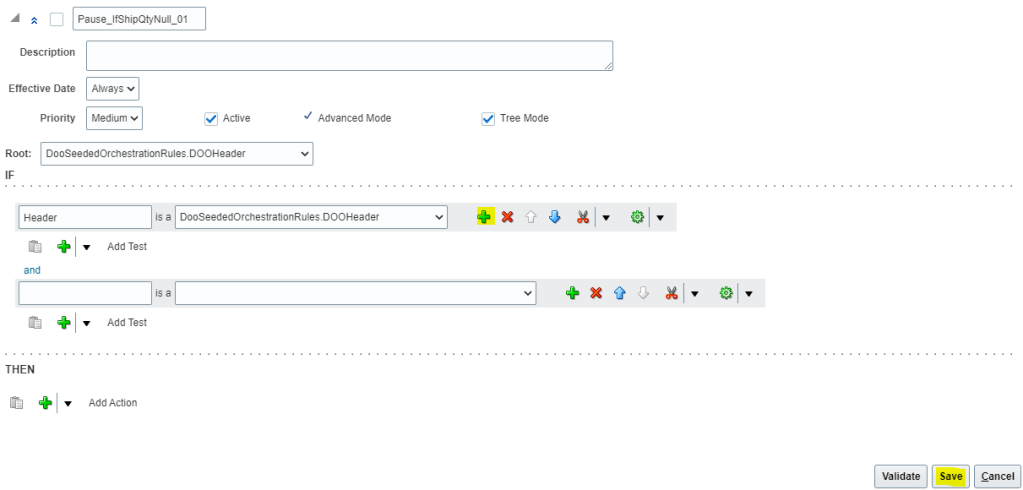
  • To the right of DooSeededOrchestrationRules.DOOHeader, click the Add Pattern icon
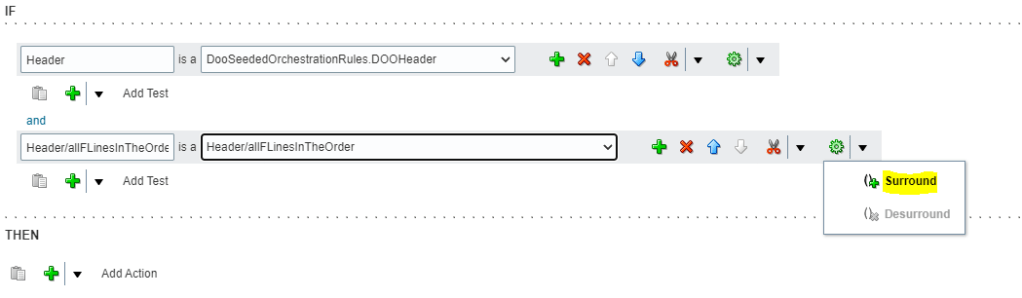
  • Below Header section in the and section, Leave first field immediately to the left of “Is A”, blank . In the list to the right of “Is A”, select Header/allFLinesInTheOrder. The left portion will get defaulted to value “Header/allFLinesInTheOrder”.
  • To the right of the field that you set to Header/allFLinesInTheOrder, click the down arrow next to the Surround Pattern With Parentheses icon and then select Surround
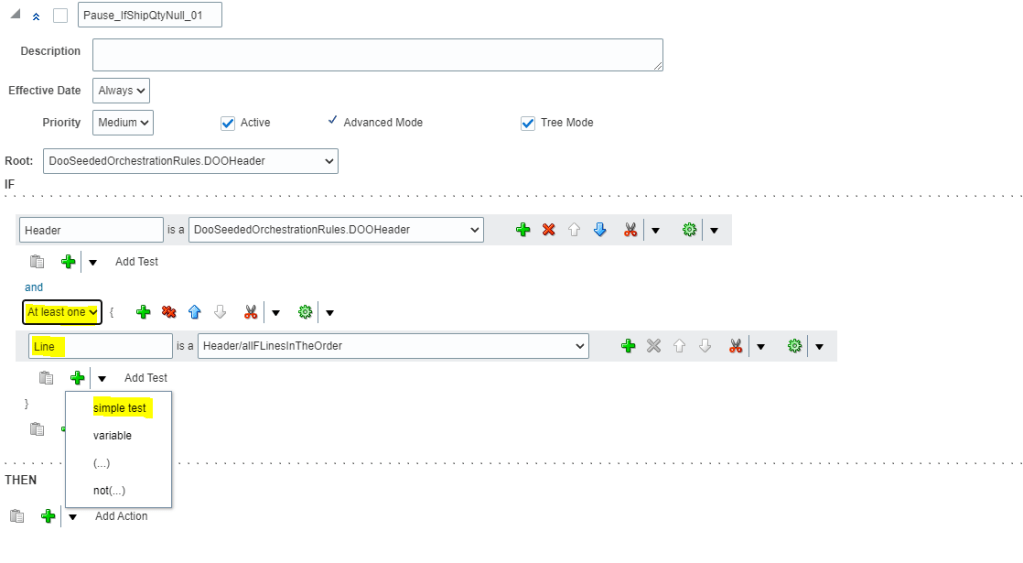
  • Change the Left section to meaningful name “Line”
  • Below “Header” and after “and”, change the value from “Each” to “At least one.”
  • Directly below the field that contains “Line,” click the arrow next to Add Test and then select Simple Test.
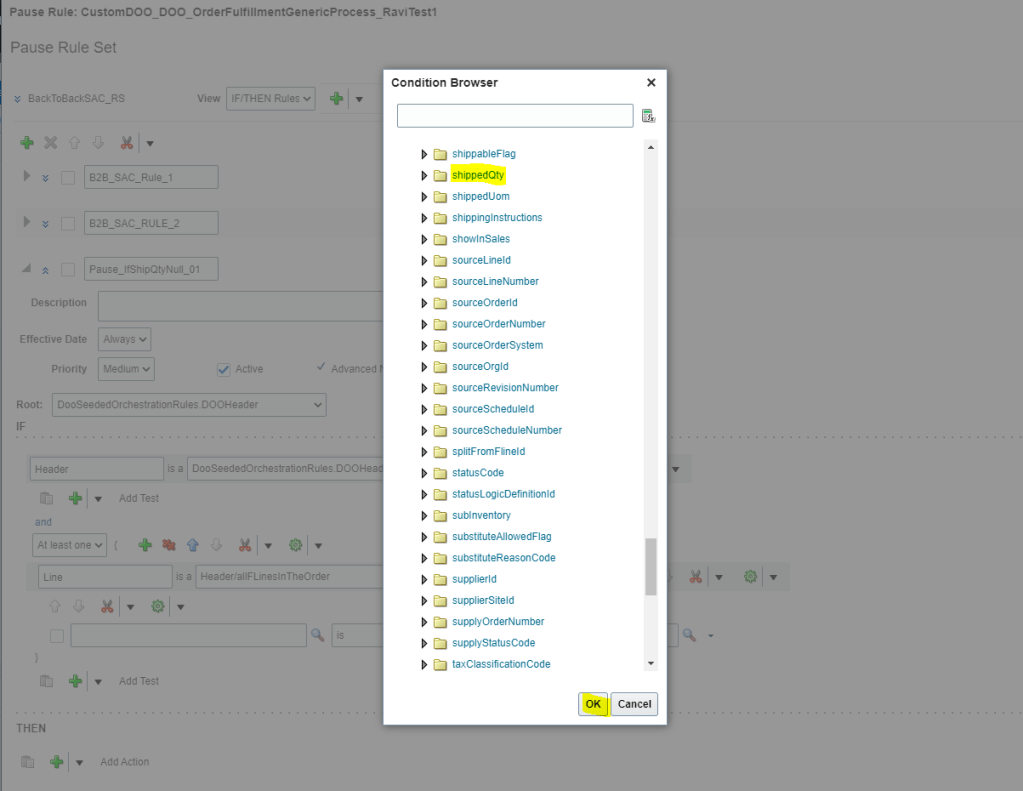
  • In the Condition Browser on Left Side, expand Line, and then select “shippedQty” and click OK.
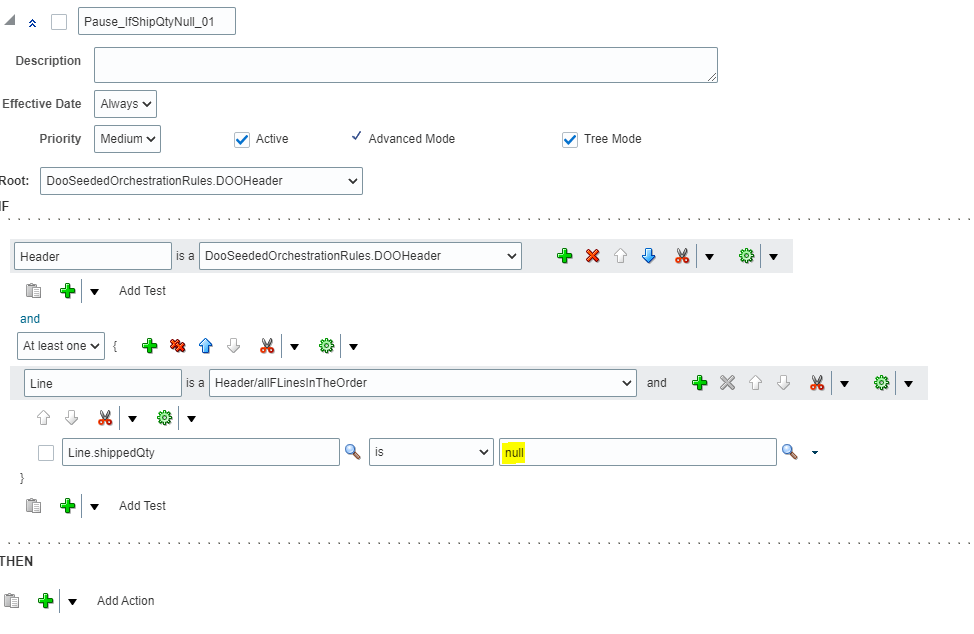
  • In the Right side In the Condition Browser, click null.
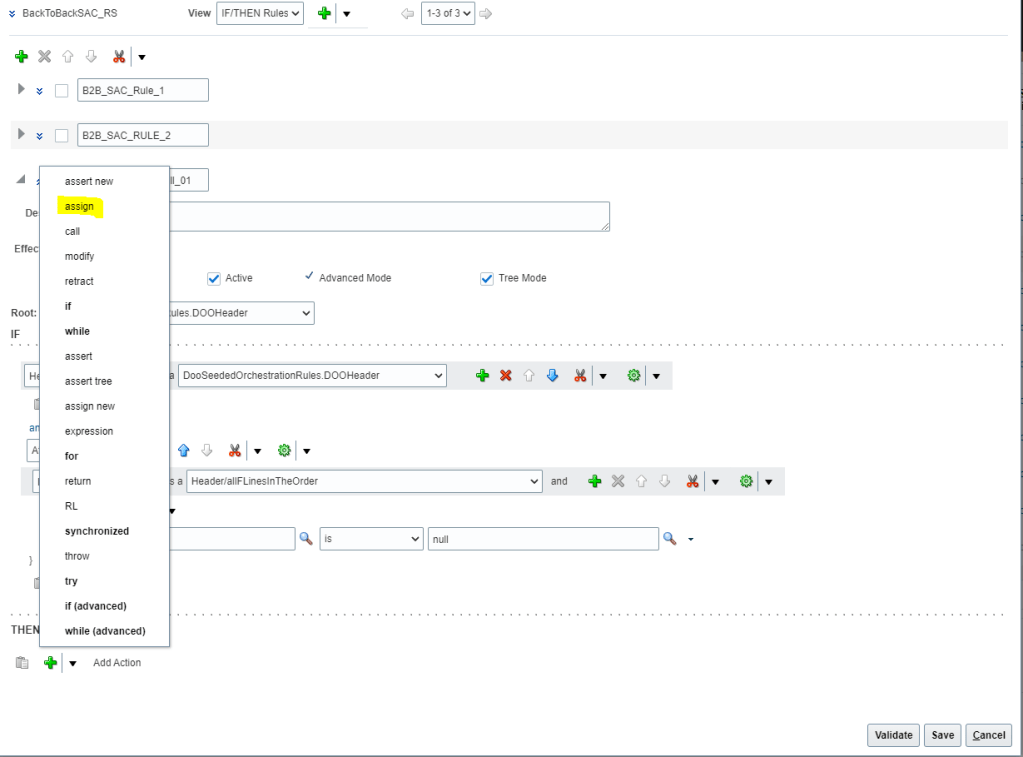
  • In “THEN” region, click the Add Action list, and select assign.
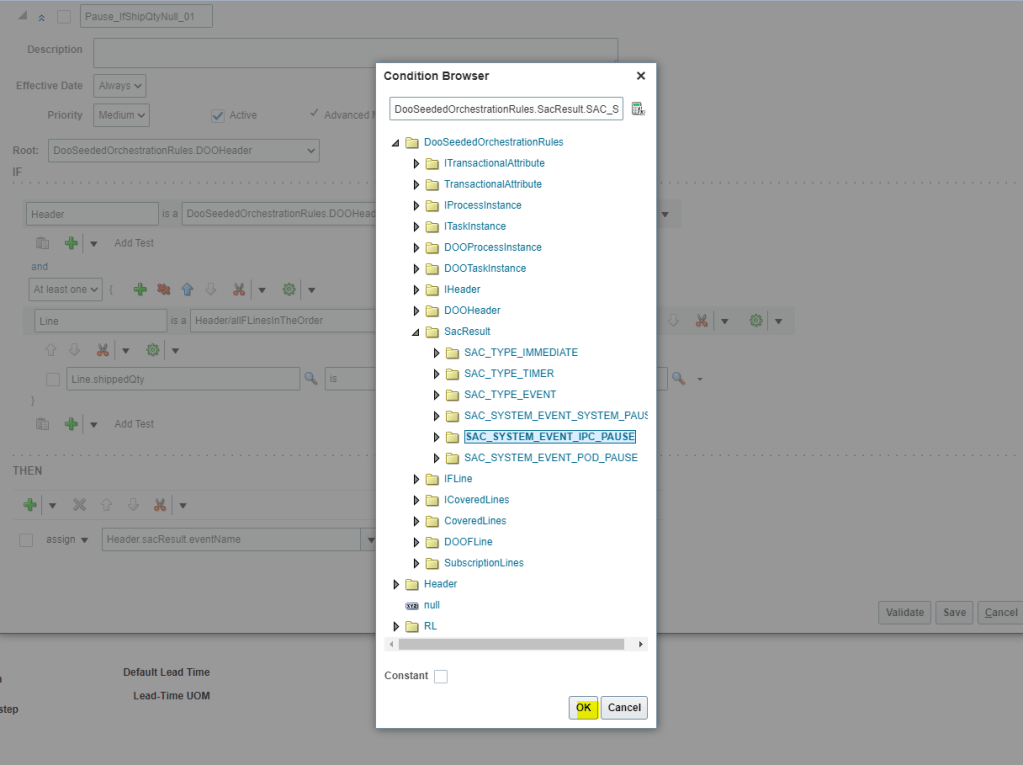
  • In the Select a Target list, select “Header.sacResult.eventName” and on left side In the Condition Browser, expand DooSeededOrchestrationRules and then SacResult. Select “SAC_SYSTEM_EVENT_IPC_PAUSE”.
  • In the Select a Target list, select Header.sacResult.reevaluateFlag and on right side Click Expression Value. In the Condition Browser, enter “Y”.
  • In the Select a Target list, select Header.sacResult.sacType and on right side Condition Browser, expand DooSeededOrchestrationRules, expand SacResult, and then click SAC_TYPE_EVENT
  • In the Pause Rule: CustomDOO_OUStandardOrdersProcessXX window, click Validate

Steps to Deploy Orchestration Process Definition

  • Refer to Steps mentioned at Link to get complete understanding/steps to be performed for Deployment of Orchestration process definition.

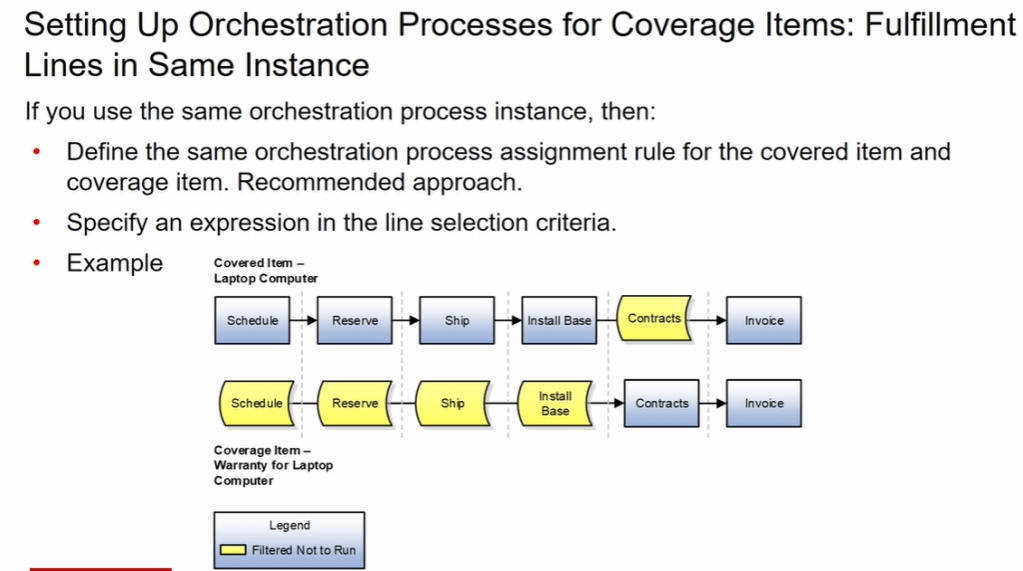
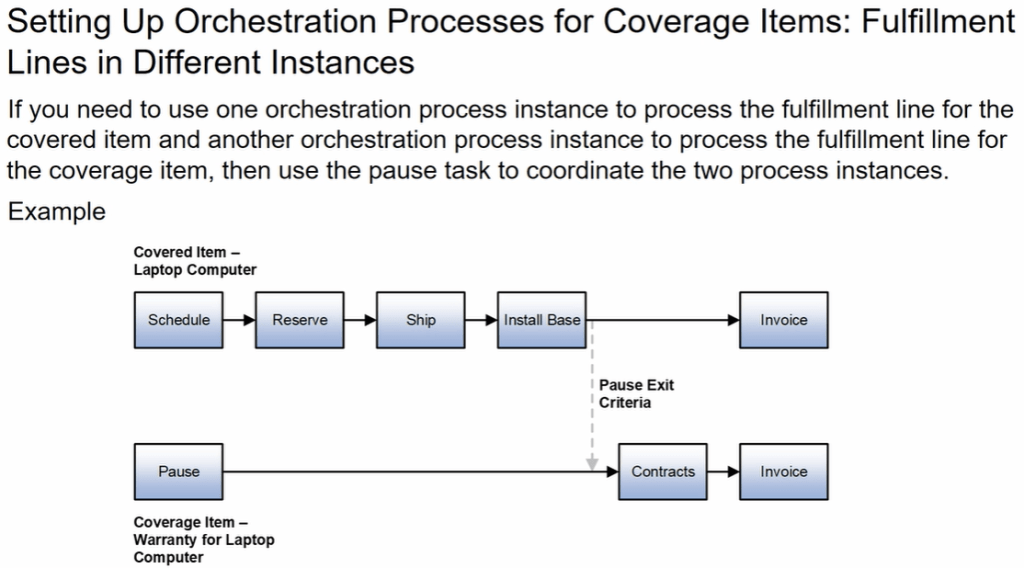
Orchestration for Coverage Items

Oracle Fusion: Jeopardy in Order Management

What is Jeopardy: It is a alert which helps Business to take necessary action on order in case they see any potential delay in fulfilling the Order. It can also be considered as risk in fulfilling the order.

Order fulfillment comprises of different tasks i.e. Shipping, Billing, Invoicing etc. There could be potential delay in shipping an item from warehouse. Which will eventually delay the other activities. This is where Jeopardy comes into picture. It evaluate time taken at each level and if it is beyond permissible lead time, it raises a flag. Flag(Jeopardy) has different level of severity. Higher the Jeopardy is when Business has to chime in and investigate what is causing potential delay and what can be done to expedite steps of particular order.

Jeopardy has two Components/Setups

  • Manage Jeopardy Priorities
  • Manage Jeopardy Threshold

Manage Jeopardy Priorities

  • Navigation: Go to Others -> Setup and Maintenance -> Order Management -> Enter Task “Manage Jeopardy Priorities”
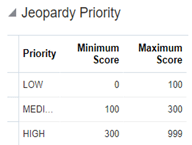
  • Minimum and Maximum scores determine what priority it will fall under(Low, Medium or High)
    and same is used at time of creating Jeopardy Threshold. Score is set based on business needs.

Manage Jeopardy Threshold

Jeopardy priority is used as a reference to determine

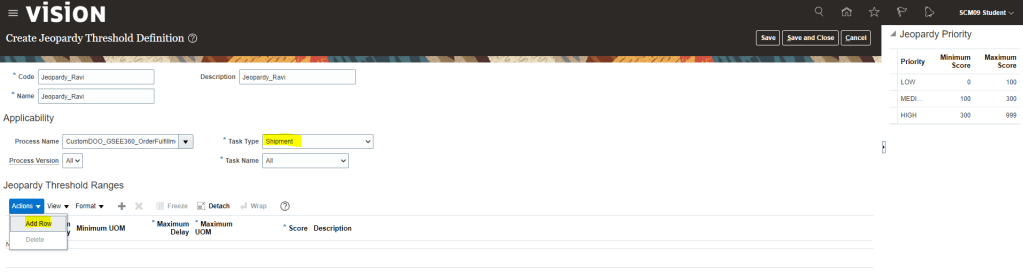
  • Navigation: Go to Others -> Setup and Maintenance -> Order Management -> Enter Rules(Manage Jeopardy Threshold).
  • Under Action Select Create if we wish to create new Thresholds, else select Edit to update existing thresholds.
  • Code -> Enter Code for your Jeopardy Threshold Definition.
  • Name -> Enter Name for your Jeopardy Threshold Definition.
  • Process name -> Enter Process name given at time of Orchestration Process Definition.
  • Task type -> where you want this threshold to be applicable. It can be set to All or if want this Jeopardy to be set for specific task i.e. Shipment.
  • Task Name -> If we select any particular Task type, then respective Task Name will show in drop down. We can select All or any specific task name for which we want this threshold to be applicable
  • Under Action Button, Select Add row.
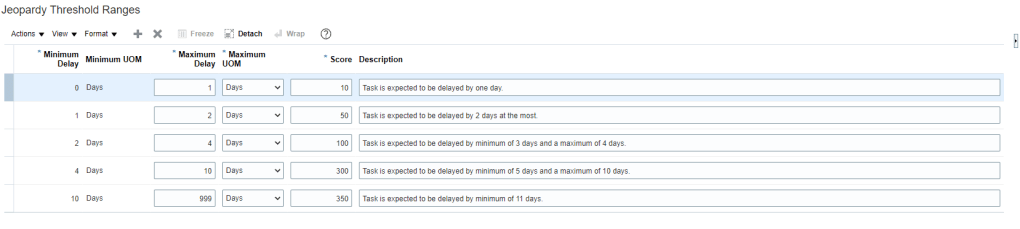
  • Based on Business provided values we can setup the threshold Ranges

When Jeopardy runs

  1. When an orchestration process is assigned to an order line, the process is planned taking into account the lead time of steps in the orchestration process and certain key dates from the sales order, such as required completion date.
  2. Each task of the process has a planned start and completion date.
  3. The orchestration process is re-planned, when a task completes or when the scheduled process runs.
  4. Jeopardy runs when planning runs, so a task can be at risk and still not appear as in jeopardy because an event hasn’t triggered planning to run.

How Jeopardy Threshold is evaluated

Order Management searches for a threshold that applies to the highest number of entities of the task. It
searches for a threshold in this order:

  1. Process name, process version, task name, and task type
  2. Process name, process version, and task name
  3. Process name and task name
  4. Process name, process version, and task type
  5. Process name and task type
  6. Task name
  7. Process name and process version
  8. Process name
  9. Task type

Application of Jeopardy in Order Management

Jeopardy setup using Orchestration Process gets applied by default.

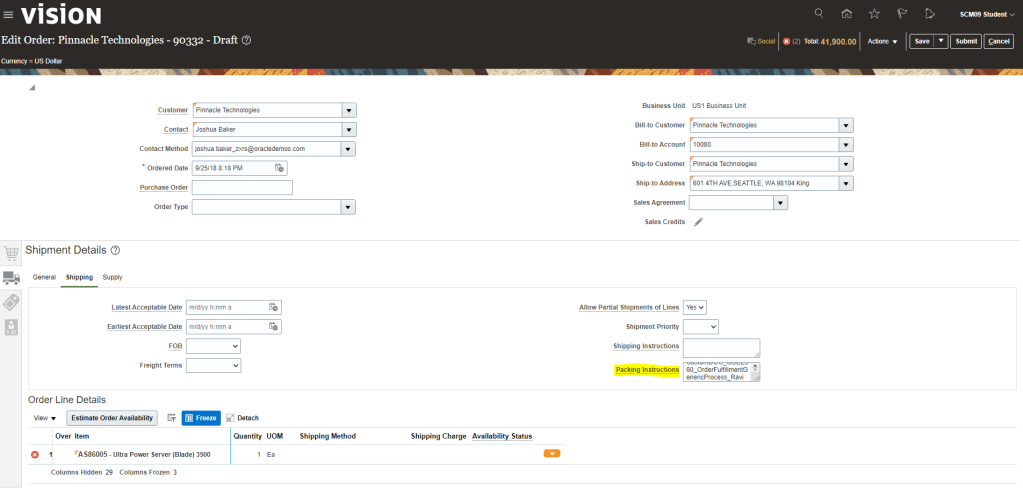
In case we want specific Jeopardy to be applied while Creating order then we need to go to Shipping Truck Icon. Under Shipping tab, Enter Orchestration process Name in Packing Instruction.

This is how Jeopardy thresholds gets picked up.

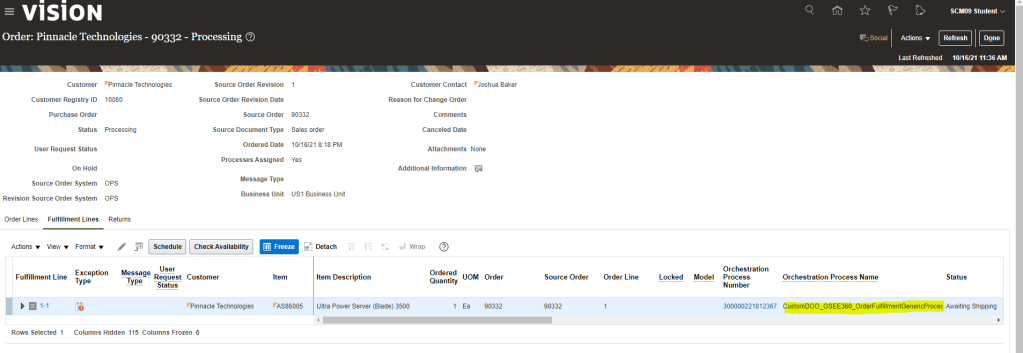
  • Click on Actions -> Switch to Fulfillment Views -> Under Fulfillment Tab we will see Orchestration Process Name assigned to the corresponding Order Number
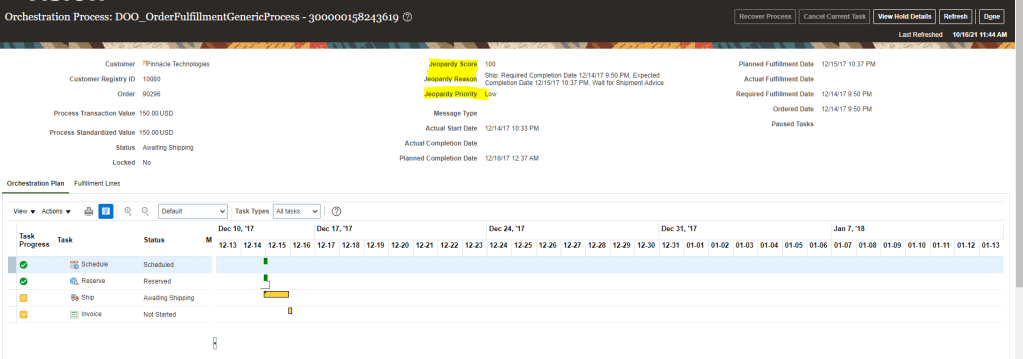
  • Click on Orchestration Process to See Jeopardy Details

Please Note: Since my order will take some time to move, Below screenshot is of different orders.

Currently Jeopardy Score of this order is Low as it is in manageable range,

Status in Orchestration Process in Oracle Fusion

Statuses play key role in Order Management to determine the life cycle of Order. Any order goes through series of steps and Status helps in identifying the current status of order. Status defined in Orchestration Process will reflect in Order Management.

Statuses are determined at two level

  • Orchestration Process
    • Designate the statuses that represent an Orchestration Process
    • Select a preset group of Orchestration process statuses
    • Create rules that govern how statuses are attained
  • Fulfillment Line
    • A status catalog provides a means to differentiate status values by item characteristics.
    • A status rule set is:
      • A set of rules that govern the conditions under which status codes are assigned to fulfillment lines
      • used to apply a set of sequential statuses to the fulfillment line that is processed by the orchestration process

Statuses goes through a life cycle

  • First we get status from fulfillment system which could be internal or External.
  • External Interface layer translate/maps the fulfillment system status value into Order Orchestration status value.
  • Task Layer Determine the status message to be send.
  • Using Source and Target mapping, task status is set during Orchestration processing
    • Set Fulfillment line status based on task statuses associated with the fulfillment line.
    • Set Orchestration Order Line status based on the whether the associated fulfillment lines are opened or closed.
    • Set Orchestration Order status based on whether the associated orchestration order lines are opened or closed.
    • Set Orchestration Process status based on status of all tasks within the process.

Status setup involves two main activities

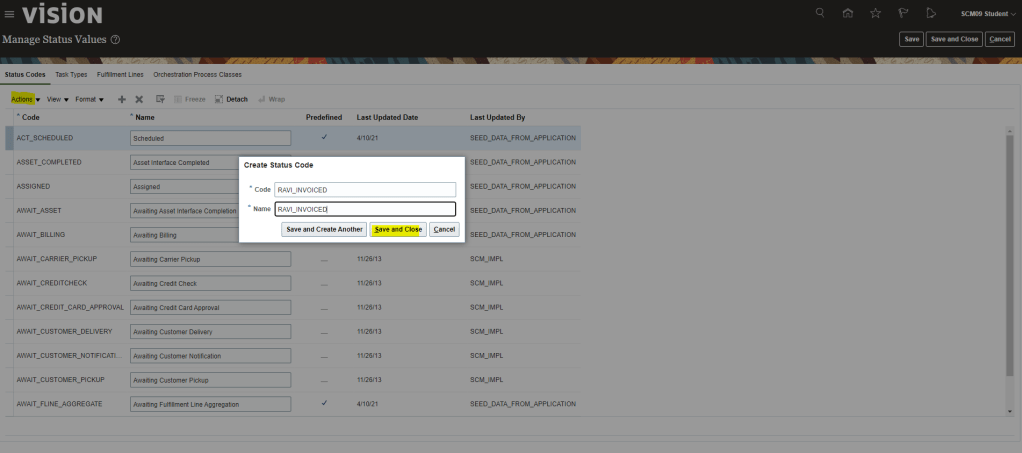
  • Creating Status Values : Create Status Codes and designate where we want the status codes to be used. Example, we might want to allow Invoiced to be used for the fulfillment line status.
  • Creating Status Conditions: Create If-Then conditions that designate when you want a status code to be used. Example: If the ship task status is Shipped, then use Shipped as the status of the Orchestration process.

Case 1: To create new status Values and assign it to Fulfillment Lines.

  • Navigation: Go to Others -> Setup and Maintenance -> Order Management -> Enter task “Manage Status Values
  • Under tab Status Codes-> Go to Actions -> click on Create and then add Status Code.
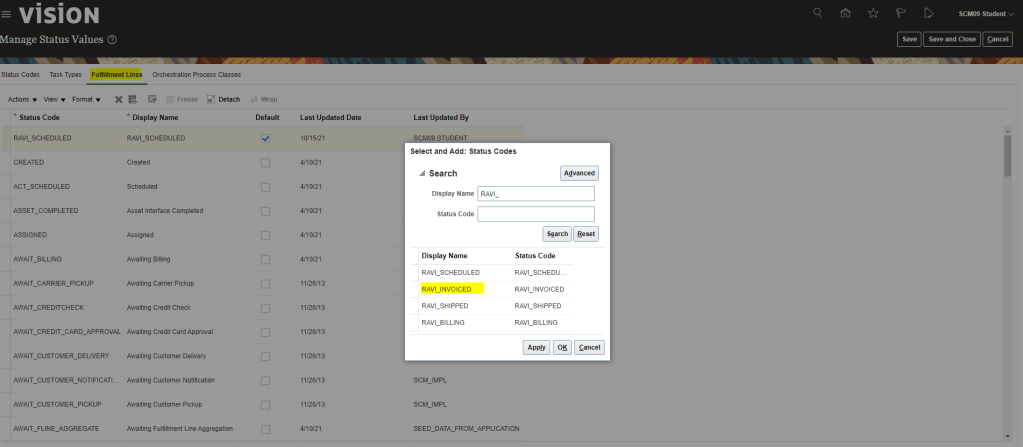
  • Under tab Fulfillment Lines ->
    • Go to Actions ->
    • Click on Select and Add Status code ->
    • Search with either Status code or Display Name ->
    • Once Status code appears click on Apply ->
    • On top right corner click on Save and Close.

Case 2: To create new status Values and enabling it to pass through i.e. it can be used for Fulfillment lines and Task Types.

Step 1: Create Status Values

  • Go to Others -> Setup and Maintenance -> Order Management -> Enter task “Manage Status Values” within this
    • Under tab Status Codes-> Go to Actions -> click on Create and then add Status Code
    • we need to enable Status values so it can be used under fulfillment lines.
    • Under tab Fulfillment Lines -> Go to Actions -> click on Select and Add Status code -> search with either status code or Display Name -> once status code appears click on Apply -> and on Top right corner click on Save and Close.
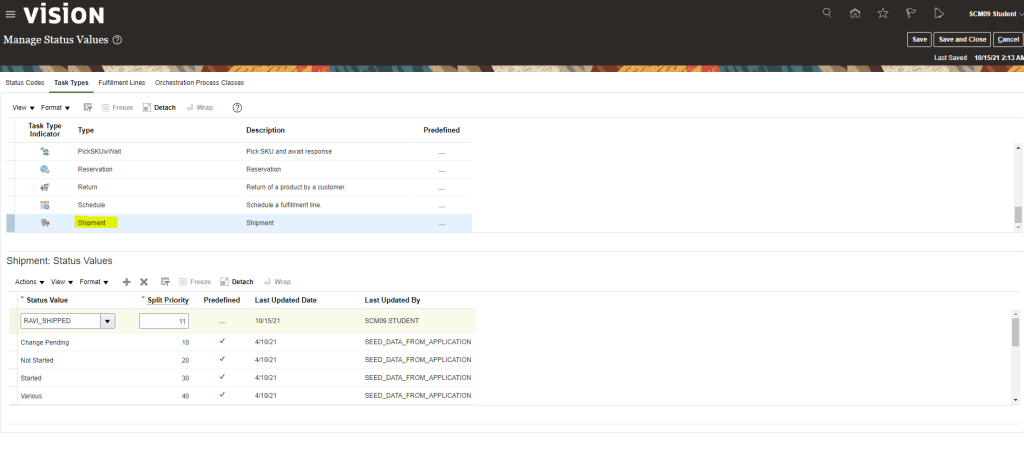
    • Under tab Task Types-> Select Task to which we want to associate Status Code. On Top section, scroll down to select Shipment. Under Bottom Section of Activity Go to Actions -> click on Add row-> Search status value created in previous Steps. Enter Split Priority and Click on Save and Close

Step 2: Use Status created in Step1 to map it to Task

  • Go to Others -> Setup and Maintenance -> Order Management -> Enter task “Manage Task Status Conditions”
  • Search for Shipment at top section by scrolling Down. Created in Step1.
  • In lower section under Shipment Status Conditions -> Go to Actions -> click on Add row-> In Internal Status value search with either status code or Display Name -> In Display Status Value search with search with either status code or Display Name -> Once value is selected then select both the values and Mark as Complete -> And on top right corner click on Save and Close.

Step 3: Creating Orchestration Process Class

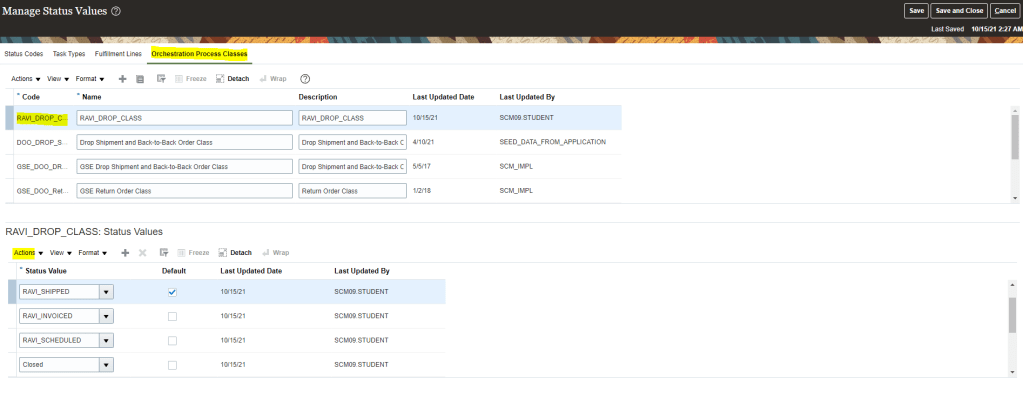
Orchestration Process Class holds all Status values which will be used in Orchestration. It gives the flexibility of grouping all custom defined status under one umbrella.

  • Navigation: Go to Others -> Setup and Maintenance -> Order Management -> Enter Task “Manage Status Values” within this
  • Under Orchestration Process Classes-> Click on Actions -> Click on Create -> Add Code with Name and Description
  • Under Process Class Status Values -> Click on Actions -> add Status Code.
  • Keep on adding Status Code in Process Class. After which on top right corner click on Save and Close

Step 4: Creating Custom Defined Statuses in Orchestration Process Definition.

  • Navigation :Go to Others -> Setup and Maintenance -> Order Management -> Enter task “Manage Orchestration Process Definitions”
  • Edit or Create New Orchestration Process Definition
  • From drop down list, Select Process Class Created in steps “Creating Orchestration Process Class”
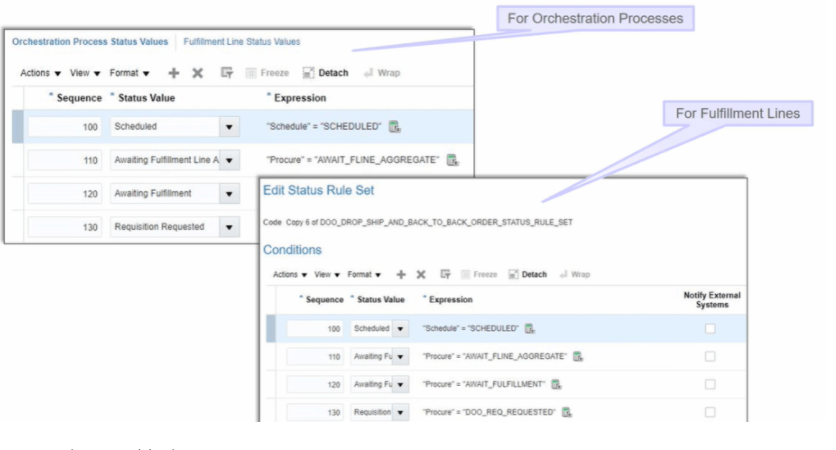
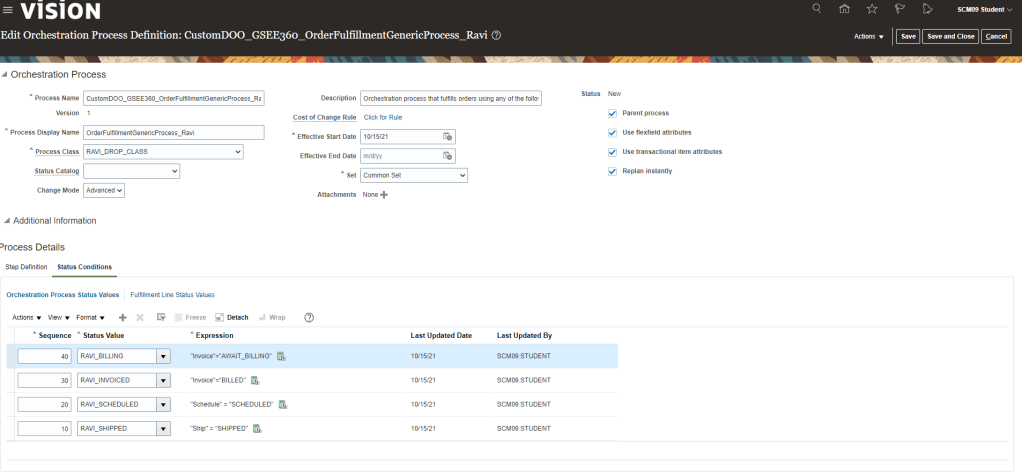
  • Click on Status condition. Under Orchestration Process Status Values, Click on Actions -> Add
  • Enter Sequence as 10, Status Values which was created in Step “Status Values”
  • Click on Expression, Below screen appears. Since we are creating status for Shipping, select CustomDOO step which is meant for Shipping and then click on Insert into Expression link.
  • Then click on necessary operators, next to Tasks Tab and choose “=”. We can manually type “=”
  • Expand Custom DOO and then choose relevant Status. Click on Insert into Expression
  • Finally we will have Expression “Ship” = “SHIPPED”.
  • Repeat steps for all status which were created earlier.

Step 5: Setting Up Status for Fulfillment Lines

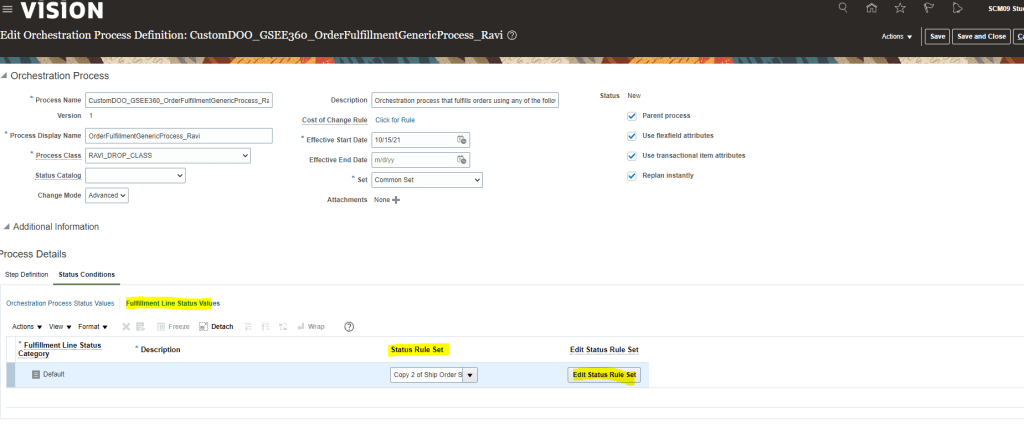
  • Under Status Condition -> Fulfillment Line Status Values -> Click on Status Rule Set -> Copy Rule Set
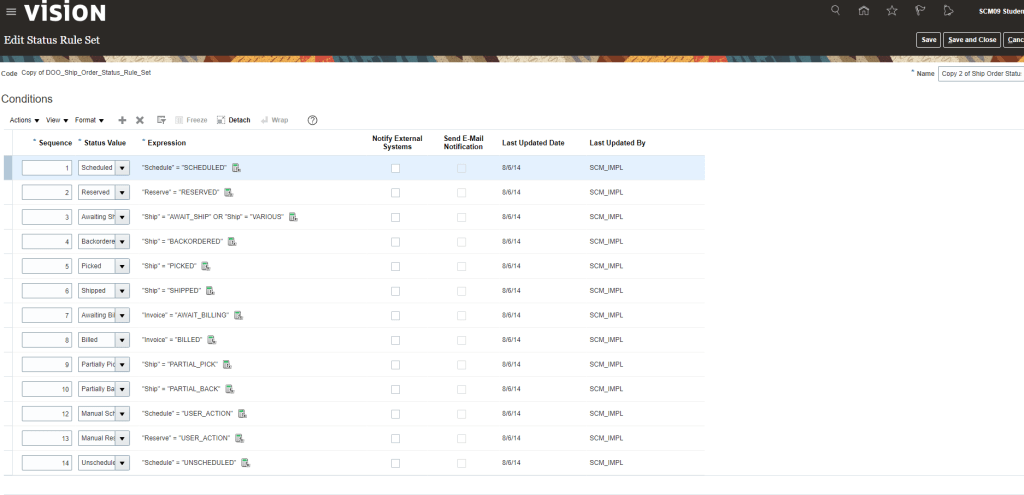
  • Click on Edit Rule Set, Below screen should appear
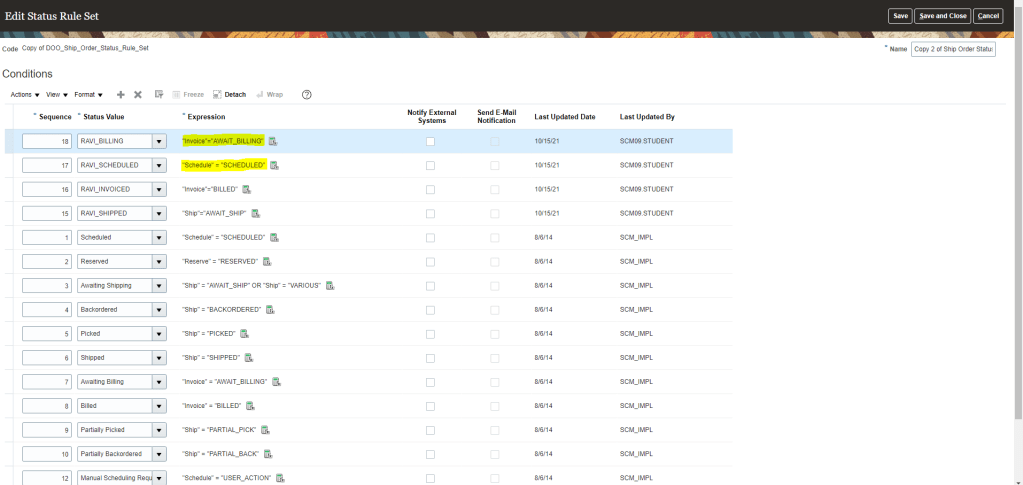
  • Enter Value for Sequence. From drop down list Select custom defined Status Values.
  • Click on Expression and follow same steps of adding Expression which was used in Orchestration Process Status Values.

Deployment of Orchestration Process in Oracle Fusion

Steps to Deploy Orchestration Process Definition

  • Navigation: Go to Others -> Setup and Maintenance -> Order Management -> Enter Rules “Manage Orchestration Process Definition”
  • Choose any Existing Orchestration Process to Edit
  • After making changes to Orchestration process, go to Right Hand Corner. There is Action Button. Choose Action Button. Under Action Button, first click on Validate to verify error if any.

  • Under Action Button, then click on Release(release internally does Validation).
    • We should get below message. No need to Download, simply click Cancel button.
    • Under Action Button, Deploy button will get enabled. Click on Deploy.
    • System will ask for user name and password along with Target Host and Port Number. Enter the details and click on “Deploy”.
    • Orchestration process gets deployed successfully. In case if there is any error, we should see logs to verify the error.
    • While Creating Order if we enter Packing Instruction if we enter Planning Orchestration id, it will be picked

    Orchestration Process Assignment

    Orchestration Process Assignment in Order Management, Oracle Fusion

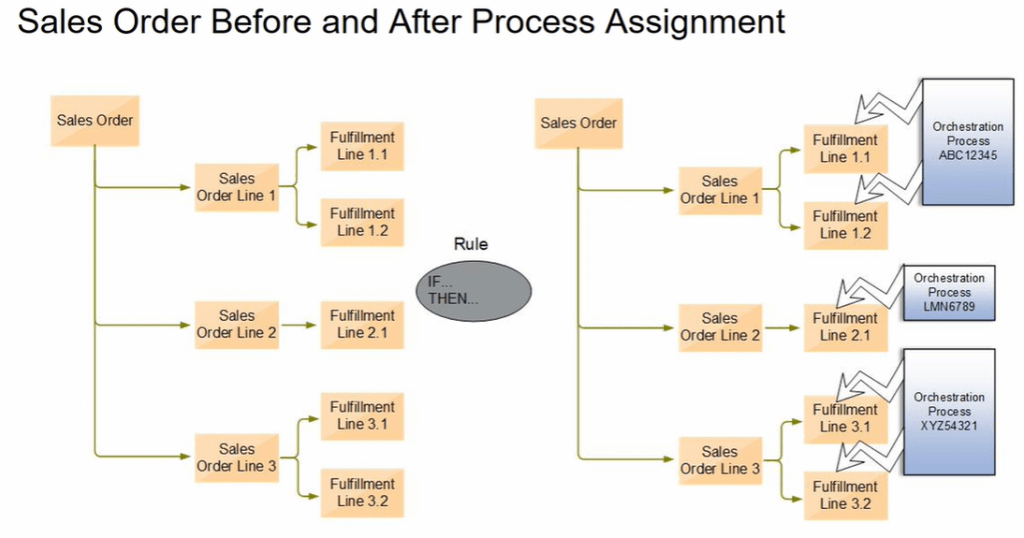
    After we submit an order, Orchestration process is assigned automatically to each fulfillment lines of the order.

    • Below is the snapshot of Orchestration process getting assigned to each fulfillment lines. It could be possible that one Orchestration process gets assigned to multiple fulfillment lines.

    Steps to Assign Orchestration Process

    • Navigation: Setup and Maintenance -> Order Management -> Enter Rules(Manage Process Assignment Rules for Sales Order)
    • Create a Rule to assign specific shipping Method for specific item
    • Create a rule If Item(AssignLaunchRules.Order Fulfill Line) = “AS68004” then assign in Process section Process Name (AssignLaunchRules.Order Fulfill Line) “IS SET TO ” ShipOrderGenericProcess.
    • Click Ok and Save and Close.

    Orchestration Group

    An orchestration group is a collection of fulfillment lines that Order Management, processes
    together. Each orchestration group is a subset of a sales order. An assignment rule processes
    each orchestration group at run time, so you must add a test that links each fulfillment line with
    the group. The predefined assignment rules already include this test.

    This gives flexibility to group fulfillment lines based on certain criteria which helps in saving cost of the organization.

    If we take below example, due to unavailability of stock, Keyboard will not be delivered before Oct 15, but rest of items can be delivered by October 10th and 11th. If there would had been no grouping, all items would have got delivered on their respective scheduled dates, thereby incurring additional shipping cost.

    But if Organization has set Grouping based on Shipment Set, despite order lines has different schedule date, they all get grouped and are shipped on October 15th, there by saving shipping cost for the organization.

    Processing Constraint in Oracle Fusion, Order Management

    What is Processing Constraint

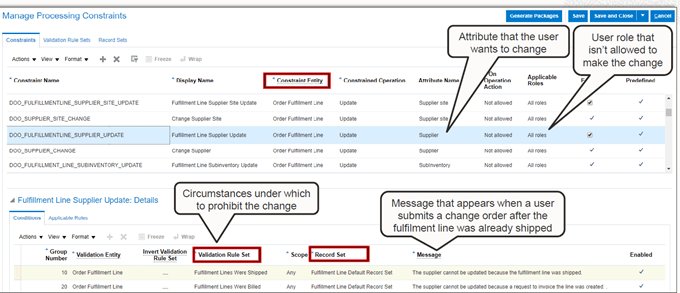
    Processing Constraints in Oracle Fusion regulate the changes that an order entry specialist makes on a sales order in Oracle Fusion Order Management Cloud. The controls can be of three types – Who, What and When:

    1. Who:

    Determines which users can make the said changes. This will depend upon the roles assigned to the user

    Example: A person having custom role ATLANTA_ORDER_ENTRY_SPECIALIST cannot submit orders with Supply warehouse as SEATTLE Warehouse

    2. What:

    Determines on what field we have the constraint

    Example: Constraint will apply if Warehouse Name is not “Atlanta”

    3. When:

    Determines the stage of order processing when the constraint should apply

    Example: Constraints can apply when you Submit / Validate / Update etc an order

    Components of Processing Constraint

    1. Record Set:

    2. Validation Rule Set:

    3. Processing Constraint

    4. Constraint Entity

    How Processing Constraint Looks in Fusion

    Steps to Setup Processing Constraint

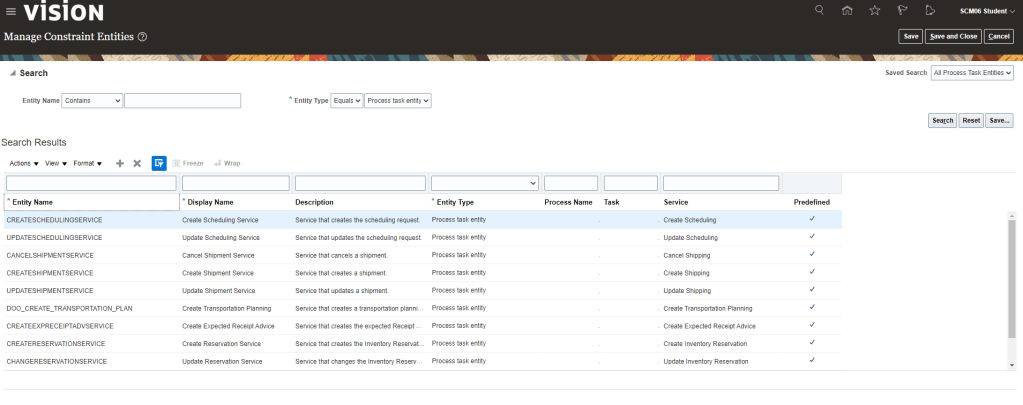
    • Go to Others -> Setup and Maintenance -> Order Management -> Enter Task “Manage Constraint Entities
    • In Entity Type search for View Entity and select Order Header Level. Take any field for which processing constraint needs to be enable and Check the box.

    Step1: Processing Constraints Setup

    • Navigation: Go to Others -> Setup and Maintenance -> Order Management -> Enter Task “Manage Processing Constraint”.
    • Create a Record Sets -> Select Entity -> Order Fulfillment Line and Attribute Name(Order Line ID) and Click Save

    • Create Validation Rule Sets
      • Select Validation Type as “Table”
      • Entity as “Order Fulfillment Line”
      • Go to Details section and in Attribute Name give “Status”.
      • Valid Operations = “Equal to”
      • Value String = “Awaiting Shipping”
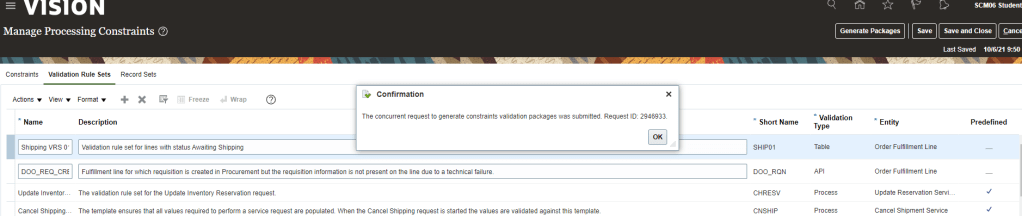
      • Click on Save and Generate Packages
    • We should see Confirmation Message after Generation of Packages.
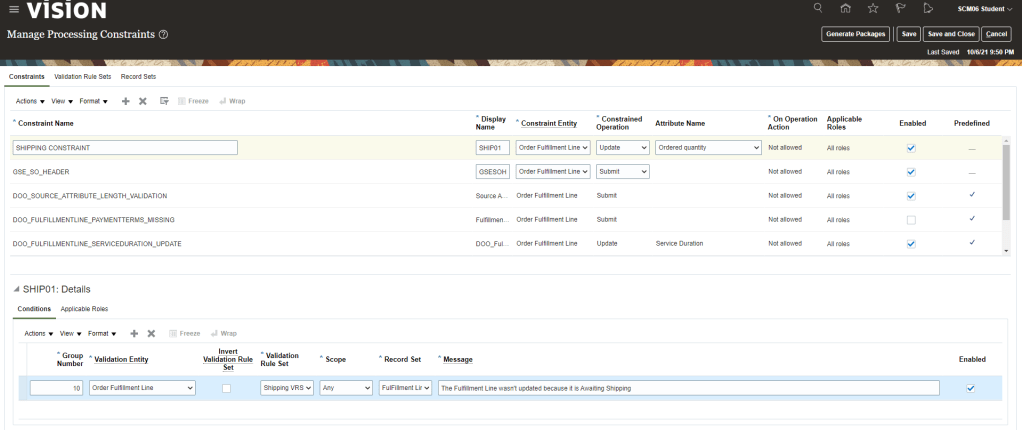
    • Create a Constraint
      • Constraint Name = ” SHIPPING CONSTRAINT”
      • Display Name =” SHP01″
      • Constraint Entity = “Order Fulfillment Line”
      • Constraint Operation = “Update”
      • Attribute Name = “Order quantity”
      • Ensure Enabled is Checked
      • Under Details section
        • Group Number = “10”
        • Validation Entity = “Order Fulfillment Line”
        • Validation Rule Set = “Shipping VRS 01” -> What we created at Validation Rule Set
        • Record Set = “Fulfillment Line” -> What we created at Record Sets
        • Message = “The Fulfillment Line wasn’t updated because it is Awaiting Shipping”.
    • Under SHIP01 Details, Choose Applicable Roles is set to “All Roles”. Click on Save and close

    Step2: Application/Testing of Processing Constraint on Order.

    • Create Order and setup QTY to 1 and Submit the order
    • Once Order gets submitted, wait till it status changes to “Awaiting Shipping”
    • Create Revision of Order. Order changes to Draft Status.
    • Try changing the Qty from 1 to 2
    • Processing constraint will come into effect and will prevent order Qty to be changed. Error Message setup in Processing Constraint will display and QTY automatically changes from 2 to 1.
    • In case we want to disable above applied Processing constraint, uncheck Enabled field at the Header level not the one at Detail level.
    • Click on Save and then Generate Packages.
    • If Header level has more than one constraint entries at detail level and we want to retain one detail level constraint but disable other then in such case we will uncheck Enabled field for that detail line which we do not want to keep and then click on Generate package. Do ensure Enabled field remains checked at Header level.

    Parameterized BI Report along with Job Setup in Oracle Fusion.

    Pre-requisite : Refer link to create/understand BI Fusion Report from Scratch

    https://wordpress.com/post/ravidubey.work/372

    Below steps explain how to create parameterized BI report

    Step 1: Create New DATA MODEL

    1. Go to Menu Option New
    2. Select Data Model
    3. Click on + Icon
    4. Select SQL Query
    5. Create a Data model with SQL query

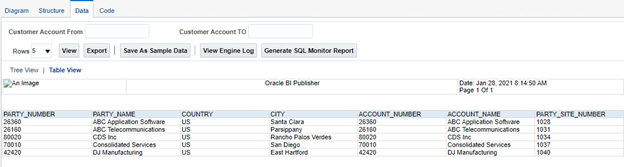
    • Save as Sample Data  which needs to be used by Report when creating report from Instance
    • Export the data and perform steps 2 and 3 of Report Generation from below link

    https://wordpress.com/post/ravidubey.work/372

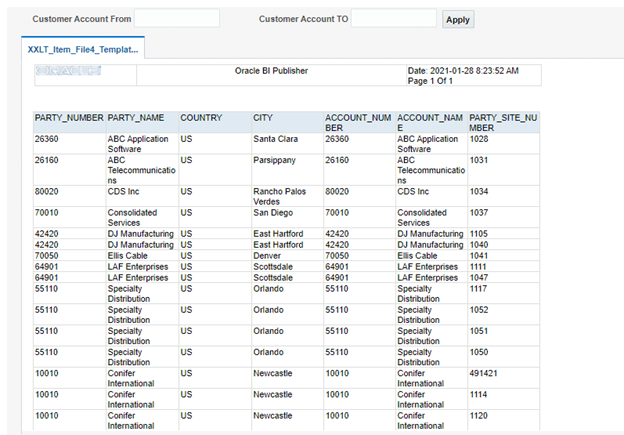
    • Below Report appears.

    Step2 : Save the Path of your BI report. It will be used to Setup job

    From Hyperlink of your BI report, copy path starting after Path=. So for my case, path to be copied is what is shown belo

    %2FCustom%2FRavi%20Test%20Folder%2FXXLT_Item_File4_ReportActual.xdo&path=%2Fshared%2FCustom%2FRavi%20Test%20Folder%2FXXLT_Item_File4_ReportActual.xdo

    Step3 : Setup the Job Definition

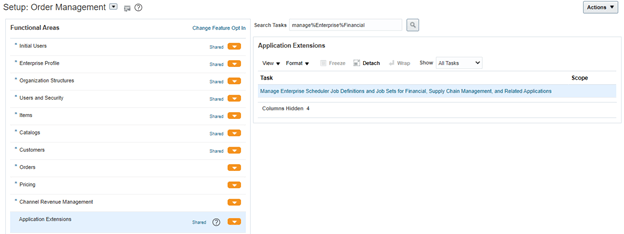
    • Navigation : Go To Setup and Maintenance -> In Order Management Search for task “manage%Enterprise%Financial”
    • Click on “+” button to create new Job Definition.
    • Fill Details as shown below for setting up Job Definition
    • BI Path copied in Step2 will be used in Report ID section.
    • In case it is Parameterized Report, click on Tab “Manage List of Value Sources” and Enter Values
    • Click on + symbol to create parameters for Job
    • Enter Values as shown below and Click on Save and Close or Save and Create Another  Parameters in case we have multiple parameters.    
    • Once Parameter created, Click on Save and Close of Job Definition

    Step4 : Run the Job

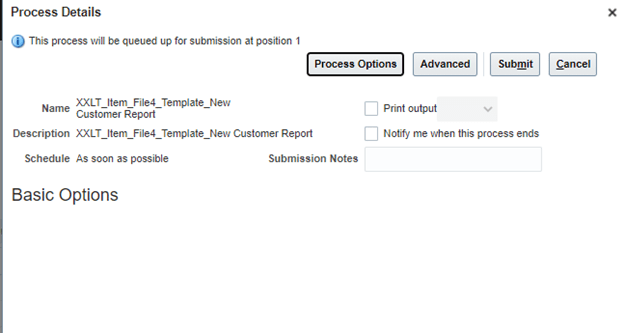
    • Navigation : Go to Tools-> Schedule New Processes and Enter your Job Definition Name
    • Click on Okay, below screen appears
    • On clicking Submit Button, Job Gets submitted and Output can be seen in Log of Job in PDF form.

    Order Approval Process in Oracle Fusion Order Management

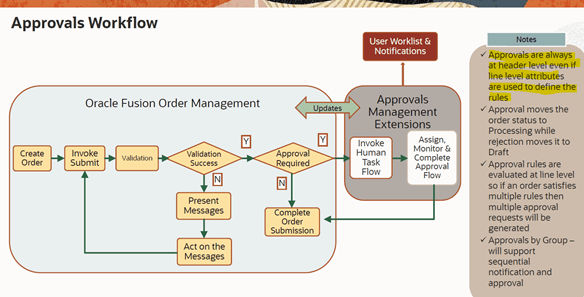
    Business can request for scrutiny of orders coming from specific system into Oracle Order Management. It can even request for extra pair of eyes for “High Value transactions” and request for Order Approval process to be in place.

    Step1: Enable Order Approval Flow

    • Navigation :
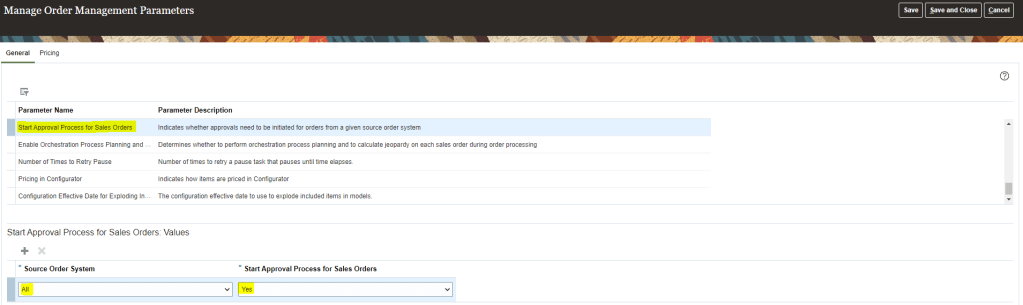
      • Go to Setup and Maintenance. Choose Order Management
      • Search for Task “Manager Order Management Parameter”
    • Click on “Start approval process for Sales Order”. It Indicates whether approvals need to be initiated for orders from a given source order system.
    • Select Source Order System. In Start Approval Process for Sales Orders value should be “YES”.
    • In Source Order System we can have one set of system or multiple for which we want to start approval process i.e. we can only limit approval process for all orders coming from Legacy system.

    Step2: Designing Order Approval Flow

    • Navigation: Go to Others -> Setup and Maintenance -> Order Management -> Enter Task(Manage Order Approval Rules)
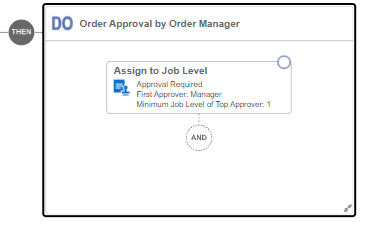
    • Create Rule If Order Total Amount is Greater than $10,000 and Customer is “ABC Application Software”

    • Based on above criteria, click on Then -> Action and assign a approval process. It can be assigned to Single Person or to a Group. See Step 4 if it is assigned to Approval Group.

    Complete Order Approval Process Condition should look like below

    Step3: Click on Activate to activate the rule with Effective Dates(Start and End) .

    Step4: Create Approval group using Task (Manage Approval Groups)

    In case we setup

    Oracle Fusion : Extensible FlexField(EFF’s)

    • Extensible Flex Fields are set of Placeholder fields associated with Business Objects.
    • It appear on Application Pages to contain additional data.
    • It is used to
      • Modify Business Objects and Meet enterprise Data management requirements without changing the data model or performing database programming
      • Capture different data on the same database table
      • Modify features of the application
      • Integrate Order management with another application by capturing one or more attributes from other application.
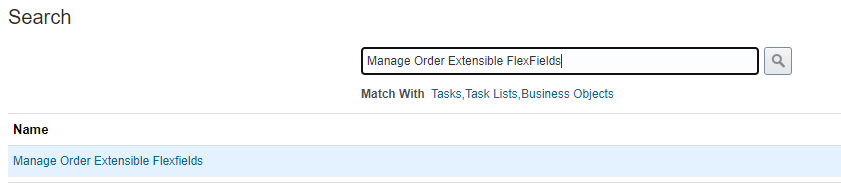
    • Navigation -> Go to Others -> Setup and Maintenance -> Order Management -> Enter task(Manage Order Extensible FlexField).
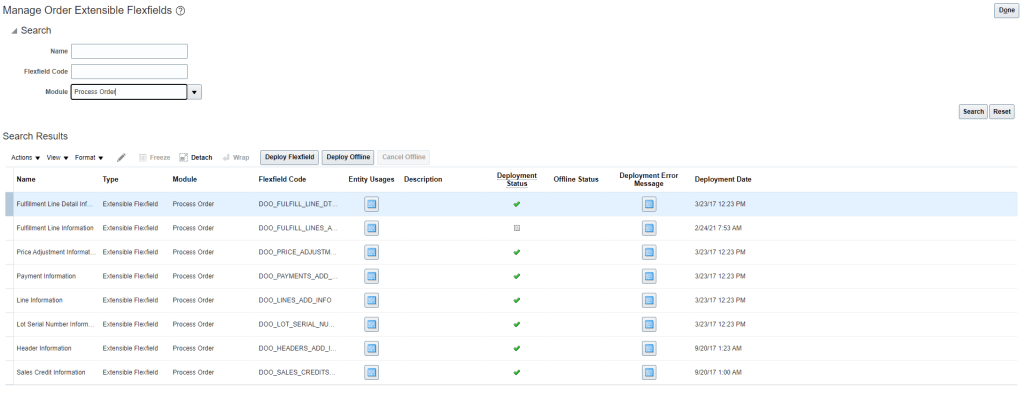
    • In Module enter “Process order” and click on Search.
    • Select flexfield, “Fulfillment Line Detail Information” and click on Actions -> Edit.
    • Once edit screen appears, on right side, click on Manage Contexts.
    • On Manage Contexts screen, click on Actions -> Create
    • Context Page Navigation.
      • Enter Display Name, Select Behavior as Single Row or Multiple Rows. Multiple Rows should have one unique Key check box enabled.
      • Under Context Usages Click on create-> Select Additional Line Information from drop down.
      • Click on Save.
      • Under Context Sensitive Segments click on Create -> It will take us to Create Segment Page.
      • Create Segment page Navigation.
        • Enter Name. Do not enter Code and API name, it should get populated by default
        • Enter Data Type -> Table Column will get populated by Default Validation -> Value Set -> you can create Value set or select from existing list
    • Under Context Sensitive Segments, Click on Actions -> Create.
    • Segments represents attributes of Entities(Business Objects).
    • Context are groups of attributes.
    • Value sets are set of valid values which are assigned to a flexfield segment.
    • On Segment Page, Enter Following details for Segment
      • Name = “Item Type”
      • Code and API Name will get populated by default
      • Choose Data Type = Character
      • Table Column = ATTRIBUTE_CHAR1
    • Click on Save and then click on Create Value Set
    • Click on Create Value Set -> Enter following
      • Value Set code
      • Enter Module = Process Order
      • Validation types = Choose between following
        • Format Only = “Free Text instead of selecting values from the dropdown list”.
        • Independent = These are free form of valid values.
        • Dependent = A valid values in a list of values derived from the independent value of another segment.
        • Subset = The list of values is a subset of the values in an existing independent value set.
        • Table = The values derive from a column in an application table, which can optionally be limited by a WHERE clause.
      • Value data type = Either Number or Character.
    • Click on Save
    • To enter default values click on Manage Values at Top Right corner and add values
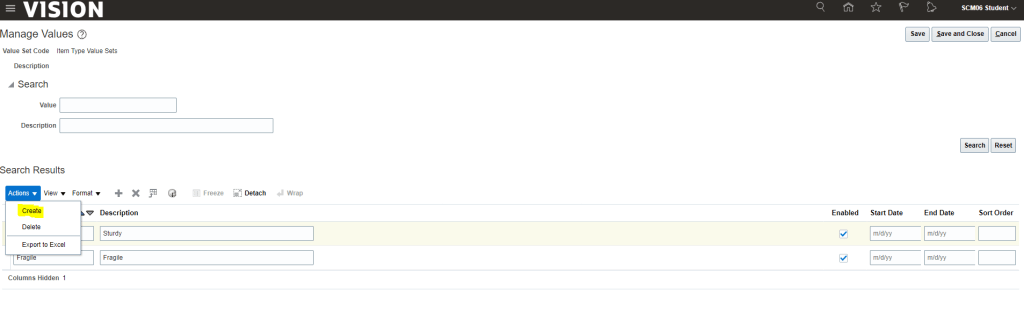
    • On Manage Values Page -> Click on Actions -> select “Create”.
    • Enter Value sets values and Description.
    • On Manage Values page, click on Save and Close. It will take us to Create Segment page. On Create Segment Page Click on Save and Close.
    • New Context Line “Item Type” gets added. Click on Save and Close.
    • After reaching to “Edit Extensible Flexfield” page
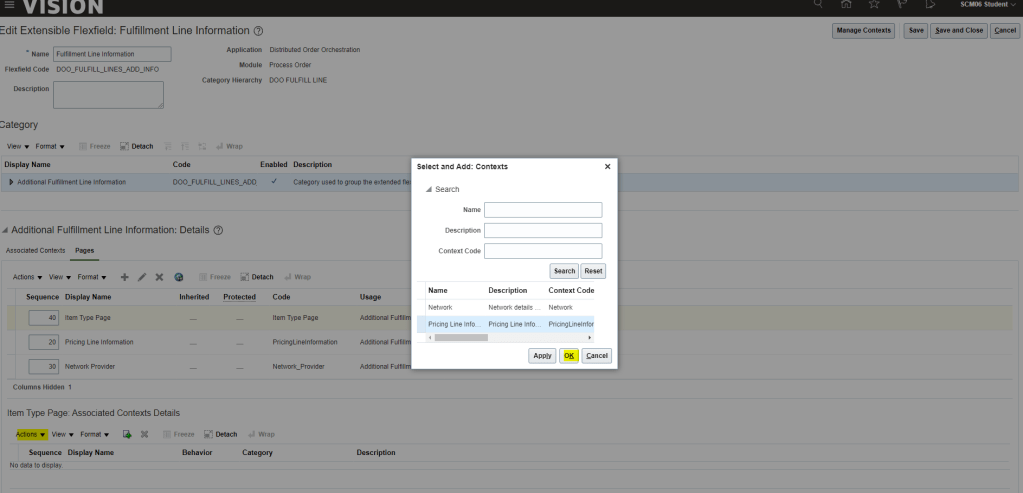
      • Click on Actions of Associated Contexts under Additional Line information and click on Select and Add
      • Search for your line context and click on Apply and OK
      • Click on Save
    • Click on Pages tab under Additional Line information and click on Create under Actions
      • Create Page will get displayed
      • Enter Display Name , Usage enter Additional Line Information -> click on Save and close
    • Under : Associated Contexts Details section, click on Select and Add -> Search for Name of Context and click on Apply and Add.
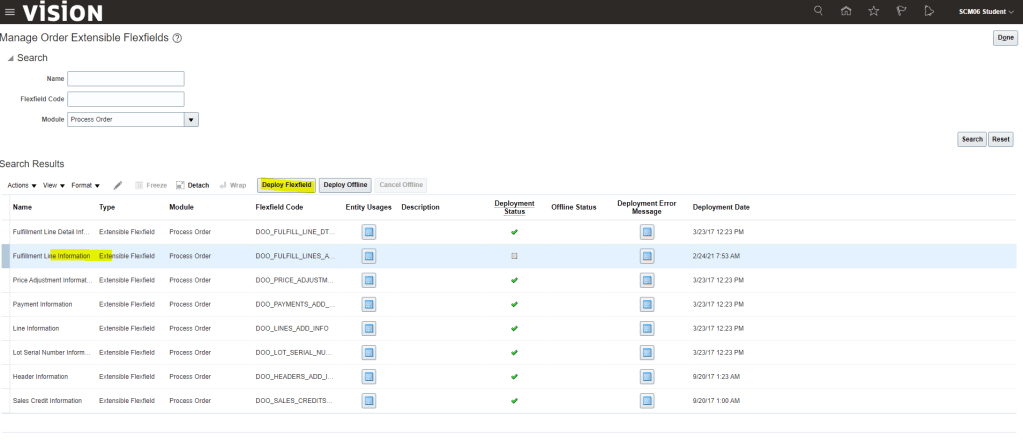
    • On Manage Order Extensible Field main Page, select Line Information and click on Deploy FlexField. In case we have made many changes, its advisable to choose Deploy Offline.
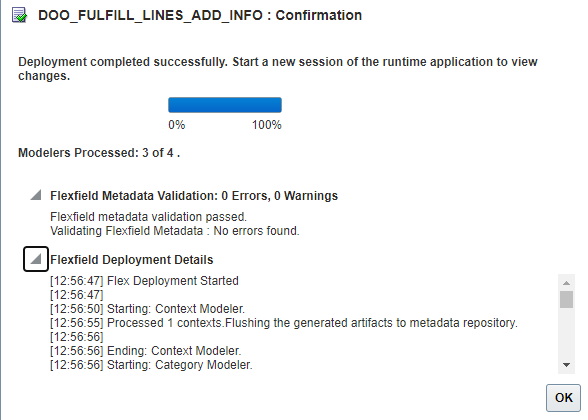
    • Deployment process
    • We should see Deployment is successful Message.
    • Run Job “Publish Extensible FlexField Attributes” to make this change available on Order management screen
    • Go To Order Management. At Line level, Click on Additional Information. We should be able to see our new EFF created.